Best Selling Products

MidJourney Account
29 USD

Adobe Premiere Pro Account
99 USD

Autodesk All App Account Copyright
120 USD

Plugin Retouch4me
69 USD

Freepik Premium Account
59 USD

Windows 10 & 11 Pro Key
36 USD

Adobe Photoshop Copyright - Full App
120 USD

Capcut Pro 1 Year
39 USD

Genuine Adobe Illustrator account
99 USD

Genuine Cheap Canva Pro
39 USD

Upgrade Genuine Office 365
49 USD

Upgrade genuine Capture One account
120 USD

ChatGPT Plus Account (GPT-4)
16 USD

Copyright Adobe Lightroom Account
59 USD

Upgrade Duolingo Super
29 USD
How to create ID photos from portrait photos using Copilot quickly and easily.
Nội dung
- 1. What's so great about creating ID photos from portraits using Copilot?
- 2. Prepare your photo before creating your ID photo on Copilot.
- 3. Instructions on how to create ID photos from portrait photos using Copilot
- 3.1. Step 1: Open Copilot and find the image creation tool .
- 3.2. Step 2: Upload your portrait photo to Copilot
- 3.3. Step 3: Let Copilot process and create the ID photo.
- 3.4. Step 4: Use the prompt to customize the ID photo.
- 3.5. Step 5: Download the image and check the finished product.
- 4. How should I write the prompt to create a passport photo in Copilot?
- 5. Common errors when creating ID photos using Copilot
- 6. Advantages of creating ID photos from portrait photos on Copilot
- 7. Tips to make ID photos created with Copilot look more natural.
- 8. Conclusion
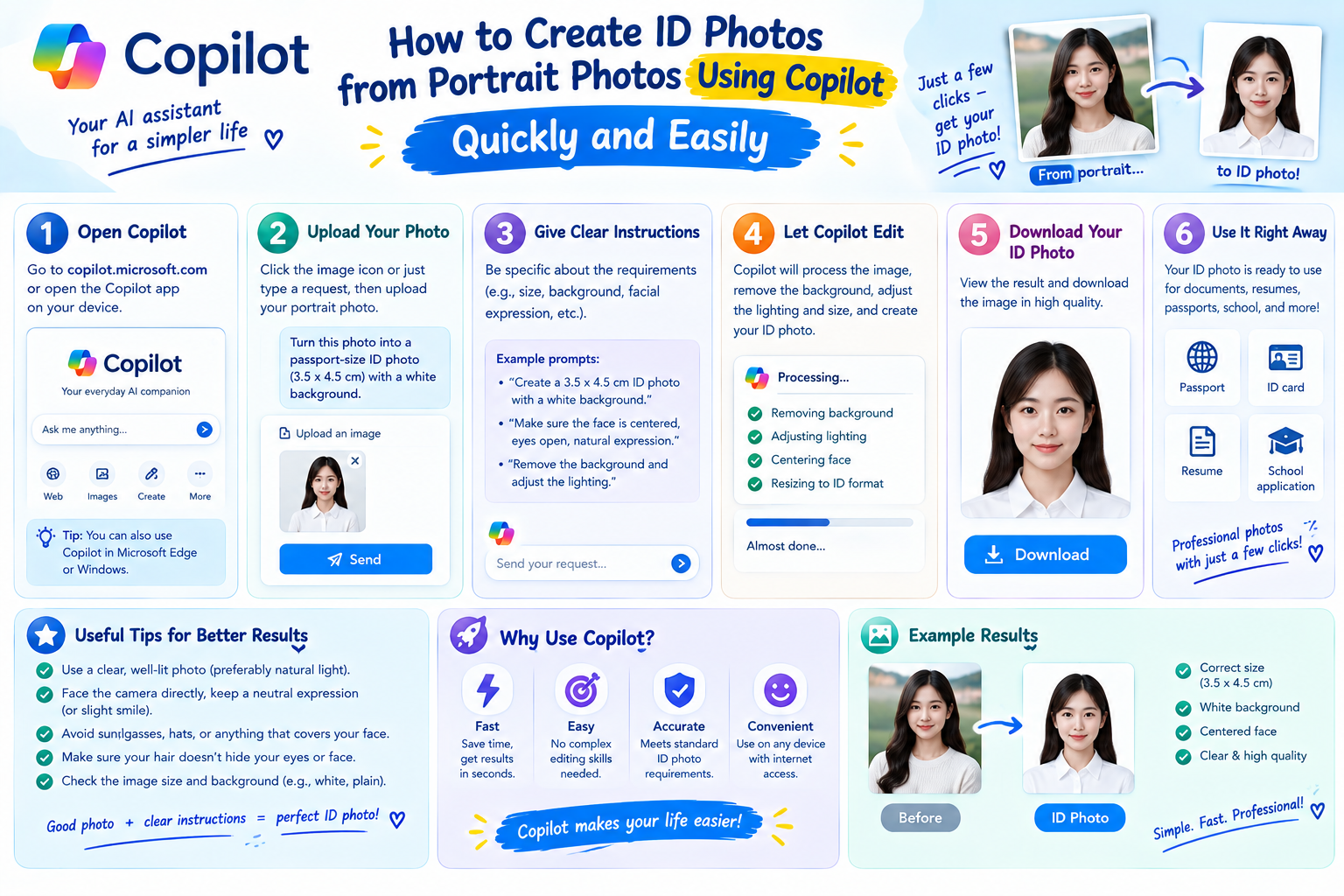
Nowadays, you don''t necessarily have to go to a photo studio every time you need a passport photo. With just a pre-existing portrait photo and the help of AI, the photo creation process can be significantly streamlined. Copilot can assist with image processing, background changes, layout adjustments, and creating passport photo versions to suit various needs. Importantly, the process is quite simple, even if you''re unfamiliar with photo editing software. In this article, let''s explore with Saesign how to create a passport photo from a portrait photo using Copilot, from preparing the photo and entering your requirements to checking the final product for a natural and user-friendly result.
1. What's so great about creating ID photos from portraits using Copilot?
Instead of preparing your camera, finding a studio, and waiting for editing, you can leverage a suitable portrait photo to create an AI-powered ID photo. Copilot supports processing multiple elements in a single process, from the background and lighting to facial positioning. The convenience lies in the ability to try multiple times. If the first version isn't suitable, you can adjust the requirements or recreate it to find a more satisfying result.
-
No need to use professional photo editing software.
-
You can start with an existing portrait photo.
-
Supports changing the background as requested.
-
The layout can be adjusted using commands.
-
Save time when you need photos urgently.
-
Suitable for various purposes such as online profiles, CVs, or personal photos.
However, AI can only produce good results when the input image is clear enough and the requirements are clearly specified. Therefore, image preparation remains a crucial step.
2. Prepare your photo before creating your ID photo on Copilot.
A high-quality input photo will help Copilot recognize faces and process the composition more effectively. You don't necessarily need a studio photo, but you should choose one with a clear face, stable lighting, and no obstructions. Before uploading the photo, take a few seconds to check the following factors. This helps prevent distorted faces, unbalanced composition, or the final image not resembling the original.
-
Good resolution: Prioritize sharp images, free from blurriness or pixelation.
-
Recognizable faces: Choose photos taken from a straight-on view or at a slight angle.
-
The face should be relatively centered: Avoid photos where the subject is too close to the edge.
-
Stable lighting: Avoid photos where one side of the face is too dark or heavily illuminated.
-
Don't obscure your face: Avoid sunglasses, masks, and hair that covers most of your face.
-
Dress neatly: If applying for a personal profile or CV, choose professional attire.
-
Simple background: Photos with a background that lacks detail are generally easier to process.
A helpful tip is to keep the original, high-quality image instead of using heavily compressed images from social media. The clearer the image, the better the chance that facial details will remain stable during AI processing.
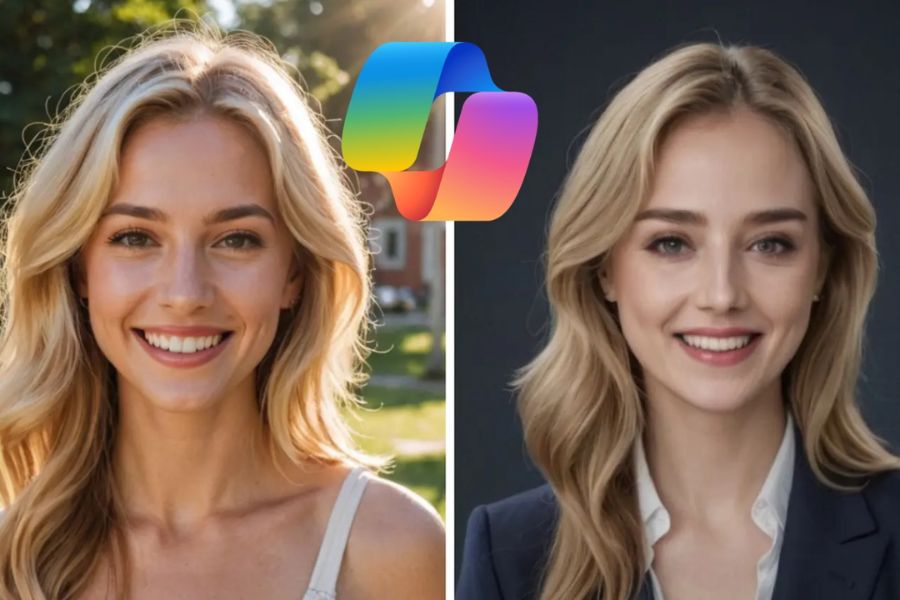
3. Instructions on how to create ID photos from portrait photos using Copilot
The process of creating ID photos on Copilot is not too complicated. After preparing a suitable portrait photo, you can upload the photo, select the tool, and provide specific requirements.
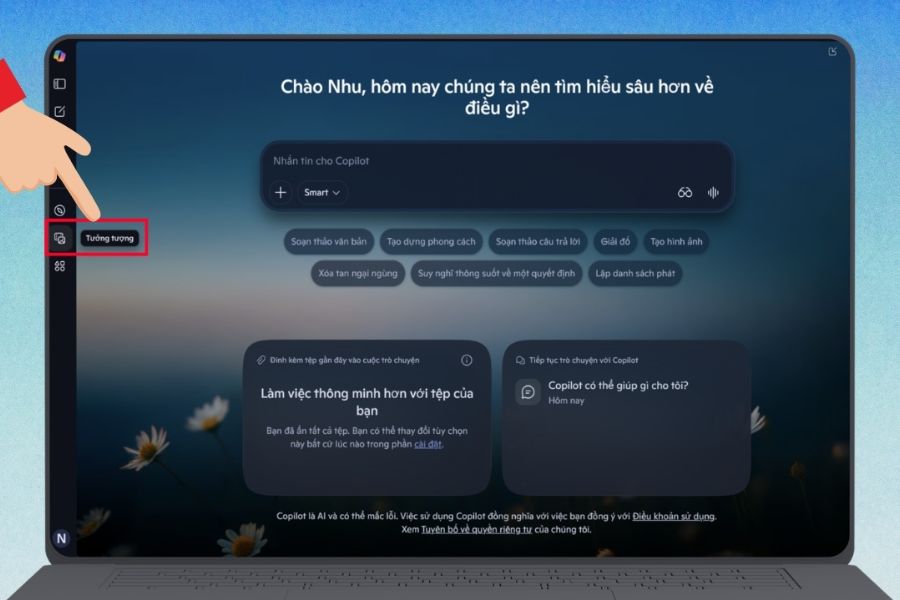
3.1. Step 1: Open Copilot and find the image creation tool .
First, access Copilot on your browser and log in to your account if prompted. On the main interface, find the section related to image creation or editing features. The interface and names of the features may change from time to time. Therefore, if you don't see the correct tool name as instructed, look for the image creation section or AI features related to images.
-
Open Copilot in your browser.
-
Log in to your account if prompted.
-
Find the Imagination area or the image creation feature.
-
Check for options related to passport photos or ID photos if your interface displays them.
-
Choose the right tool to get started.
After finding the right image creation tool, you can move on to uploading the portrait image to the system. This is a crucial step to provide the AI with image data for processing.
3.2. Step 2: Upload your portrait photo to Copilot
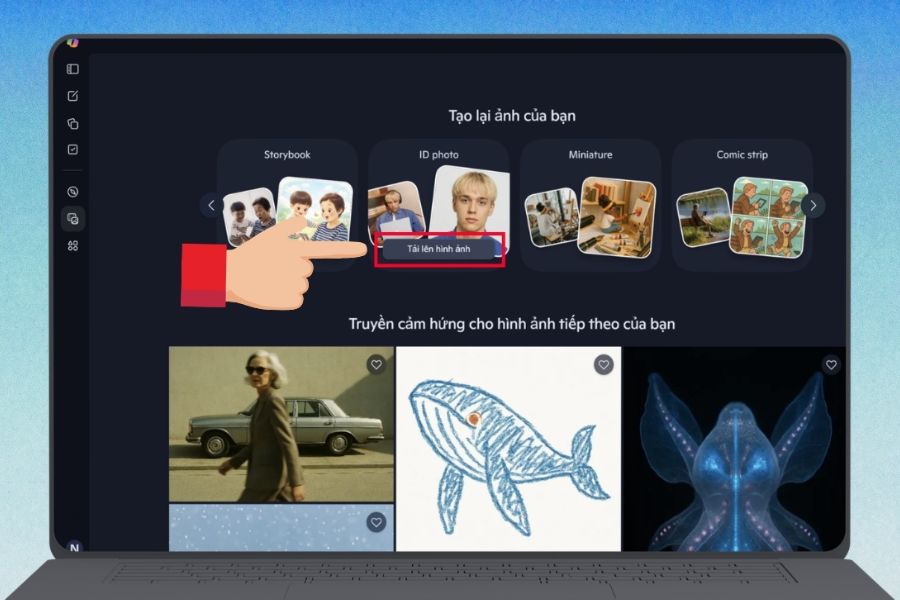
Next, select the image upload option and find the portrait photo you prepared on your device. Prioritize a high-quality photo with a clearly visible face. After uploading, check the image displayed on Copilot. If the head is cropped, the face is too small, or the quality is too low, switch to a different photo before continuing.
-
Click Upload image .
-
Choose a portrait photo from your computer or phone.
-
Wait for the image to finish loading.
-
Check if the face is fully displayed.
-
Make sure the image is not rotated or distorted before creating it.
The better the initial photo is, the less you'll need to edit it in later steps. This is also a simple way to limit the AI from altering facial features too much.
3.3. Step 3: Let Copilot process and create the ID photo.
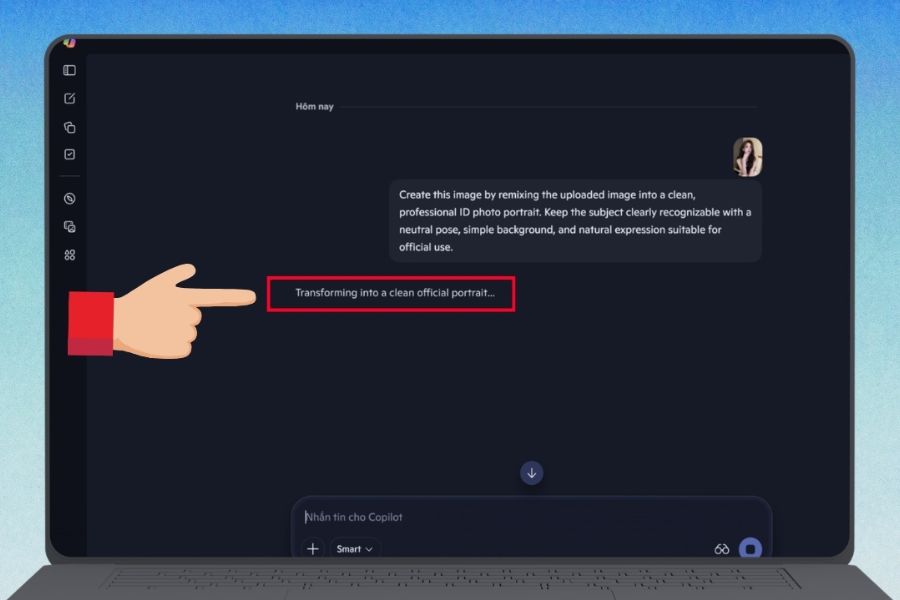
Once the image is uploaded, Copilot will use the image and your requirements to create a new version. If using the ID photo support feature, the system can process elements such as background, lighting, and facial composition. Generally, you should carefully examine the finished product instead of just glancing at it once. Compare it to the original photo to see if the face, hairstyle, features, and proportions are preserved naturally.
Copilot can support:
-
Change the background to white or a plain background.
-
Balance the lighting on your face.
-
Center your face in the image.
-
Adjust the layout as needed.
-
Create an image with a more formal style.
If the results aren't satisfactory, you can request a re-creation instead of trying to use the first version immediately. Sometimes, just one more specific command can significantly change the outcome.
3.4. Step 4: Use the prompt to customize the ID photo.
This is the interesting part if you want more detailed control over the results. Instead of just uploading images and waiting for the AI to process them, you can write prompts that clearly describe the desired image.
For example, you can enter your request in English:
Create a professional ID photo with a clean white background, neutral expression, balanced lighting, centered face, natural facial features, and formal appearance.
If you want to create an image in a style suitable for your job application, you can describe it as follows:
Create a professional headshot with a clean white background, natural lighting, centered face, formal business attire, and a realistic appearance suitable for a job application.
To make the prompt more likely to produce the desired results, you should describe the key elements such as:
-
Desired background color.
-
Facial position.
-
Natural expression.
-
Lighting conditions.
-
Skin.
-
Overall style.
-
Purpose of using the image.
You can also add requests to preserve facial features to limit the AI's excessive creativity. For example, request that the image retain the natural facial features, hairstyle, and overall appearance of the person in the photo.
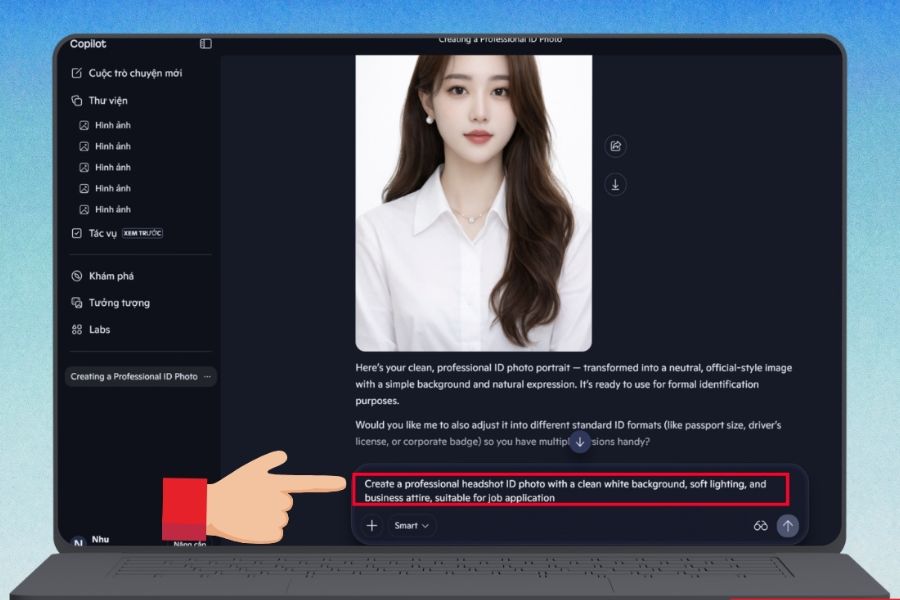
3.5. Step 5: Download the image and check the finished product.
Once you have a suitable version, you can download the image to your device to check it before use. This is a step many people often skip, but it's essential, especially if the image is for a file or document. Zoom in on the image and observe every detail instead of just looking at it at a small size. Some errors, such as slightly distorted faces, abnormally processed hair, or background with unnecessary details, may be difficult to spot with just a quick glance.
-
Check if the face matches the original photo.
-
Examine the eyes, nose, mouth, and facial features to see if they look natural.
-
Check if the background is uniform or if any unusual details appear.
-
Ensure a balanced layout.
-
Check the resolution and image quality.
-
Compare the image dimensions with the requirements of the receiving location.
-
Double-check before printing or uploading the document.
In particular, you shouldn't assume that AI-generated photos will automatically meet all the standards for every type of document. If the photo is for a passport, visa, administrative documents, or official procedures, you need to check the specific requirements of the receiving agency.
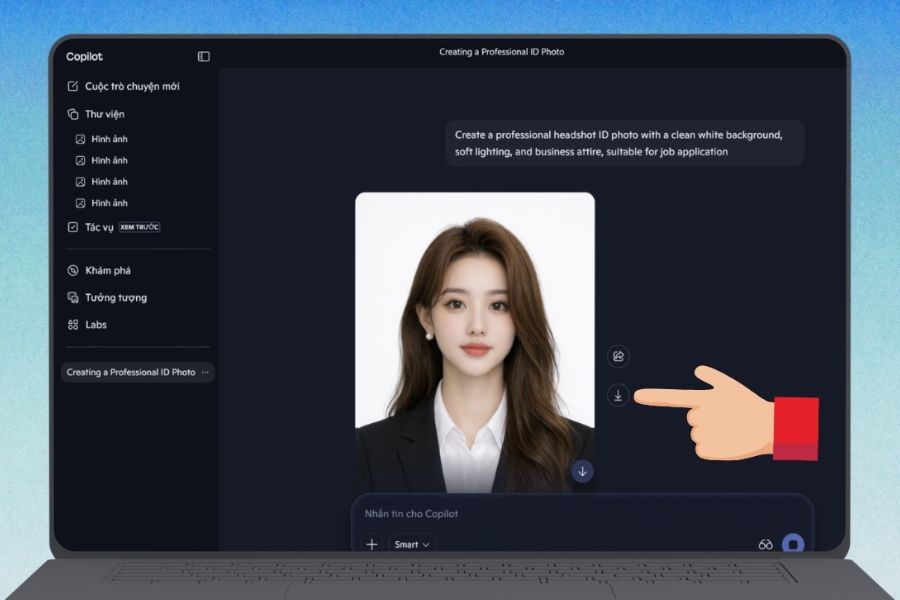
4. How should I write the prompt to create a passport photo in Copilot?
A good prompt doesn't need to be long, but it should clearly state what you want the AI to do. Instead of typing a general phrase like "create a passport photo," include information about the background, lighting, composition, and how natural the face should look.
You can refer to this simple formula: Photo type + background + lighting + composition + expression + clothing + requirement to maintain a natural look.
For example:
Create a realistic professional ID photo from the uploaded portrait. Use a clean white background, balanced lighting, centered face, neutral expression, formal clothing, and natural facial features. Keep the person's identity and facial characteristics unchanged.
If you want to use it for your CV, you can emphasize the professional aspect:
Create a professional profile photo suitable for a CV. Use a clean background, soft balanced lighting, centered composition, natural facial expression, and formal business attire. Keep the original facial features realistic.
A specific prompt will help the AI better understand the goal, while limiting the possibility of making too many unnecessary changes.
5. Common errors when creating ID photos using Copilot
Despite its relatively simple operation, AI-generated images sometimes exhibit errors. This could be due to the original image, unclear prompts, or how the AI interprets the request.
Some common situations include:
-
Facial features may change: The features may differ from the original photo if the prompt does not require you to maintain the same appearance.
-
Background not clean: Some small details in the background may still be visible.
-
Uneven lighting: The face may be too bright or too dark.
-
The facial proportions are not right: The subject may be positioned too high, too low, or too close to the camera.
-
Outfits can be altered: AI can automatically create different outfits according to customer preferences.
-
Facial details look unnatural: Some versions may need to be recreated.
When encountering errors, don't rush to fix too many things at once. Identify the main problem first, then add the requirements to the prompt. For example, if the face is altered, emphasize the requirement to preserve the identifying features and natural appearance.
Upgrade to Copilot with amazing deals!
6. Advantages of creating ID photos from portrait photos on Copilot
Creating ID photos using AI offers significant convenience, especially when you need a photo quickly but don't have time to go to a studio. With just one suitable photo, you can try multiple versions without having to retake the entire process.
Some notable advantages include:
-
Save time: No need to waste time traveling to the shooting location.
-
Easy to implement: Even beginners can quickly get familiar with the process.
-
Flexible: Background, lighting, and some elements can be changed as needed.
-
Easy to retry: You can create multiple versions if the initial results aren't satisfactory.
-
The convenience of applying online: You can create your photo directly on your computer or any device with an internet connection.
-
No professional photo editing software is needed: Most of the operations are performed using AI.
This is a convenient option when you need a neatly composed portrait image in a short amount of time. However, its suitability still depends on the intended use and the specific requirements of each type of document.
7. Tips to make ID photos created with Copilot look more natural.
To achieve a beautiful, natural-looking final product that closely resembles the original image, you shouldn't rely entirely on AI's automatic capabilities. Combine high-quality input images with a clear prompt and a final verification step.
You can try some of the following tips:
-
Choose an original photo with natural lighting and a clear view of the face.
-
Prioritize photos that are taken straight on and have minimal tilting.
-
Do not choose photos with filters that alter facial features.
-
The requirement is for the AI to preserve facial features.
-
Clearly describe the desired background color and layout.
-
It's not necessary to make too many changes within the same prompt.
-
Recreate if the first version has errors.
-
Always check the image in a larger size before using it.
Another important point is that you shouldn't try to turn a casual photo into an ID photo by asking AI to change too many elements at once. When the face, hair, clothing, lighting, and shooting angle are all heavily adjusted, the result can lose its natural look.
8. Conclusion
Overall, creating ID photos from portraits on Copilot is quite easy. You just need to prepare a clear photo, upload it to the photo creation tool, specify your requirements, and then check it. With this method, preparing an ID photo no longer takes too much time. By carefully selecting your input image, accurately describing your desired result, and thoroughly checking the final product, you can quickly create a suitable version of your photo for various personal, academic, and professional needs.





















VIP Products








Best Selling Products
MidJourney Account
29 USD
Adobe Premiere Pro Account
99 USD
Autodesk All App Account Copyright
120 USD
Plugin Retouch4me
69 USD
Freepik Premium Account
59 USD
Windows 10 & 11 Pro Key
36 USD
Adobe Photoshop Copyright - Full App
120 USD
Capcut Pro 1 Year
39 USD
Genuine Adobe Illustrator account
99 USD
Genuine Cheap Canva Pro
39 USD
Upgrade Genuine Office 365
49 USD
Upgrade genuine Capture One account
120 USD
ChatGPT Plus Account (GPT-4)
16 USD
Copyright Adobe Lightroom Account
59 USD
Upgrade Duolingo Super
29 USD