Best Selling Products

ChatGPT Plus Account (GPT-4)
16 USD

Upgrade genuine Capture One account
120 USD

Autodesk All App Account Copyright
120 USD

Windows 10 & 11 Pro Key
36 USD

MidJourney Account
29 USD

Copyright Adobe Lightroom Account
59 USD

Genuine Cheap Canva Pro
39 USD

Upgrade Duolingo Super
29 USD

Adobe Photoshop Copyright - Full App
120 USD

Adobe Premiere Pro Account
99 USD

Genuine Adobe Illustrator account
99 USD

Plugin Retouch4me
69 USD

Capcut Pro 1 Year
39 USD

Upgrade Genuine Office 365
49 USD

Freepik Premium Account
59 USD
How to easily combine two photos into one: A detailed guide from A to Z.
Nội dung
- 1. The trend of creating images by combining multiple photos into one.
- 2. The benefits of combining two images into one in media and daily life.
- 3. Basic principles for creating a beautiful photo collage.
- 3.1. Select images with similar resolution.
- 3.2. Pay attention to the harmony of color and light.
- 3.3. Layout and Aspect Ratio
- 4. Instructions on how to combine two photos into one on a smartphone.
- 4.1. Utilizing features available on iPhone and Android
- 4.2. Top photo editing applications currently available
- 5. How to quickly merge two images into one on a computer.
- 5.1. Using the default Paint and Paint 3D tools
- 5.2. Professional software: Adobe Photoshop
- 6. Online photo merging solution that doesn't require software installation.
- 6.1. Save time with online photo editing websites.
- 6.2. Advantages of using cloud tools
- 7. Advanced Photo Blending Techniques
- 8. Copyright considerations when combining images.
- 9. How to optimize image size after merging.
- 10. Application of AI in automatic photo merging.
- 11. Common mistakes when merging two images into one and how to fix them.
- 11.1. Image Distortion Rate
- 11.2. The seam lines are too obvious.
- 12. Summary
Discover the quickest and most professional ways to combine two photos into one. This compilation includes online tools, computer software, and mobile apps to help you create stunning images in just minutes.
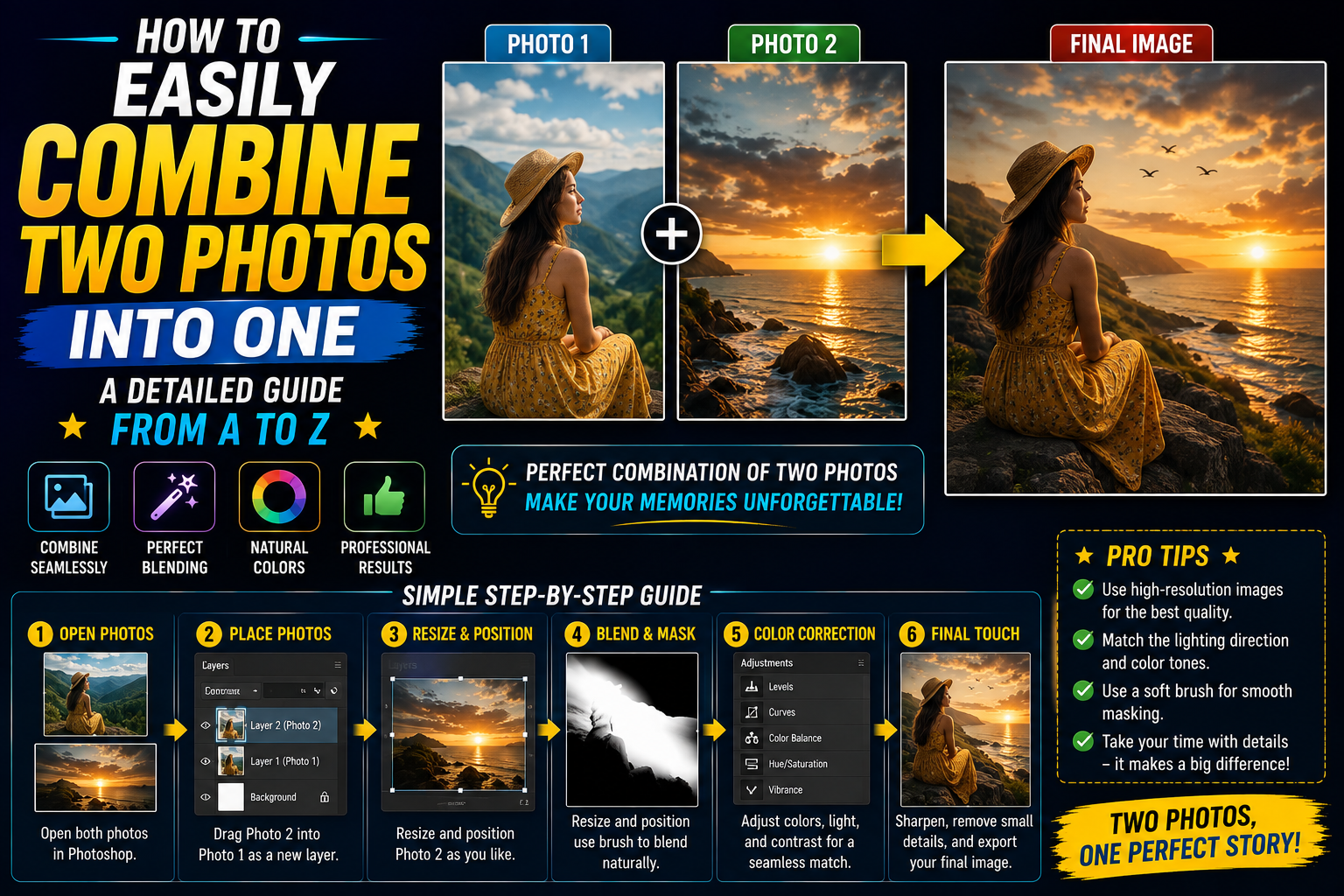
1. The trend of creating images by combining multiple photos into one.
In today's digital age, the demand for image processing among users is constantly increasing, especially the creation of unique and creative images from individual photos. Combining two photos into one is not simply about placing two pictures side-by-side, but also a way to tell a story, compare the differences between the past and the present, or simply create a work of art with a strong personal touch. The rapid development of social media platforms like Facebook, Instagram, and TikTok has driven users to seek quick yet aesthetically pleasing photo editing methods.
2. The benefits of combining two images into one in media and daily life.
The application of image manipulation techniques is present in many different areas of life. For those doing online business, combining product images allows customers to easily view multiple angles or different color variations within the same frame. This saves display space and increases the persuasiveness of the sales pitch.
In everyday life, we often use this feature to preserve special memories. "Then and Now" photos or handmade greeting cards always evoke genuine emotions in viewers. Furthermore, combining photos optimizes storage space and allows for faster information sharing instead of sending multiple separate files.
3. Basic principles for creating a beautiful photo collage.
3.1. Select images with similar resolution.
A common mistake when merging two images into one is using two images with vastly different quality. If a very sharp image is placed next to a blurry, noisy one, the overall result will lack balance and look unprofessional. You should prioritize choosing files with similar size and pixel density to ensure consistency after publication.
3.2. Pay attention to the harmony of color and light.
Color plays a crucial role in evoking emotions in the viewer. When combining two images, you need to consider their dominant color tones. If one image has a cool tone while the other has a warm tone, use editing tools to balance the color temperature. Lighting also needs attention; consistent lighting will make the two images appear to belong to the same setting.
3.3. Layout and Aspect Ratio
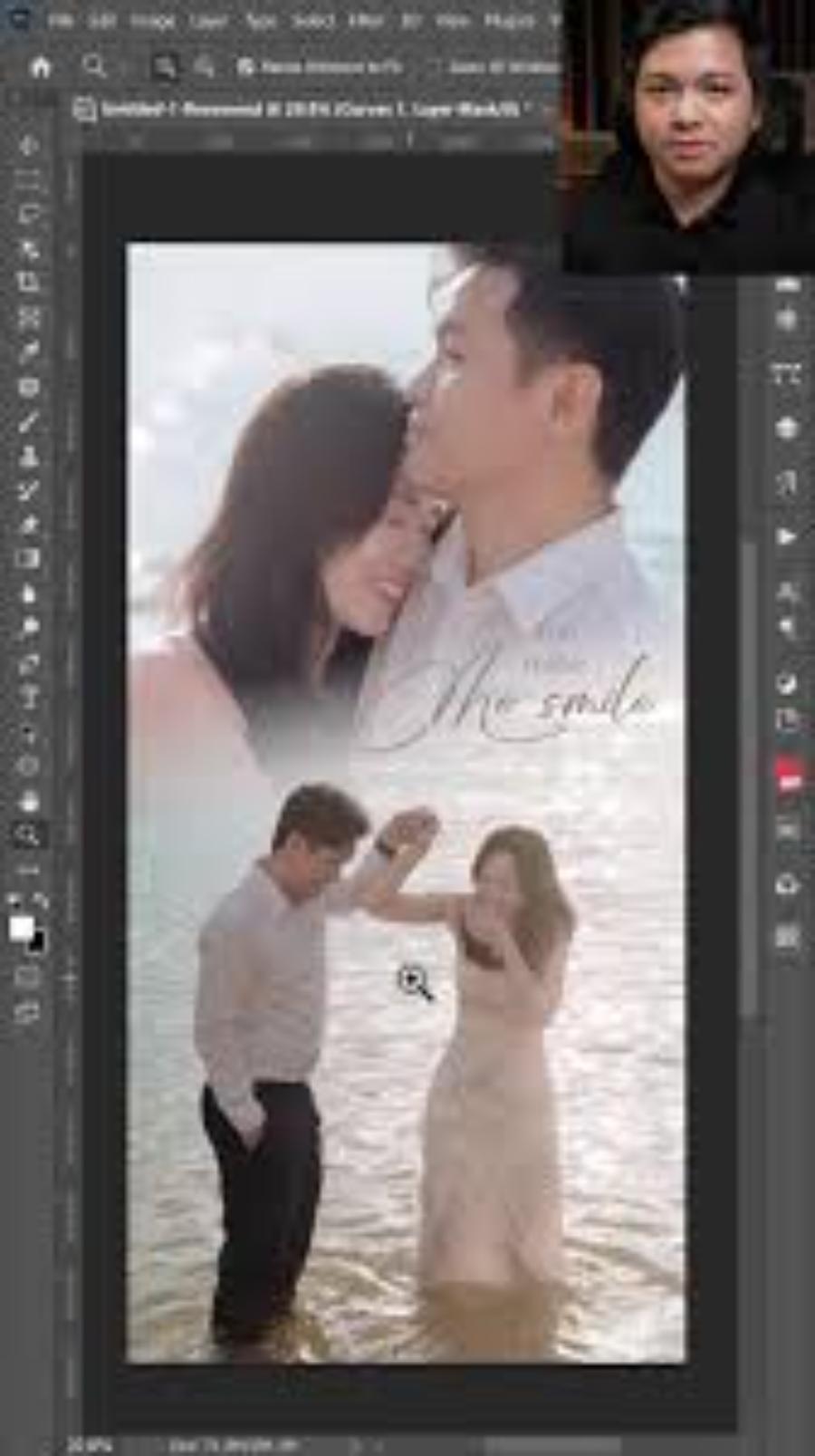
Depending on your purpose, you should choose a vertical, horizontal, or square layout. For photos posted on Stories, a vertical (9:16) layout is the optimal choice. Meanwhile, if you want to compare details, a horizontal split-screen layout will make it easier for viewers to observe. Leaving a small white space between the two photos (border) is also a trick to make the photo look more spacious and visually appealing.
4. Instructions on how to combine two photos into one on a smartphone.
4.1. Utilizing features available on iPhone and Android
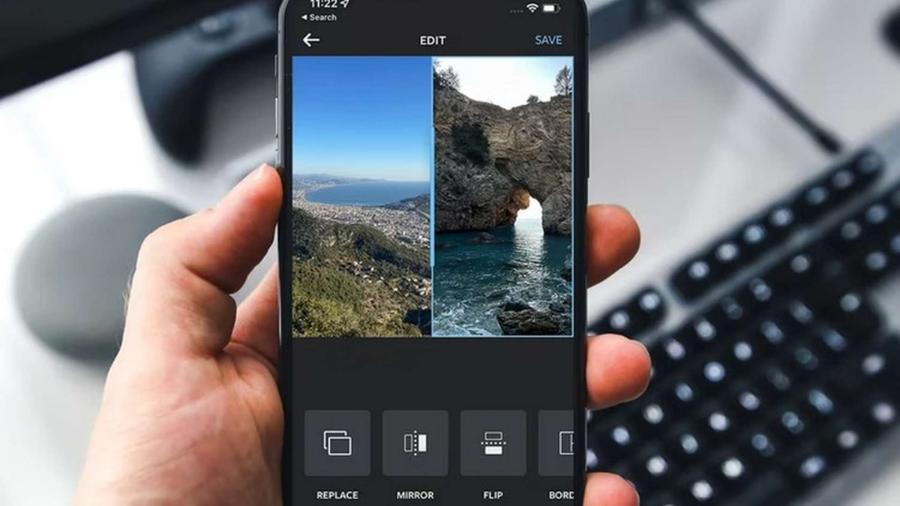
Most modern smartphones today come with built-in basic photo editing tools. On iPhones, you can use shortcuts or the Photos app to quickly create photo collages. For Android devices like Samsung or Oppo, the "Gallery" feature usually has a "Make Collage" option that lets you select up to 6-9 photos to combine with just a few taps.
4.2. Top photo editing applications currently available
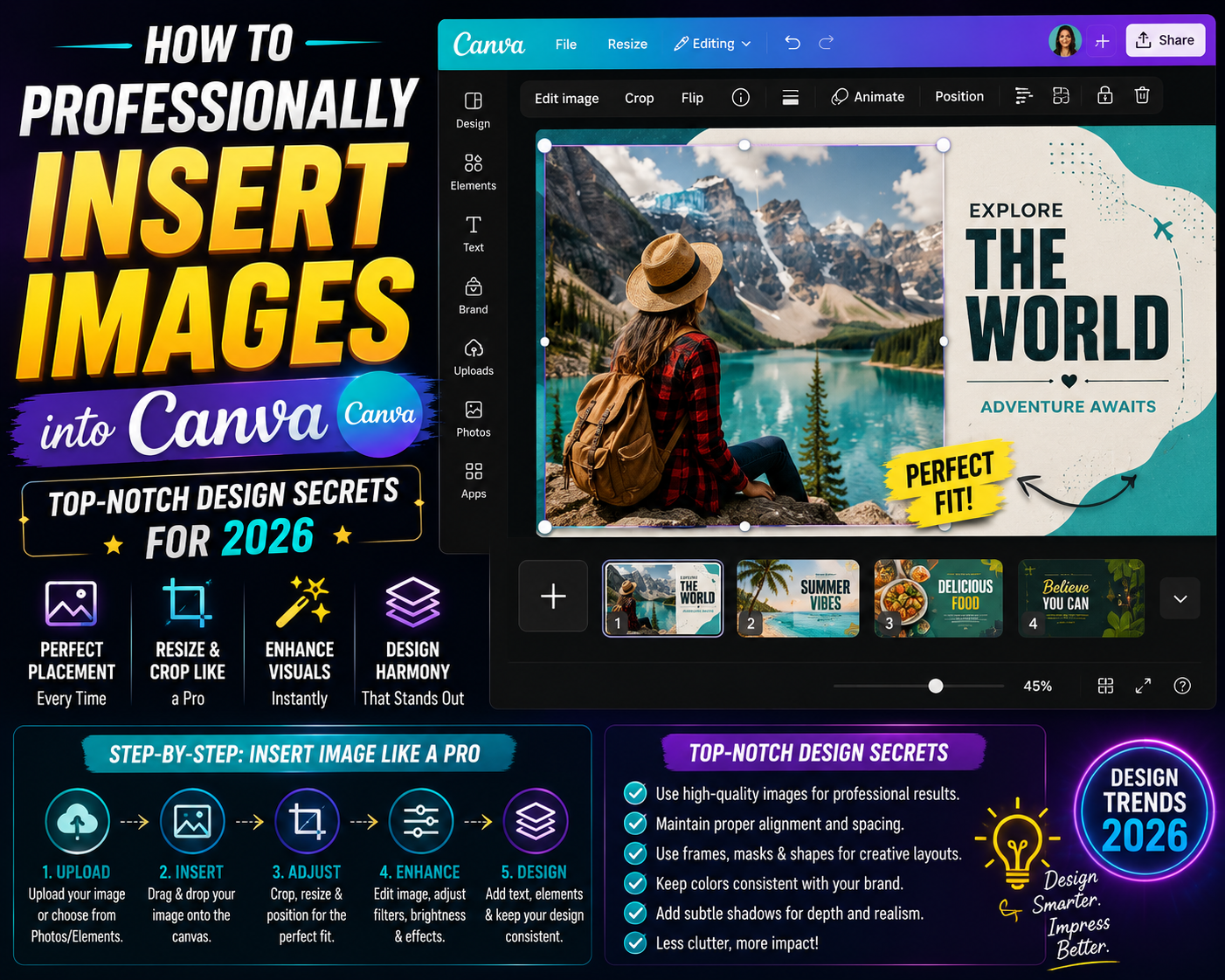
If you want more in-depth customizations such as adding stickers, inserting artistic text, or applying various color filters, installing third-party applications is necessary. Popular names like PicsArt, Canva, or Layout from Instagram always top the search list thanks to their user-friendly interface and rich resource library. These applications offer hundreds of ready-made layout templates, allowing even non-professional users to create beautiful works of art.
5. How to quickly merge two images into one on a computer.
5.1. Using the default Paint and Paint 3D tools
For Windows users, Paint is a "legendary" tool, yet it remains incredibly effective for simple photo collages. You simply open one image, expand the canvas, and paste the second image into it. Paint 3D offers further improvements in spatial effects and shading, giving the collage more depth.
5.2. Professional software: Adobe Photoshop
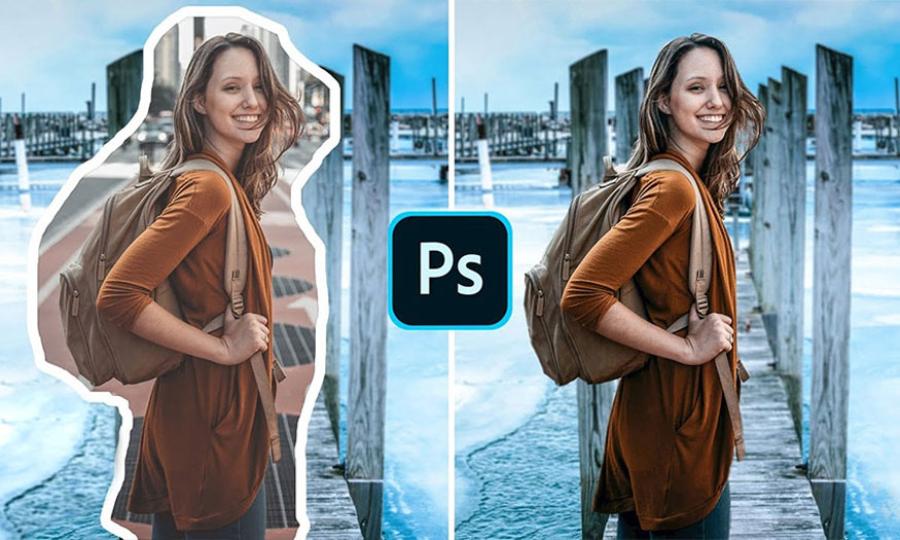
For those who demand perfection and unlimited creativity, Photoshop is the number one choice. This software allows you to control each layer, using masks to seamlessly blend two images without leaving any noticeable separation. Photoshop's blending mode helps combine two images into one, creating a true work of art with unique layering effects.
6. Online photo merging solution that doesn't require software installation.
6.1. Save time with online photo editing websites.
Using online websites is the best option when you're using a public computer or don't want to install resource-intensive software. These platforms operate via web browsers, offering a full range of features from cropping and rotating images to adjusting lighting parameters. Simply upload your photos, choose a frame, and download the result in an instant.
6.2. Advantages of using cloud tools
Cloud-based image processing allows you to work from anywhere, as long as you have an internet connection. Additionally, these tools are frequently updated with the latest design trends, eliminating the need for manual updates. Temporary storage also makes it easy to revise your work if you're not satisfied with the final result.
7. Advanced Photo Blending Techniques
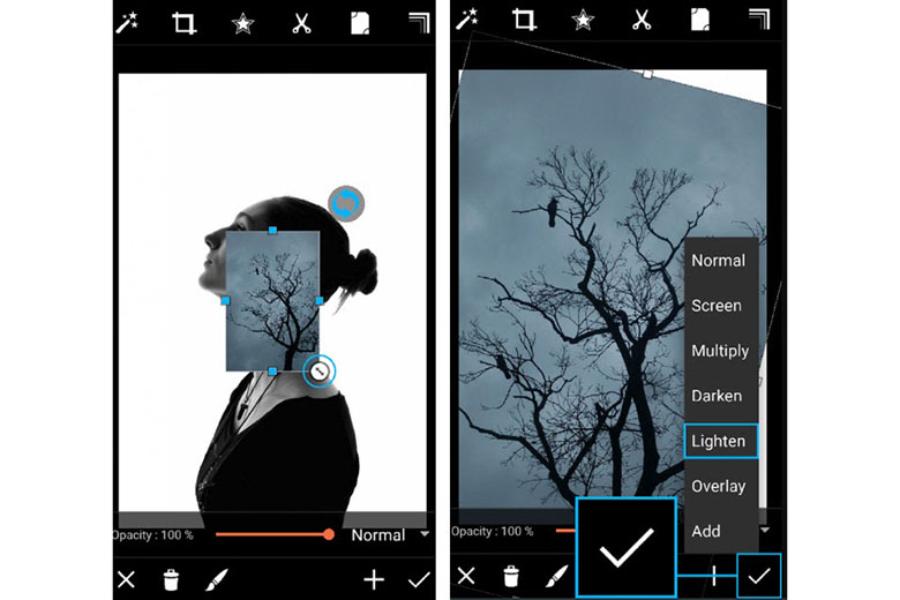
This technique differs from simply merging images into a frame. Image blending is a way to make two images gradually fade and merge into each other naturally. This is often seen in movie posters or art photography. To execute this technique well, you need to pay attention to opacity and use soft eraser tools to remove sharp edges, creating a smooth transition between the two frames.
8. Copyright considerations when combining images.
When combining two images into one , especially for commercial purposes or public posting, you need to pay close attention to image copyright issues. Using someone else's images without permission can lead to legal problems. You should use free image libraries from reputable sources or take your own photos to ensure intellectual property rights for your work.
9. How to optimize image size after merging.
A composite image typically has a larger file size than a single image. For convenient sharing via email or posting to a website without slowing down page load times, you should use image compression tools. Proper image compression will significantly reduce file size while maintaining the best possible display quality for the human eye.
10. Application of AI in automatic photo merging.
Artificial intelligence (AI) technology is completely changing the way we process images. Many AI-integrated tools are now available that can automatically identify subjects and suggest the most suitable image composition. AI can automatically separate the background, adjust the lighting and color of two different images so that they are completely consistent in style. This significantly reduces the time and effort required from designers.
11. Common mistakes when merging two images into one and how to fix them.
11.1. Image Distortion Rate
When trying to fit two photos of different sizes into a single frame, users often unintentionally stretch them, distorting the subject. To fix this, always hold down the Shift key while resizing (on a computer) or use the "Crop" feature to crop the images to the correct aspect ratio before placing them in the frame.
11.2. The seam lines are too obvious.
Without using a border, placing two photos side-by-side without edge processing will result in a very crude image. You can remedy this by adding a thin dividing line or using subtle shadow effects to create a more refined sense of separation.
12. Summary
Mastering the skill of combining two images into one opens up many opportunities for you to express your creativity and improve your work efficiency. Whether you are a casual user wanting to preserve memories or a professional designer, mastering the basic tools and principles will help you create high-quality visual products. Always stay updated on new trends and continuously practice to enhance your visual aesthetics.





















VIP Products








Best Selling Products
ChatGPT Plus Account (GPT-4)
16 USD
Upgrade genuine Capture One account
120 USD
Autodesk All App Account Copyright
120 USD
Windows 10 & 11 Pro Key
36 USD
MidJourney Account
29 USD
Copyright Adobe Lightroom Account
59 USD
Genuine Cheap Canva Pro
39 USD
Upgrade Duolingo Super
29 USD
Adobe Photoshop Copyright - Full App
120 USD
Adobe Premiere Pro Account
99 USD
Genuine Adobe Illustrator account
99 USD
Plugin Retouch4me
69 USD
Capcut Pro 1 Year
39 USD
Upgrade Genuine Office 365
49 USD
Freepik Premium Account
59 USD