Best Selling Products

Upgrade Duolingo Super
29 USD

Capcut Pro 1 Year
39 USD

Plugin Retouch4me
69 USD

Windows 10 & 11 Pro Key
36 USD

Adobe Photoshop Copyright - Full App
120 USD

Copyright Adobe Lightroom Account
59 USD

Genuine Adobe Illustrator account
99 USD

Genuine Cheap Canva Pro
39 USD

Freepik Premium Account
59 USD

Autodesk All App Account Copyright
120 USD

Upgrade Genuine Office 365
49 USD

Adobe Premiere Pro Account
99 USD

MidJourney Account
29 USD

ChatGPT Plus Account (GPT-4)
16 USD

Upgrade genuine Capture One account
120 USD
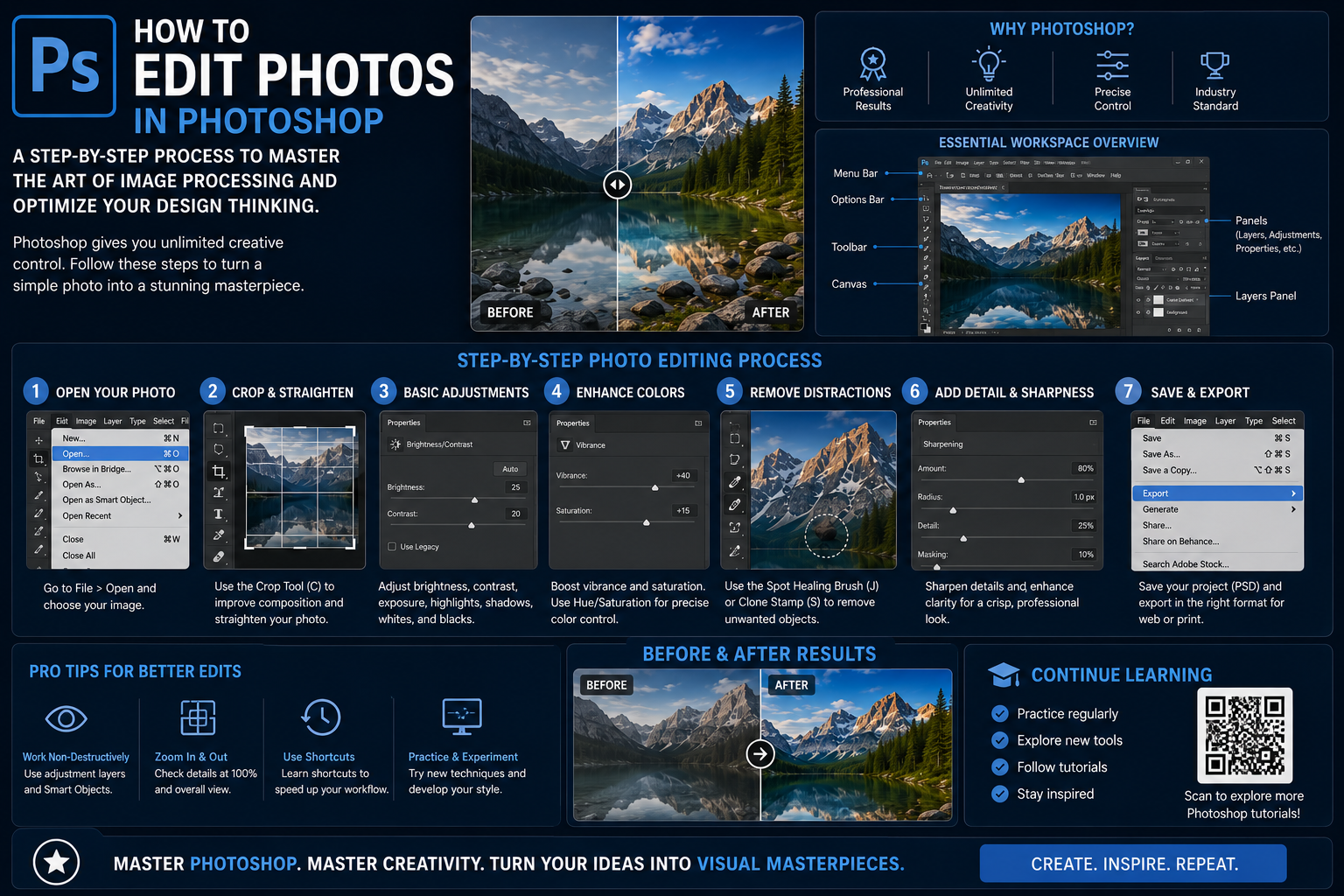
How to edit photos in Photoshop: A step-by-step process to master the art of image processing and optimize your design thinking.
Nội dung
- 1. Setting up the workspace and the steps to initiate a platform project.
- 1.1. Synchronize the interface and arrange the control panels logically.
- 1.2. Procedure for creating new files and securely importing image data
- 2. Layer system management and non-destructive editing philosophy
- 2.1. The nature of Layer structure and how to organize it scientifically
- 2.2. The power of Layer Mask in preserving original data
- 3. Techniques for creating selections and separating the subject from the background.
- 3.1. Using the Marquee and Lasso Tool for Manual Selection
- 3.2. High-speed background removal with Quick Selection and Magic Wand Tool
- 3.3. Advanced selection range refinement for micro-details
- 4. Professional portrait photography processing and post-processing procedures.
- 4.1. Remove surface imperfections using the Healing Brush and Patch Tool
- 4.2. Skin smoothing method combined with preserving epidermal structure
- 5. Advanced lighting management and color coordination techniques
- 5.1. Balancing the overall tonal range using the Levels tool
- 5.2. Bending the Curves graph to increase artistic contrast.
- 6. Appvip.ai - A reputable platform for downloading software and providing graphic resources.
- 7. CONCLUSION
This guide provides detailed instructions on how to edit photos in Photoshop, from basic setup and layer management to professional portrait editing and lighting balancing techniques.
1. Setting up the workspace and the steps to initiate a platform project.
1.1. Synchronize the interface and arrange the control panels logically.
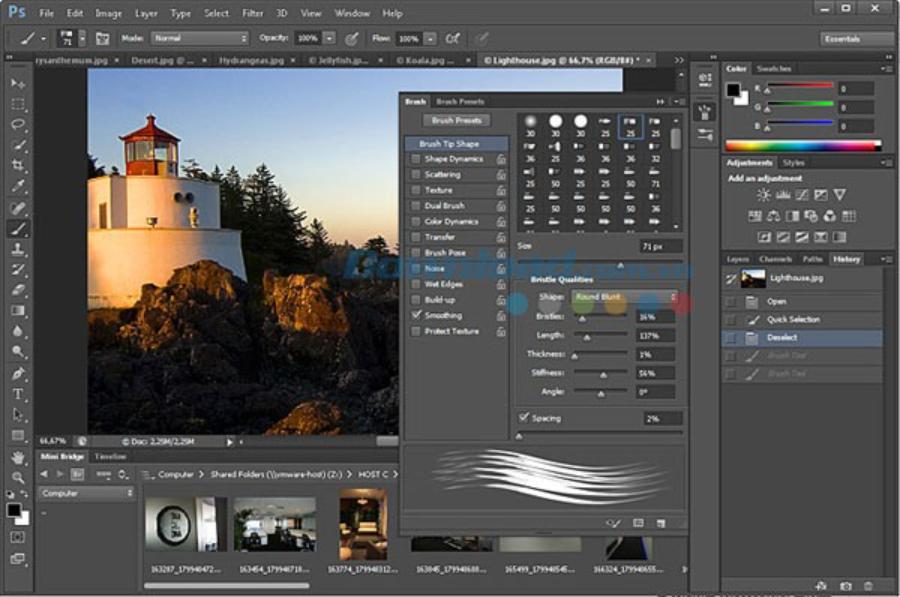
The software's standard workspace is scientifically arranged to provide maximum convenience for the user. The Menu Bar at the top contains core system commands, while the Options Bar below continuously changes parameters depending on the selected tool. The Toolbar, positioned vertically on the left side of the screen, handles direct editing tasks, while the Panels on the right manage supplementary elements. Users can customize and save their workspace to suit their personal habits, increasing work efficiency.
1.2. Procedure for creating new files and securely importing image data
Opening a new project requires the designer to clearly define the publication purpose of the output. When accessing the File command and selecting New, the parameters for size, color system, and resolution need to be set accurately from the outset. RGB color and 72 dpi resolution are standard for publications displayed on digital screens, while CMYK color and 300 dpi resolution are required for printed documents. For importing existing images, the Open command or drag-and-drop operation will help to quickly bring the data file into the workspace.
2. Layer system management and non-destructive editing philosophy
2.1. The nature of Layer structure and how to organize it scientifically
The layer system is like a stack of transparent glass panes, allowing users to manipulate individual details independently without affecting the overall image. Creating, duplicating (Ctrl + J), or deleting these layers is easily done on the Layers panel. Professional designers always maintain the habit of clearly naming and grouping related layers into folders to scientifically manage projects and avoid confusion when files contain hundreds of details.
2.2. The power of Layer Mask in preserving original data
Layer Masks represent a modern image editing philosophy, completely eliminating the use of the traditional Eraser Tool, which permanently erases image pixels. By applying two primary colors, black and white, the mask allows for the flexible hiding or re-display of detailed areas. The black area on the mask conceals the details of that layer to reveal the underlying image layer, while the white area maintains its original visibility, allowing users to easily correct mistakes at any time.
3. Techniques for creating selections and separating the subject from the background.
3.1. Using the Marquee and Lasso Tool for Manual Selection
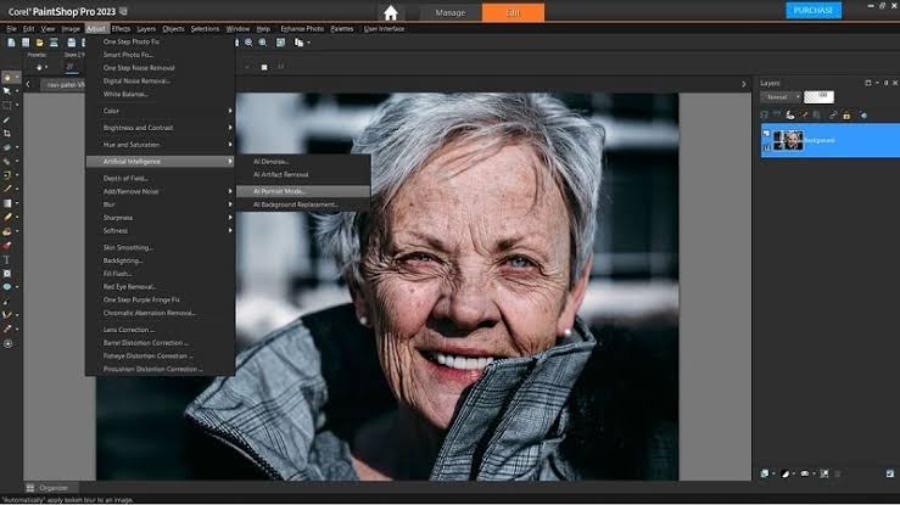
Isolating the area to be processed is a crucial step in Photoshop image editing to ensure that effects do not spill over the object's boundaries. The Marquee Tool allows for quick creation of selections with basic geometric shapes such as squares and circles. When dealing with subjects with more free-form and complex boundaries, the Lasso Tool, along with its improved Magnetic Lasso Tool, automatically adheres to the object's edges based on contrast differences, helping users to precisely define the selection area.
3.2. High-speed background removal with Quick Selection and Magic Wand Tool
The software's intelligent algorithm allows users to isolate areas with similar colors extremely quickly. The Quick Selection Tool works like a paintbrush; the system automatically recognizes and expands the selection area as the user sweeps across the object's surface. For photos with a smooth, uniformly colored background that is clearly distinct from the subject, the Magic Wand Tool solves the background separation problem with just a single click.
3.3. Advanced selection range refinement for micro-details
Processing complex and delicate edges like human hair, animal fur, or foliage is always a big challenge for beginners. The Refine Edge (or Select and Mask) feature uses advanced edge detection technology to analyze and smoothly separate fine hair strands from the original background. Users simply use the fine-tuning brush to lightly sweep over the edge area, and the system automatically filters out any remaining background pixels, resulting in the most realistic image merging.
4. Professional portrait photography processing and post-processing procedures.
4.1. Remove surface imperfections using the Healing Brush and Patch Tool
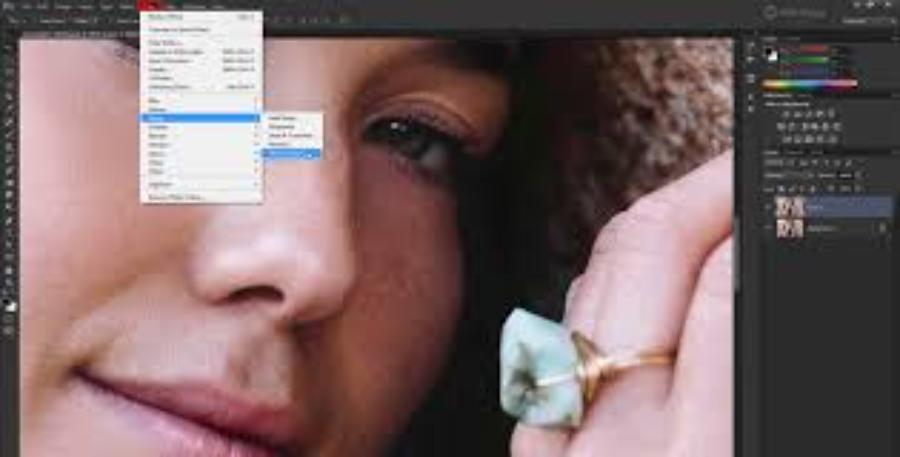
Cleaning up minor surface imperfections is the first step in improving the quality of a portrait or product photo. The Spot Healing Brush automatically analyzes and borrows the texture of the surrounding clean skin to naturally repair blemishes and scars. For larger areas of imperfections, the Patch Tool allows users to select the flawed area and drag it to the perfect data area to perform replacement and blend the surface evenly.
4.2. Skin smoothing method combined with preserving epidermal structure
Advanced skin smoothing techniques in Photoshop require separating the color and surface details of the skin to avoid a flat or unnatural-looking face. By combining layer masks with blurring filters like Gaussian Blur, designers can actively control the smoothness of the skin. This helps remove rough skin areas and wrinkles while preserving the natural texture of pores and the character's light and shadow effects.
5. Advanced lighting management and color coordination techniques
5.1. Balancing the overall tonal range using the Levels tool
The Levels panel provides a histogram, allowing designers to visually assess the exposure status of an image file. By moving the three sliders representing shadows, highlights, and midtones, users can easily correct underexposed or overexposed images. This effectively restores details hidden in harsh lighting conditions.
5.2. Bending the Curves graph to increase artistic contrast.
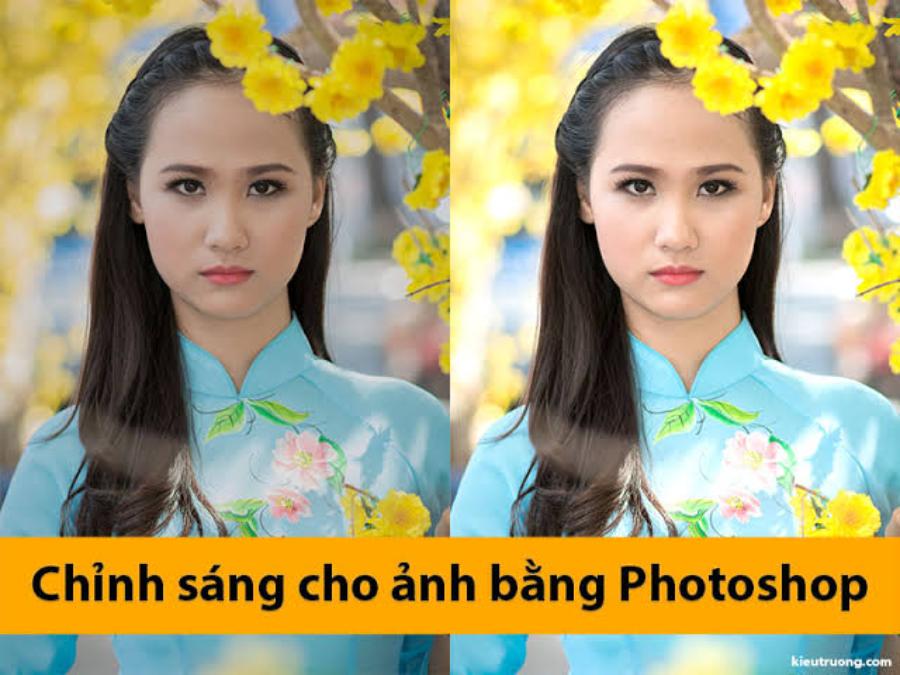
The Curves tool offers maximum flexibility by allowing users to deeply manipulate even the smallest tonal ranges of an image. By setting nodes on the curve and bending it into the classic S-shape, the image's contrast is smoothly enhanced. This technique clearly separates light and dark areas, creating strong three-dimensionality for the subject and adding captivating depth to the entire graphic design.
6. Appvip.ai - A reputable platform for downloading software and providing graphic resources.
To ensure a smooth and efficient post-production process, access to high-quality resources is crucial. The website appvip.ai is known as a system specializing in providing intelligent digital solutions, safe software installation guides, and a rich library of design learning materials. This website offers the design community stable software installations, along with thousands of trendy color presets, artistic brush sets, and unique design fonts. Utilizing and applying the tools provided by this platform effectively helps beginners quickly overcome technical barriers, optimize workflows, and improve their photo editing skills professionally.
7. CONCLUSION
The journey to mastering professional Photoshop editing requires perseverance, meticulousness, and a constantly evolving aesthetic sense. Understanding everything from fundamental concepts like interface and layer management to advanced skin retouching and color correction techniques is key to unlocking limitless creativity. Support from modern technology platforms and a proper training plan will enable anyone to master this powerful tool, laying a solid foundation for career development in the digital image creation industry.





















VIP Products








Best Selling Products
Upgrade Duolingo Super
29 USD
Capcut Pro 1 Year
39 USD
Plugin Retouch4me
69 USD
Windows 10 & 11 Pro Key
36 USD
Adobe Photoshop Copyright - Full App
120 USD
Copyright Adobe Lightroom Account
59 USD
Genuine Adobe Illustrator account
99 USD
Genuine Cheap Canva Pro
39 USD
Freepik Premium Account
59 USD
Autodesk All App Account Copyright
120 USD
Upgrade Genuine Office 365
49 USD
Adobe Premiere Pro Account
99 USD
MidJourney Account
29 USD
ChatGPT Plus Account (GPT-4)
16 USD
Upgrade genuine Capture One account
120 USD