1. The nature and outstanding advantages of online Photoshop image editing solutions.
1.1. Concept of cloud-based image processing systems
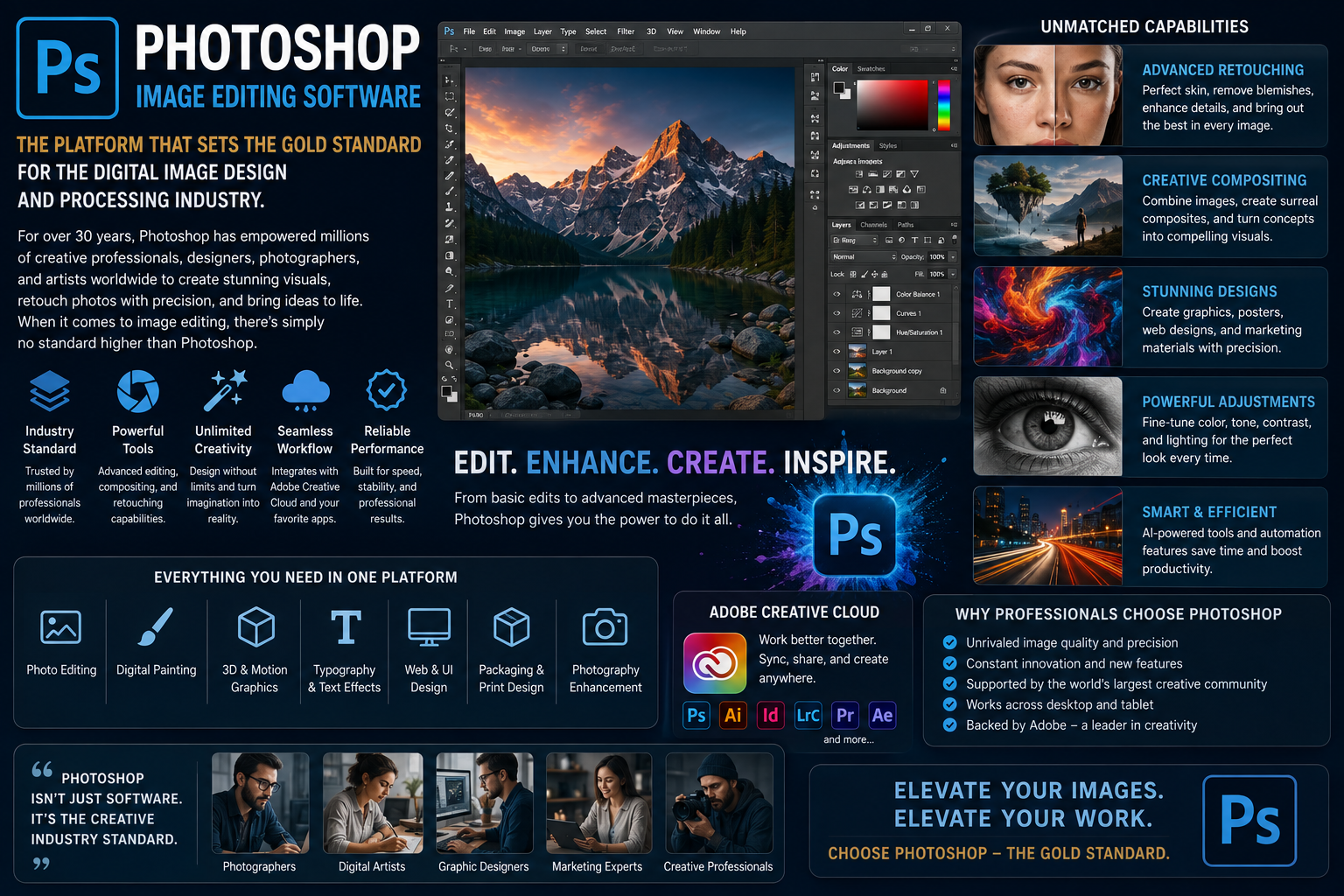
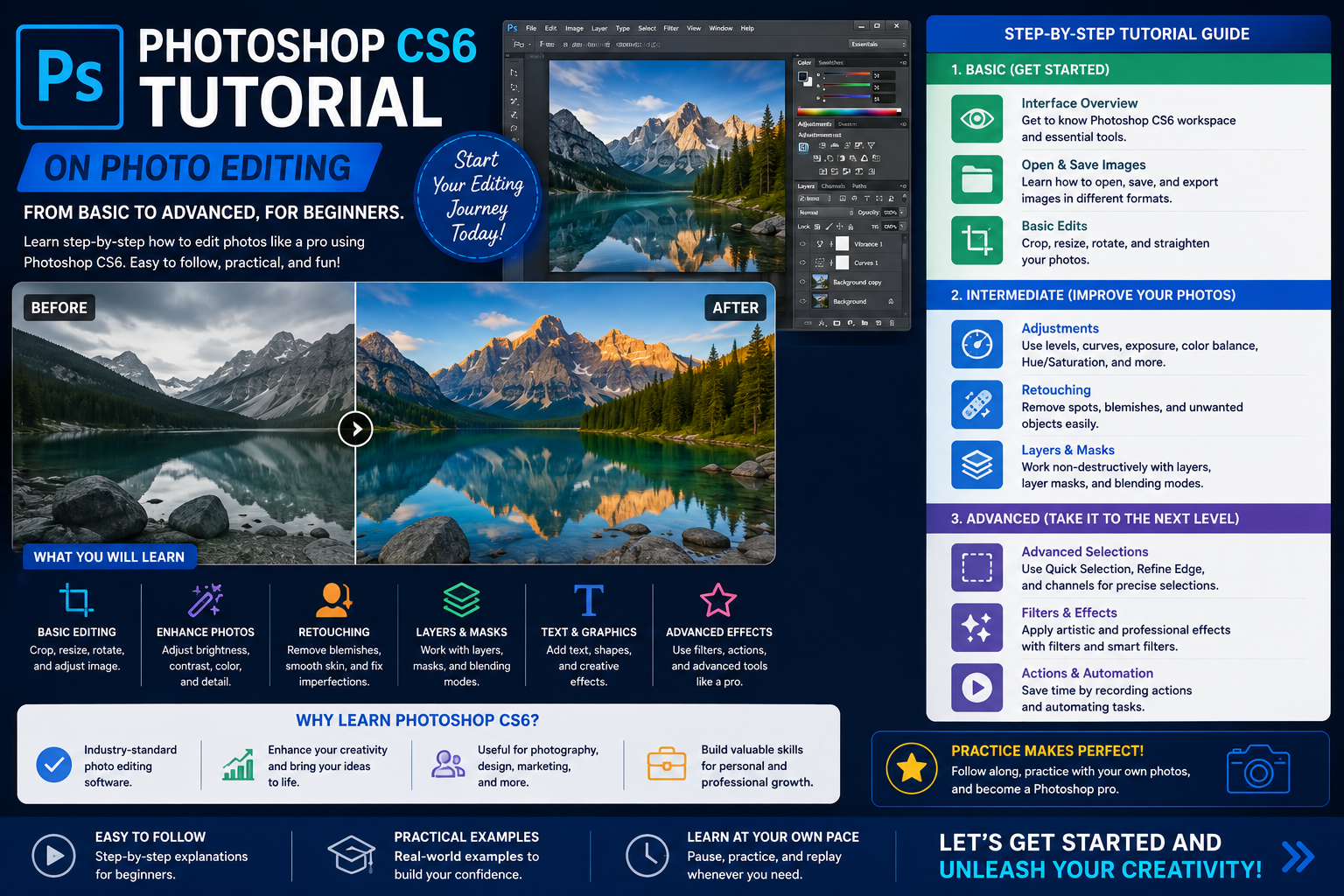
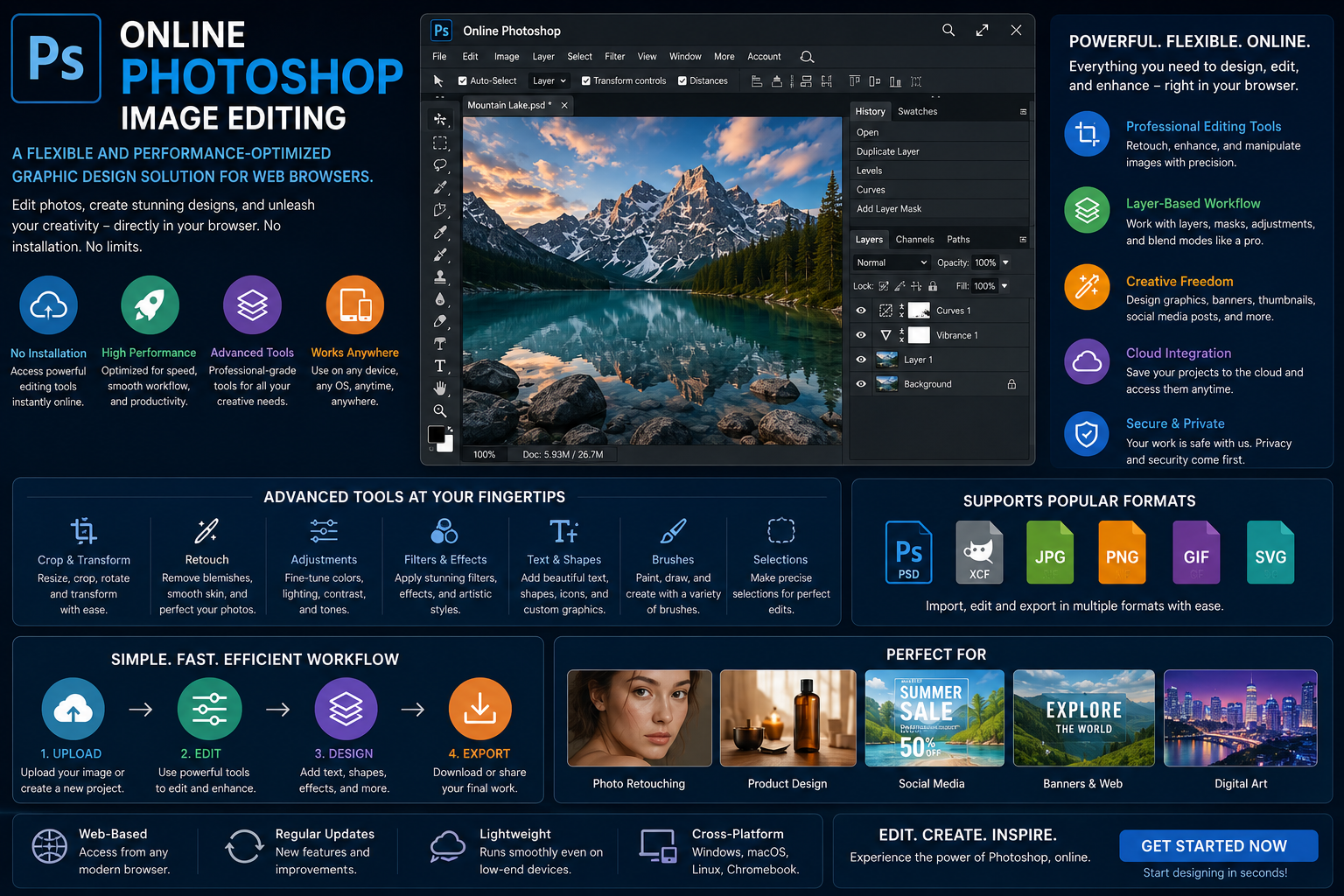
This online graphics system simulates the structure and core features of traditional computer software directly on the internet. Users only need a device with a stable internet connection and a common web browser to launch the workspace. All algorithmic processing resources are handled by a remote server, significantly reducing the hardware load on personal devices.
1.2. Flexible access and optimized storage capacity
The biggest advantage of this model lies in its absolute mobility, as it requires no complex downloads or installations. Businesses can save on the cost of purchasing software licenses for each workstation, while users are free to work on various devices, from personal computers to tablets. Storing projects online also minimizes the risk of data loss due to local hardware failures.
2. Online interface architecture and basic functional partitions
2.1. Flexible navigation menu bar and Options Bar space
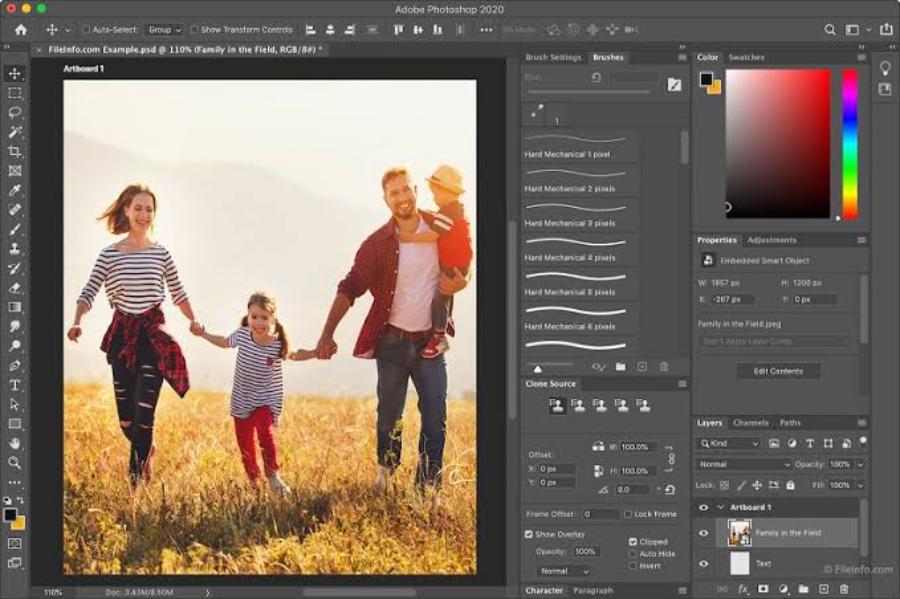
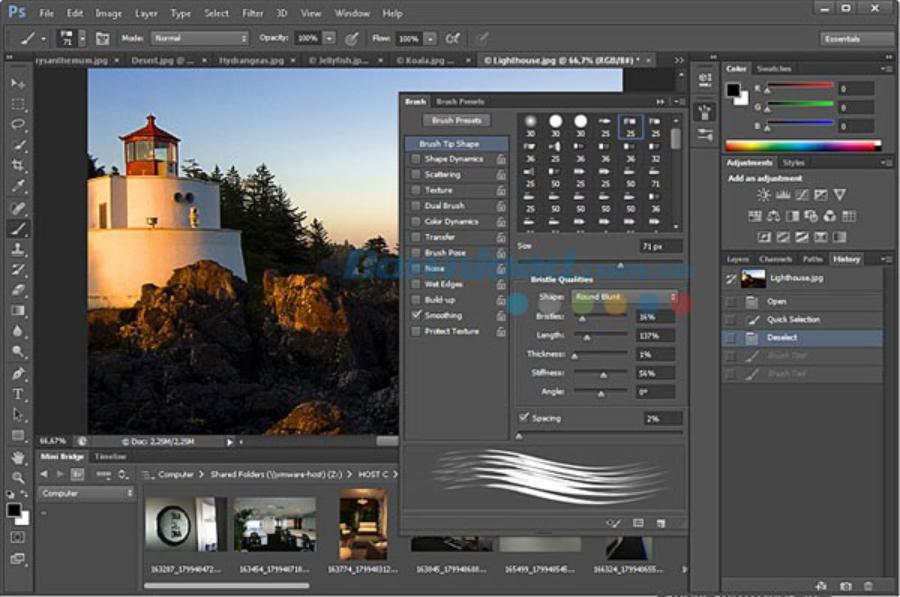
The top area of the browser interface houses the system of file management commands, art filters, and display configurations. All operations such as saving, exporting, or resizing the canvas are performed quickly here. Just below is the Options Bar, which automatically adjusts parameters such as opacity, brush size, and blending mode based on the tool currently selected on the taskbar.
2.2. Intuitive Toolbar with Integrated Keyboard Shortcuts
The left side of the screen displays a full set of intuitive and easy-to-understand icons for brushes, cropping, selection, and fill colors. The keyboard shortcuts on the web version are almost perfectly synchronized with the desktop version, allowing users to maintain their old operating habits. Utilizing keyboard shortcuts increases processing speed and simplifies mouse movements on the screen.
2.3. Layer Manager and Operation History Log
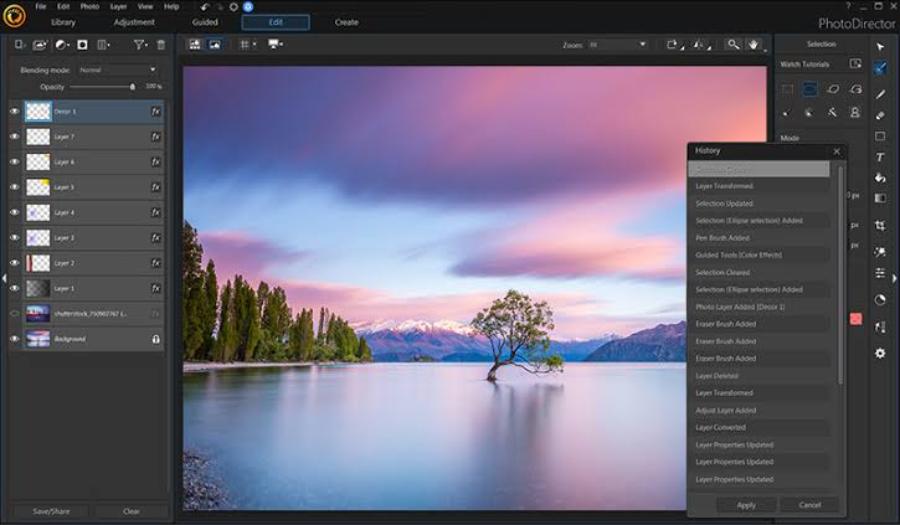
The right-hand side of the interface is dedicated to the Panels control panel, where the layered structure of the graphic design is determined. The Layers management panel allows users to stack elements, change the display order, or group details together for easier management. In addition, the History panel records each step of the design process, acting as a rescue system to help users safely undo mistakes.
3. Techniques for creating selections and extracting backgrounds in browsers.
3.1. Isolating data with geometric and freehand selection tools
Image segmentation is a crucial step in protecting surrounding areas from being affected by editing effects. The Marquee Tool helps quickly create precise rectangular or circular frames. When dealing with objects with more complex, curved edges, the Lasso Tool allows users to manually or automatically draw outlines around the object, following the contrast of the edges.
3.2. The Power of Quick Selection and Magic Wand Automated Selection Algorithms
The background removal process is now much simpler thanks to the support of intelligent color recognition algorithms. The Quick Selection tool works like a smart brush, automatically grouping pixels with similar tones as the user glides over them. For photos with a monochrome background or one that is clearly distinct from the subject, the Magic Wand Tool solves the background removal problem with just a single click.
3.3. Applying AI technology to extract microscopic details
Modern web platforms have integrated artificial intelligence to handle even the most challenging elements, such as human hair, animal fur, or foliage. The automatic subject selection feature can analyze the context and isolate people from the background within seconds. The support of a fine-tuning brush set helps eliminate smudging, resulting in a smooth, natural, and professional-looking background separation.
4. Online portrait photo retouching and restoration process
4.1. Clean up surface imperfections using the Spot Healing Brush and Clone Stamp
Addressing minor surface imperfections is the first step in the process of enhancing a portrait photograph. The Spot Healing Brush automatically borrows the texture of the surrounding clean skin to fill in and remove blemishes or freckles uniformly. The Clone Stamp tool, however, requires more active use, as the user must manually locate a perfect sample area and stamp it over the flawed area, ensuring consistency in the image's grain structure.
4.2. Intensive skin smoothing combined with pore structure preservation.
High-quality online skin smoothing methods require the application of intelligent blurring filters like Gaussian Blur combined with a mask. The designer needs to create a smooth layer, then use a Layer Mask to apply the effect only to the areas of skin that need processing, avoiding blurring important details such as the eyes, nose, and lips. This process helps the face become refined and polished while still preserving the most realistic skin texture.
4.3. Transform facial proportions flexibly with Liquify
The online Liquify feature offers incredible power to reshape objects right in your browser. This tool allows users to slim jawlines, raise eyebrows, or adjust a character's smile with skillful brushstrokes. The process requires finesse and the right brush size to ensure the space behind the subject isn't distorted or abnormally warped.
5. Control lighting and shape the artistic color scheme.
5.1. Balancing color tones using the intuitive Levels tool
The Levels adjustment system provides a Histogram that helps users accurately assess whether an image is overexposed or underexposed. By moving the three sliders representing the Shadows, Highlights, and Midtones, designers can easily correct exposure errors. This helps restore details buried in shadows or overexposed by strong light.
5.2. Adjusting contrast intensity using Curves
The online Curves tool is the ultimate weapon for highlighting details and creating depth in a space. Users can set multiple nodes on the curve to independently brighten or darken tiny tonal ranges. Creating a gentle S-shaped curve will instantly increase color intensity and create sharp, eye-catching contrast for the entire composition.
5.3. Artistic Coloring with Hue/Saturation and Color Balance
Color is a core element that determines the emotions and message a photograph aims to convey to the viewer. The Hue/Saturation control panel allows you to completely change the color palette of a specific object or increase or decrease the vibrancy of the entire image. Combined with Color Balance, users can actively blend contrasting tones in the light and dark areas, creating nostalgic film-like color palettes or trendy modern tones.
6. Appvip.ai - A platform supporting comprehensive graphic technology and process digitization experiences.
In the process of accessing and mastering online design tools, partnering with a reputable resource provider is essential. The website appvip.ai is built as a space for sharing intelligent digital solutions, providing guidance on optimizing graphic design software, and offering diverse design resources. This website provides the community with up-to-date technological solutions, pre-configured color presets, and a rich collection of artistic fonts. By effectively utilizing the supplementary tools and quality learning resources from this platform, beginners can quickly overcome technical barriers, optimize work efficiency, and significantly enhance their aesthetic sense.
7. Mask management methods, mixing regime, and product publishing.
7.1. Safe design philosophy with Layer Masks and Blend Modes
Layer Masks are an excellent solution to eliminate the habit of roughly erasing details with the regular eraser tool. The two black and white tones on the mask are responsible for hiding or showing design elements, preserving the original data and allowing for corrections at any time. Simultaneously, the system of blending modes such as Multiply, Screen, or Overlay dictates how image layers interact, creating unique overlay effects and lighting techniques.
7.2. Optimizing file format and size during publishing
The final step after completing all editing operations is to publish the image file suitable for practical use. Online storage formats support exporting original PSD files to retain the entire layer structure for later editing. For uploading to websites or social media platforms, JPEG or PNG format options with the Save for Web feature will ensure sharp image display while maintaining a small file size, resulting in optimal page load speeds.
8. CONCLUSION
Applying online Photoshop image editing tools to real-world workflows offers significant advantages in terms of time, cost, and flexibility. The online platform doesn't diminish the professionalism of the work; on the contrary, it frees designers from the limitations of physical space and computer hardware. Through consistent practice, from familiarizing themselves with the interface and managing layers to improving color coordination skills and leveraging high-quality technological resources, anyone can confidently transform abstract ideas into impressive visual artworks, creating a solid foundation for growth in the creative image industry.