Best Selling Products

ChatGPT Plus Account (GPT-4)
16 USD

Plugin Retouch4me
69 USD

Genuine Cheap Canva Pro
39 USD

Adobe Photoshop Copyright - Full App
120 USD

Upgrade Duolingo Super
29 USD

Autodesk All App Account Copyright
120 USD

Copyright Adobe Lightroom Account
59 USD

Windows 10 & 11 Pro Key
36 USD

Freepik Premium Account
59 USD

Upgrade genuine Capture One account
120 USD

Capcut Pro 1 Year
39 USD

MidJourney Account
29 USD

Genuine Adobe Illustrator account
99 USD

Upgrade Genuine Office 365
49 USD

Adobe Premiere Pro Account
99 USD
How to edit videos using CapCut on a computer for beginners.
Nội dung
- 1. Introduction to CapCut on PC and why you should choose it.
- 2. Install CapCut on your computer and create your first project.
- 3. Step-by-step guide to video editing on CapCut PC
- 4. Exploiting CapCut's outstanding features on PC
- 5. Leverage the power of AI in CapCut to save editing time.
- 6. Tips for using CapCut effectively on PC for beginners
- 7. Conclusion
If you''re new to video editing and don''t know where to start, CapCut on PC is an ideal choice thanks to its intuitive interface and many smart tools.
1. Introduction to CapCut on PC and why you should choose it.
CapCut is video editing software developed by ByteDance, supporting both Windows and macOS. The desktop version offers a spacious workspace, more precise mouse and keyboard operation, and integrates many basic to advanced editing tools such as video cutting and merging, multi-track editing, keyframe creation, color correction, audio processing, and many intelligent AI features.
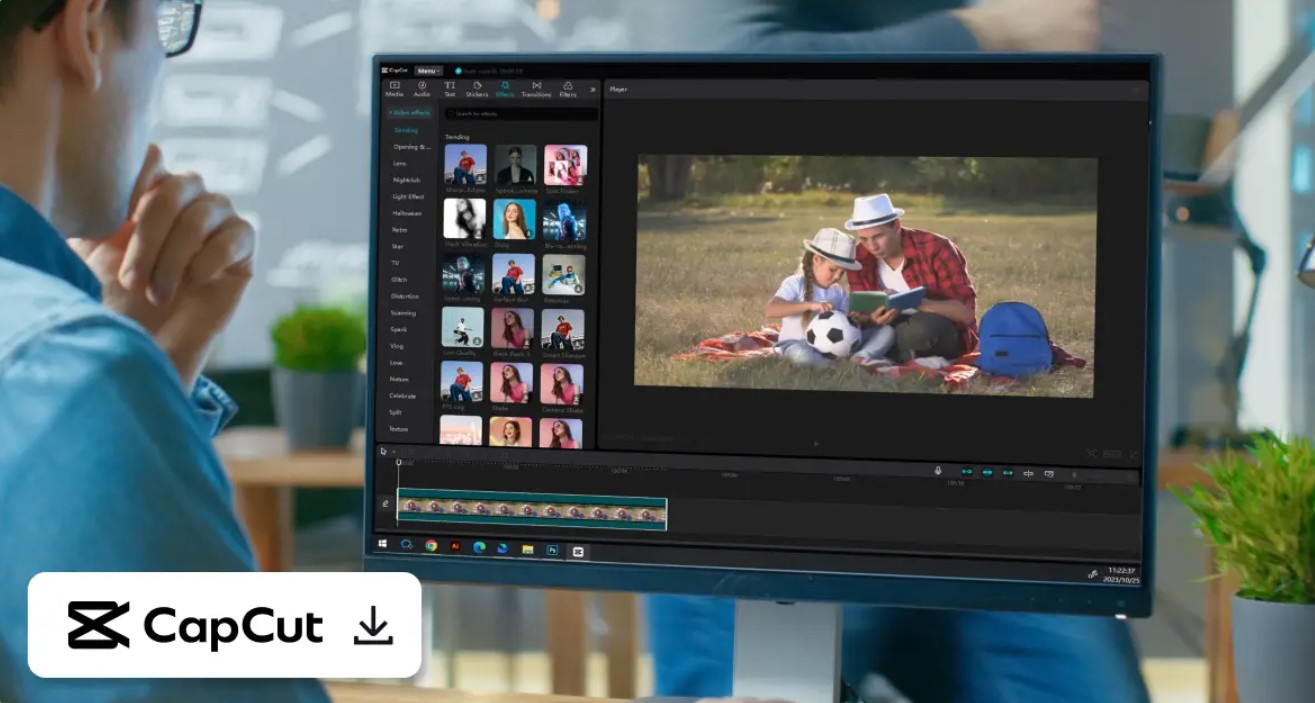
Compared to the mobile version, CapCut PC is more suitable for editing projects with many videos, images, or effects. The intuitive drag-and-drop interface makes it easy for beginners to get started, while content creators can utilize advanced tools to create professional videos without using complex software.
One of CapCut's standout features is its ability to synchronize projects between your phone and computer via your user account. You can start editing on your mobile device and then continue refining on your PC without having to recreate the project.
Furthermore, CapCut constantly updates its effects, video templates, filters, and AI tools to meet the content creation needs of TikTok, YouTube, Facebook, and Instagram. This is why CapCut is becoming one of the most popular free video editing software programs currently available.
2. Install CapCut on your computer and create your first project.
To start using CapCut on your PC, you first need to download the software from the official website and install it on your computer. The installation process is quite simple; just download the installer, open the installer, and follow the on-screen instructions.
Once complete, launch CapCut and log in with your account if you want to synchronize data between multiple devices. On the main interface, you will see the New Project option to create a new project.
Click on New Project , then select Import to add video, images, or audio files from your computer. Besides clicking the Import button, you can also drag and drop files directly into the software interface. CapCut supports many popular formats such as MP4, MOV, AVI, PNG, JPG, MP3, and WAV, making the data import process quick and easy.
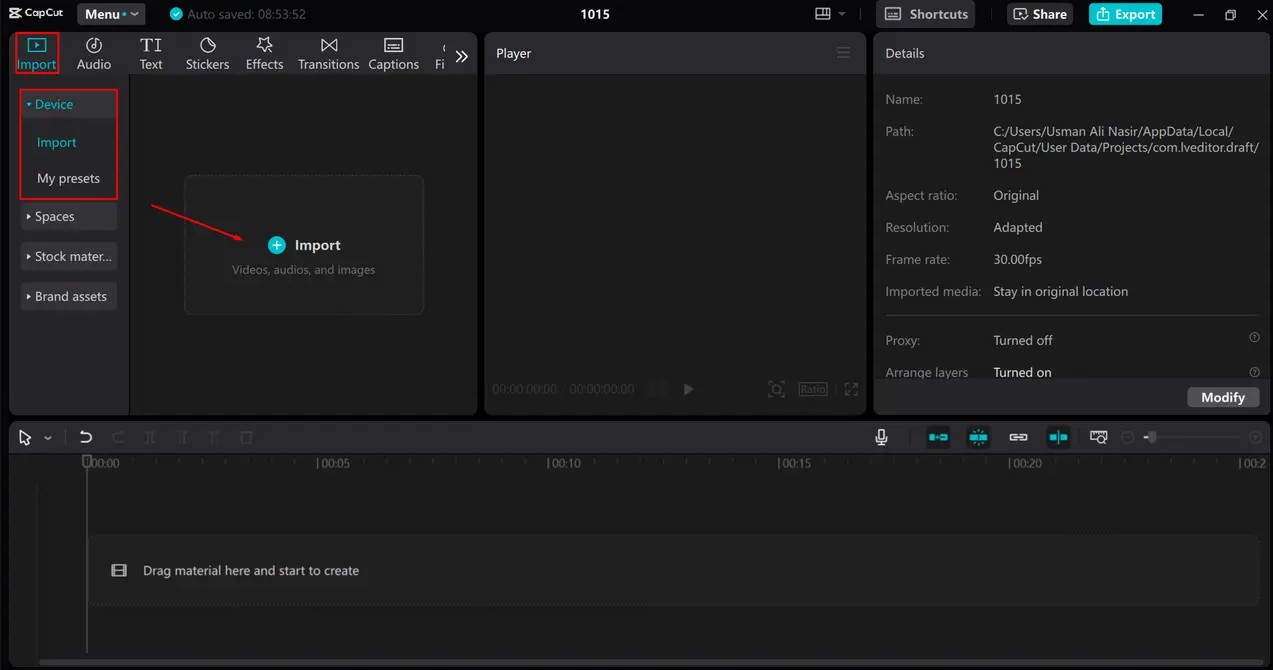
Once imported, the files will appear in the project library. Simply drag them down to the Timeline to begin editing.
3. Step-by-step guide to video editing on CapCut PC
After adding the video to your Timeline, you can start editing it as needed.
The first step is to trim and remove unnecessary sections. Move the playhead to the desired trimming point and press the Split button . The video will be divided into two separate segments. You can continue splitting the video multiple times to separate different scenes, then delete any unnecessary parts to create a smooth rhythm for the video.
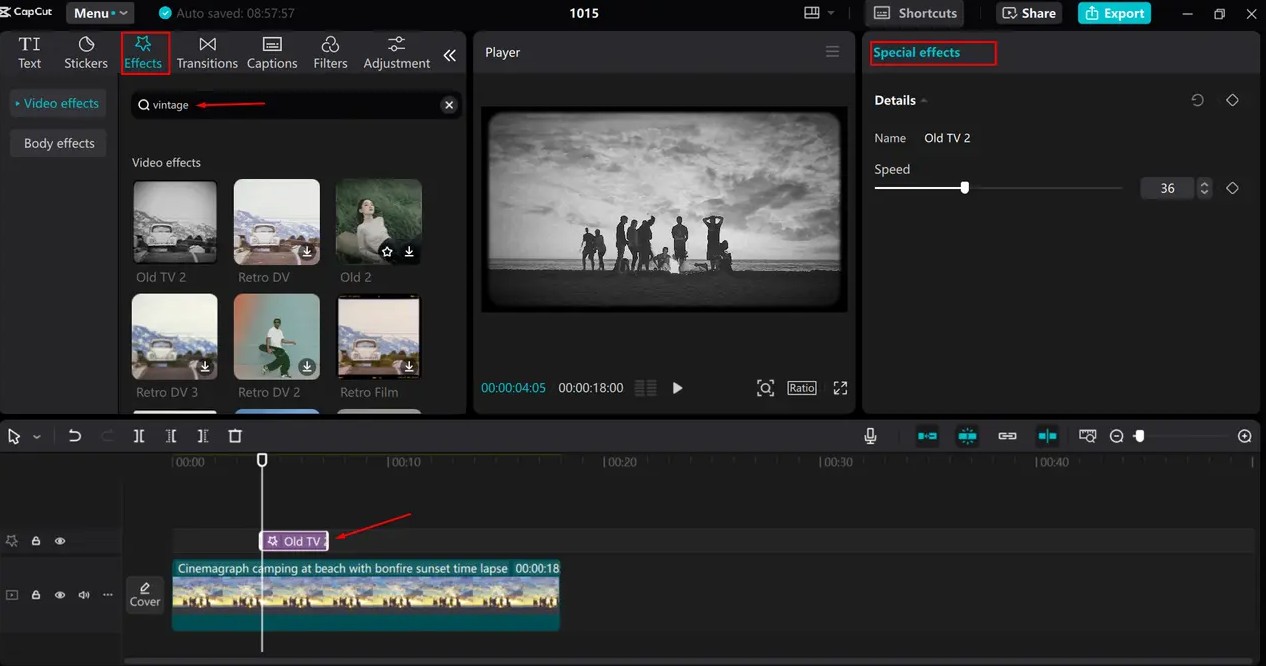
Next, rearrange the video segments if needed by dragging and dropping them on the Timeline. With multi-layer editing, you can add images, logos, sub-videos, or text layers without affecting the main content.
To enhance professionalism, CapCut offers various transition effects such as Fade, Dissolve, Zoom, Blur, Flash, and Camera Movement. Simply tap the space between two video segments and select the appropriate effect, and the transition will become smoother and more engaging.
Additionally, you can use color filters or color adjustment tools to change the image style. Adjusting brightness, contrast, saturation, color temperature, and highlights will help create a harmonious and consistent color palette for your video.
Don't forget to add text, titles, or subtitles to convey your message more clearly. CapCut supports many beautiful font styles and animation effects to make your content more lively and engaging.
4. Exploiting CapCut's outstanding features on PC
CapCut PC boasts many powerful features, making it easy for users to create professional videos right on their computer.
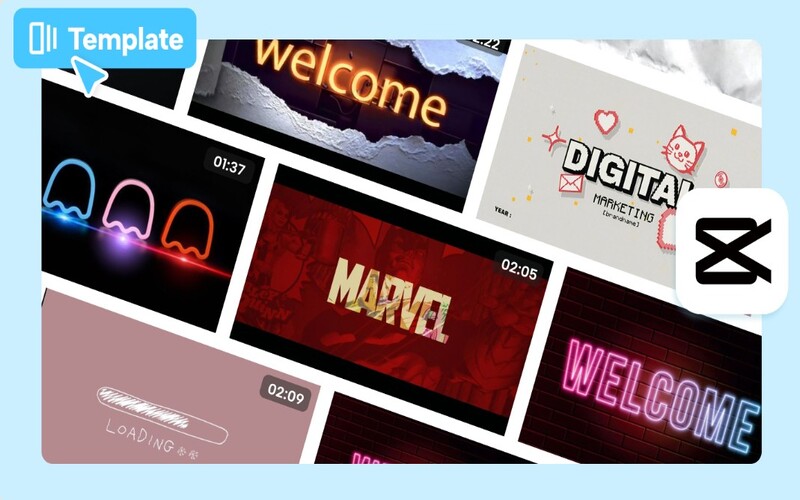
The Templates library offers hundreds of video templates on various themes. Simply replace your images or videos, and you can create a complete product in a short time without having to design it from scratch.
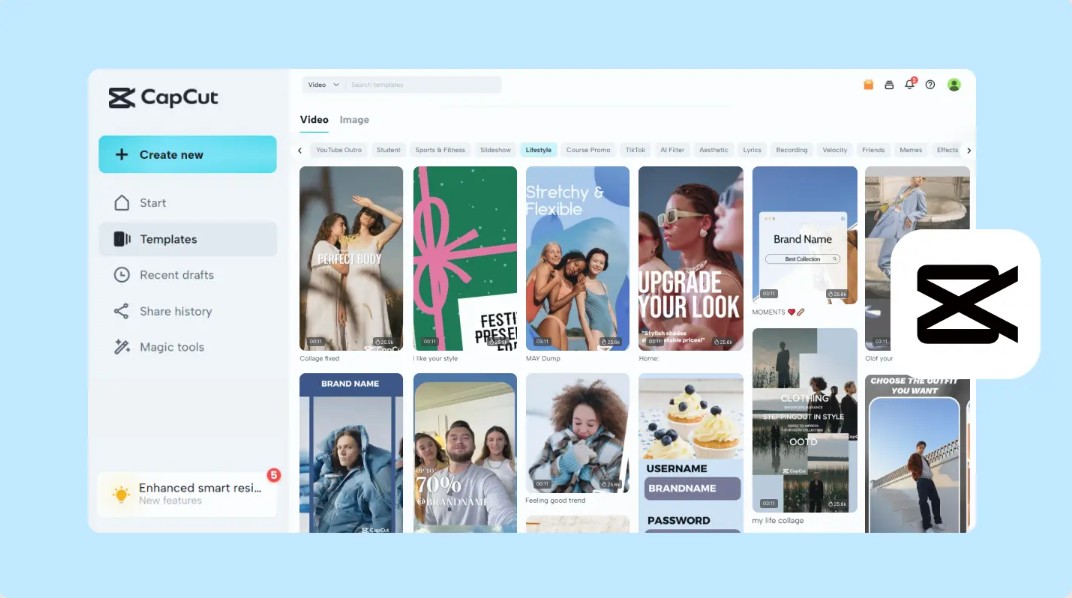
The software also integrates a library of free resources including stock videos, images, stickers, effects, color filters, background music, and sound effects, saving time searching for materials and supporting more convenient content creation.
CapCut also supports many beautiful text templates and motion effects, allowing you to create professional titles, subtitles, or annotations. For audio, users can separate audio from video, reduce noise, adjust volume, add fade-in or fade-out effects, or record directly.
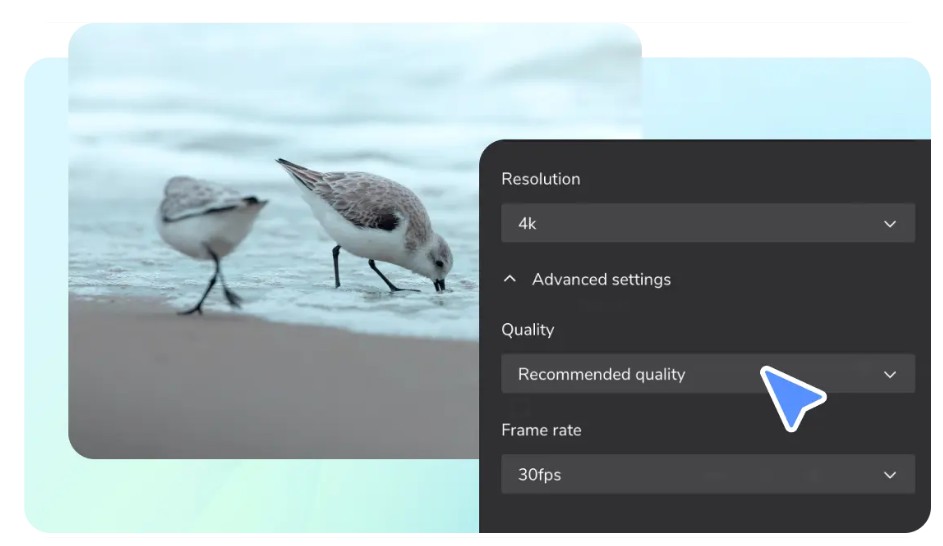
Additionally, tools like Keyframe Animation , Chroma Key , Mask , Blend Mode , and Speed Curve help create motion, remove backgrounds, combine multiple image layers, and adjust video speed more flexibly. Once completed, CapCut supports exporting videos in various formats and resolutions from HD to 4K, compatible with most current sharing platforms.
5. Leverage the power of AI in CapCut to save editing time.
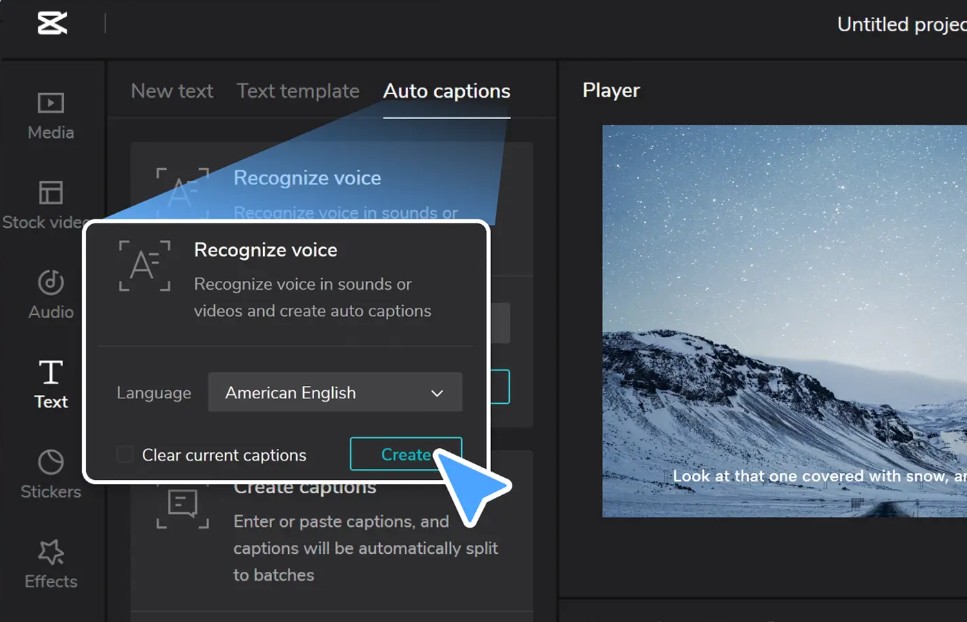
CapCut stands out for its integration of numerous AI tools that simplify the video editing process. One of its most frequently used features is Auto Captions , which automatically recognizes speech and generates subtitles in seconds, saving time and increasing viewer engagement.
If you don't want to record yourself, you can use Text to Speech to convert text into natural-sounding spoken words in various languages and styles. This is a useful tool when creating tutorial videos, product introductions, or educational content.
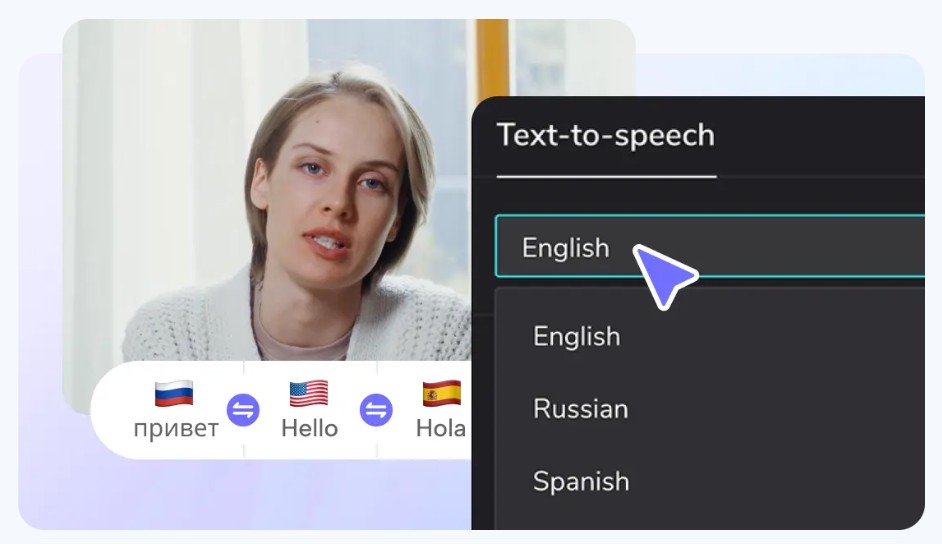
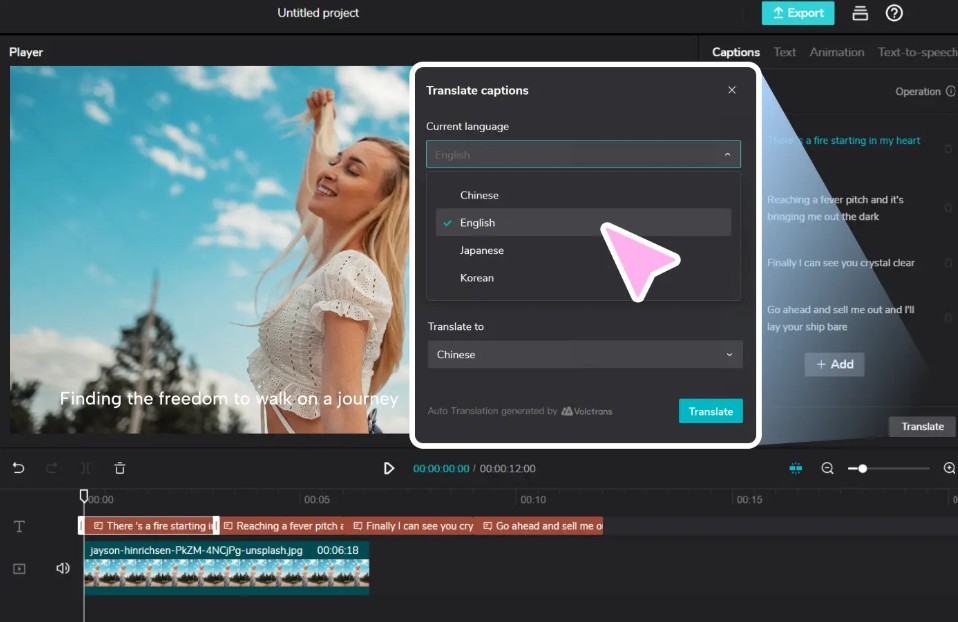
CapCut also supports Smart Background Removal , automatically separating the subject from the background without the need for a green screen, and provides a Video Translator feature to translate dialogue and create multilingual subtitles, expanding its reach to an international audience.
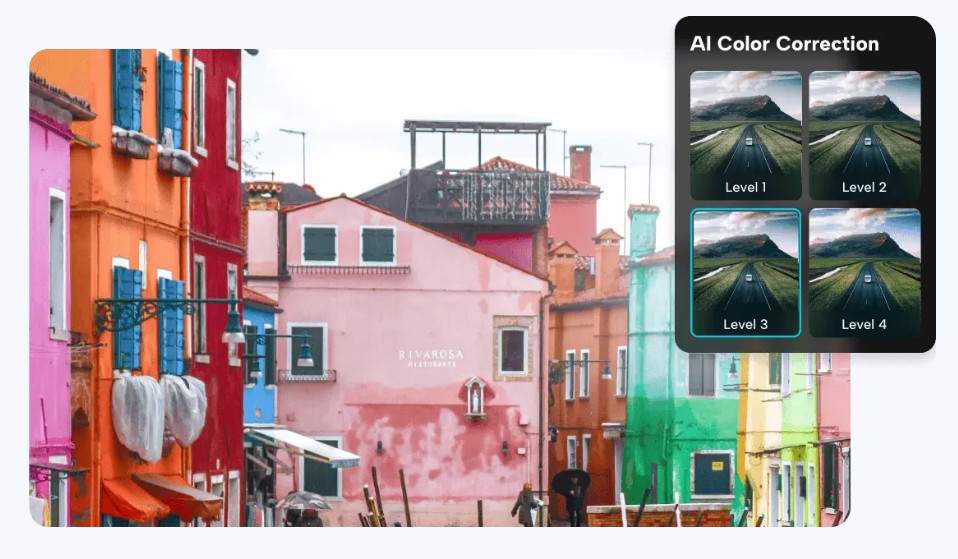
Furthermore, AI can convert long videos into short videos by selecting key segments, automatically balancing colors with AI Color Correction , and supporting various other intelligent tools such as motion tracking, image quality enhancement, and audio noise reduction. These features help users save time while still creating professional-quality videos.
6. Tips for using CapCut effectively on PC for beginners
During the editing process, frequently preview the entire video to check for errors in image, sound, subtitles, transition effects, or color. Replaying the video multiple times helps you detect inconsistencies and make timely corrections before publishing.
In addition, you should take advantage of keyboard shortcuts in CapCut to speed up your workflow. Actions such as playing or pausing videos, splitting clips, undoing actions, and zooming in or out of the timeline will be performed much faster than using the mouse continuously. Once you become familiar with keyboard shortcuts, your editing efficiency will improve significantly.
Another tip is to use Layers to manage text, images, effects, and audio separately. This arrangement makes it easy to edit each element without affecting other content in the project, especially useful when creating promotional videos or videos with many effects.
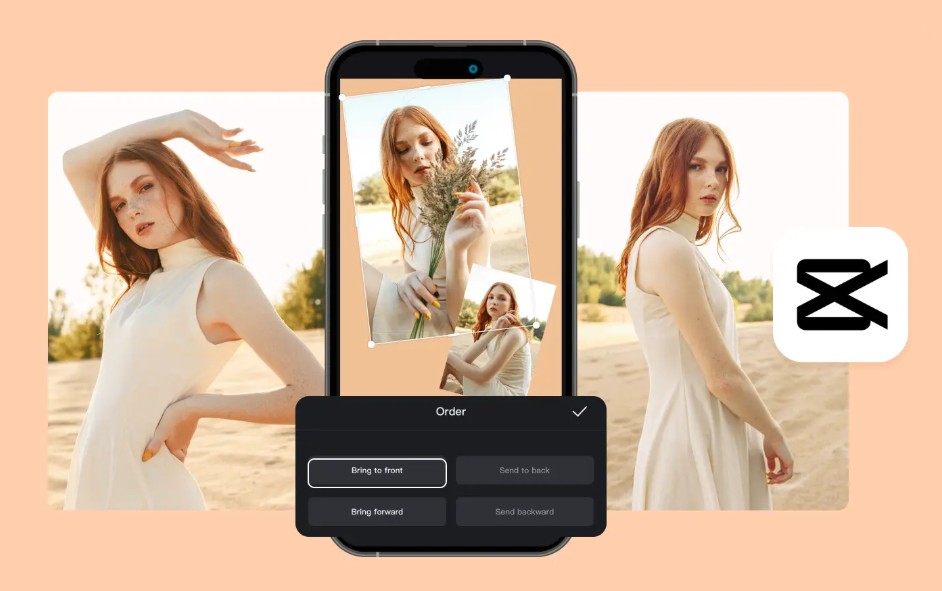
Additionally, take advantage of pre-made templates, effects, and filters instead of creating everything from scratch. This not only saves time but also provides creative ideas that align with video trends on TikTok, YouTube Shorts, and Facebook Reels.
Finally, choose the appropriate resolution and frame rate when exporting your video. For most content uploaded to social media, Full HD (1080p) combined with 30 FPS or 60 FPS is the optimal choice, resulting in sharp video, smooth motion, and a reasonable file size. If the video is to be displayed on a large screen or for professional purposes, you may consider exporting at 2K or 4K resolution for higher image quality.
7. Conclusion
For beginners, CapCut on PC is one of the most accessible video editing software programs available today. Its intuitive interface, simple workflow, and rich set of tools allow users to quickly create high-quality videos without requiring extensive experience.
CapCut not only fully supports basic editing operations such as cutting, splicing, adding effects, color correction, and audio processing, but also integrates many modern AI features such as automatic subtitle generation, text-to-speech conversion, background removal, video translation, and social media content optimization. With its constant updates to new technologies and improvements to the user experience, CapCut PC deserves to be the top choice for anyone wanting to start their video creation journey on a computer.





















VIP Products








Best Selling Products
ChatGPT Plus Account (GPT-4)
16 USD
Plugin Retouch4me
69 USD
Genuine Cheap Canva Pro
39 USD
Adobe Photoshop Copyright - Full App
120 USD
Upgrade Duolingo Super
29 USD
Autodesk All App Account Copyright
120 USD
Copyright Adobe Lightroom Account
59 USD
Windows 10 & 11 Pro Key
36 USD
Freepik Premium Account
59 USD
Upgrade genuine Capture One account
120 USD
Capcut Pro 1 Year
39 USD
MidJourney Account
29 USD
Genuine Adobe Illustrator account
99 USD
Upgrade Genuine Office 365
49 USD
Adobe Premiere Pro Account
99 USD