Best Selling Products

ChatGPT Plus Account (GPT-4)
16 USD

Plugin Retouch4me
69 USD

Copyright Adobe Lightroom Account
59 USD

Freepik Premium Account
59 USD

Adobe Premiere Pro Account
99 USD

Genuine Adobe Illustrator account
99 USD

Genuine Cheap Canva Pro
39 USD

Upgrade genuine Capture One account
120 USD

Upgrade Genuine Office 365
49 USD

Adobe Photoshop Copyright - Full App
120 USD

MidJourney Account
29 USD

Autodesk All App Account Copyright
120 USD

Capcut Pro 1 Year
39 USD

Upgrade Duolingo Super
29 USD

Windows 10 & 11 Pro Key
36 USD
How to quickly and easily recover deleted designs in Canva
Nội dung
- 1. Can Canva recover deleted designs?
- 2. How to recover deleted designs in Canva using a computer
- 2.1. Log in to your Canva account
- 2.2. Open the design management area.
- 2.3. Access the Recycle Bin
- 2.4. Find the correct design you want to restore.
- 2.5. Select Restore to revert the design.
- 2.6. Re-check the design after restoration.
- 3. How to recover deleted designs in Canva using your phone.
- 3.1. Open the application and log in.
- 3.2. Find the Projects and Trash sections.
- 3.3. Select design and restore
- 4. Why can't I find the deleted design on Canva?
- 5. Important notes when restoring designs in Canva
- 6. Is it possible to restore the entire design content?
- 7. How to prevent the loss of Canva designs in the future.
- 8. Conclusion
Just one accidental delete button press can cause a Canva design you''ve spent hours editing to disappear from your project list. This is especially worrying for banners, posters, presentation slides, or publications that need to be used urgently; not being able to find the file is certainly a cause for concern. However, you don''t need to rush to recreate it from scratch because Canva has a Trash area to store deleted designs for a certain period of time. Thanks to this mechanism, if the design is still within the storage period, you can return the file to the library with just a few clicks. This article from Sadesign will provide detailed instructions on how to recover deleted designs on Canva using both computers and phones, and share important tips to minimize the risk of data loss.

1. Can Canva recover deleted designs?
If the design is still in the Recycle Bin and hasn't been permanently deleted, you can recover it. When you delete a design, Canva doesn't necessarily remove the file immediately from the system. Instead, the design is moved to the Recycle Bin, giving users time to check and recover it if needed. This is a very useful feature in case you accidentally delete a file or change your mind after cleaning up your library. However, recovery isn't always possible if the design has exceeded its storage time limit or the user has permanently deleted it.
-
The deleted design can be found in the Recycle Bin .
-
You need to log in with the same Canva account you used to create the design.
-
With team accounts, you need to check that the workspace is correct .
-
Designs that have been permanently deleted will be difficult or impossible to recover using normal procedures.
-
You should check the Recycle Bin as soon as possible if you realize you've accidentally deleted something.
2. How to recover deleted designs in Canva using a computer
Restoring a design on a computer is relatively simple, and the interface between Canva on the browser and the Canva desktop application is very similar. You just need to log in with the correct account, find the Trash, and select the design you want to restore.
2.1. Log in to your Canva account
First, open Canva in your browser or the Canva application on your computer. Then log in using the account you used to create or edit the design earlier.
This step may seem simple, but it's crucial. If you frequently use multiple Google, Apple, or email accounts, logging into the wrong account could make you think the design has disappeared. For those working in teams, be sure to double-check the workspace you're using.
-
Open Canva on your computer.
-
Log in using the appropriate account.
-
Check your email or login method.
-
If working in a team, choose the right workspace to contain the design.
-
After logging in, wait for the project interface to fully load.
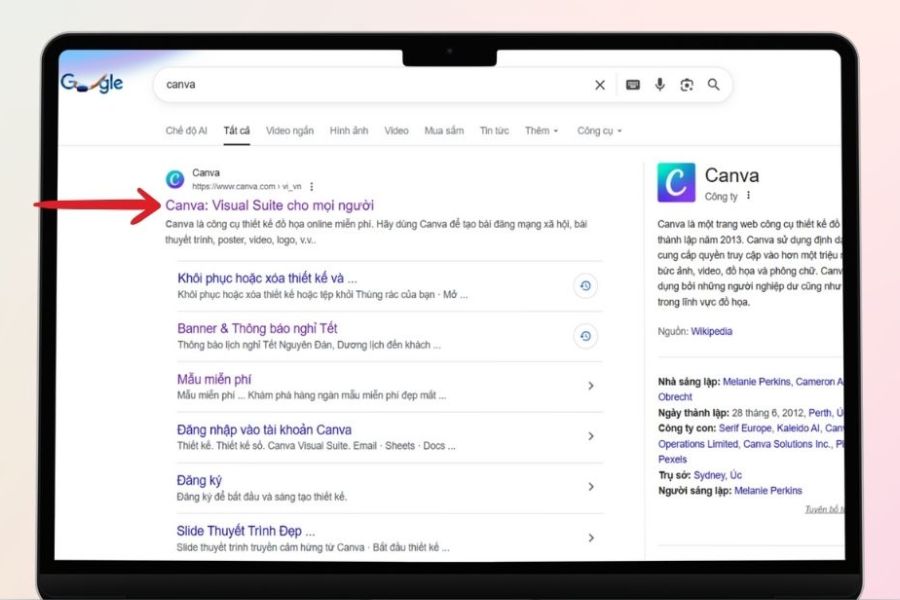
2.2. Open the design management area.
After successfully logging in, observe the main Canva interface. In the project management area, you can view your created designs, folders, images, and other account-related content.
Depending on the interface version, the location or display of some items may vary slightly. Therefore, if you don't immediately see the design you're looking for, don't jump to the conclusion that the file is lost. Check your project management area and folders before moving on to the next step.
-
Access the Canva Projects area.
-
Check the list of recent designs.
-
Review your folders if you regularly categorize your files.
-
Make sure you are using the correct account and workspace.
2.3. Access the Recycle Bin
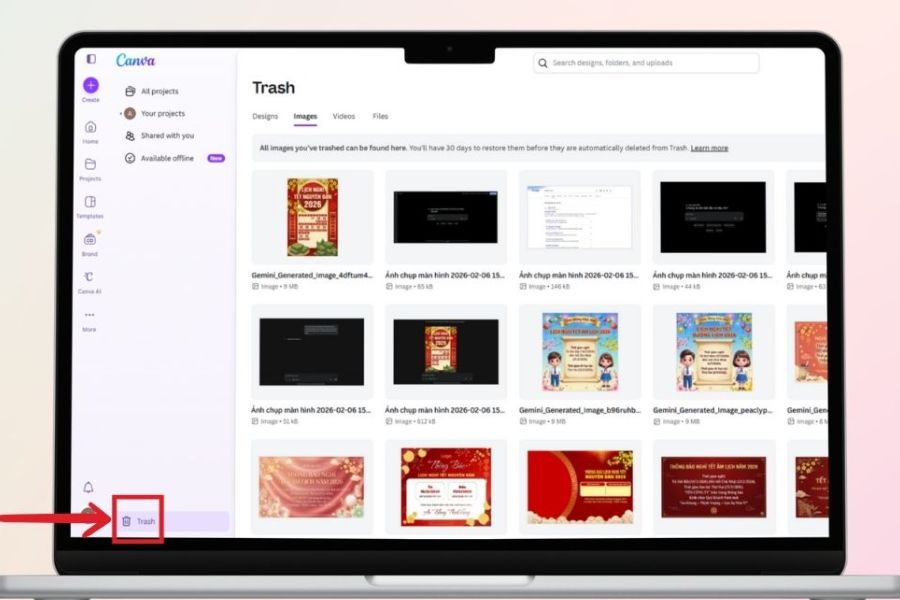
This is the most important step if you want to recover deleted designs. In the project management area, find the Trash folder . This is where Canva gathers content that has been deleted by users but is still on the archive.
When you open the Recycle Bin, you'll see a list of deleted designs. If you've accidentally deleted a banner, presentation, or design template, this is usually the first place you should check.
-
Open the Projects section .
-
Find and select the Trash .
-
Check the list of deleted designs.
-
Pay attention to the thumbnail and file name to correctly identify the design.
2.4. Find the correct design you want to restore.
If the Recycle Bin is full of files, manually searching can be time-consuming. In that case, take advantage of the search tool if your Canva interface supports it to quickly locate the design.
You should remember the file name, design type, or the time period when you made the edits. Thumbnails are also a helpful way to accurately identify the file you need to retrieve, especially when you have many designs with similar names.
-
Search by design name.
-
Observe the thumbnail of each file.
-
Check the time of the edit, if any.
-
Compare the contents to avoid restoring the wrong file.
-
If there are multiple similar versions, check carefully before proceeding.
2.5. Select Restore to revert the design.
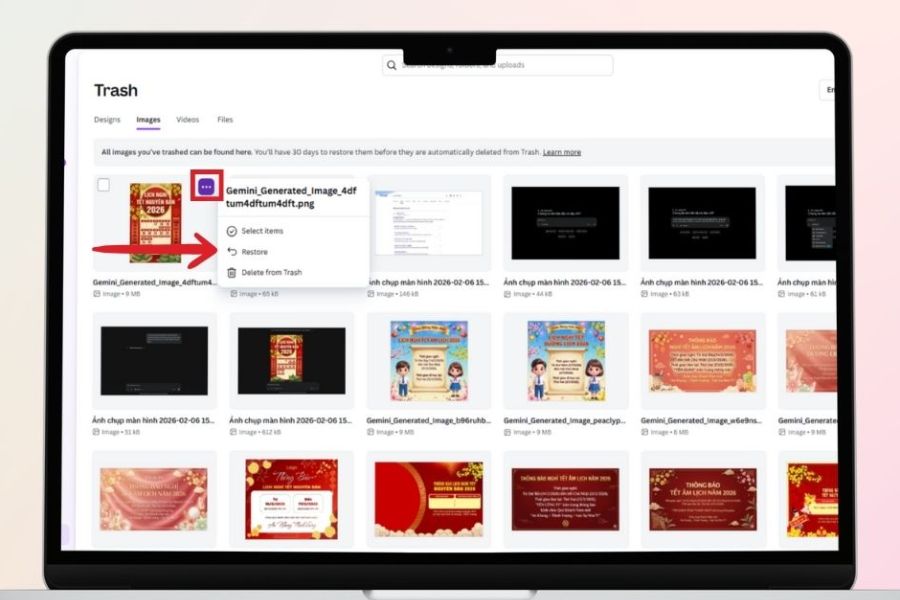
After locating the design you want to recover, hover your mouse over the file and look for the Restore option . In some interfaces, this option may be located in a menu with three dots.
Click Restore and wait for Canva to process it. Once complete, the design will be returned to the project area instead of remaining in the Trash. This is the quickest way to retrieve a design that was accidentally deleted.
-
Choose the right design.
-
Tap the three-dot icon if needed.
-
Select Restore .
-
Wait for the system to complete the recovery process.
2.6. Re-check the design after restoration.
Don't stop immediately after Canva announces that the restoration was successful. Go back to the Project area and check if the design has reappeared.
You should open the recovered file directly to ensure the layout, images, text, and other important elements are still as intended. If this is a design you're preparing to use for work, an extra check will help minimize any unexpected surprises.
-
Reopen the Projects section .
-
Find the restored design.
-
Open the file to check its contents.
-
Check the images, fonts, and layout.
-
If necessary, make a copy to avoid making the same mistake again.
3. How to recover deleted designs in Canva using your phone.
Even without a computer nearby, you can still check and recover deleted designs through the Canva app on your phone. The process generally revolves around three main steps: logging in with the correct account, finding the Recycle Bin, and selecting the design you want to recover.
The interface on your phone may be laid out differently from the desktop version, so you might need to open the menu or project management area to find the Recycle Bin. Most importantly, don't log in to a different account just because you don't see the file right away on the main screen.
3.1. Open the application and log in.
First, open the Canva app on your phone. Make sure the account you're logged in with is the same account you previously used to create the design.
If you use multiple Canva accounts for both personal and team work, double-check your accounts and corresponding workspaces. This is a common reason why users struggle to find their designs.
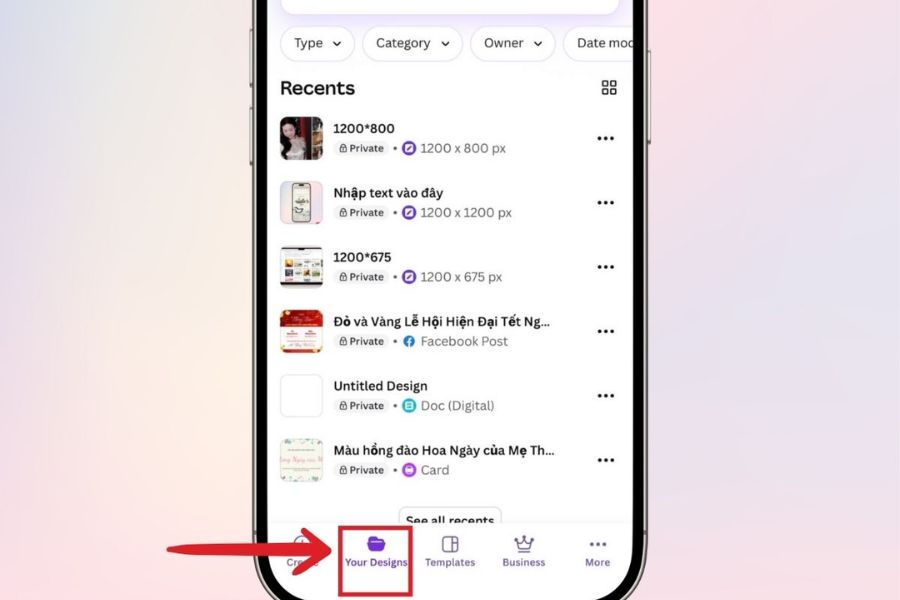
3.2. Find the Projects and Trash sections.
After launching the application, access the area for managing designs or projects. Here, find the Trash folder to view deleted files.
The list of designs can be displayed as thumbnails. Scroll through the list and identify the file you want to recover based on its name or preview image.
3.3. Select design and restore
Once you've found the file, open the design's options menu. If the design is still recoverable, Canva will provide a Restore option .
Select restore and wait for the process to complete. Then, return to the project list to find the design that has just been restored.
-
Open the Trash Can .
-
Choose the right design.
-
Open the options menu.
-
Press Restore .
-
Review the design in the library.
4. Why can't I find the deleted design on Canva?
In some cases, you might open the Recycle Bin but not find the design you're looking for. This doesn't necessarily mean Canva is malfunctioning. There are many reasons why a design might not appear in the list, from logging in with the wrong account to the file being permanently deleted.
Before giving up and redesigning from scratch, check the following possibilities one by one. The more accurately you identify the cause, the greater your chances of recovering the file quickly.
-
Wrong account logged in: The design might be in a different email address.
-
Incorrect workspace: If the design belongs to a team, double-check the workspace.
-
Incorrect file name: Try to recall the name or design content instead of just searching by keyword.
-
The design has been permanently deleted: Files no longer in the Recycle Bin cannot be recovered through normal means.
-
File retention time has expired: Canva may automatically remove files that have been in the Recycle Bin for too long.
-
The design belongs to a different account or group: The file creator could be a different account within the same system.
5. Important notes when restoring designs in Canva
File recovery is a useful solution, but it shouldn't be considered a foolproof backup method. Recycle Bin storage time is limited, and permanently deleting files can jeopardize your chances of recovery. Therefore, as soon as you retrieve important designs, you should proactively create additional copies or download them to your computer.
A few small habits while using Canva can also significantly reduce the risk of data loss:
-
Check the Recycle Bin immediately if you realize you accidentally deleted something.
-
Do not select Permanently Delete if you still have doubts about the file.
-
Give your designs clear names to make them easy to find.
-
Organize your designs into folders by project.
-
Duplicate key design elements before making major changes.
-
Download copies of the files you want to store long-term.
-
With team design, access rights and workspace need to be checked.
-
If you're using Canva Pro resources, check your account plan status when you reopen the designer.

6. Is it possible to restore the entire design content?
If the design is still in Canva's Recycle Bin and is successfully restored, the file will usually revert to its original design form instead of creating a new blank file. This is especially useful for projects with many components such as images, text, effects, and complex layouts.
However, you should still reopen the design after recovery to test it. Some components may depend on the account, access permissions, or resources you were using at the time.
-
Check all content after restoration.
-
Check the images and videos used.
-
Check the fonts and design elements.
-
Check which resources require permissions or service packages.
-
Export a test file if this is a design ready for use.
7. How to prevent the loss of Canva designs in the future.
Knowing how to restore designs is essential, but proactively protecting your data is still safer. If you frequently use Canva to create banners, social media content, slides, or work documents, make it a habit to back up important files instead of relying solely on the Recycle Bin.
Especially for designs that take a long time to create, a backup copy can save you a lot of effort if something goes wrong.
-
Name your scientific files scientifically: Use names that include the subject, date, or version for easy retrieval.
-
Create separate folders: Categorize designs by client, project, or intended use.
-
Duplicate important files: Create a copy before making major changes.
-
Download the file to your computer: For important designs, it's recommended to export a suitable PNG, JPG, or PDF version.
-
Save versions: For projects that require multiple edits, you can name each version to avoid accidentally overwriting existing versions.
-
Account verification: Ensure the design was created and saved in the correct account or workspace.
8. Conclusion
Recovering deleted designs in Canva isn't actually that complicated if the file is still in the Recycle Bin. You just need to log in with the correct account, open the project management area, access the Recycle Bin , find the design you want to retrieve, and select Restore . These steps can be performed on both computers and phones, allowing you to quickly get the file back without having to redesign it from scratch. However, don't wait until you lose a file to think about backing it up. For important banners, posters, slides, or designs, create a backup and download the file to your computer when needed. A few minutes of preparation can save you hours of rework if you accidentally delete a design in the future.





















VIP Products








Best Selling Products
ChatGPT Plus Account (GPT-4)
16 USD
Plugin Retouch4me
69 USD
Copyright Adobe Lightroom Account
59 USD
Freepik Premium Account
59 USD
Adobe Premiere Pro Account
99 USD
Genuine Adobe Illustrator account
99 USD
Genuine Cheap Canva Pro
39 USD
Upgrade genuine Capture One account
120 USD
Upgrade Genuine Office 365
49 USD
Adobe Photoshop Copyright - Full App
120 USD
MidJourney Account
29 USD
Autodesk All App Account Copyright
120 USD
Capcut Pro 1 Year
39 USD
Upgrade Duolingo Super
29 USD
Windows 10 & 11 Pro Key
36 USD