Best Selling Products

ChatGPT Plus Account (GPT-4)
16 USD

Copyright Adobe Lightroom Account
59 USD

Freepik Premium Account
59 USD

Upgrade genuine Capture One account
120 USD

Genuine Cheap Canva Pro
39 USD

Capcut Pro 1 Year
39 USD

Autodesk All App Account Copyright
120 USD

Upgrade Duolingo Super
29 USD

Plugin Retouch4me
69 USD

Genuine Adobe Illustrator account
99 USD

MidJourney Account
29 USD

Adobe Premiere Pro Account
99 USD

Upgrade Genuine Office 365
49 USD

Adobe Photoshop Copyright - Full App
120 USD

Windows 10 & 11 Pro Key
36 USD
How to Reduce Lightroom Classic Storage Space on Your System
Nội dung
- 1. How Lightroom Classic Stores Your Data
- 2. Why Lightroom Classic Uses So Much Storage Space
- 3. Hidden Storage Locations in Lightroom Classic
- 4. How to Check Lightroom's Storage Capacity
- 4.1 Check Catalog Size
- 4.2 Check Cache Location and Preview
- 4.3 Analysis of Total Disk Space Usage
- 5. How to Reduce Storage Space in Lightroom Classic
- 6. Things to Do in Storage Management
- 7. Conclusion
- 8. Frequently Asked Questions
Many users who have been using Adobe Lightroom Classic for a long time have noticed a common phenomenon: their disk space decreases rapidly even when they don''t install new software or download a lot of data. The main reason for this is the way Lightroom Classic operates.

1. How Lightroom Classic Stores Your Data
Unlike many other photo editing software, Lightroom Classic doesn't consolidate all data into a single folder, but instead divides it into several independent components, each with its own role in the workflow. This separation is the underlying reason why users often find it difficult to discern the actual total storage space that Lightroom Classic occupies.
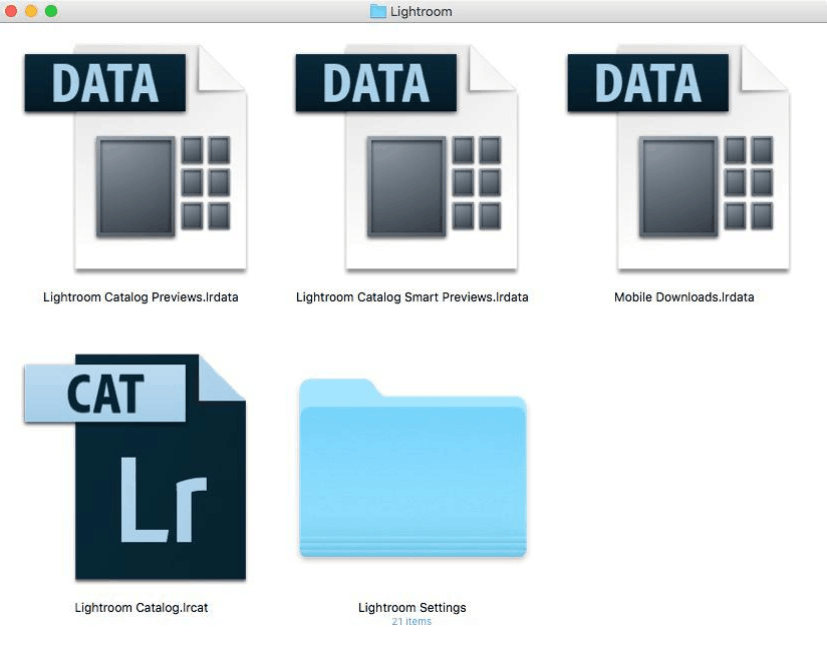
First, it's important to distinguish between a catalog file and the original images. A catalog is essentially a database that stores all editing information, operation history, star ratings, flags, and keyword tags for each image. It's crucial to note that the catalog does not contain the original image data; it only serves as a record of all changes. The original images remain stored separately in user-specified folders, which can be on the computer's hard drive or an external drive. As the image library expands and the number of editing operations increases, both components grow larger, leading to a corresponding increase in total storage space.
In addition to the catalog, Lightroom Classic also features a preview and caching system to speed up image rendering. Previews are small, pre-made versions of images that allow users to browse the library smoothly without waiting for the software to decode the original image each time they view it. Simultaneously, the caching system temporarily stores processed data to facilitate faster editing in the Develop module. With libraries containing tens of thousands of image files, the size of the previews and cache can grow significantly, especially when users choose large preview sizes or high-capacity caches.
Another component that contributes to increased storage space is smart preview. These are significantly smaller copies of the original RAW files, allowing users to continue editing even when the original drive is disconnected, such as when working remotely with an external hard drive at home. This feature is very useful for flexible workflows; however, with a catalog containing thousands of images, all of which have smart previews, the resulting storage space can amount to tens of gigabytes.
2. Why Lightroom Classic Uses So Much Storage Space
Understanding the storage mechanism is the first step, but to truly control storage space, users need to understand the specific reasons why Lightroom Classic is increasingly taking up more disk space.
The first and most obvious reason is the bloated size of the catalog file. Every time new photos are added, keywords are added, colors are adjusted, or collections are created, the catalog records all those changes. For users with many photography projects running continuously over many years, the catalog file can reach several gigabytes of text and index data alone.
Next is the accumulation of preview files. Lightroom Classic creates previews to help images load faster in the library, but with large collections, the number of previews can reach thousands of files, each with a different size depending on the configuration selected when importing images. If the user chooses the highest quality preview level, the resulting file size will increase significantly compared to the standard level.
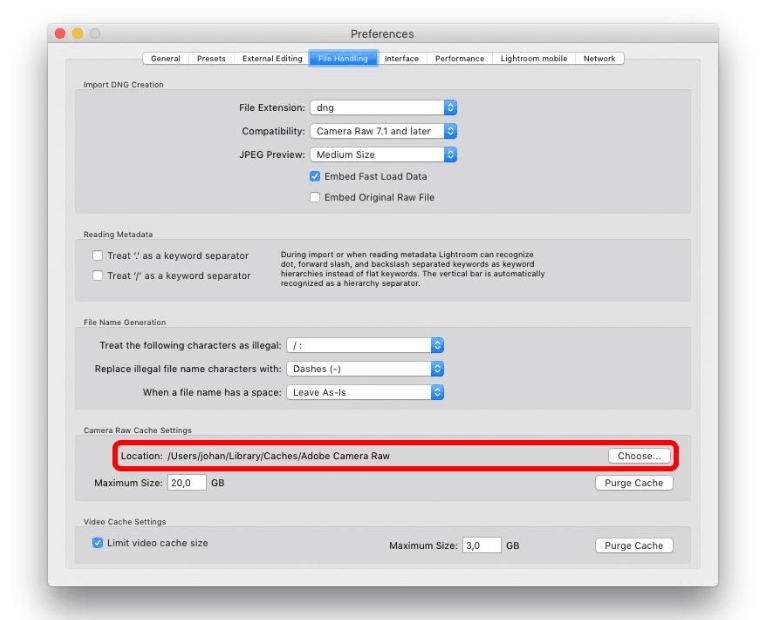
The Camera Raw cache, often referred to as the Camera Raw memory cache, is also a significant factor. By default, Adobe's cache limit typically ranges from one to five gigabytes depending on the version; however, many professional photographers often increase this limit to several tens of gigabytes to improve RAW image processing speed in the Develop module. While increasing the cache limit results in smoother operation, it also consumes more disk space.
Furthermore, duplicate copies and multiple image imports also contribute significantly. Some users inadvertently import the same image folder multiple times, or create additional copies during manual editing and backup, resulting in the same image existing in multiple locations on the drive.
Exporting images is also a factor to consider. Each time you export a file, Lightroom Classic creates a completely new image file, and if you export the same image in multiple sizes or formats for different purposes, the number of exported files will increase rapidly and remain permanently on the hard drive until manually deleted.
Finally, catalog backup files are another often overlooked source of storage space. Lightroom Classic has a feature that automatically backs up catalogs periodically to protect data from file corruption, but if not cleaned up regularly, the backup folder can contain dozens of old catalogs, each as large as the original.
3. Hidden Storage Locations in Lightroom Classic
One of the reasons users find it difficult to manage storage space is that Lightroom Classic stores data in many different locations on the system, instead of consolidating it into a single, easily accessible folder.
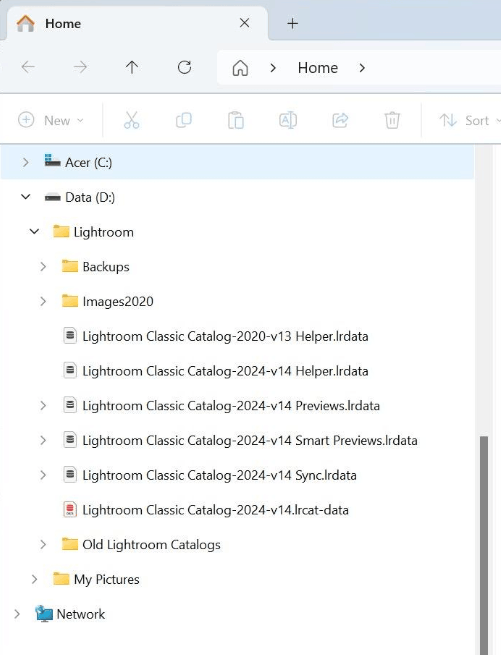
Catalog files are typically saved in a user-specified folder when the catalog is first created, most commonly in the Pictures folder or a custom location on the internal drive. Over time, this file can grow to a significant size, especially when the image library is large.
Preview files, usually with the .lrdata extension, are by default placed in the same folder as the catalog to ensure quick access when browsing photos. These are often one of the largest storage components in Lightroom Classic.
Camera Raw cache is stored in a completely different location, separate from catalog and preview files. On macOS, this cache is usually located in the Library folder within the user profile, while on Windows it's typically in the AppData folder or a user-defined location in performance settings. Because it's located in system folders that are rarely accessed directly, many users are completely unaware of the existence of this cache folder until they thoroughly check their disk space.
Finally, catalog backups are also saved in a separate folder, usually located next to the main catalog location or at a user-defined path in the backup dialog box. Without regular checking, this folder can silently grow larger without the user's knowledge, as the backup process is automatic and doesn't display any warnings about accumulated space.
4. How to Check Lightroom's Storage Capacity
Before proceeding with cleanup or optimization, users need to accurately determine the amount of space each component of Lightroom Classic is occupying on the system. This check can be divided into three basic steps as follows.
4.1 Check Catalog Size
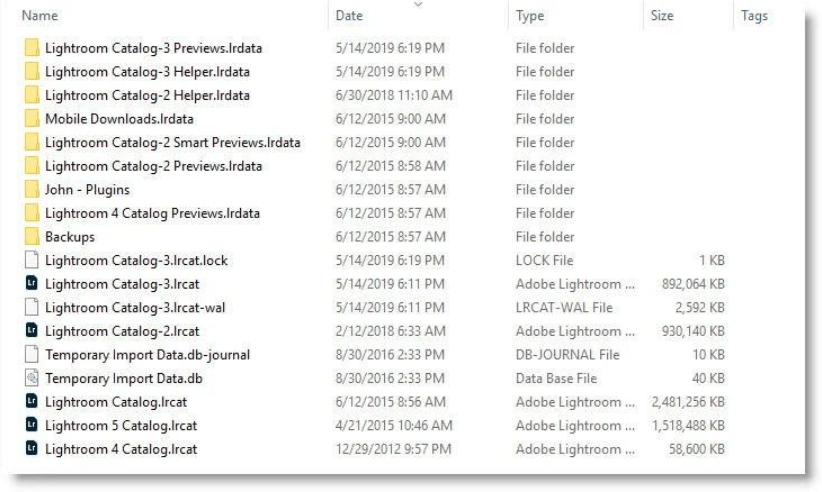
The first step is to determine the current size of the main catalog file. Users can open the folder containing the catalog and then directly view the properties of the .lrcat file to see the specific size. A large catalog usually reflects long-term use with a significant number of images and editing operations. If the catalog exceeds several gigabytes, this is a sign that it's time to optimize or consider splitting the catalog by project to reduce system load.
4.2 Check Cache Location and Preview
The next step is to separately check the preview and cache folders, as these are often the largest but most easily overlooked components. Users can go to the catalog settings to see the preview storage path, then check the size of the corresponding lrdata folder. For Camera Raw cache, the storage path and current storage limit are displayed in the performance tab of the options, where users can directly see the actual usage compared to the previously set limit.
4.3 Analysis of Total Disk Space Usage
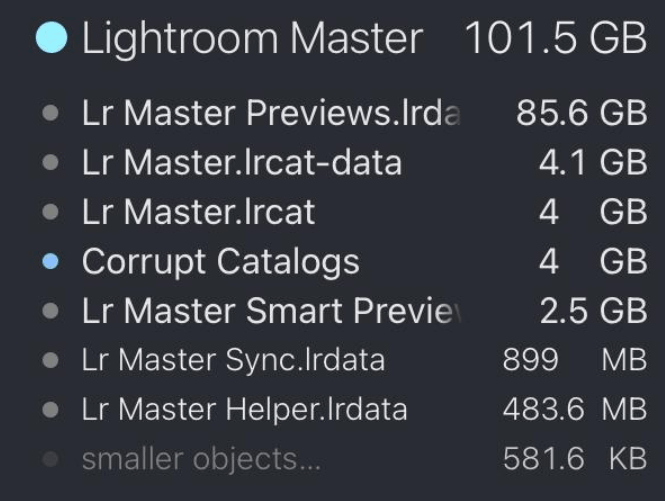
Finally, for a comprehensive view, users should analyze the overall disk space usage of the entire Lightroom folder, including catalog, preview, cache, and backups. The operating system's built-in disk space management tool or third-party disk analysis software can be used to visually display each subfolder in descending order of size. This method allows users to quickly identify which components are taking up the most space, enabling them to make informed cleanup decisions instead of manually checking each folder, which is time-consuming.
5. How to Reduce Storage Space in Lightroom Classic
After identifying the areas that are taking up the most disk space, the next step is to implement specific measures to free up disk space while ensuring that performance remains unaffected.
-
Regular cache and preview cleanup: Old preview files, especially those not frequently used, can be deleted without affecting the original image, as Lightroom Classic will automatically recreate a new preview as needed during the next viewing. Similarly, the Camera Raw cache can also be periodically cleared through performance settings without losing editing data.
-
Catalog optimization: This function helps remove redundant data that has accumulated within the catalog over time, while also reorganizing the database structure, resulting in more stable software performance and reduced unnecessary storage space.
-
Managing smart previews: If there is no need to edit photos when the original drive is disconnected, users can completely disable the smart preview feature when importing new photos, or delete unnecessary smart previews from the existing library.
-
Delete old backups: Instead of keeping the entire backup history for months or years, users should only maintain a few of the most recent backups, enough for recovery in case the catalog malfunctions, and delete those that are too old and no longer have practical value.
-
Adjusting image import settings: Choosing a standard preview level instead of the highest quality level, along with disabling unnecessary preview options during the import process, will significantly reduce the amount of data generated right from the initial import step.
-
Use an external storage drive for original images: Moving all original images to an external drive significantly reduces the load on the main drive containing the operating system, while Lightroom Classic can still link to and work with these files normally through the catalog.
6. Things to Do in Storage Management
Besides situational cleanup, establishing a systematic and consistent disk space management process will help Lightroom Classic run smoothly in the long term and minimize the risk of unexpected disk fullness.
First and foremost, it's advisable to maintain a single main catalog if work conditions permit, rather than creating multiple scattered catalogs for each small project, as having too many separate catalogs makes it difficult to track overall storage usage. The main catalog should be placed on a drive with fast read/write speeds, while also ensuring there is always enough free space for the software to run smoothly.
Moving your entire photo library to a separate drive, distinct from the operating system drive, is also a worthwhile practice. Using a dedicated SSD for your photo library not only saves system drive space but also significantly improves browsing and editing speeds.
In addition, it's necessary to develop a habit of regular cleanup, including removing rejected photos, deleting duplicate copies, and emptying the recycle bin in Lightroom Classic after each large photo processing session. At the same time, you should check and adjust the frequency of catalog backups to ensure a reasonable number of copies, keeping only enough to guarantee data safety without wasting storage space.
7. Conclusion
The fact that Lightroom Classic takes up a lot of storage space doesn't stem from a single cause, but rather from the accumulation of various components within the system, including catalogs, previews, cache, smart preview, exported files, and backups. Each component plays a specific role in ensuring speed and stability during operation; however, if not regularly monitored and cleaned up, the total amount of space consumed can become a significant burden on the user's hard drive.
Understanding storage mechanisms, knowing how to check the capacity of each component, and applying appropriate optimization measures will help users proactively manage storage space while maintaining stable performance for Lightroom Classic. By combining the use of external storage for original images, adjusting preview and cache settings appropriately, and regularly cleaning up catalogs and backing up, users can effectively control system storage without needing complex or expensive tools.
8. Frequently Asked Questions
Why does Lightroom Classic take up so much space? Lightroom Classic stores data in several different components, including catalog, preview, cache, and backups. These components gradually increase in size over time and with the number of photos imported into the library.
What is a catalog in Lightroom Classic? A catalog is a database file that stores all the editing information, ratings, and classification tags for an image. This file does not contain the original image data; it only records the changes made to the image.
Do preview files take up a lot of space? Yes. Previews are small copies of images created for quick viewing within the library. With large collections, the total size of previews can be significant, especially when users choose a high preview quality.
What is Camera Raw cache? Camera Raw cache is a buffer that stores partially processed image data, helping Lightroom Classic load and edit RAW images faster in the Develop module. This cache capacity gradually increases as the user processes more images.
Why do backups take up so much space? Lightroom Classic automatically creates catalog backups periodically to protect data from corruption. If not deleted, these old backups will persist for a long time and take up a significant amount of disk space.
Does exporting photos increase storage space? Yes. Each time you export a photo, Lightroom Classic creates a completely new file. If a user exports the same photo in multiple sizes or formats, the number of generated files will increase rapidly.
How can you reduce Lightroom's storage space? Users can delete old previews, empty the Camera Raw cache, remove unnecessary backups, and clean up redundant export files. Additionally, transferring original photos to an external storage drive is an effective solution for large photo libraries.
Does deleting the preview affect the original image? No. The original image is completely unaffected when the preview is deleted. Only the preview files are removed, and Lightroom Classic will automatically recreate them as needed during the next viewing or editing session.





















VIP Products








Best Selling Products
ChatGPT Plus Account (GPT-4)
16 USD
Copyright Adobe Lightroom Account
59 USD
Freepik Premium Account
59 USD
Upgrade genuine Capture One account
120 USD
Genuine Cheap Canva Pro
39 USD
Capcut Pro 1 Year
39 USD
Autodesk All App Account Copyright
120 USD
Upgrade Duolingo Super
29 USD
Plugin Retouch4me
69 USD
Genuine Adobe Illustrator account
99 USD
MidJourney Account
29 USD
Adobe Premiere Pro Account
99 USD
Upgrade Genuine Office 365
49 USD
Adobe Photoshop Copyright - Full App
120 USD
Windows 10 & 11 Pro Key
36 USD