Best Selling Products

Upgrade Duolingo Super
29 USD

Copyright Adobe Lightroom Account
59 USD

Adobe Premiere Pro Account
99 USD

Adobe Photoshop Copyright - Full App
120 USD

Genuine Adobe Illustrator account
99 USD

Windows 10 & 11 Pro Key
36 USD

Autodesk All App Account Copyright
120 USD

Upgrade genuine Capture One account
120 USD

Capcut Pro 1 Year
39 USD

ChatGPT Plus Account (GPT-4)
16 USD

Freepik Premium Account
59 USD

Upgrade Genuine Office 365
49 USD

Plugin Retouch4me
69 USD

MidJourney Account
29 USD

Genuine Cheap Canva Pro
39 USD
How to Run YouTube in the Background for Free on Your Phone
Nội dung
- 1. How to play YouTube music in the background on your phone.
- 1.1. Play YouTube in the background using the Cốc Cốc browser.
- 1.2. How to play YouTube in the background using YouTube Premium
- 1.3. How to play YouTube videos in the background using the PureTuber app
- 2. Benefits of playing YouTube without keeping the screen on
Discover free tools and apps that help you play YouTube videos continuously even when the screen is off, with a smooth, ad-free experience.
One limitation that many people find inconvenient is that the default YouTube app doesn't allow playback when the screen is off or when switching to another app (unless you have YouTube Premium). This makes it difficult for those who want to listen to music, podcasts, take online classes, play playlists, or simply want to continue playing audio while multitasking on their phone.
Playing YouTube in the background not only optimizes time but also enhances the user experience. Since the screen isn't constantly on, you significantly save battery power, extend device lifespan, and reduce distractions. In this article, we'll explore simple, effective, and user-friendly ways to play YouTube in the background.
1. How to play YouTube music in the background on your phone.
Playing YouTube in the background is a common feature for many smartphone users. It's especially convenient when you want to listen to relaxing music, open an educational podcast, listen to the news, or continue watching a video without having to stare at the screen. Not only does it save battery, but this feature also allows you to use other apps like Messenger, Zalo, Gmail, or a web browser without interrupting the video you're currently watching.
There are currently many ways to play YouTube in the background. Some methods are completely free and compatible with all devices; others require a paid subscription but offer a better experience. The following section will introduce three popular and effective methods for iPhone and Android users.
1.1. Play YouTube in the background using the Cốc Cốc browser.
Cốc Cốc browser is one of the simplest and free options for playing YouTube in the background. Whether you're using an iPhone, iPad, or Android phone, Cốc Cốc offers full support and stable performance. Its user-friendly interface, fast loading speeds, and convenient video pinning feature allow users to enjoy smooth YouTube playback even with the screen off.
In many cases, users don't want to install complicated apps or use paid services. That's where Cốc Cốc becomes a flexible and cost-effective solution. A standout advantage of Cốc Cốc is its ability to minimize videos into mini windows that can be moved around the screen. The video continues playing even when you return to the home screen or switch to another app.
Here are the detailed instructions.
Step 1: Install and open the Cốc Cốc app on your device.
Step 2: Access the YouTube website and select the video you want to play in the background.
Step 3: Tap the "Pin video" icon that appears below the video. The video will be minimized and will continue playing even if you close the Cốc Cốc app or turn off the screen.
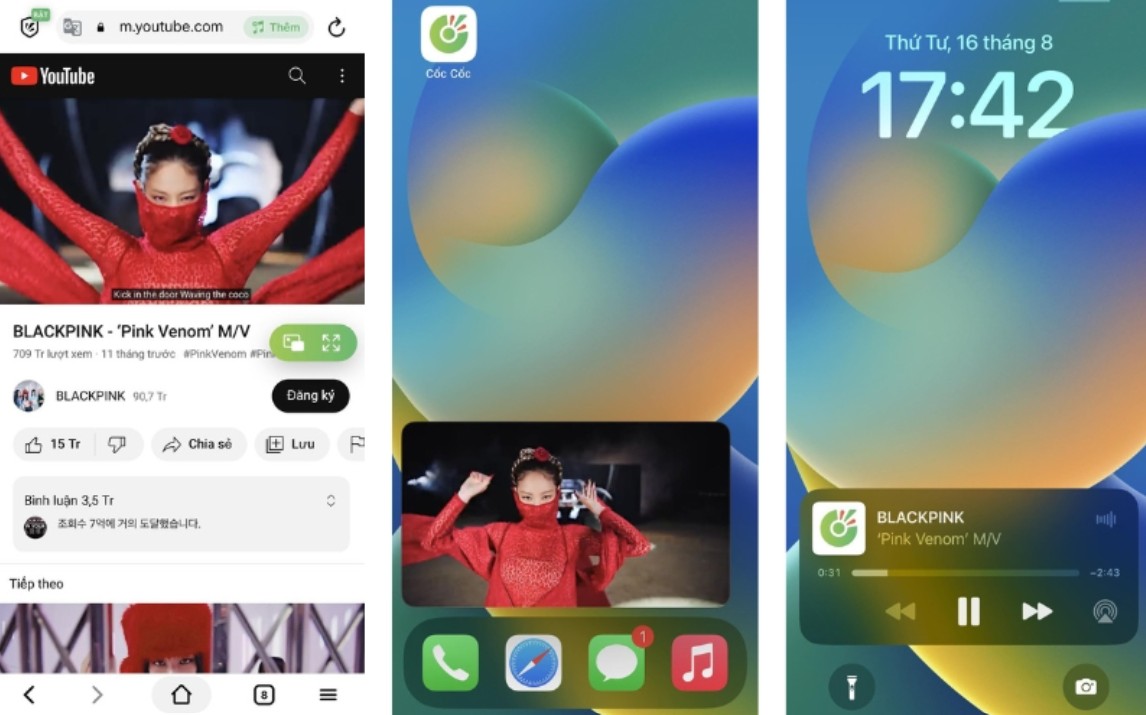
This feature is especially suitable for those who want to listen to music while working, or play podcasts while using other apps. It's also one of the most stable ways to play YouTube in the background without a Premium account.
1.2. How to play YouTube in the background using YouTube Premium
YouTube Premium is the official solution from Google. Compared to using a browser or third-party app, YouTube Premium offers the most stable background playback, the best quality, and is completely ad-free. This experience is especially suitable for those who frequently listen to music, watch vlogs, or use YouTube for learning.
When you subscribe to YouTube Premium, you can play videos even when the screen is off or you switch to other apps. Additionally, Premium supports downloading videos for offline viewing and removes all disruptive ads. If you watch YouTube a lot every day, this is a worthwhile investment.
To play YouTube in the background using YouTube Premium, follow these steps:
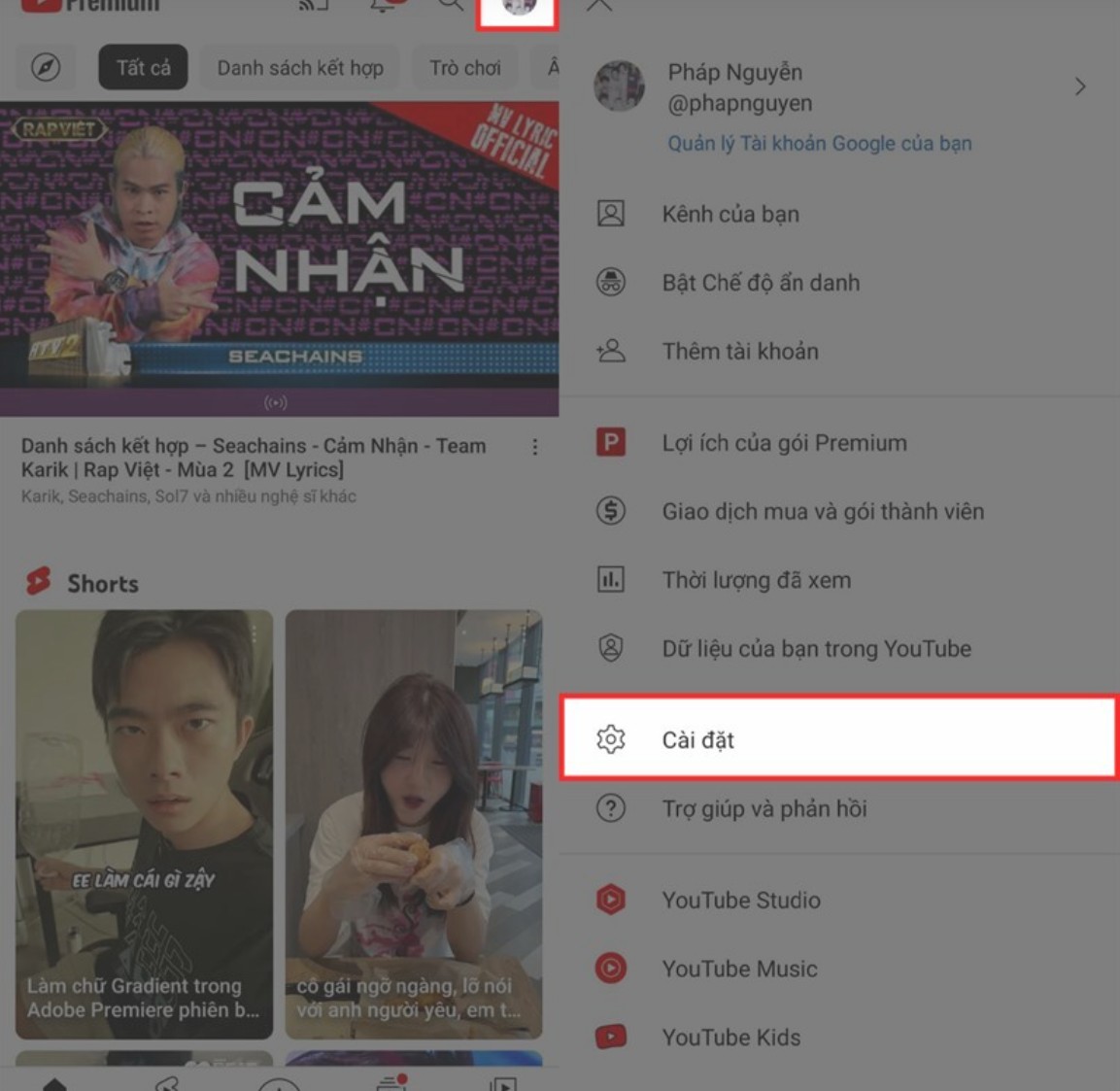
Step 1: Open the YouTube app on your phone, tap your profile picture icon in the upper right corner, and select Settings.
Step 2: In Settings, find the "Background Playback and Downloads" section.
Step 3: Here, you will see three background playback modes to choose from:
Always On : Videos always play in the background, even when you turn off the screen or switch to another app.
• Turn off : Video will not play in the background.
• Headphones or external speakers : Video only plays in the background when you plug in headphones or connect to a Bluetooth speaker.
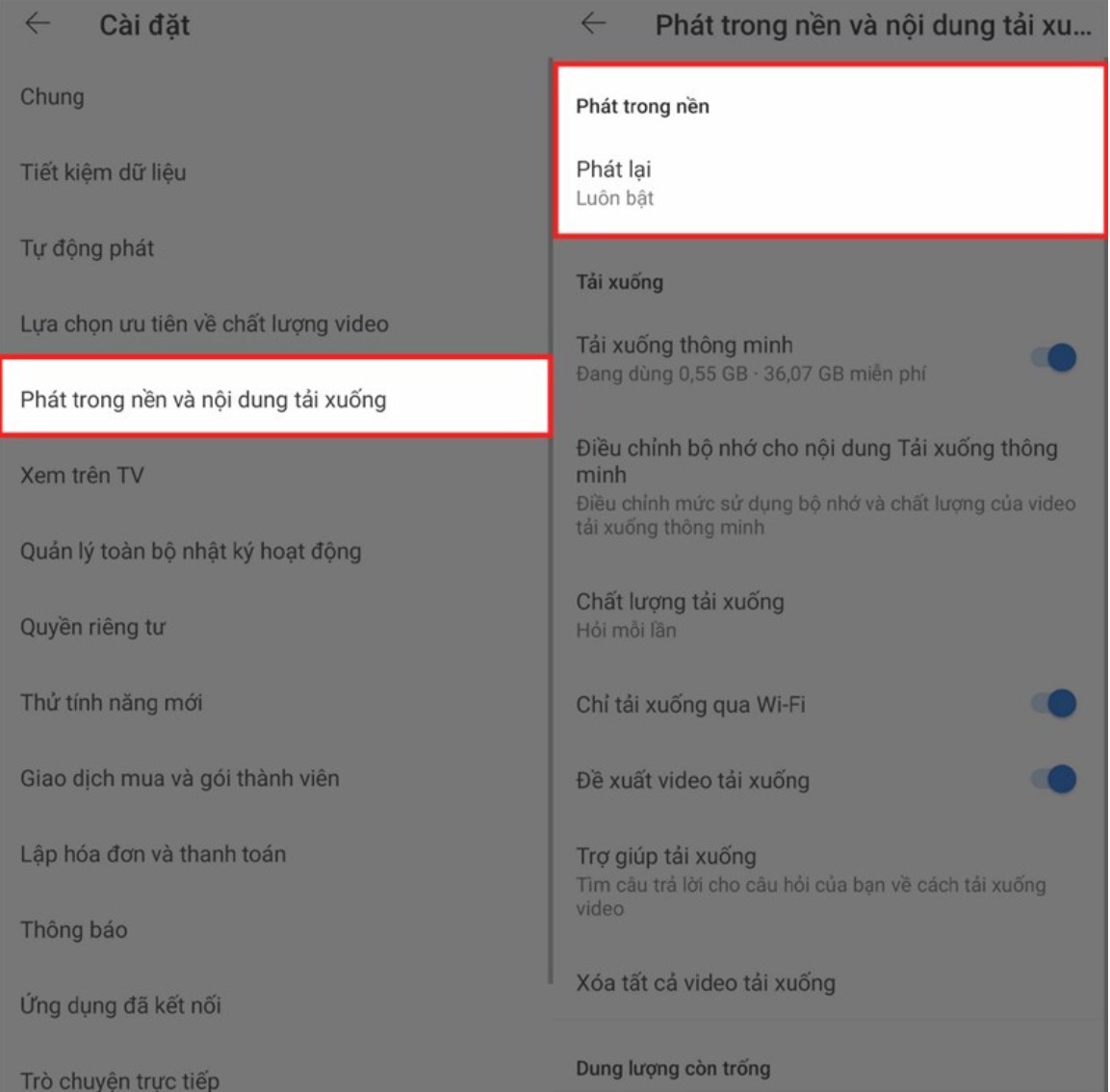
Choosing the right mode optimizes your experience. For example, when commuting to work or traveling by motorbike, the Headphone or Speakerphone mode will be more useful. At home, the Always On mode offers maximum convenience.
1.3. How to play YouTube videos in the background using the PureTuber app
Pure Tuber has become a standout app recently thanks to its ad-free video streaming and background playback support, all completely free. It's an ideal alternative for those who want a similar experience to YouTube Premium but don't want to pay monthly fees.
The Pure Tuber app works on both Android and iOS, with an intuitive interface and stable performance. Even when the screen is off, the audio from the video continues to play smoothly and continuously. Additionally, Pure Tuber integrates a minimized window feature, allowing you to watch videos while using other applications.
Here's how to use Pure Tuber to play YouTube in the background.
Step 1: Find and download the Pure Tuber app from the App Store. The app is compatible with most iPhone models, including the latest iPhone 14 series.
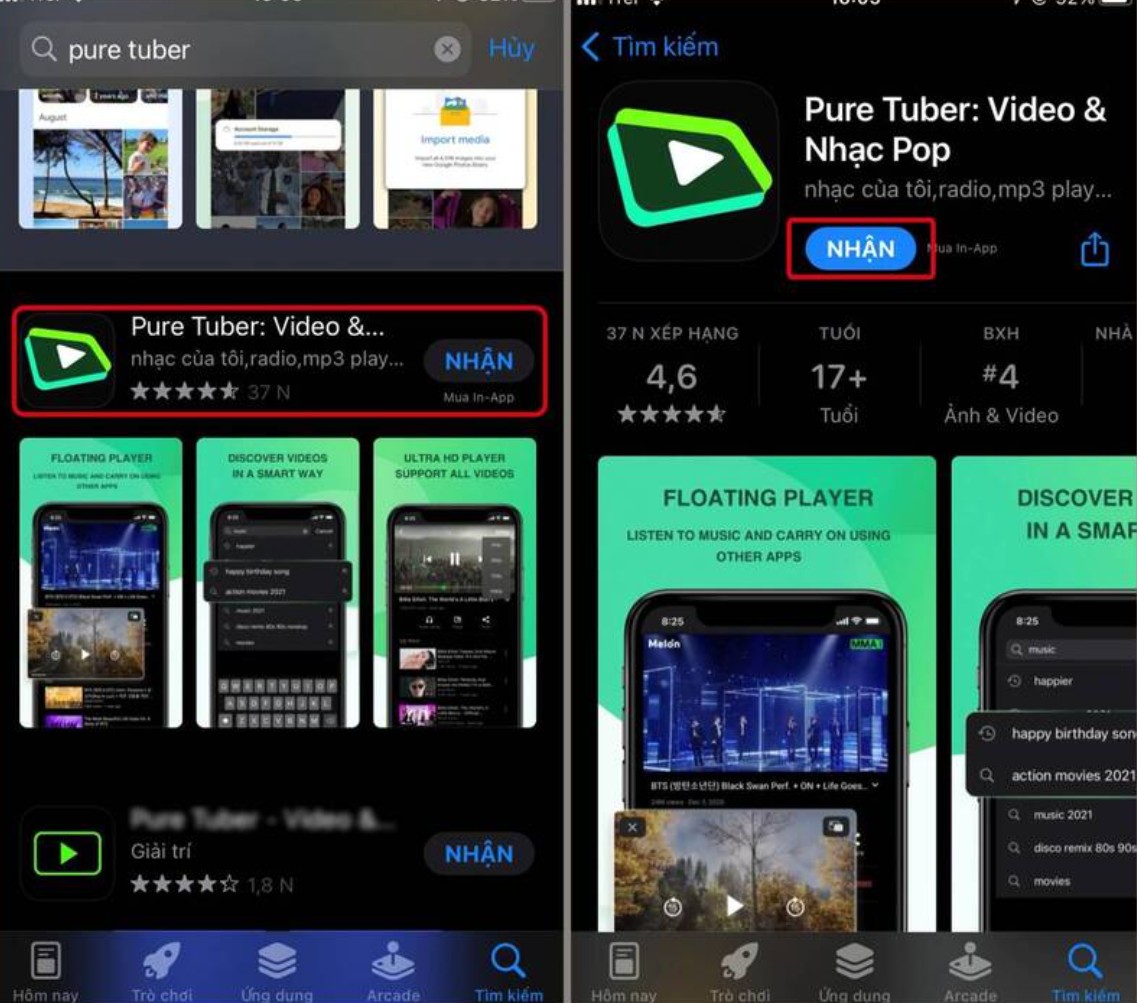
Step 2: After the download is complete, open the Pure Tuber app. The main interface of the app will appear immediately.
Step 3: Grant the app the necessary access permissions. Then, press "Start" and find the video you want to play.
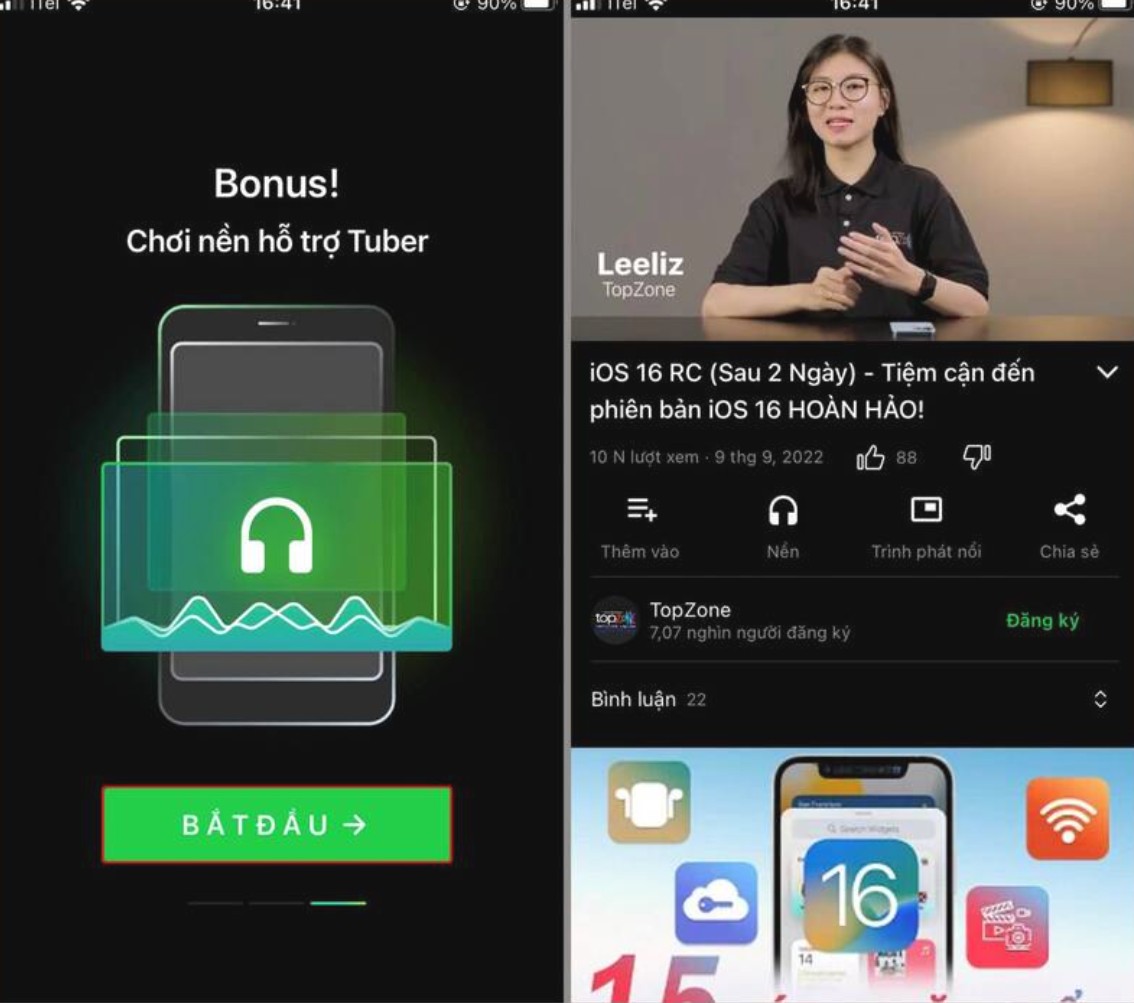
Step 4: Select the headphone icon below the video. The audio will continue playing even if you exit the app or turn off the screen.
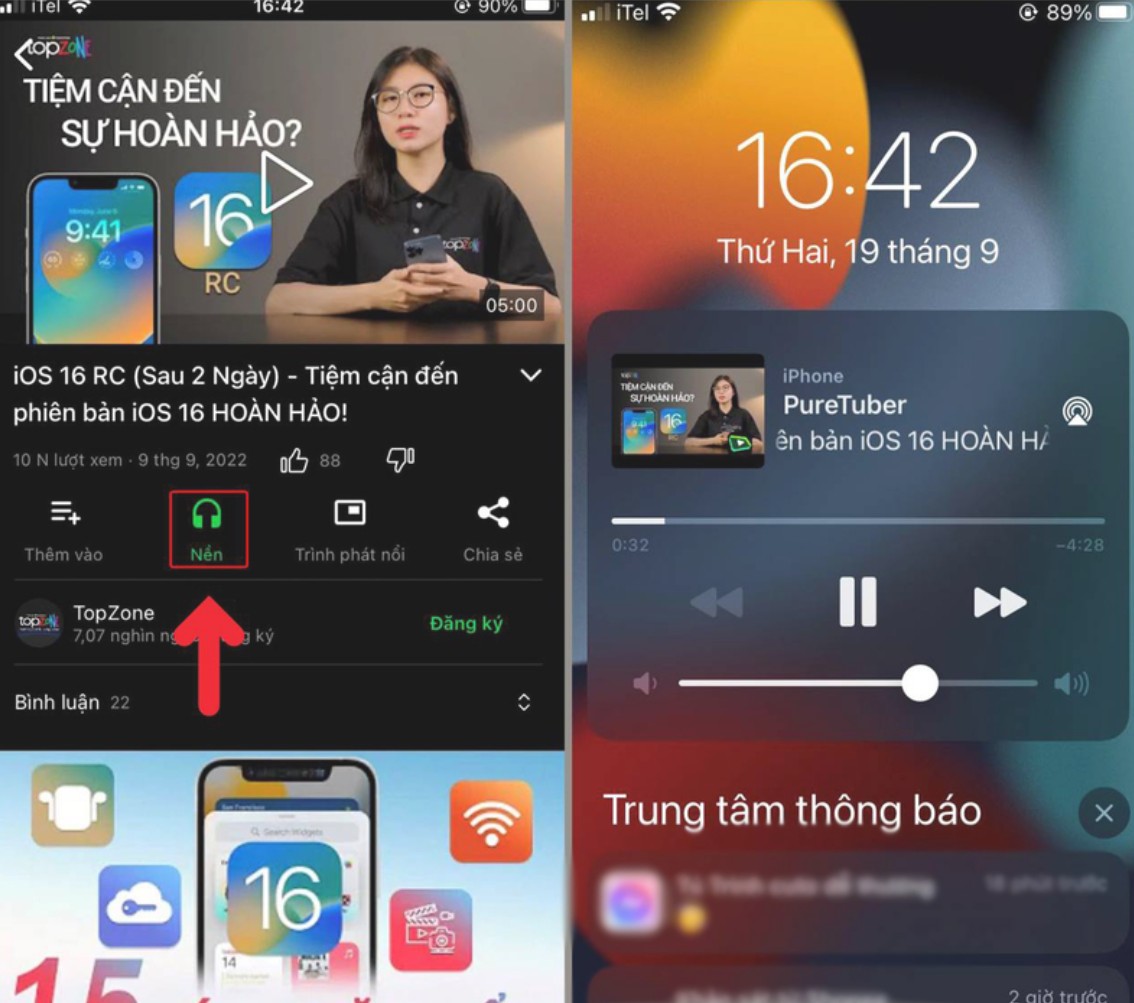
For users who enjoy listening to music but don't want to be interrupted by ads, Pure Tuber is the perfect choice. Additionally, its ability to save battery power when the screen is off increases the phone's battery life throughout the day.
2. Benefits of playing YouTube without keeping the screen on
Playing YouTube in the background not only offers convenience but also optimizes many aspects of daily phone use. For those who frequently listen to audio content on YouTube such as podcasts, chill music, educational summaries, or language learning videos, this feature is almost indispensable.
One of the biggest benefits is energy saving. When the screen isn't constantly on, battery consumption is significantly reduced, allowing you to use the device for longer periods without needing to constantly recharge. This is especially important for people who travel frequently or work outdoors.
Playing YouTube in the background also helps reduce mobile data consumption. When only playing audio and not loading high-resolution images, the device consumes less bandwidth, thus saving costs for users on 4G or 5G data plans.
Additionally, this feature helps protect privacy. When the screen is off, the content you're listening to isn't easily visible to others, making it suitable for public environments or the workplace.
Another significant benefit is the ability to turn YouTube into a podcast or audiobook player. Users can listen to longer content while driving, cooking, exercising, or doing housework. This optimizes time and increases efficiency in daily activities.
Finally, with YouTube playing in the background, multitasking becomes easier than ever. You can listen to a lecture while taking notes, listen to music while answering emails, or listen to a podcast while reading the news. It all runs smoothly without interrupting the experience.
Playing YouTube in the background on your phone is an important feature that enhances the user experience in the digital age. Depending on your needs and the device you're using, there are many ways to do this: from the free Cốc Cốc browser, the stable quality YouTube Premium package, to the convenient Pure Tuber app. Each method has its own advantages, suitable for different usage habits.





















VIP Products








Best Selling Products
Upgrade Duolingo Super
29 USD
Copyright Adobe Lightroom Account
59 USD
Adobe Premiere Pro Account
99 USD
Adobe Photoshop Copyright - Full App
120 USD
Genuine Adobe Illustrator account
99 USD
Windows 10 & 11 Pro Key
36 USD
Autodesk All App Account Copyright
120 USD
Upgrade genuine Capture One account
120 USD
Capcut Pro 1 Year
39 USD
ChatGPT Plus Account (GPT-4)
16 USD
Freepik Premium Account
59 USD
Upgrade Genuine Office 365
49 USD
Plugin Retouch4me
69 USD
MidJourney Account
29 USD
Genuine Cheap Canva Pro
39 USD