Best Selling Products
Upgrade Genuine Office 365
49 USD
Capcut Pro 1 Year
39 USD
Windows 10 & 11 Pro Key
36 USD
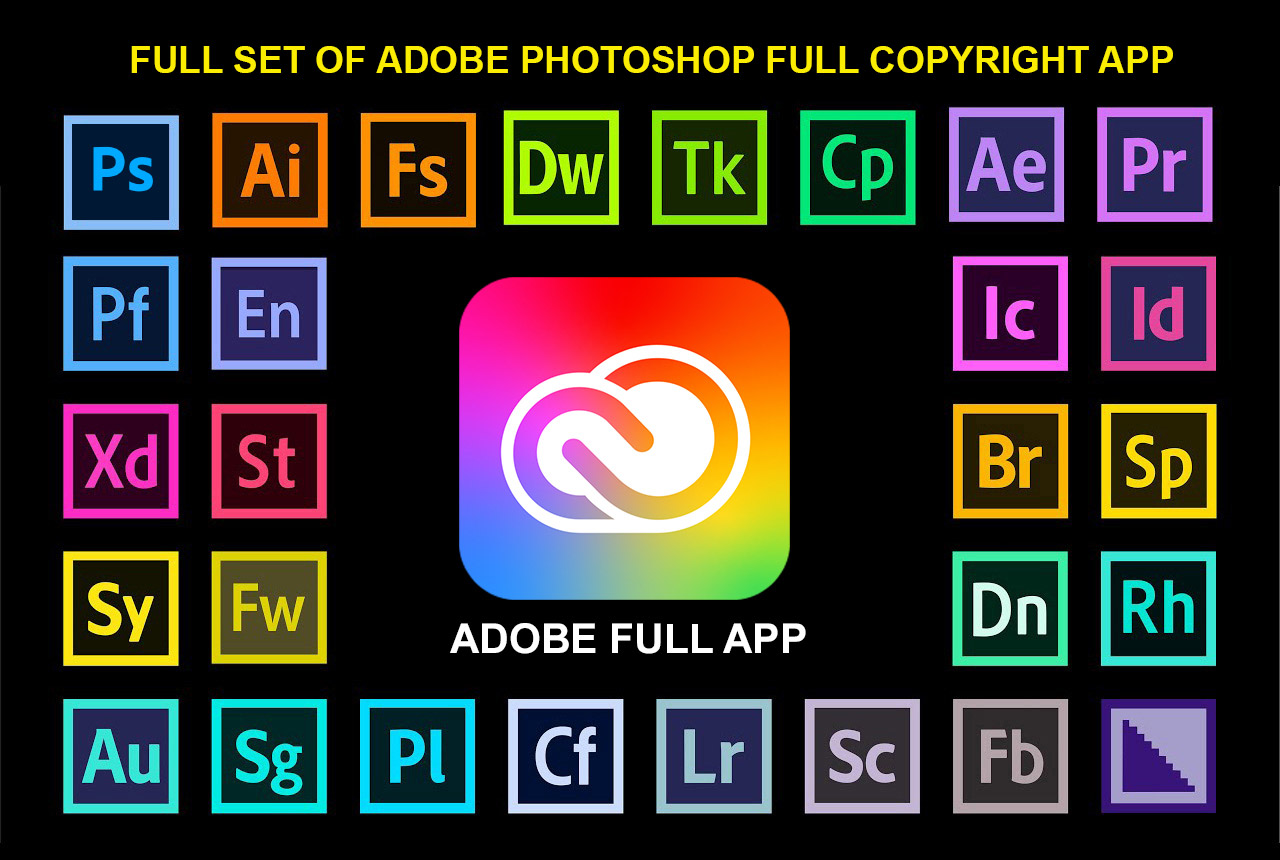
Adobe Photoshop Copyright - Full App
120 USD
Genuine Adobe Illustrator account
99 USD
Autodesk All App Account Copyright
120 USD

Freepik Premium Account
59 USD
Adobe Premiere Pro Account
99 USD

ChatGPT Plus Account (GPT-4)
16 USD
Genuine Cheap Canva Pro
39 USD
Upgrade Duolingo Super
29 USD
Plugin Retouch4me
69 USD
Copyright Adobe Lightroom Account
59 USD
Upgrade genuine Capture One account
120 USD

MidJourney Account
29 USD
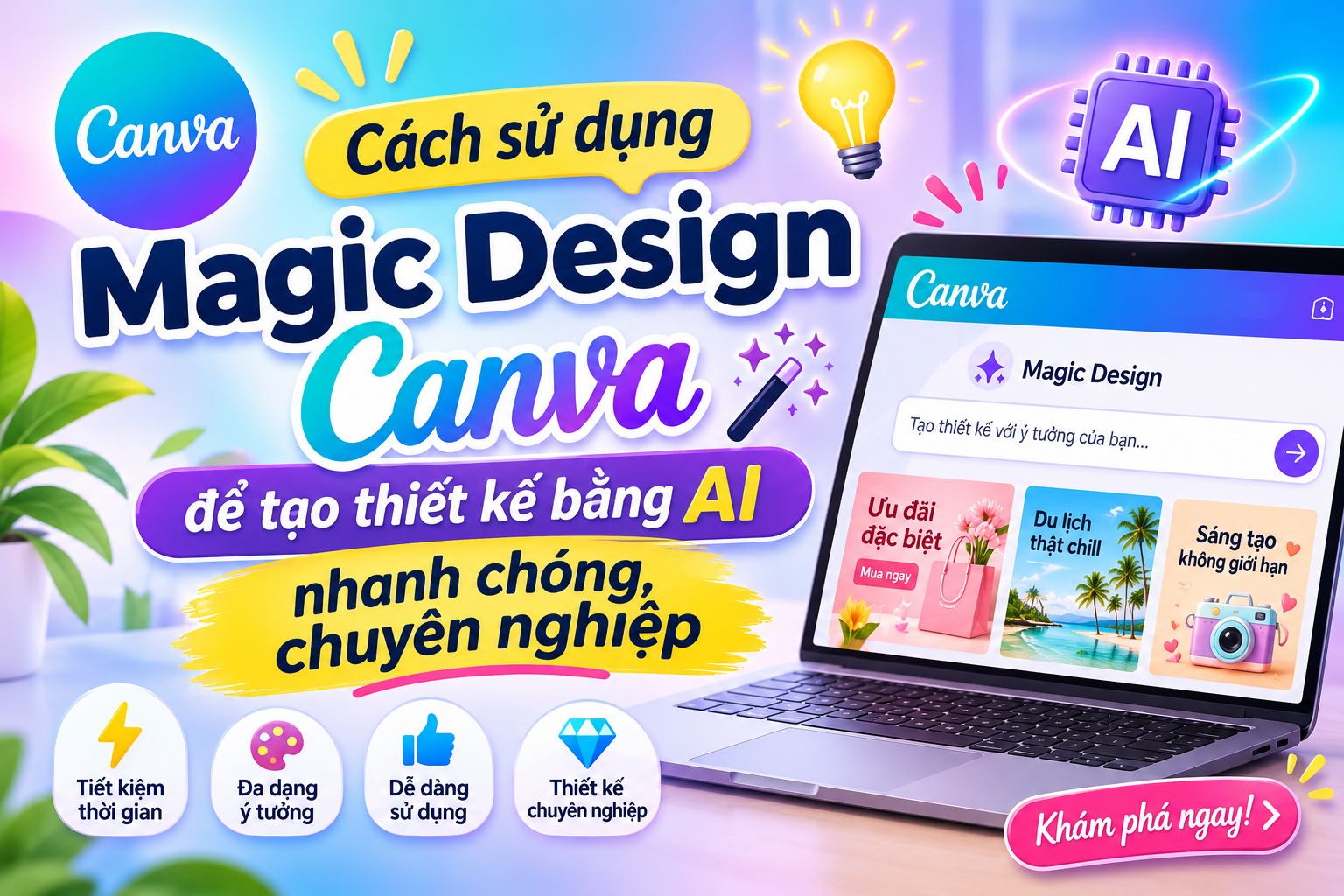
How to use Canva Magic Design to create AI-powered designs quickly and professionally.
Nội dung
- 1. What is Magic Design Canva?
- 2. Key features of Magic Design Canva
- 2.1. Creating automated designs from written descriptions
- 2.2. Creating design templates from existing images
- 2.3. Suggesting various styles and layouts
- 2.4. Support for designing various types of content
- 2.5. Easy to edit after AI creates the design.
- 3. Instructions on using Canva Magic Design to create designs with AI.
- Step 1: Access Canva and log in to your account.
- Step 2: Enable the Magic Design feature.
- Step 3: Enter the command that describes the desired design.
- Step 4: Upload images and add references.
- Step 5: Create a design and choose a suitable template.
- Step 6: Edit and finalize the design
- Step 7: Download or share the design
- 4. How to write effective commands when using Canva Magic Design
- 5. Practical applications of Canva Magic Design
- 5.1. Designing social media posts
- 5.2. Creating advertising posters and banners
- 5.3. Building a Professional Presentation
- 5.4. Supporting video content creation
- 6. Conclusion
In today''s rapidly developing digital content creation era, possessing visually appealing and professional designs is crucial for individuals and businesses to make a strong impression on viewers. However, not everyone has graphic design knowledge or the time to meticulously create every detail. Canva Magic Design emerged as a helpful solution, allowing users to transform ideas into visually stunning designs with the support of artificial intelligence (AI). With just a few simple steps, you can create social media posts, presentations, posters, videos, and many other creative content. In this article, let''s explore what Canva Magic Design is, its outstanding features, and how to use the tool to create beautiful designs that suit your needs.
1. What is Magic Design Canva?
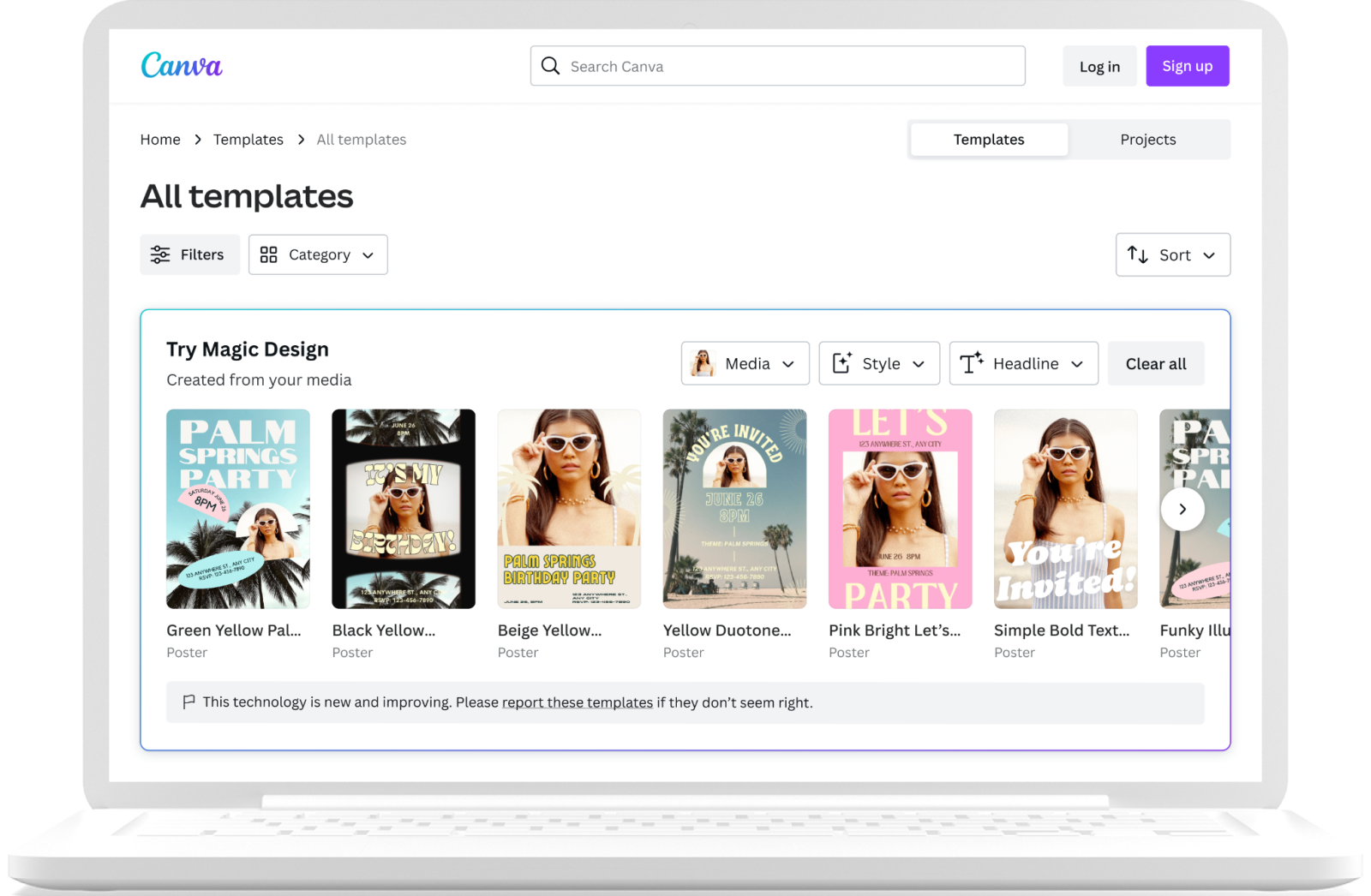
Magic Design is an AI-powered design feature integrated into Canva, helping users create design templates based on descriptions, images, or input content. Instead of starting with a blank page and manually selecting each element, you can provide ideas and the AI will suggest suitable layouts.
The highlight of Magic Design lies in its ability to combine images, colors, fonts, and content into cohesive designs. For example, when creating a cosmetic advertisement, you simply describe the desired theme and style, or upload relevant images. Canva will analyze the information and provide several options for you to choose from.
Magic Design is suitable for a wide range of users, from design beginners and students to marketing professionals, online business owners, and content creators. The tool helps shorten design time while providing many new ideas for users to explore and develop.
2. Key features of Magic Design Canva
Magic Design is not simply an automated prototyping tool; it also supports the visual content creation process. Depending on the type of design and the version of Canva being used, users can experience different capabilities.
2.1. Creating automated designs from written descriptions
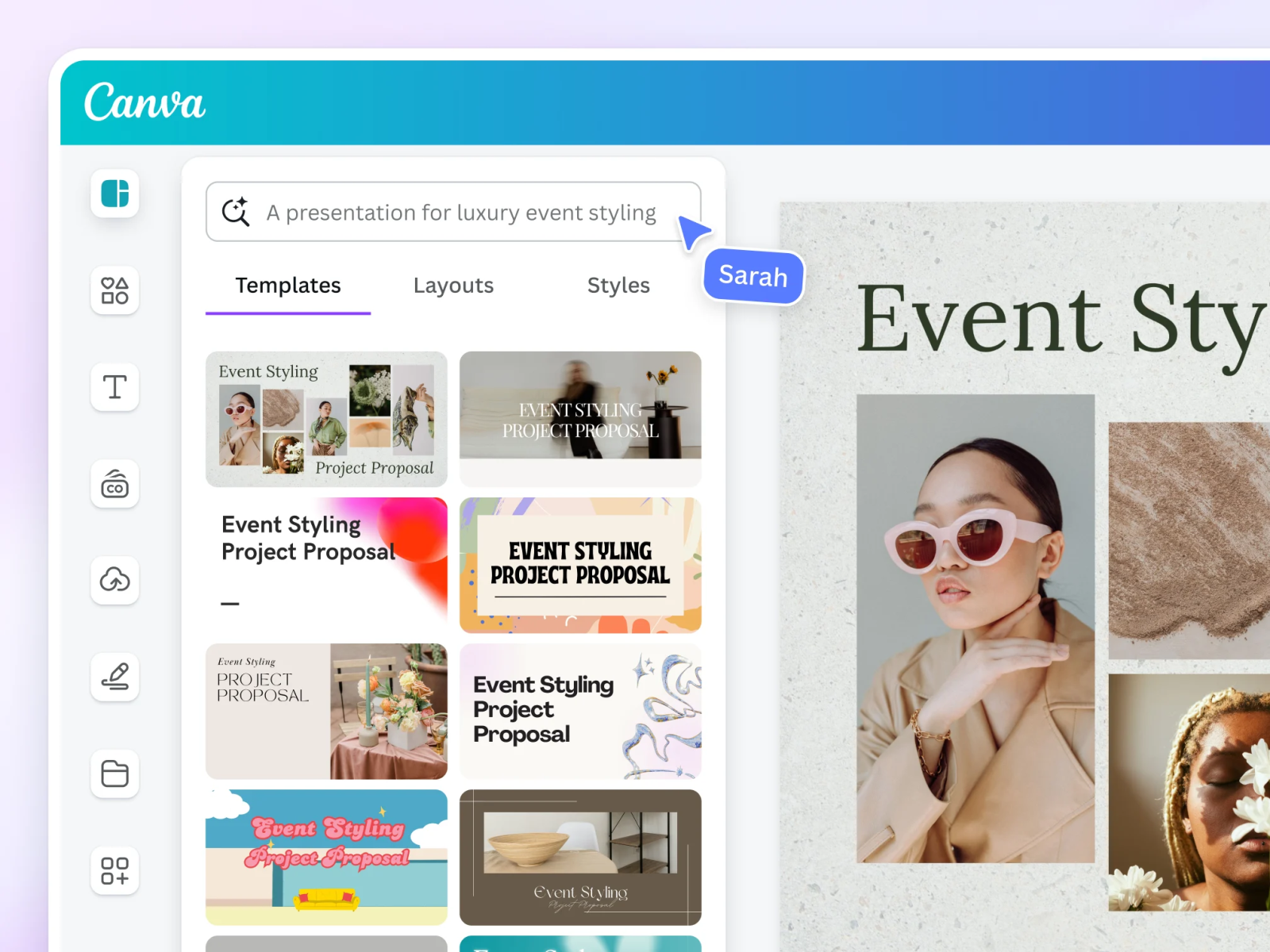
One of Magic Design's notable advantages is its ability to receive requests in natural language. You don't need to know how to use complex graphic design software; you just need to describe the content you want to create.
For example, if you need to design a poster to promote a campaign, you can input your requirements regarding the theme, colors, style, and main message. The AI will use this information to suggest corresponding design templates. This makes the ideation process simpler and more convenient.
2.2. Creating design templates from existing images
Magic Design also supports users in leveraging personal images to develop creative ideas. You can upload product photos, portraits, illustrations, or other materials related to the content you are working on.
After receiving your images, Canva can suggest suitable layouts and presentation styles. This is especially useful for online sellers who need to create promotional images, product descriptions, or social media content.
2.3. Suggesting various styles and layouts
The initial idea isn't always the best design solution. Magic Design helps users explore different ways of expressing their ideas through AI-suggested templates.
You can choose from minimalist, modern, youthful, elegant, or creative styles depending on your purpose. Each template has its own arrangement of images, titles, and content, making it easy for you to compare before deciding.
2.4. Support for designing various types of content
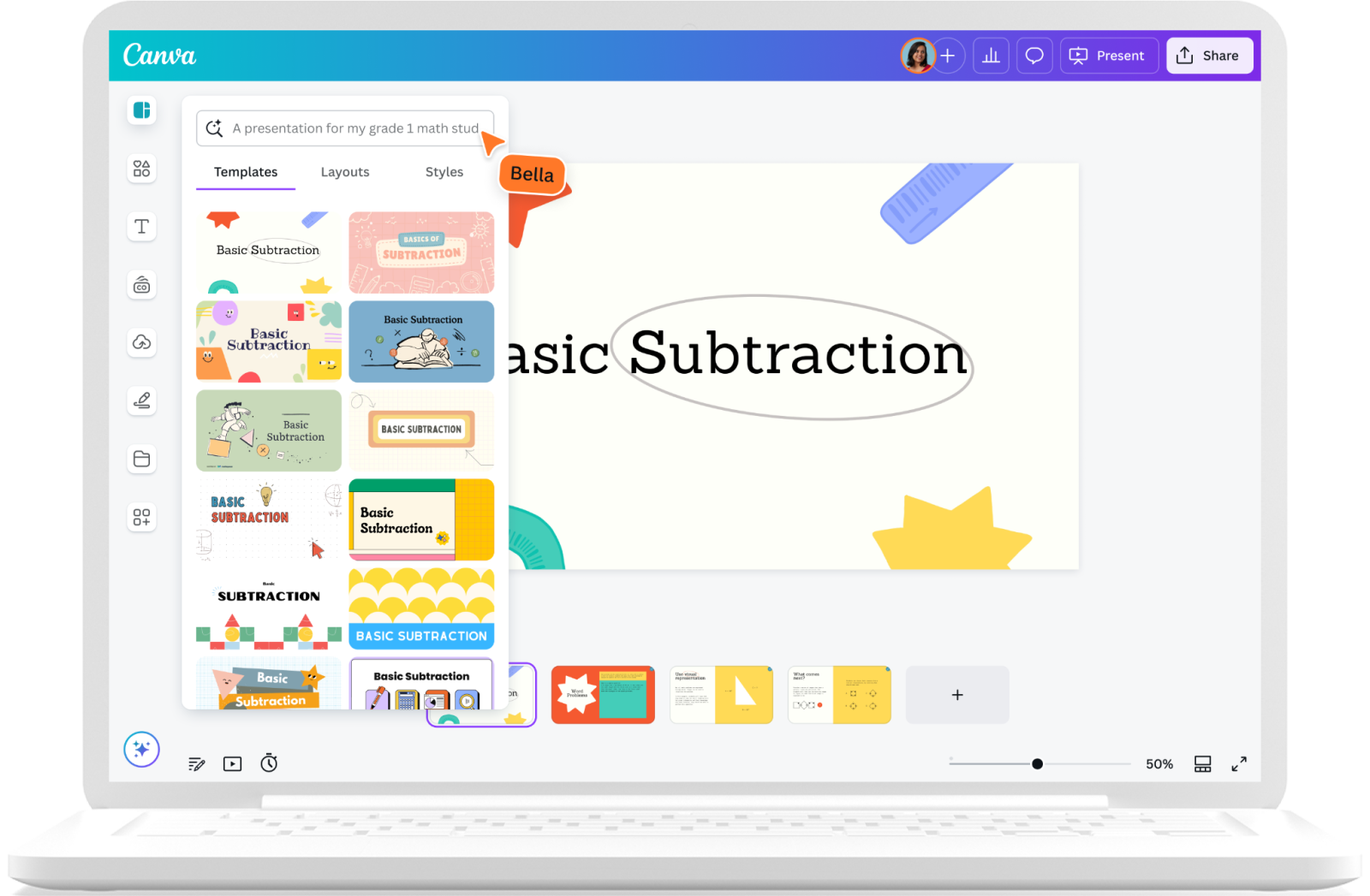
Magic Design can support the creation of various content formats within the Canva ecosystem. Some popular design types include Facebook posts, Instagram posts, posters, invitations, presentations, documents, and short videos.
The ability to choose from multiple formats gives users more flexibility when implementing learning, business, and communication activities. Instead of using many separate tools, you can build most of your visual content directly on Canva.
2.5. Easy to edit after AI creates the design.
The AI-generated templates are not fixed results. After selecting a suitable option, you can still edit the content, change colors, replace images, adjust sizes, and rearrange elements.
This is a key advantage that helps designs better meet real-world needs. AI handles the initial suggestions, while users can actively refine the design to create a product with their own unique style.
3. Instructions on using Canva Magic Design to create designs with AI.
To effectively utilize Magic Design, you should prepare your ideas, content, and images beforehand. The process isn't overly complicated, even if you've never used professional design tools before. Below is a detailed step-by-step guide.
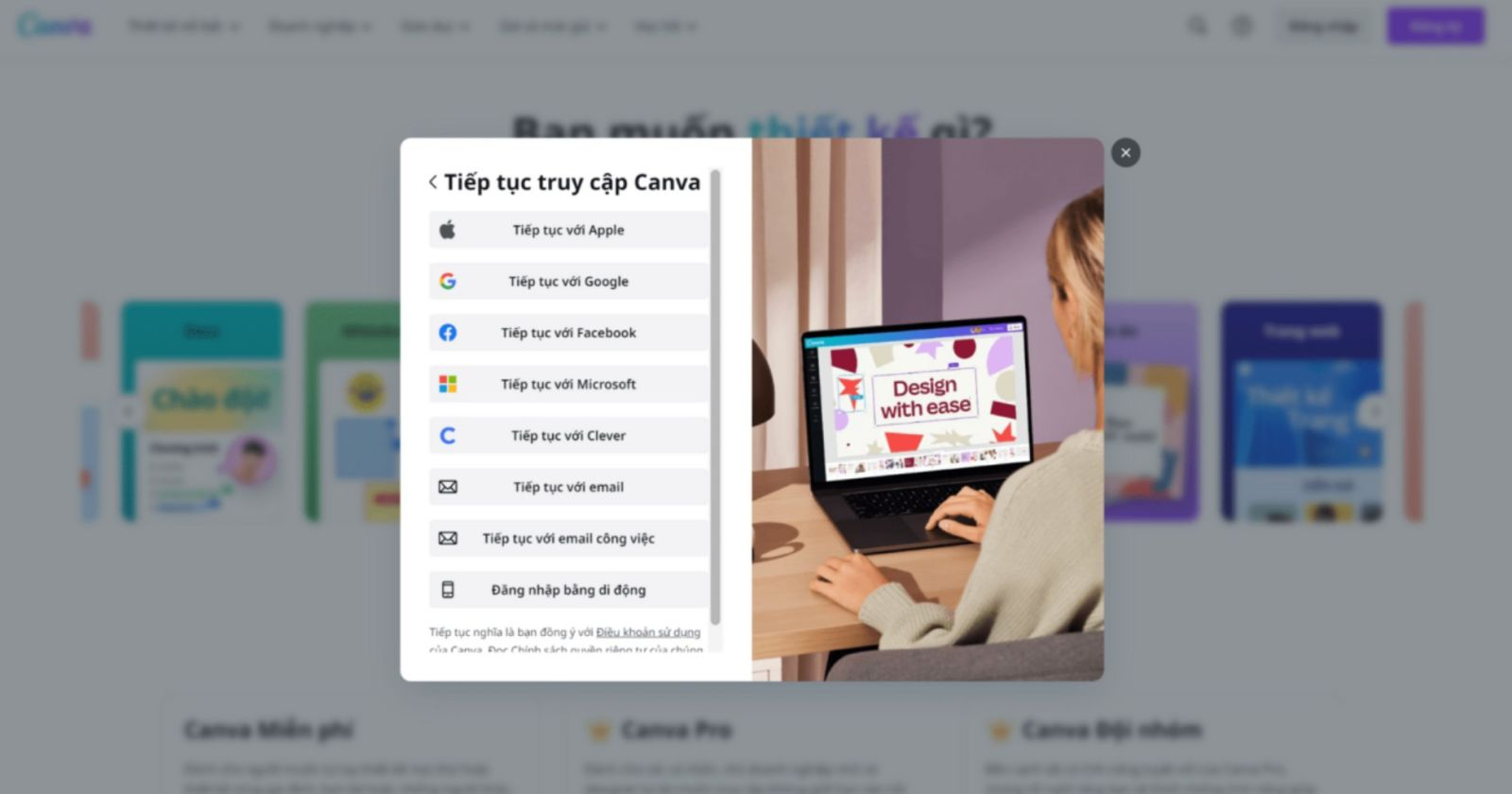
Step 1: Access Canva and log in to your account.
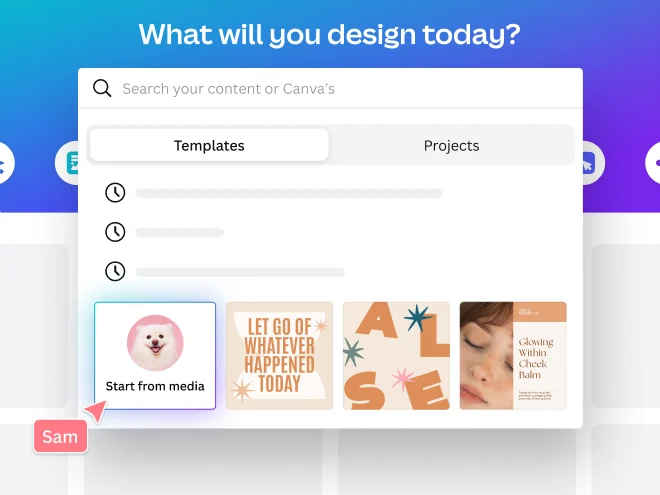
First, access the Canva homepage on your computer browser or open the Canva app on your phone. Log in using your Google, Facebook, Apple, or personal email account. If you don't have an account, you can register a new one to start using it. After successfully logging in, the homepage will appear with many design options and creative tools. Here, you can search for Canva AI in the left-hand navigation bar to start creating content using artificial intelligence.
Step 2: Enable the Magic Design feature.
On the Canva homepage, select Canva AI and find the option to create a design based on your idea. Enter a description in the required field so the system understands what product you want to create. Alternatively, you can open a new design, access the Templates section in the left-hand toolbar, enter at least four keywords describing the content in the search bar, and select Try Canva AI if this option appears. The interface may vary depending on the Canva version and account type being used.
Step 3: Enter the command that describes the desired design.
This is a crucial step that determines the suitability of the AI-generated results. Instead of simply entering general requests like "create a beautiful poster" or "design a Facebook post," you should specifically describe the theme, target audience, colors, style, and main content. For example, you could enter: "Create a minimalist-style cosmetic advertising poster using pastel pink and white tones, a modern layout, highlighting product images and discounts." The clearer the request, the more information Canva has to suggest a design that closely matches your needs.
Step 4: Upload images and add references.
If you want a personalized design, you can add images or documents to the command. Click the plus icon in the content input area, select Upload to upload files from your device, or Add from Canva to use images, videos, and designs saved in your account. For online businesses, providing actual product photos will make the advertising content creation process easier. If you have already established a brand identity, you can also select Apply brand to have Canva suggest colors, fonts, and other corresponding brand elements.
Step 5: Create a design and choose a suitable template.
After completing the command and adding the necessary documents, press Enter or Submit to have Canva begin processing the request. The system will analyze the information and suggest corresponding design options. Take your time to preview each template, paying attention to the layout of the headings, images, colors, and the ability to convey the message. Don't rush to choose the first option; compare the results to find the most suitable layout. Once you have chosen a template you like, click the edit option to open the design in the Canva editor.
Step 6: Edit and finalize the design
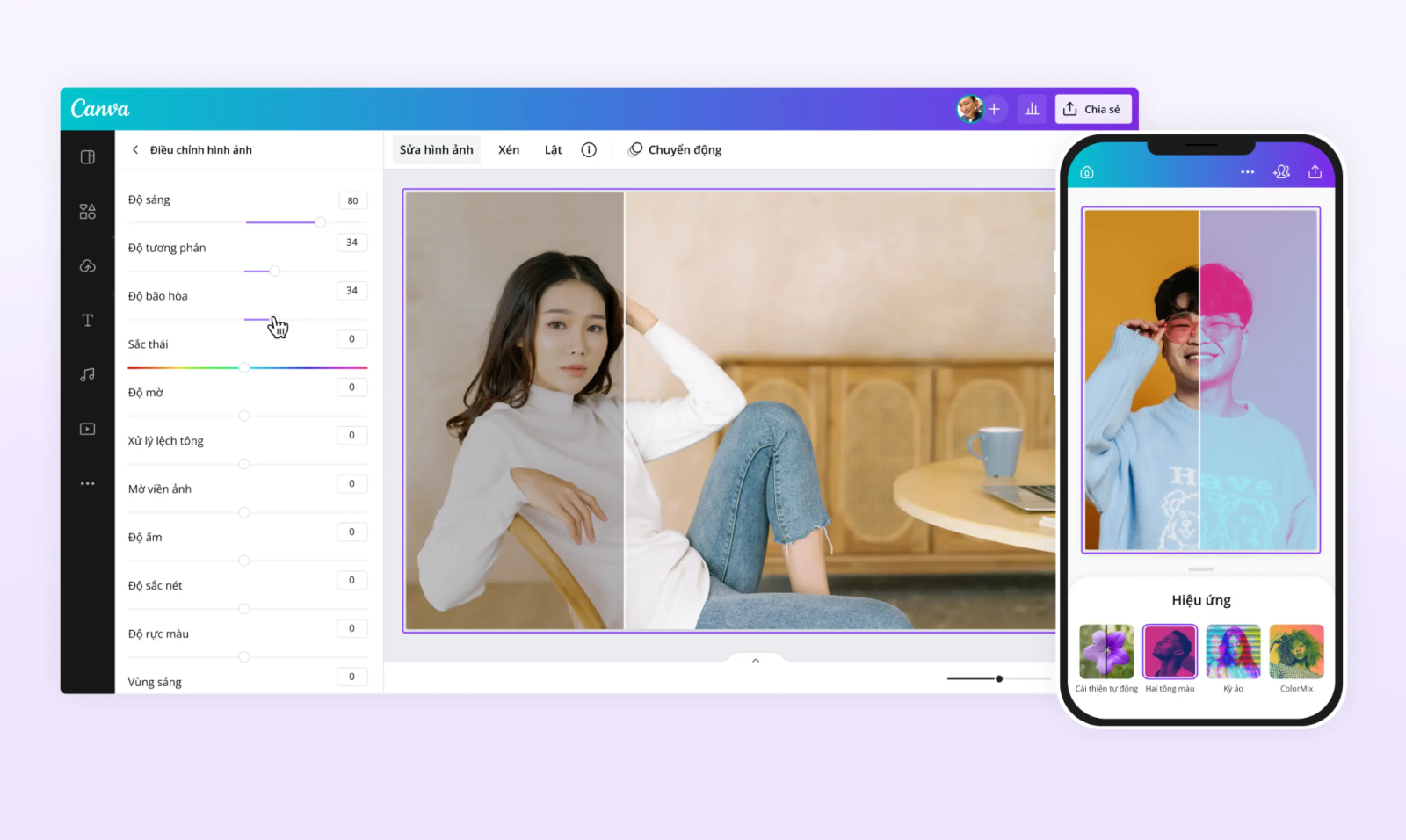
After selecting a template, you can change the text content, adjust image sizes, change fonts, background colors, or add decorative details. Prioritize a clear layout, avoiding cramming too much information into one area, which can make it difficult for viewers to follow. If the design is for business purposes, carefully check the brand name, prices, contact information, and advertising content. You should also review the balance between images and text to ensure the final product is both visually appealing and easy to read.
Step 7: Download or share the design
Once you've finished, tap Share in the upper right corner of the Canva interface. You can download the design to your device by selecting Download, then choose the appropriate format such as PNG, JPG, or PDF depending on your purpose. If the design is for a presentation, you can choose PowerPoint or PDF format. Additionally, Canva supports sharing the design via a link so others can view or edit it with permission. Before exporting the file, double-check the size, image quality, and other important information to minimize errors.
4. How to write effective commands when using Canva Magic Design
A high-quality command will help the AI understand your idea correctly and provide more suitable design options. Simply entering a few keywords may not yield results that meet your style or layout requirements. Therefore, you should build your command using the following components:
-
Design theme: Clearly state the content to be created, such as an advertising poster, social media post, invitation card, or presentation slides.
-
Target audience: Determine whether the design is intended for young customers, office workers, students, or business partners.
-
Presentation style: Describe a minimalist, elegant, modern, cute, or professional style.
-
Main color scheme: Specify the desired color palette to create a unified design.
-
Main content: Identify the title, message, and key information to highlight.
-
Layout requirements: Describe the placement of images, titles, content, and decorative details.
5. Practical applications of Canva Magic Design
Thanks to its ability to create design templates based on ideas, Magic Design can support many different tasks. Depending on the purpose, you can utilize the tool to build content for communication, learning, or business activities.
5.1. Designing social media posts
For those who frequently post content on Facebook, Instagram, TikTok, or Pinterest, Magic Design is a useful tool for developing visual ideas. You can create posts to showcase products, announce promotions, share knowledge, or build themed content daily. Instead of spending time searching for ready-made templates, you can input your requirements and the AI will suggest layouts that suit your content.
5.2. Creating advertising posters and banners
Magic Design assists in brainstorming ideas for posters and banners for marketing campaigns. You can use the tool to create images to promote events, introduce new products, announce offers, or design banners for your online store. Suggested templates help you visualize how to combine images, headlines, and messages. Then, you can edit them to ensure the information is accurate and aligns with your brand identity.
5.3. Building a Professional Presentation
Instead of designing each slide individually, you can use Canva's AI-powered presentation creation capabilities to build an initial draft. Simply provide the topic, content, or outline, and the system can help suggest a consistent layout and presentation style. This is a useful option for students and office workers who need to prepare presentations in a short amount of time.
5.4. Supporting video content creation
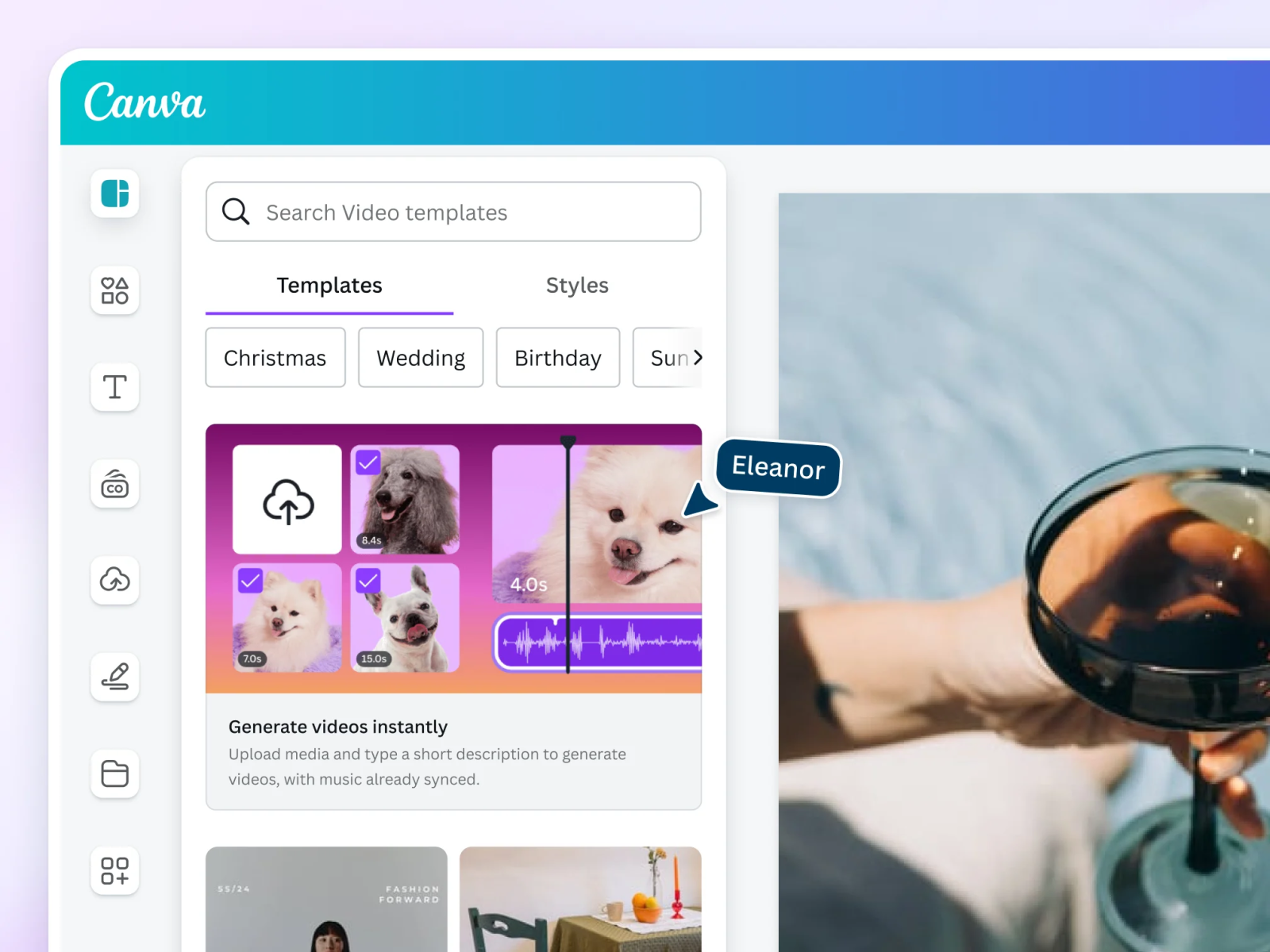
Magic Design for Video helps users organize existing images and videos into content suitable for social media formats. You can provide a group of images, videos, and a description of your idea, and Canva will suggest ways to combine the materials. However, it's important to distinguish that Magic Design primarily supports layout and content presentation; it's not a tool for creating complete videos from text. If you want to create images or videos using AI commands, you can learn more about Magic Media or Canva AI Video.
6. Conclusion
Magic Design Canva is a useful AI tool that simplifies the visual content creation process, especially for those with little design experience. With its ability to suggest layouts, combine images, and create templates from ideas, the tool saves you time and allows you to explore many new presentation styles. However, to achieve truly professional results, you should still check, adjust, and refine the details after the AI creates the design. Hopefully, with the above guide, you can use Magic Design Canva more effectively and easily transform your creative ideas into impressive visual products.








VIP Products

Best Selling Products
Upgrade Genuine Office 365
49 USD
Capcut Pro 1 Year
39 USD
Windows 10 & 11 Pro Key
36 USD
Adobe Photoshop Copyright - Full App
120 USD
Genuine Adobe Illustrator account
99 USD
Autodesk All App Account Copyright
120 USD
Freepik Premium Account
59 USD
Adobe Premiere Pro Account
99 USD
ChatGPT Plus Account (GPT-4)
16 USD
Genuine Cheap Canva Pro
39 USD
Upgrade Duolingo Super
29 USD
Plugin Retouch4me
69 USD
Copyright Adobe Lightroom Account
59 USD
Upgrade genuine Capture One account
120 USD
MidJourney Account
29 USD