Best Selling Products

Upgrade genuine Capture One account
120 USD

Freepik Premium Account
59 USD

Adobe Premiere Pro Account
99 USD

Genuine Cheap Canva Pro
39 USD

Autodesk All App Account Copyright
120 USD

ChatGPT Plus Account (GPT-4)
16 USD

Plugin Retouch4me
69 USD

Adobe Photoshop Copyright - Full App
120 USD

Copyright Adobe Lightroom Account
59 USD

Upgrade Genuine Office 365
49 USD

Windows 10 & 11 Pro Key
36 USD

Upgrade Duolingo Super
29 USD

Genuine Adobe Illustrator account
99 USD

Capcut Pro 1 Year
39 USD

MidJourney Account
29 USD
Inside Photoshop 2026: A host of new AI features help designers work smarter.
Nội dung
- 1. What are the new features?
- 1.1. Select an AI Model
- 1.2. Generating Resolution (Generative Upscale)
- 1.3. The "Harmonize" feature
- 1.4. Improvements to Select Subject & Remove Background
- 2. Optimize Workflow: Fast and Seamless
- 2.1. Access Adobe Stock directly
- 2.2. Color & Vibrance Adjustment Layer
- 3. System requirements to run Photoshop 2026
- 3.1. Recommended configuration for Windows machines
- 3.2. Recommended configuration for macOS machines
Photoshop 2026 focuses on enhancing the user experience through AI. New tools not only support photo editing but also reduce manual operations. This version is well-suited to modern design trends and rapid content production.

1. What are the new features?
Photoshop 2026 isn't a flashy update that changes the interface or adds a host of disparate tools. Instead, Adobe chose a more in-depth upgrade, focusing on three main pillars: AI generation, AI image analysis, and user experience optimization. The new features are all geared towards helping designers, photographers, and creative artists save time, reduce manual tasks, and still maintain creative control.
1.1. Select an AI Model
One of the most strategic changes in Photoshop 2026 is the ability for users to actively choose AI models when using generative features like Generative Fill and Generative Expand. Previously, this entire process relied entirely on Adobe's default Firefly model. While Firefly was powerful, having only one option made it difficult for users to be flexible when needing different styles or image processing methods.
Now, right in the Contextual Task Bar, Photoshop lets you switch between Adobe Firefly Image 3 and partner AI models, notably Topaz. Each model has its own strengths: Firefly Image 3 excels at creating copyright-safe images with neutral colors suitable for commercial projects; while Topaz models are highly regarded for their ability to enhance detail, process textures, and reproduce sharpness.
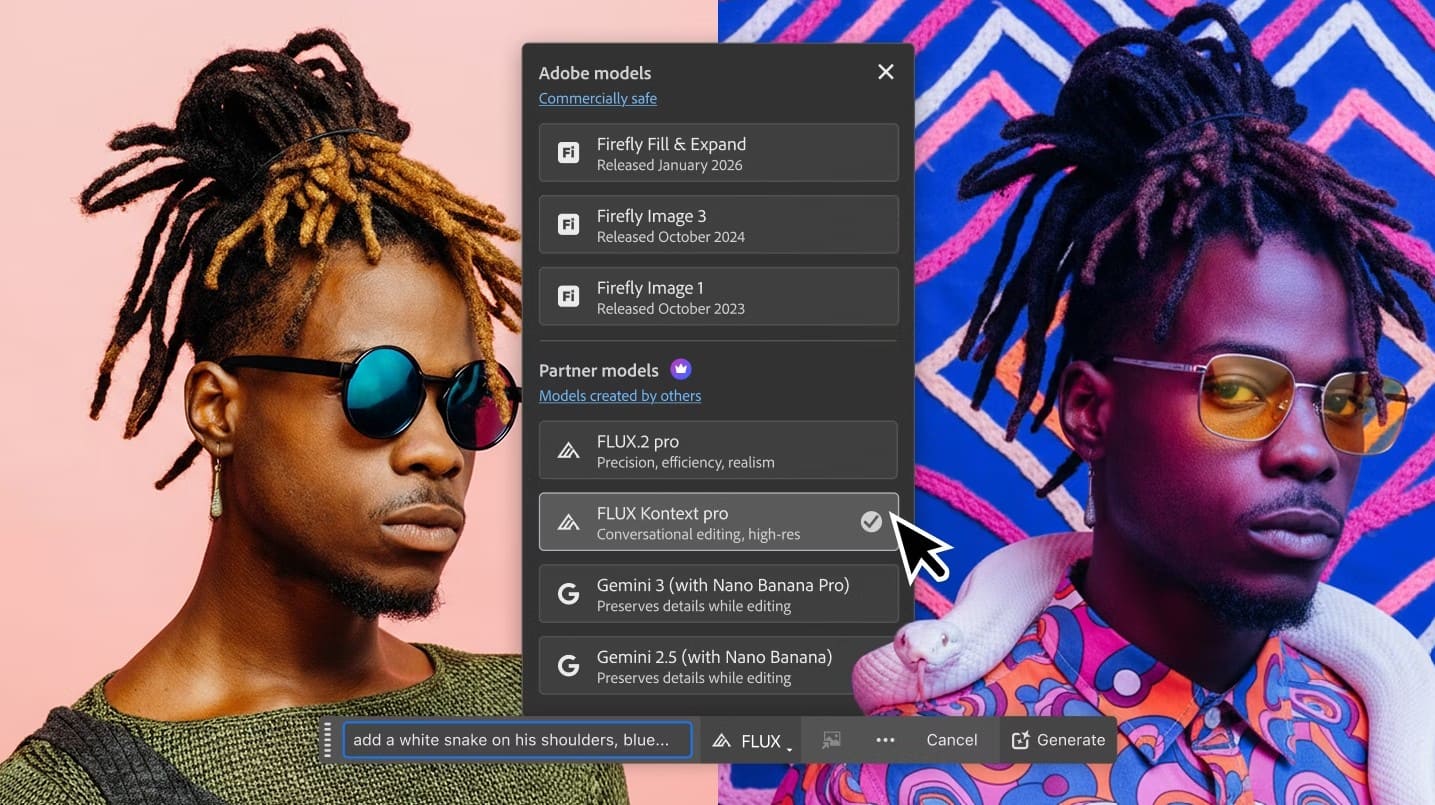
Choosing an AI model is not just a technical matter; it's a significant step forward in terms of creativity. Designers can experiment with different styles within the same Photoshop file, allowing them to choose the best option for each project. This is especially useful for tasks like advertising key visuals, concept art, or illustrations, where small differences in detail and style can have a huge impact.
1.2. Generating Resolution (Generative Upscale)
Increasing resolution has always been a headache for designers and photographers, especially when working with old images, images downloaded from the internet, or photos taken in less than ideal conditions. Photoshop 2026 thoroughly addresses this problem with its Generative Upscale feature, directly supported by Topaz Labs' AI technology.
Unlike traditional upscaling methods that only interpolate pixels, Generative Upscale uses AI to "understand" image content, thereby intelligently creating new details. When you enlarge an image, Photoshop not only makes the image larger but also adds sharpness, improves surface texture, clarifies lines, and naturally reduces noise.
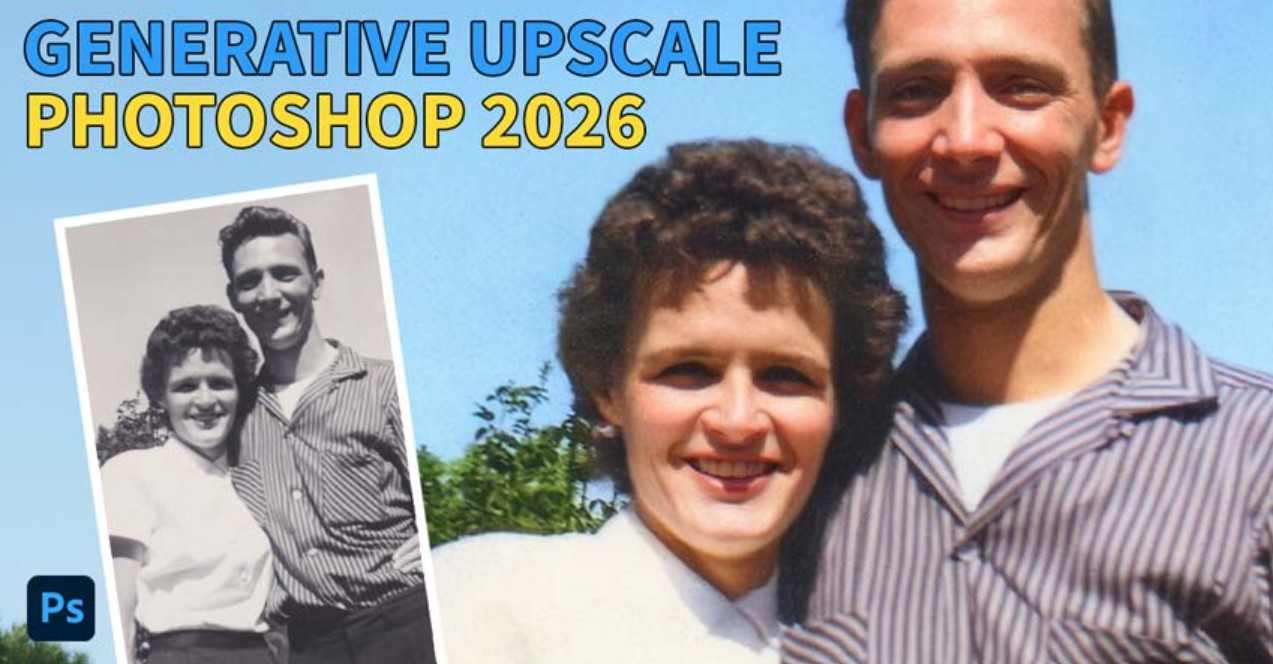
This feature can be accessed via Image > Image Size or Filter > Neural Filters, depending on the user's workflow. In practice, Generative Upscale is particularly useful for large-format printing projects, advertising banners, posters, or design products requiring high resolution. Instead of having to search for the original image source or accept poor quality, designers can now "save" images with just a few steps.
1.3. The "Harmonize" feature
Composite is always one of the most complex techniques in Photoshop. Merging an object from one image onto another requires in-depth knowledge of lighting, color, and tone. Previously, this process often took hours adjusting curves, color balance, and hue/saturation to make the two layers of images blend seamlessly.
With Photoshop 2026, the new Neural Filter called Harmonize has completely changed the game. When you activate Harmonize (Filter > Neural Filters > Harmonize), Photoshop automatically analyzes the color, light, and tone of the background. Then, the AI adjusts the object layer to best suit the new environment, from brightness and contrast to overall color.
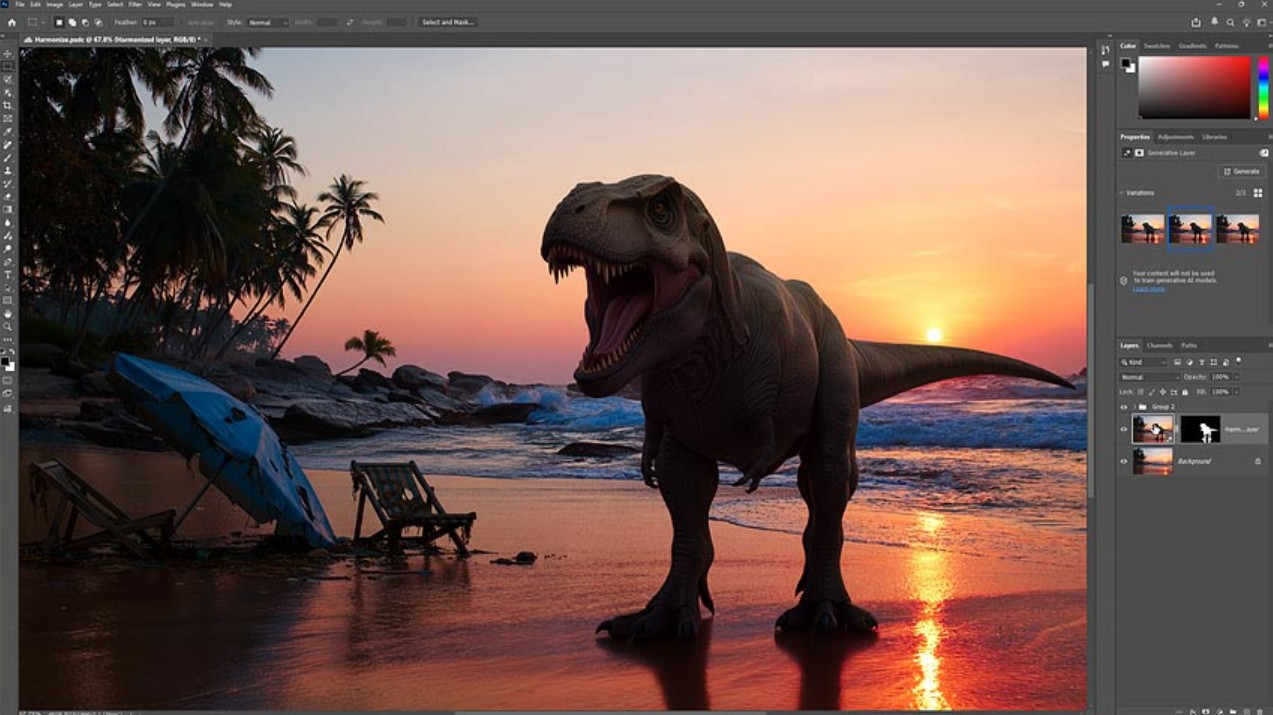
Harmonize's most valuable aspect isn't its ability to "do the work for" the user, but rather its creation of a very good editing platform. After AI processing, designers can still make further adjustments as desired, but the amount of manual work has been significantly reduced. This is an extremely powerful tool for advertising projects, fashion photography, movie posters, or any product requiring professional composite work.
1.4. Improvements to Select Subject & Remove Background
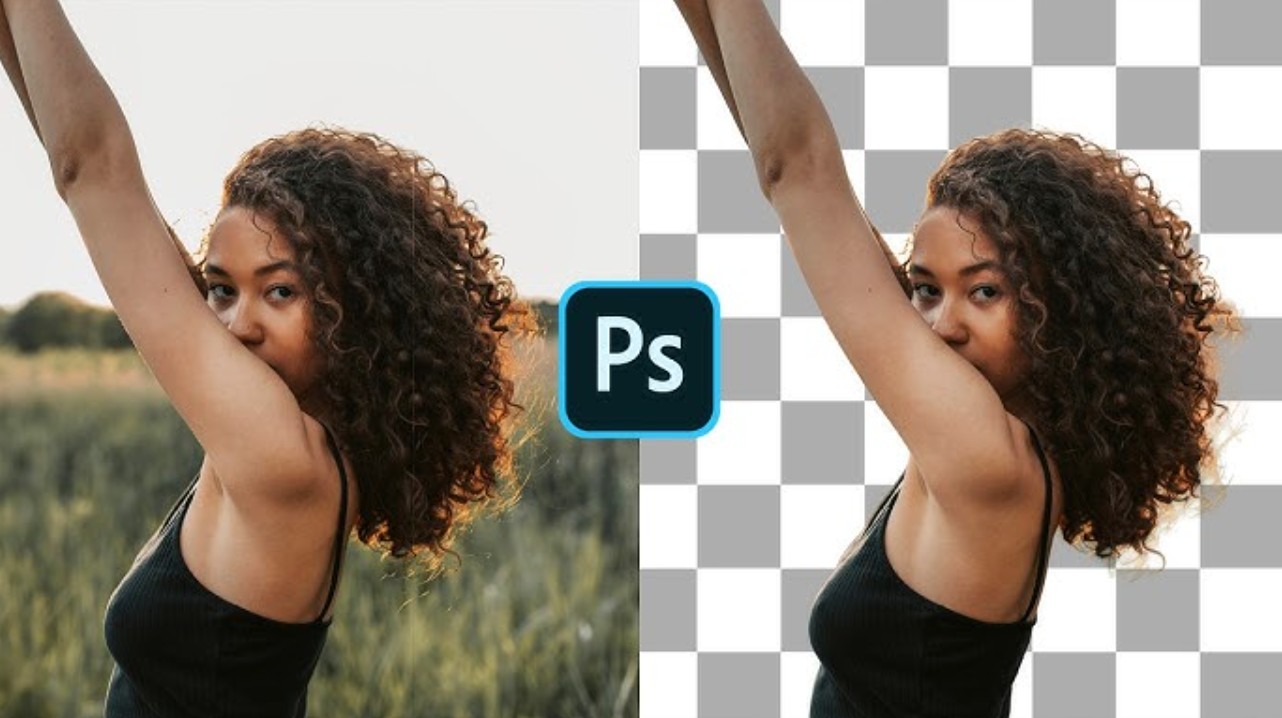
Selecting subjects and removing backgrounds are operations present in almost every modern Photoshop workflow. Adobe has continuously improved these tools over the years, but in version 2026, they reach a new level of precision thanks to AI cloud technology.
Users can now choose between two processing modes: “On-Device” and “Cloud”. When selecting Cloud mode, Photoshop sends image data to Adobe's servers for analysis using more powerful AI models. The result is superior subject recognition, especially for difficult details such as hair, fur, thin clothing edges, or semi-transparent objects.
In practice, this feature saves a lot of time on tasks such as cropping product images, editing portraits, or designing advertising banners. Instead of zooming in pixel by pixel to adjust the mask, designers can start from a nearly perfect selection and only need to make very minor adjustments.
2. Optimize Workflow: Fast and Seamless
In addition to powerful AI features, Photoshop 2026 also focuses on improving the overall workflow experience. Adobe understands that for professional designers, speed and seamless workflow are just as important as tool quality. These improvements, while not flashy, offer long-term value.
2.1. Access Adobe Stock directly
Resource retrieval has always been an integral part of the design process. Previously, users would often have to leave Photoshop, open a browser, search on Adobe Stock, download previews, and then import them into their working file. Photoshop 2026 has completely eliminated this interruption with a directly integrated Adobe Stock panel.
Right within your workspace, you can browse images, videos, and vectors from Adobe Stock, preview quality, check licenses, and import resources into files with just a few clicks. This is especially useful for projects that require rapid testing of multiple concepts, such as designing social media posts, advertising banners, or website layouts.
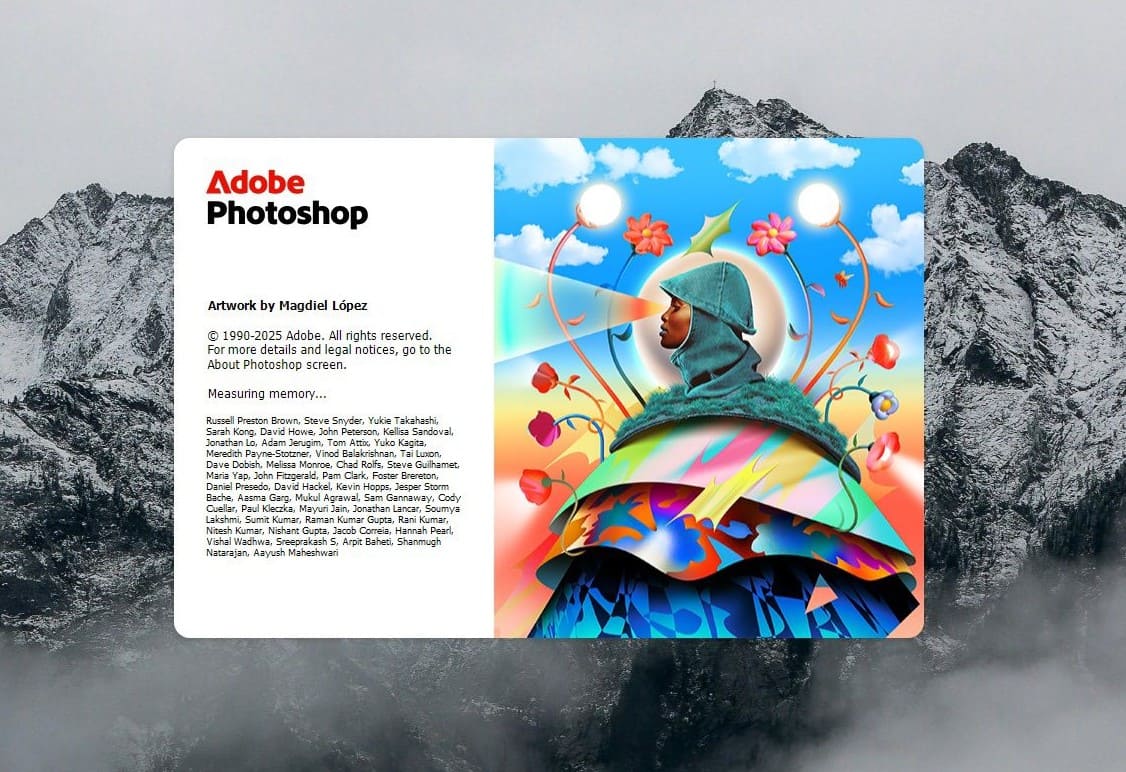
Integrating Adobe Stock also helps ensure the legality of the final product. Designers can manage licenses directly within Photoshop, minimizing the risk of using resources from unknown sources.
2.2. Color & Vibrance Adjustment Layer
One small but valuable improvement in Photoshop 2026 is the addition of a new Adjustment Layer called “Color & Vibrance”. Instead of creating multiple separate adjustment layers like Color Balance, Vibrance, or Hue/Saturation, the most important sliders are now combined into a single panel.
This adjustment layer includes parameters such as Temperature, Tint, Vibrance, and Saturation. Grouping these tools together makes the color grading process more intuitive, especially for designers who are not experts in color grading but still need quick and effective results.
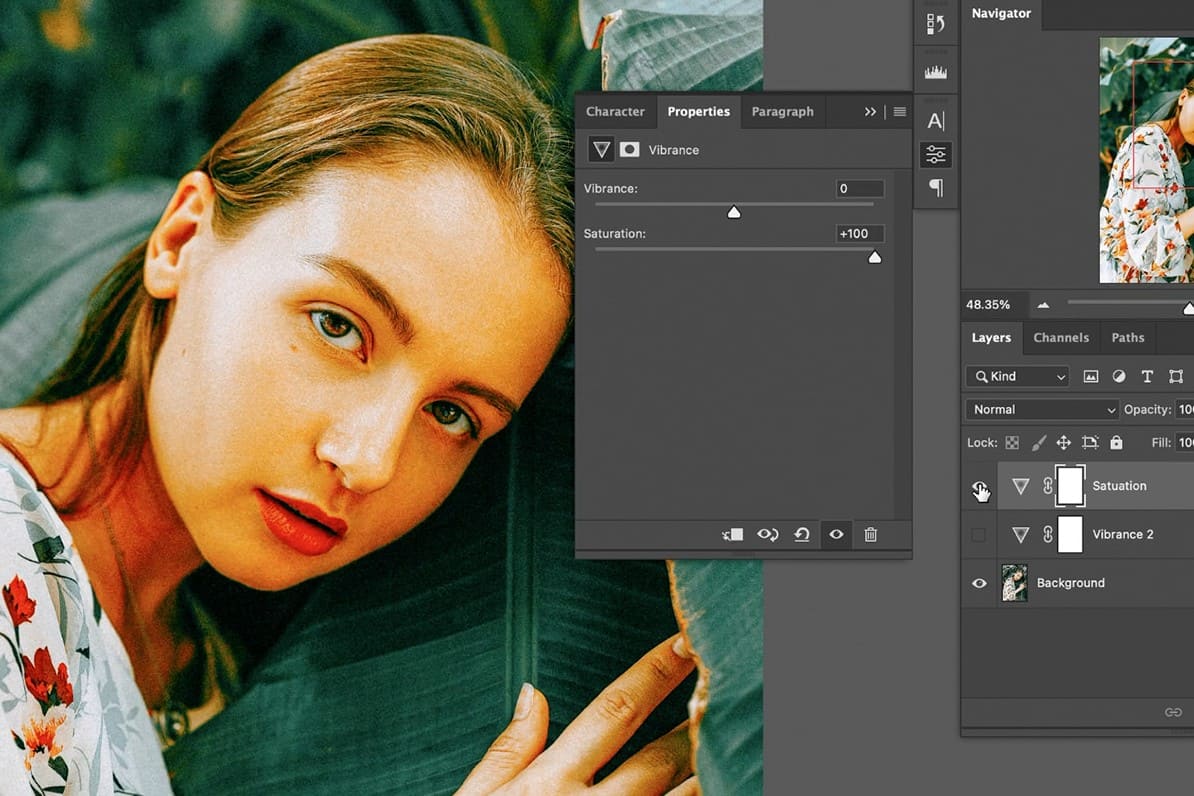
In practice, this new Adjustment Layer is ideal for editing social media images, online banners, or product photos. Designers can quickly balance the overall color before moving on to more detailed edits, thereby optimizing their workflow.
3. System requirements to run Photoshop 2026
Photoshop 2026 is a smart update, heavily focused on AI and advanced image processing. This means higher hardware requirements compared to previous versions. To fully utilize features like Generative Upscale or cloud-based AI processing, users need to ensure their systems meet the new standards.
3.1. Recommended configuration for Windows machines
For Windows users, Adobe recommends using Intel Core i5 or i7 CPUs from the 12th generation or later, or equivalent AMD Ryzen CPUs. Older Intel CPUs from the 7th generation and earlier may no longer be fully supported or may experience performance issues when using AI features.
The minimum RAM requirement should be 16GB, but for smooth operation with large files and AI features, 32GB of RAM is ideal. Regarding graphics cards, Photoshop 2026 requires RTX series GPUs or higher, with a minimum of 8GB of VRAM. However, to effectively utilize demanding AI features like Topaz's Upscale, a GPU with 16GB of VRAM will provide a significantly better experience.
The operating system is also an important factor. Adobe requires Windows 11 version 24H2 or later to ensure compatibility and optimal performance.
3.2. Recommended configuration for macOS machines
On macOS, Photoshop 2026 is very well optimized for Apple Silicon chips. Machines using Apple M-series chips (M1, M2, M3 and later) will have a significant advantage in performance and AI processing capabilities.
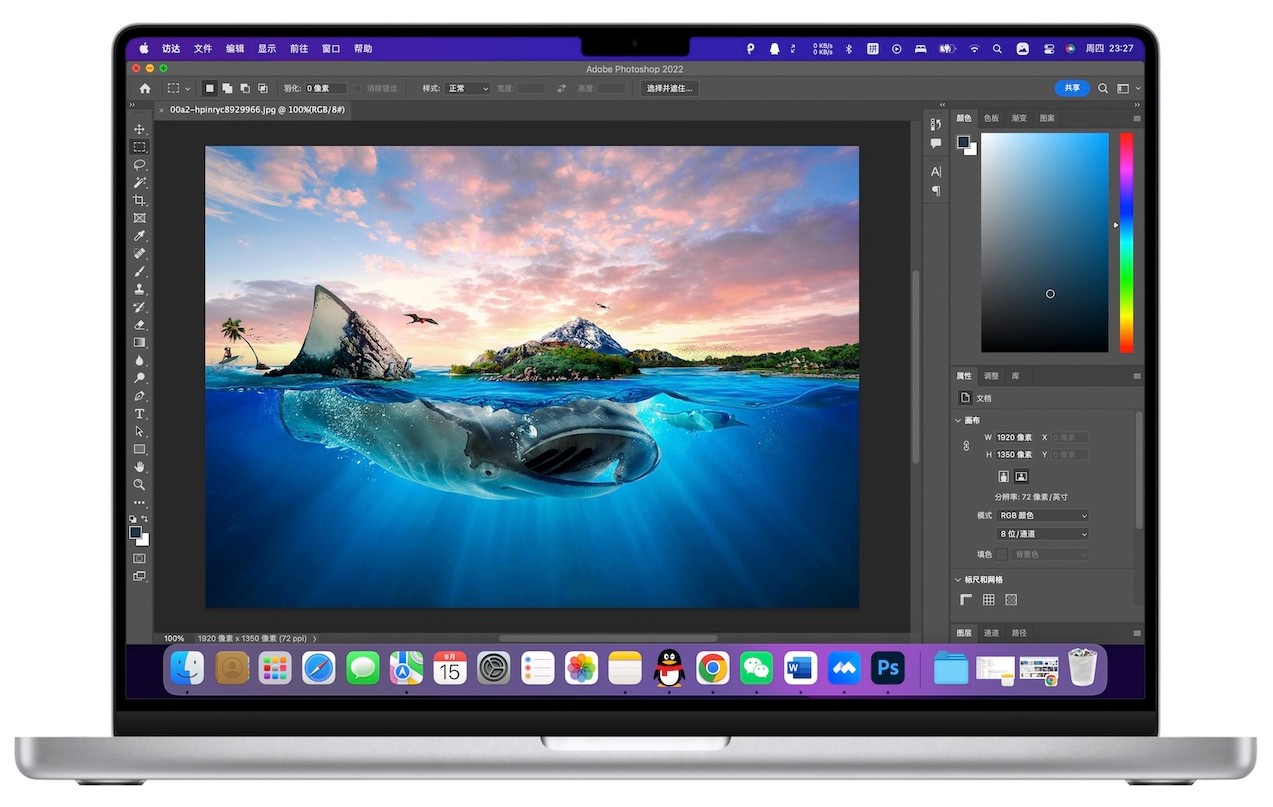
For Macs using Intel CPUs, the minimum requirements are a dedicated graphics card with 8GB of VRAM and 16GB or more of RAM. The operating system needs to be upgraded to macOS 14 or higher to ensure stable operation.
Overall, Photoshop 2026 is no longer the "lightweight" software of its much older versions. It's a powerful creative tool that requires comparable hardware to unlock its full potential.
For those working professionally in design, photography, or content creation, Photoshop 2026 is not just an option, but almost a necessary upgrade to keep up with trends and fully exploit the power of modern AI technology.





















VIP Products








Best Selling Products
Upgrade genuine Capture One account
120 USD
Freepik Premium Account
59 USD
Adobe Premiere Pro Account
99 USD
Genuine Cheap Canva Pro
39 USD
Autodesk All App Account Copyright
120 USD
ChatGPT Plus Account (GPT-4)
16 USD
Plugin Retouch4me
69 USD
Adobe Photoshop Copyright - Full App
120 USD
Copyright Adobe Lightroom Account
59 USD
Upgrade Genuine Office 365
49 USD
Windows 10 & 11 Pro Key
36 USD
Upgrade Duolingo Super
29 USD
Genuine Adobe Illustrator account
99 USD
Capcut Pro 1 Year
39 USD
MidJourney Account
29 USD