Best Selling Products

Adobe Premiere Pro Account
99 USD

Plugin Retouch4me
69 USD

ChatGPT Plus Account (GPT-4)
16 USD

Adobe Photoshop Copyright - Full App
120 USD

Windows 10 & 11 Pro Key
36 USD

Upgrade Duolingo Super
29 USD

Copyright Adobe Lightroom Account
59 USD

Freepik Premium Account
59 USD

Upgrade Genuine Office 365
49 USD

Genuine Adobe Illustrator account
99 USD

Genuine Cheap Canva Pro
39 USD

Capcut Pro 1 Year
39 USD

MidJourney Account
29 USD

Upgrade genuine Capture One account
120 USD

Autodesk All App Account Copyright
120 USD
Why can't you join a Microsoft Teams meeting? The most common errors.
Nội dung
- 1. Signs of a Teams meeting joining error
- 1.1. The message "Log in to join this meeting"
- 1.2. The message "Log in with a different account to join this meeting"
- 1.3. The message "This meeting has been locked"
- 1.4. The message "Your organization's policy does not allow you to attend this meeting"
- 1.5. Display the message "Meeting waiting room is currently full"
- 1.6. The message "Sorry, no one has responded to your request to join"
- 2. Why can't I join the Teams meeting?
- 2.1. Unstable Internet Connection
- 2.2. Teams application experiencing cache conflicts.
- 2.3. The meeting link is broken or has expired.
- 2.4. Access is restricted by the organizer (Host)
- 2.5. The application version is outdated.
Being unable to join a Teams meeting isn't uncommon. This article analyzes common messages, the underlying technical causes, and how to quickly identify the issue you're experiencing so you don't miss an important meeting.
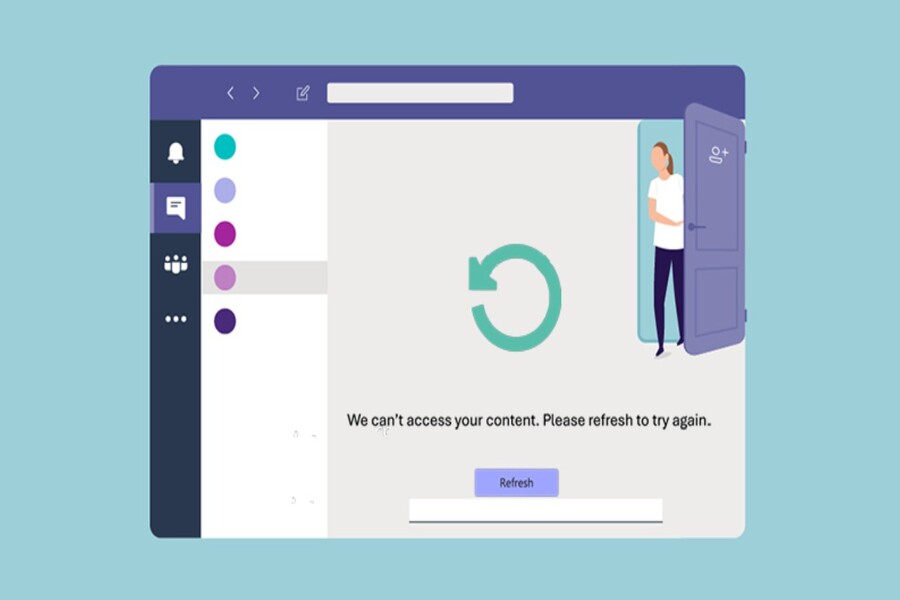
1. Signs of a Teams meeting joining error
While using Microsoft Teams, users may encounter various system messages when trying to join a meeting. These messages don't appear randomly but accurately reflect the authentication status, access rights, or meeting configuration at that time. Understanding these messages correctly is the first step in effectively diagnosing problems.
1.1. The message "Log in to join this meeting"
This is one of the most common signs, especially for users who frequently join meetings via email or chat links. When clicking on the meeting link, instead of being taken directly to the waiting room or meeting room, the Teams interface will display a login request with fields for email and password.
This message indicates that Teams does not allow you to join the meeting anonymously. The meeting may have been set by the organizer to only allow users authenticated with a Microsoft account or an account belonging to a specific organization. In the context of increasing corporate security concerns, this is a very common setting to prevent unauthorized access to internal meetings.
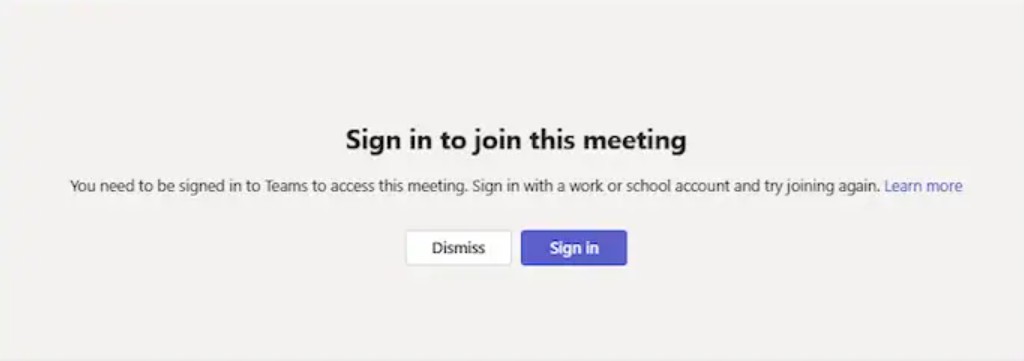
For users, this sign is often misleading, as they think that simply having a link is enough. In reality, the link only acts as a "key to the door," and whether or not the door is opened depends on the identity you use to knock.
1.2. The message "Log in with a different account to join this meeting"
If the login prompt indicates you are not yet verified, then this message will indicate the opposite: Teams has recognized you, but your current account does not meet the eligibility requirements.
This message typically appears when a user has multiple Microsoft or Teams accounts on the same device. For example, you might be logged in with a personal account, while the meeting requires a company account. Or, conversely, you might be using an old company account that no longer belongs to the meeting organizer's organization.
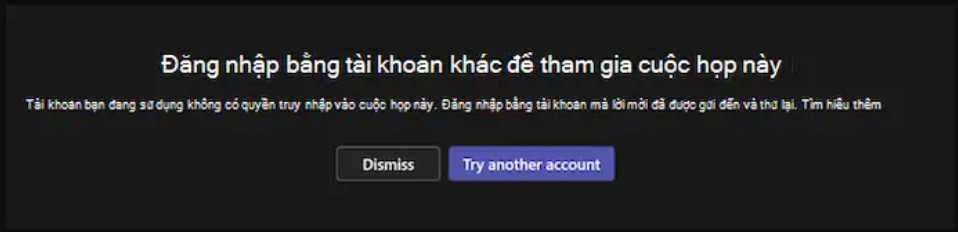
When this happens, the Teams interface usually clearly displays an account switching button or a signout prompt. This indicates that the problem is not with the link or network connection, but entirely related to the digital identity you are using to access the meeting.
1.3. The message "This meeting has been locked"
This sign usually gives the most obvious feeling of being "rejected." You might click on the meeting link as usual, even see the "Join" button, but then the system displays a lock icon or a message that the meeting has been locked.
When a meeting is locked, the organizer proactively prevents any new participants from entering the room, even if they have a valid link. This is a common measure used in important meetings where latecomers could disrupt the meeting or compromise the security of the content.
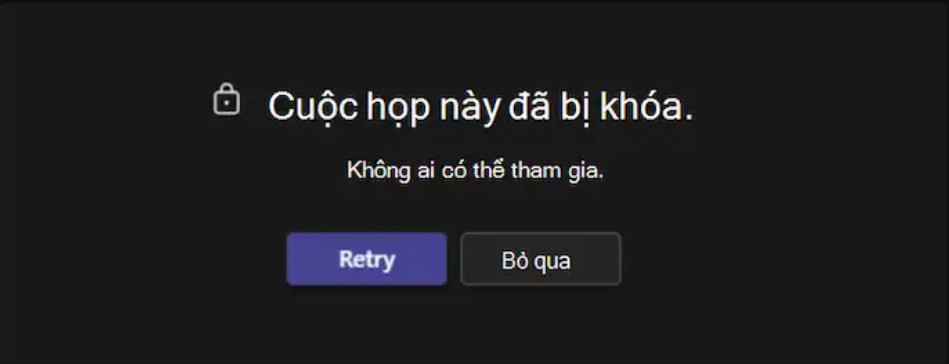
From a user experience perspective, this notification usually appears quite "absolute," without many options for handling it. This indicates that the organizer has complete control, and participants have virtually no other option but to contact the host directly.
1.4. The message "Your organization's policy does not allow you to attend this meeting"
This is one of the most "systemic" and also the most difficult notifications for end users to handle. When encountering this sign, Teams usually displays a warning dialog box clearly stating that the organization's policy is preventing participation in the meeting.
This notice reflects rules established by the organization's IT administrator, not those decided in real time by the meeting organizer. These policies may include blocking guest accounts, restricting participation from outside the organization, or requiring devices to meet certain security standards.

In a business context, especially in large organizations, banks, or technology companies, this is an indication that Teams is functioning correctly as a tool that adheres to strict security regulations.
1.5. Display the message "Meeting waiting room is currently full"
Not everyone knows that the lobby in Microsoft Teams also has a limit. When the number of people waiting to join exceeds the allowed limit, the system will display a message that the lobby is full and cannot accept any more requests.
This sign often appears in large meetings, webinars, or internal events with a high number of participants. Instead of seeing the familiar interface with cameras and microphones waiting for approval, you'll be "blocked" right from the start with a clear message indicating an overloaded status.

Essentially, this isn't a technical error, but rather a structural limitation designed to ensure the overall performance and experience of the meeting.
1.6. The message "Sorry, no one has responded to your request to join"
This message usually appears after you've waited in the waiting room for quite a while. Initially, you might think the host hasn't noticed your request. However, when the system automatically disconnects and displays this message, it means your request to join has expired.
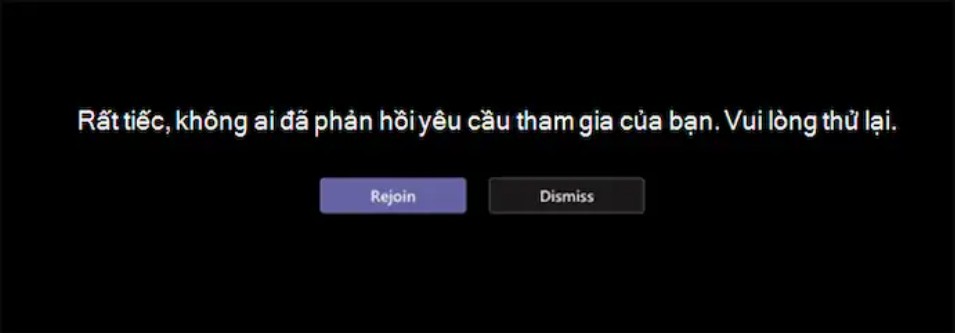
This message reflects two common possibilities. One is that the organizer is no longer in the meeting to approve new members. The other is that they missed or intentionally declined your request to join. In both cases, Teams will not keep you in the waiting room indefinitely but will automatically end the waiting session to avoid wasting system resources.
2. Why can't I join the Teams meeting?
Identifying the symptoms is just the first step. To thoroughly address the issue, users need to understand the root causes preventing them from joining Teams meetings. In reality, these causes often stem from a combination of technical factors, software configuration, and administration policies.
2.1. Unstable Internet Connection
Microsoft Teams is an application that requires a continuous and stable internet connection. Unlike loading a static webpage, joining a meeting requires the system to establish multiple parallel data transmission channels for audio, video, and user authentication.
When the network connection is weak or unstable, Teams may fail to complete the initial authentication process, resulting in users getting stuck on the loading screen or being kicked out immediately after clicking join. This error occurs quite frequently, especially with public WiFi networks or unstable mobile connections.
2.2. Teams application experiencing cache conflicts.
The cache helps Teams run faster by storing data temporarily. However, when the cache malfunctions or accumulates too much old data, it can cause software conflicts.
Users in this situation often encounter symptoms such as being unable to press the Join button, the interface taking forever to load, or the application closing automatically without clear warning. This is a common technical issue but is often overlooked by users.
2.3. The meeting link is broken or has expired.
Not all errors originate from the user. Sometimes, the meeting link itself is the cause of the problem. Missing characters in the copy, pasting the wrong link, or accessing a link to a canceled meeting can all prevent the system from identifying a valid meeting room.
Additionally, some meetings have a specific validity period. Once the meeting has ended and been closed, accessing the old link will no longer work, even though you may still see the Teams interface open.
2.4. Access is restricted by the organizer (Host)
The meeting organizer plays a central role in controlling who can participate. Settings such as allowing only members of the organization, requiring the use of a waiting room, or locking the meeting can all become barriers to participation.
In many cases, users believe they are experiencing a technical error, but it is actually the result of an administrative decision made by the host. This is especially common in internal meetings or meetings with sensitive content.
2.5. The application version is outdated.
Microsoft continuously updates Teams to add features and patch security vulnerabilities. If you're using an outdated version of the app, it may no longer be compatible with newer meeting settings, especially features related to security and authentication.
Delayed updates not only degrade the user experience but also pose several risks, including the inability to participate in meetings reliably.
Being unable to join a Microsoft Teams meeting is rarely a "random" occurrence. Most cases leave clear signs through system notifications and application behavior. When users understand the meaning of these signs, they will no longer feel confused or bewildered when problems arise.





















VIP Products








Best Selling Products
Adobe Premiere Pro Account
99 USD
Plugin Retouch4me
69 USD
ChatGPT Plus Account (GPT-4)
16 USD
Adobe Photoshop Copyright - Full App
120 USD
Windows 10 & 11 Pro Key
36 USD
Upgrade Duolingo Super
29 USD
Copyright Adobe Lightroom Account
59 USD
Freepik Premium Account
59 USD
Upgrade Genuine Office 365
49 USD
Genuine Adobe Illustrator account
99 USD
Genuine Cheap Canva Pro
39 USD
Capcut Pro 1 Year
39 USD
MidJourney Account
29 USD
Upgrade genuine Capture One account
120 USD
Autodesk All App Account Copyright
120 USD