Best Selling Products

Freepik Premium Account
59 USD

Upgrade Duolingo Super
29 USD

Autodesk All App Account Copyright
120 USD

Upgrade Genuine Office 365
49 USD

ChatGPT Plus Account (GPT-4)
16 USD

Capcut Pro 1 Year
39 USD

Copyright Adobe Lightroom Account
59 USD

MidJourney Account
29 USD

Plugin Retouch4me
69 USD

Windows 10 & 11 Pro Key
36 USD

Upgrade genuine Capture One account
120 USD

Genuine Cheap Canva Pro
39 USD

Adobe Photoshop Copyright - Full App
120 USD

Adobe Premiere Pro Account
99 USD

Genuine Adobe Illustrator account
99 USD
Internet Explorer is "dead," here are 10 reasons why you should switch to Microsoft Edge.
Nội dung
- 1. Superior processing speed, on par with any competitor.
- 2. Collections, a smart content storage tool.
- 3. Personalized homepage with content tailored to user preferences.
- 4. Seamless compatibility with Windows 10 and Windows 11 operating systems.
- 5. Clear and easily customizable privacy control system.
- 6. Arrange tabs vertically and automatically set tab rests.
- 7. A minimalist reading experience, eliminating all distractions.
- 8. The ability to install extensions for Chrome
- 9. Optimal compatibility with Windows S Mode
- 10. Full support on mobile platforms.
After Internet Explorer officially ended its decades-long journey with Windows users, Microsoft Edge has become a name that is receiving increasing attention. No longer a forced upgrade from Internet Explorer, Edge is completely rebuilt on the open-source Chromium platform, making the browser much lighter, more modern, and more feature-rich.
1. Superior processing speed, on par with any competitor.
One of the biggest differences between Edge and Internet Explorer is Microsoft's approach to product development. Instead of tweaking and patching an outdated platform, the company decided to build Edge from scratch, even doing so twice. The first version launched with Windows 10 in 2015, but just four years later, Microsoft completely restructured the browser using the Chromium source code, the same platform Google uses for Chrome. Thanks to this overhaul, Edge was able to completely eliminate outdated code and technology that had made Internet Explorer cumbersome and slow.
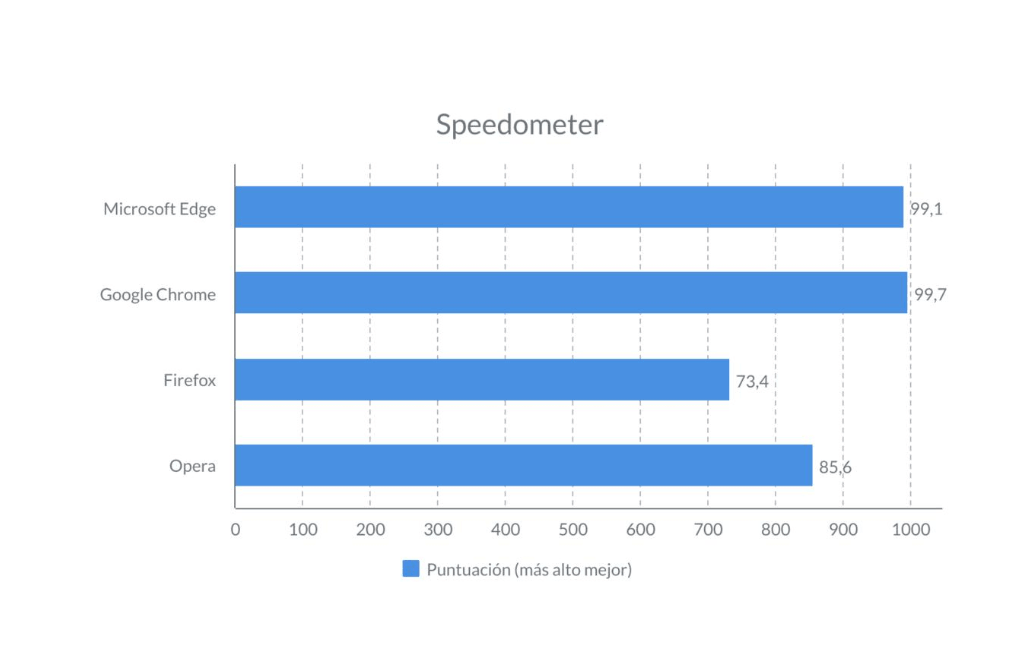
Behind its smooth interface lies a series of core-level technical improvements that help websites load faster, respond to user input more instantly, and reduce system resource consumption—a common problem with many other resource-intensive browsers. These improvements have been proven through numerous independent speed tests, showing that Edge can compete head-to-head with today's leading browsers.
2. Collections, a smart content storage tool.
While traditional browsers only allow you to bookmark favorite links, Edge goes further with its Collections feature, which lets you save specific text snippets and images extracted directly from the webpage you're viewing. This makes collecting and organizing information from the internet much neater and more organized than the old method.
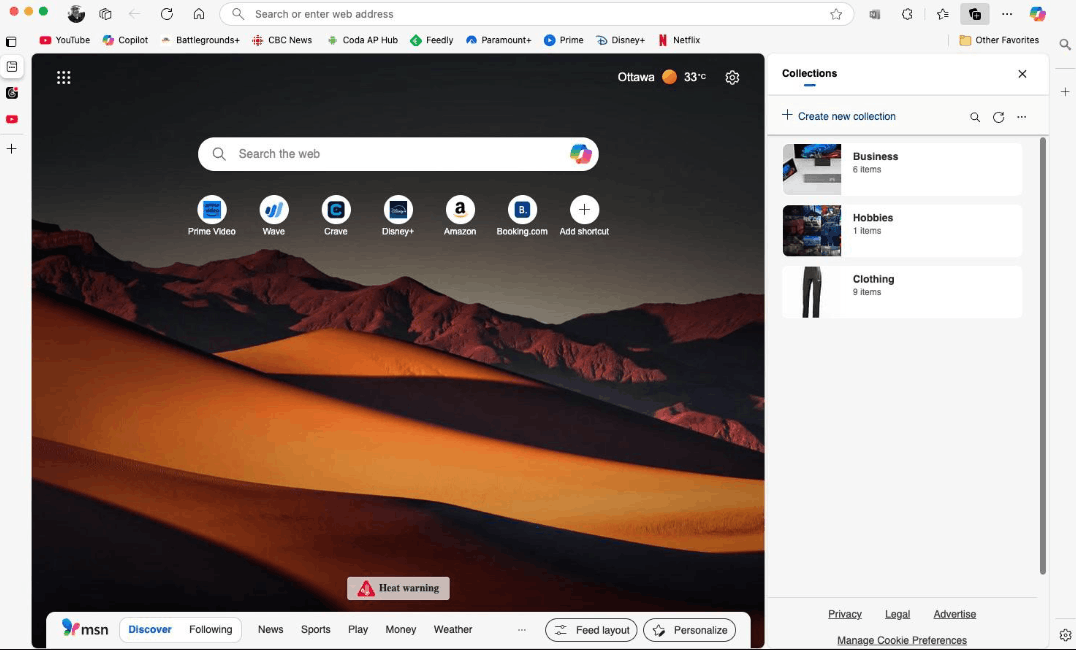
To get started, simply click the Collections icon on the toolbar, which looks like two nested squares with a plus sign in the middle. After selecting to create a new collection, you can add the entire current page, or right-click on any text or image to save it individually. For those who like to take quick notes, Edge also includes a built-in sticky note creation tool right within the Collections panel.
This feature is especially useful when you need to create a shopping list, plan a trip, or gather references for an article or research project. Notably, all data in Collections will automatically sync across all devices you log into your Microsoft account on, ensuring seamless access whether you're using a computer or a phone.
3. Personalized homepage with content tailored to user preferences.
As soon as you open Edge, you'll be greeted by a startup page called My Feed, which aggregates news, short news articles, and videos selected based on your personal interests. It's practically a rich content repository, always ready to serve your reading and viewing needs every time you open the browser.
The content displayed on My Feed is tailored based on browsing history and some personal data, such as current location, to show relevant weather information. Users can fully customize their interests by clicking the gear icon in the upper right corner of the page.
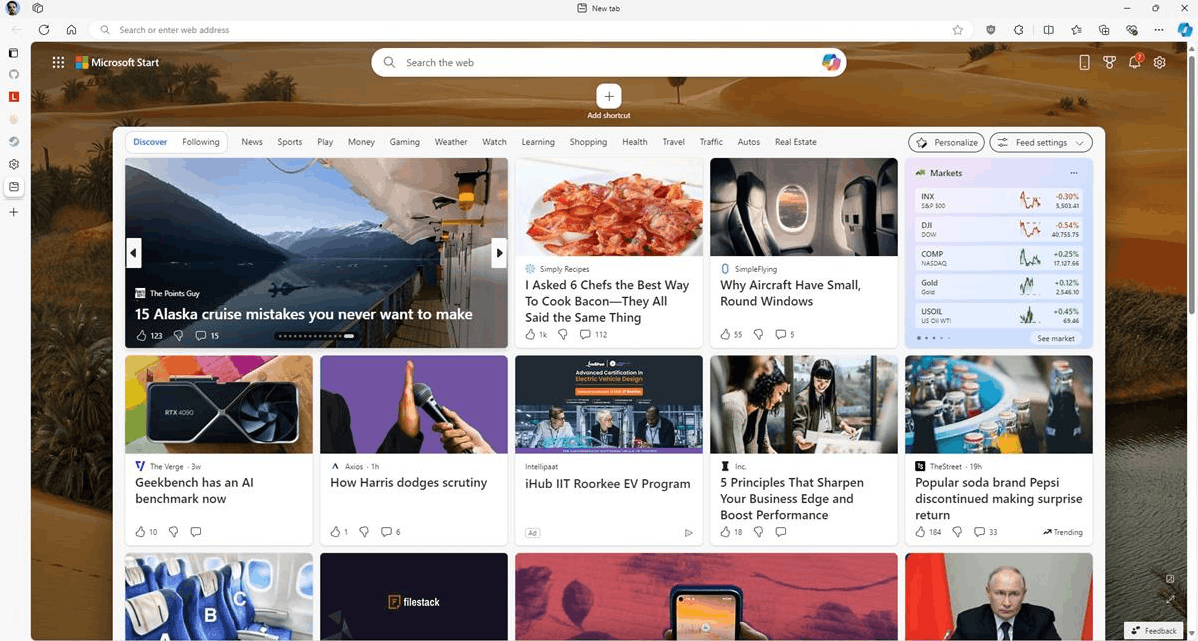
If you don't want to see My Feed every time you open a new tab, Edge also allows you to easily change the default page. Simply go to the three-dot menu, select Settings, then find the section related to the start page and new tabs. You can choose to open the standard new tab page, continue the previously opened tabs, or specify a particular page as you wish.
4. Seamless compatibility with Windows 10 and Windows 11 operating systems.
For users who frequently work on Windows 10 or Windows 11, Edge is the ideal companion. For example, when you perform a search directly on your computer's taskbar, the results will always be displayed through Edge, regardless of which other browser you have set as your default.
Furthermore, Edge integrates seamlessly with other Microsoft products, such as the Windows Defender antivirus tool, proactively warning and blocking malicious websites. While Chrome and Firefox still work well on Windows 10, the overall experience of using the full suite of Microsoft products is significantly smoother and more consistent.
Users can also pin frequently visited websites directly to the taskbar for quick access with just a few simple steps in the extended tools menu. In addition, Edge is optimized to run well on all devices using the latest version of Windows, whether it's a desktop or a tablet.
5. Clear and easily customizable privacy control system.
Understanding how websites are tracking your data has never been easy for most average users. Recognizing this, Edge has simplified its privacy settings into three clear levels: Basic, Balanced, and Strict, allowing anyone to choose their preferred level of protection in just seconds.
You can view details of each level and adjust it to your personal needs by going to the three-dot menu, selecting Settings, and then finding the Privacy, Search, and Services section. Microsoft recommends users choose the Balanced level as a reasonable starting point, ensuring both security and minimal impact on the browsing experience.
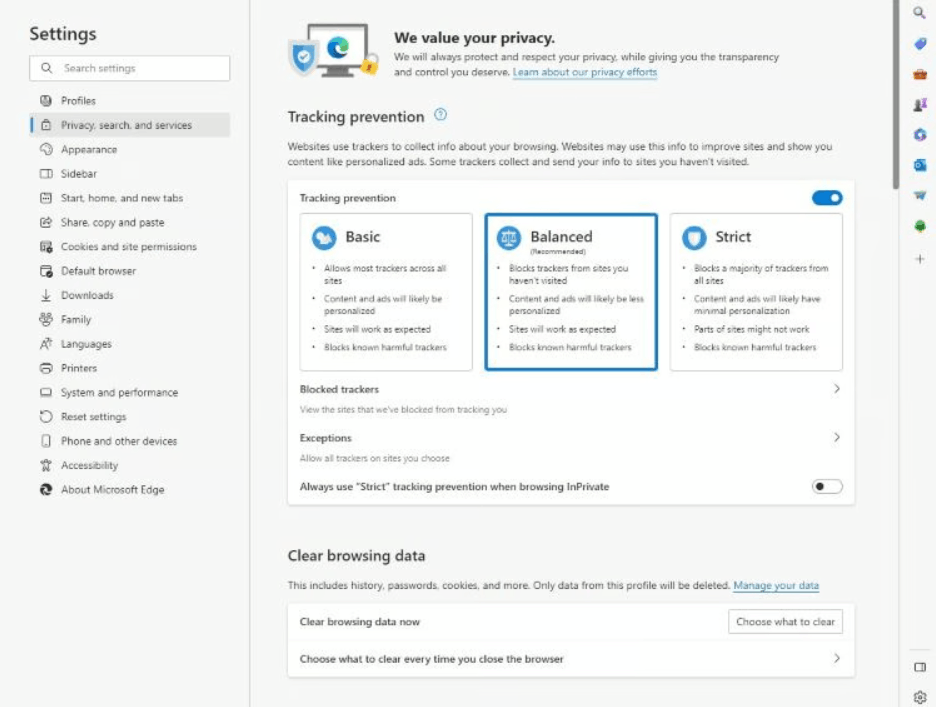
However, it's worth noting that excessive blocking of cookies and trackers can sometimes cause certain inconveniences, such as persistent pop-up notifications because the website doesn't recognize your previous visits. Regardless of the level you choose, Edge still allows you to set up exception lists, meaning websites that are allowed to use trackers without restrictions.
6. Arrange tabs vertically and automatically set tab rests.
Tabs have long been an essential tool for navigating the web, and most of us are familiar with them lying horizontally at the top of the screen. Edge offers a different option, allowing you to arrange all tab titles vertically, aligning them along the left edge of the browser window.
To activate this feature, simply click the tab management icon located at the top left of the tab row, then select to enable portrait tab mode. The browser interface will automatically switch immediately, and you can easily return to traditional landscape tab mode at any time with the same action.
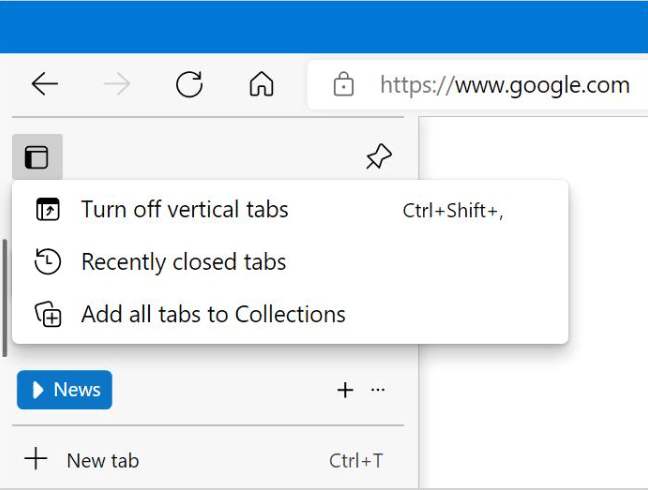
Additionally, Edge allows you to put inactive tabs into sleep mode to help the browser run more smoothly, a feature extremely useful for those who habitually open dozens of tabs at once. Simply go to the Settings menu, select System & Performance, and enable the tab sleep saving tool. Here, you can also customize the time it takes for a tab to start sleeping, as well as enable a blurring effect for sleeping tabs to further optimize performance.
7. A minimalist reading experience, eliminating all distractions.
Edge boasts an uninterrupted reading feature called Immersive Reader, making web browsing more comfortable and focused than ever before. While some other browsers offer similar tools, Edge's implementation of this feature is particularly clean and user-friendly.
With just one click, you can switch between regular reading mode and Immersive Reader mode. When activated, this feature automatically removes ads and other distracting elements from the page, making the main content much easier to absorb.

To access it, simply click the small book icon located right above the address bar. In this reading mode, you can customize the font size and background color to your personal preference, and even ask Edge to read the article aloud—a very useful feature for those who want to listen to the news while busy with other tasks.
8. The ability to install extensions for Chrome
One of the biggest challenges any new browser faces is attracting developers to create useful extensions, an area where Firefox and Chrome have had a clear advantage for many years. However, thanks to being built on the same Chromium source code as Chrome, Edge allows users to install most Chrome-compatible extensions without any problems.
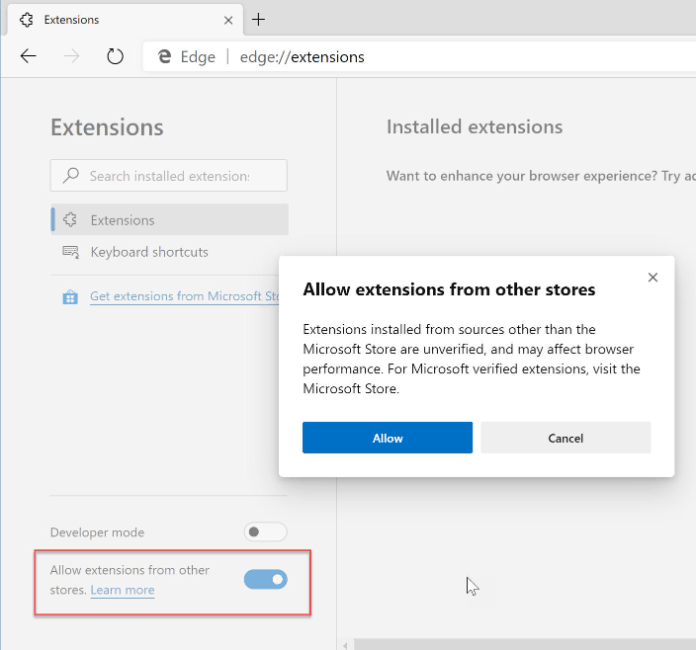
Simply open the browser menu via the three-dot icon in the upper right corner, then select "Extensions" to see what's installed and explore more options in Edge's official extension library. Alternatively, you can directly access the Chrome Web Store and install any extension you find there, opening up a virtually unlimited app store.
9. Optimal compatibility with Windows S Mode
Microsoft developed Windows S Mode as a streamlined version of Windows, allowing only the installation and running of applications downloaded from the Windows Store. This means that large desktop applications like Photoshop will not work in this environment. Notably, Edge is the only web browser available on the Windows Store, making it a nearly mandatory choice if you want to use this mode.
Choosing Edge as your primary browser also unlocks the possibility of experiencing Windows S Mode, with its advantages of enhanced security and simpler, more streamlined application management. This mode is often pre-installed on some budget laptops from third-party manufacturers. It's important to note that while you can switch from S Mode back to standard Windows mode at any time, this process is irreversible once initiated.
10. Full support on mobile platforms.
Having a browser that can synchronize bookmarks, passwords, and all browsing data between your computer and phone is always a great convenience in modern life. Microsoft has released Edge specifically for both Android and iOS operating systems, providing a seamless experience regardless of which device you're using.
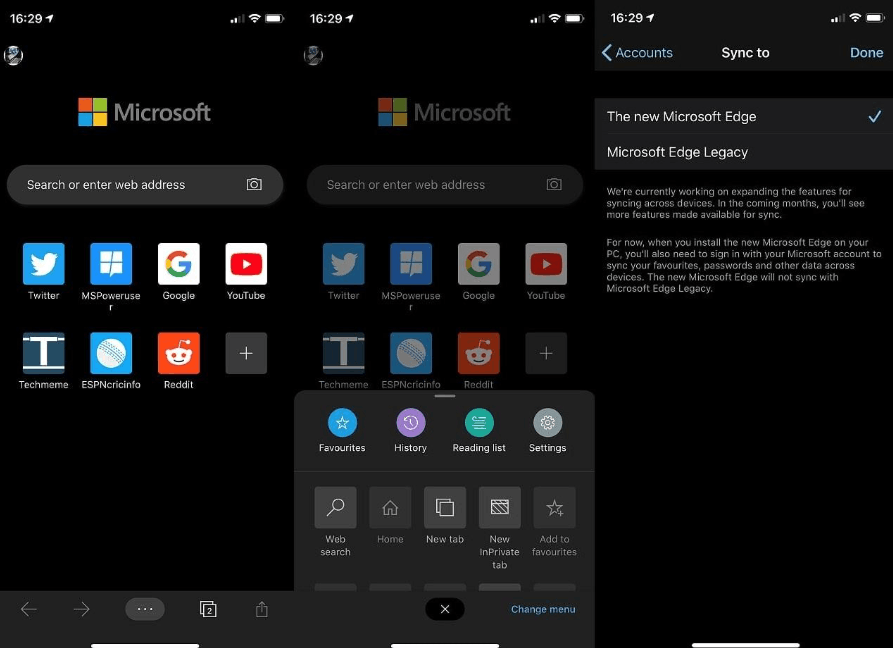
Besides cross-platform synchronization, including collections you've created on your computer, the mobile version of Edge also offers practical features like incognito browsing, along with the ability to control tracker and ad blocking. For those who frequently travel and switch between multiple devices, this is definitely a big plus, making Edge a reliable companion throughout all online activities.
Overall, Microsoft Edge has made significant strides since succeeding Internet Explorer, not only in processing speed but also in deep integration with the Windows ecosystem, a transparent privacy system, and a range of useful features designed around the real needs of users. If you're still hesitant about a Microsoft-branded browser, perhaps now is the right time to try it out and judge for yourself.





















VIP Products








Best Selling Products
Freepik Premium Account
59 USD
Upgrade Duolingo Super
29 USD
Autodesk All App Account Copyright
120 USD
Upgrade Genuine Office 365
49 USD
ChatGPT Plus Account (GPT-4)
16 USD
Capcut Pro 1 Year
39 USD
Copyright Adobe Lightroom Account
59 USD
MidJourney Account
29 USD
Plugin Retouch4me
69 USD
Windows 10 & 11 Pro Key
36 USD
Upgrade genuine Capture One account
120 USD
Genuine Cheap Canva Pro
39 USD
Adobe Photoshop Copyright - Full App
120 USD
Adobe Premiere Pro Account
99 USD
Genuine Adobe Illustrator account
99 USD