Best Selling Products
Genuine Adobe Illustrator account
99 USD
Windows 10 & 11 Pro Key
36 USD

ChatGPT Plus Account (GPT-4)
16 USD
Plugin Retouch4me
69 USD
Adobe Photoshop Copyright - Full App
120 USD

Upgrade Duolingo Super
29 USD
Adobe Premiere Pro Account
99 USD

Autodesk All App Account Copyright
120 USD

MidJourney Account
29 USD
Upgrade genuine Capture One account
120 USD
Capcut Pro 1 Year
39 USD

Copyright Adobe Lightroom Account
59 USD
Genuine Cheap Canva Pro
39 USD

Freepik Premium Account
59 USD
Upgrade Genuine Office 365
49 USD
Make the Most of YouTube Premium with These 10 Most Useful Tips
Nội dung
- Tip 1: Set up appropriate background playback mode.
- Tip 2: Turn on Smart Downloads to always have videos offline.
- Tip 3: Adjust video quality based on Wi-Fi and mobile network.
- Tip 4: Optimize video download quality to save storage space.
- Tip 5: Take advantage of 1080p Premium image quality.
- Tip 6: Manage your viewing history to improve video recommendations.
- Tip 7: Continue watching videos across multiple devices
- Tip 8: Use Jump Ahead to skip less important sections.
- Tip 9: Create a video queue for continuous viewing.
- Tip 10: Adjust the sound quality when listening to music.
Here are 10 practical tips, from background video playback and smart downloads to customizing audio quality, to help you optimize your YouTube Premium experience.

Tip 1: Set up appropriate background playback mode.
Background playback is one of the most important features of YouTube Premium. This feature allows videos to continue playing when you switch to another app or lock your phone screen.
How to install it on your phone:
Step 1: Open the YouTube app and sign in to your Premium account.
Step 2: Tap on your profile picture in the bottom or top corner of the screen, depending on the app's interface.
Step 3: Select Settings.
Step 4: Find the "Background & downloads" option.
Step 5: Click on Background play.
Step 6: Choose the appropriate mode. If you want to listen to content even without using headphones, select Always on. If you only want playback when headphones or external speakers are connected, select the corresponding option if available.
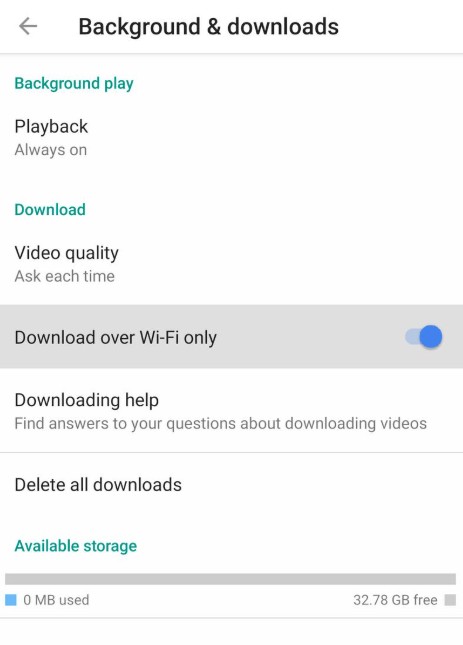
Once complete, open a video, switch to another app, or lock your screen to test.
This tip is especially useful when listening to podcasts, lectures, talk shows, or language learning content. However, if you want to play video continuously through your phone's speaker, double-check your selected option to avoid unwanted audio playback.
Tip 2: Turn on Smart Downloads to always have videos offline.
Smart Downloads allows YouTube to automatically download suggested videos based on your viewing history. This helps you prepare content for watching while traveling or in areas with unstable internet connections.
How to enable it on Android:
Step 1: Open YouTube and sign in to your Premium account.
Step 2: Click on your profile picture or open the Library section.
Step 3: Access the Downloads section.
Step 4: Click on the menu or gear icon in the download section.
Step 5: Find the Smart Downloads option.
Step 6: Enable the feature and check the storage space being used.
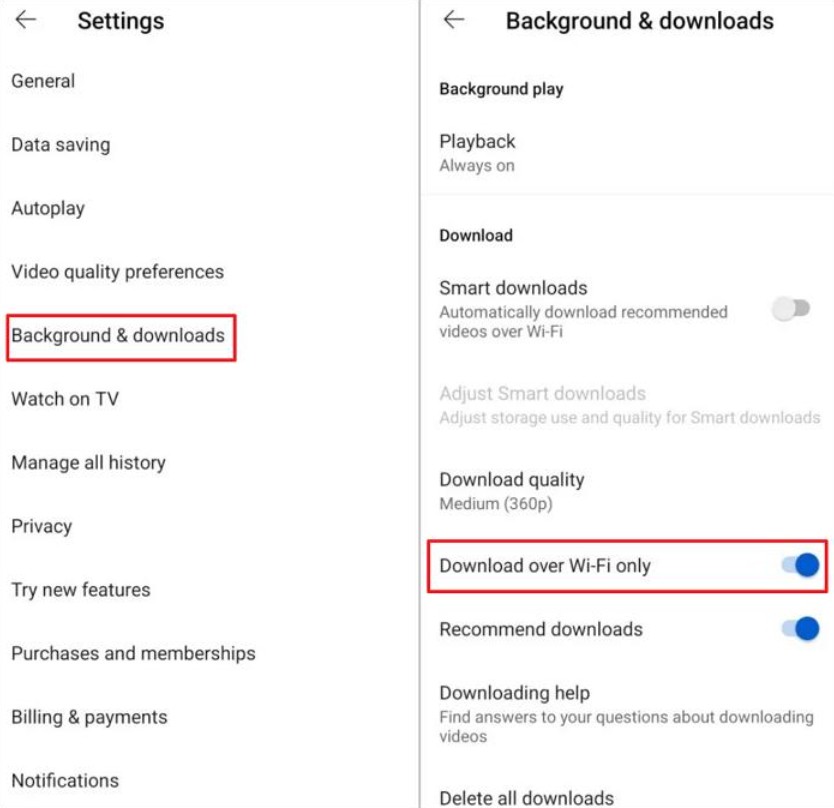
To adjust the download quality, open the Downloads settings, select Download quality, and then choose the appropriate resolution.
You can also remove videos you no longer need by opening your downloads list, tapping the menu next to the video, and selecting remove from downloads.
According to YouTube's guidelines, content in Smart Downloads is refreshed periodically, usually every seven days. This feature is currently supported on Android; usability on other devices needs to be tested separately.
Tip 3: Adjust video quality based on Wi-Fi and mobile network.
If you frequently use 4G or 5G, having videos autoplay at high resolution can consume a lot of data. Conversely, when using a stable Wi-Fi connection, you can prioritize better image quality.
How to install:
Step 1: Open the YouTube app.
Step 2: Tap on your profile picture and select Settings.
Step 3: Find Video quality preferences.
Step 4: In the mobile video quality section, select Data saver or Auto.
Step 5: In the Wi-Fi video quality section, select Higher picture quality if you want to prioritize sharpness.
Step 6: Exit the settings and open a video to test.
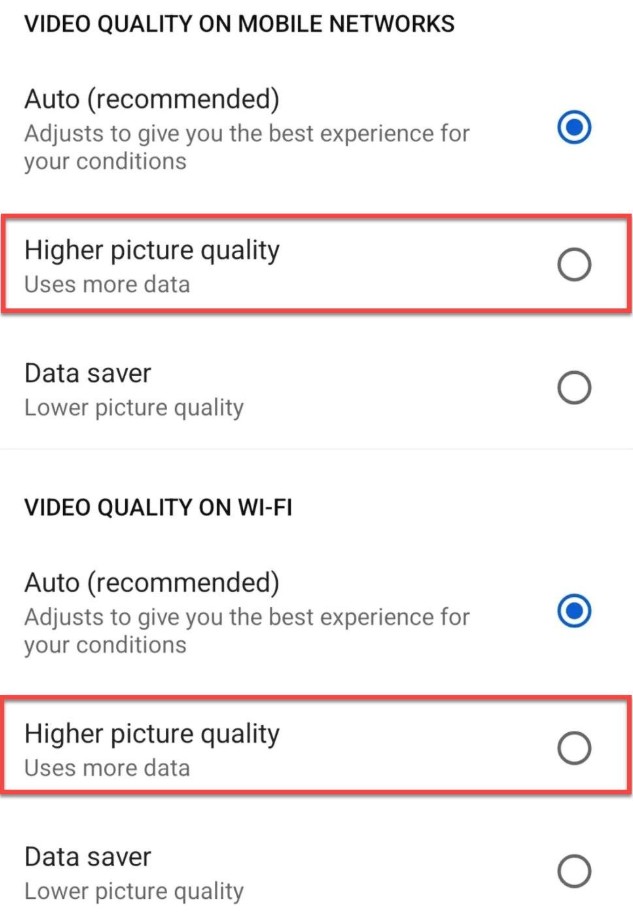
If you don't see this option, you can change the quality directly in the player: open the video, tap the gear icon, select Quality, then select Advanced and your desired resolution.
Note that actual quality depends on the original video, network speed, and device. Choosing a high quality setting does not guarantee that the video will always play at that resolution if the connection is not stable enough.
Tip 4: Optimize video download quality to save storage space.
Downloaded videos in high resolution usually take up more storage space. If your phone has limited memory, you should choose a quality that is sufficient for your needs.
Steps to follow:
Step 1: Open YouTube and tap on your profile picture.
Step 2: Select Settings.
Step 3: Open Background Playback and Downloads.
Step 4: Click on Download quality.
Step 5: Choose a resolution that matches your screen and device's storage capacity.
Step 6: Go back to the Downloads section, check the downloaded videos, and delete any unnecessary content.
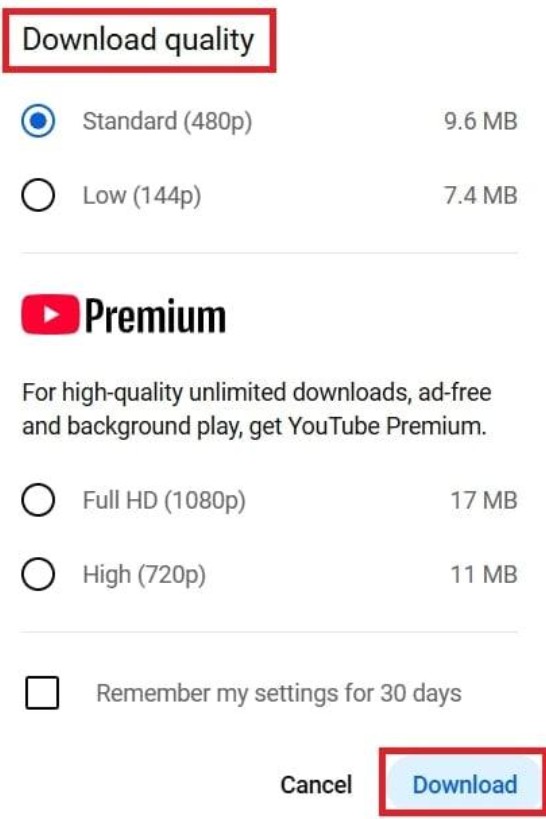
For phones with small screens, 720p usually works well for general viewing needs. If you want to watch on a larger screen or need more detail, you can choose 1080p when the video supports it.
For video downloads, prioritize a Wi-Fi connection if you want to save mobile data. Also, check your free storage space before downloading multiple videos at once.
Tip 5: Take advantage of 1080p Premium image quality.
1080p Premium is a picture quality option available to YouTube Premium members on eligible videos. This is a higher bitrate version of 1080p, which helps retain more image detail in scenes with complex motion.
How to use:
Step 1: Open the video you want to watch on YouTube.
Step 2: Click the gear icon in the player.
Step 3: Select Quality.
Step 4: Select Advanced if this option appears.
Step 5: Select 1080p Premium.
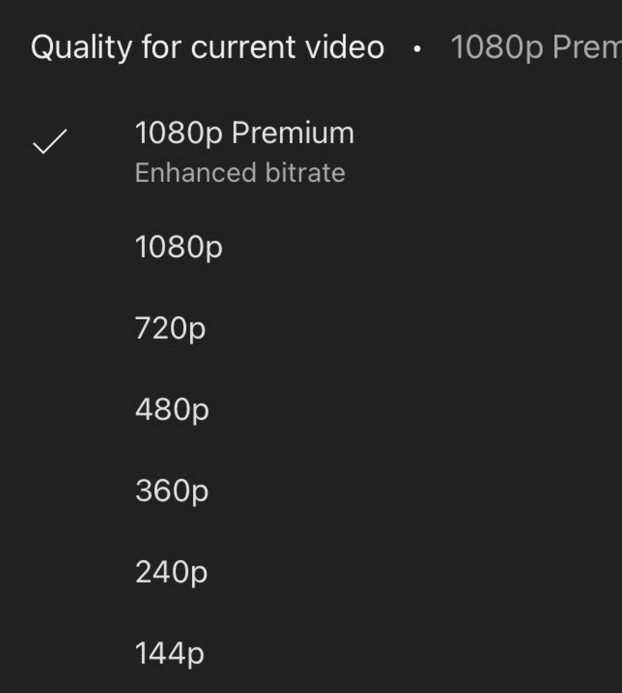
If you don't see the option, the video may not be eligible or your device may not support it. YouTube doesn't offer 1080p Premium for all content; for example, Shorts, livestreams, and videos uploaded at resolutions other than 1080p are not typically supported.
To make the most of this feature, use a monitor with the appropriate resolution and a stable internet connection. The final image quality will still depend on the quality of the original upload.
Tip 6: Manage your viewing history to improve video recommendations.
Your viewing history helps YouTube remember what you've watched and make more relevant recommendations. However, when you watch a lot of unrelated topics, the homepage may display videos that aren't to your liking.
How to pause your viewing history on Android or iPhone:
Step 1: Open YouTube and log in to your account.
Step 2: Tap on your profile picture, then select Settings.
Step 3: Select Manage all history.
Step 4: Open the Controls tab.
Step 5: Find the option to save your viewing activity on YouTube.
Step 6: Uncheck the option to include videos you watch to pause recording your viewing history.
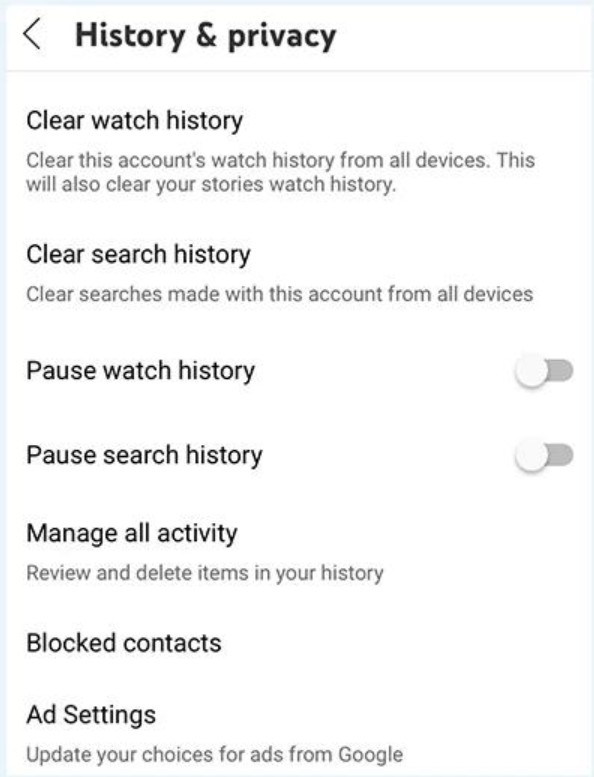
If you only want to delete a specific video, open your history manager, find the video, and press the corresponding delete button.
Note: When your watch history is turned off or deleted, YouTube may reduce or remove some recommendations based on that history. So, if your goal is to improve recommendations, delete irrelevant videos instead of turning off your history entirely.
Tip 7: Continue watching videos across multiple devices
If you frequently use your phone, computer, and Smart TV, you can continue watching content from where you left off by logging in with the same account.
How to use:
Step 1: Open YouTube on your phone and sign in to your Google account.
Step 2: Play the video up to the point where you want to stop.
Step 3: Exit the video or switch to another application.
Step 4: Open YouTube on your computer or TV.
Step 5: Log in with the same account you used on your phone.
Step 6: Find the video in the Continue watching section, viewing history, or home page, and check if the video resumes from where it left off.
For the feature to work properly, please ensure your viewing history is enabled and your account is synced. In some cases, it may take some time to update the playback location.
This tip is especially useful for online learners or those watching long videos, saving time searching for where you left off.
Tip 8: Use Jump Ahead to skip less important sections.
Jump ahead is a Premium feature that allows you to quickly jump to sections of content that many viewers tend to skip to. This feature can be useful when watching tutorials, analytical videos, or longer content with lengthy introductions.
How to use it on a computer:
Step 1: Open YouTube in your browser and sign in to your Premium account.
Step 2: Play a video that supports Jump Ahead.
Step 3: Double-click the playback area to fast-forward or move the mouse cursor to the progress bar.
Step 4: Observe the progress bar prompt or the "Jump ahead" button if it appears.
Step 5: Click this button to go to the suggested section.

On a Smart TV, you can press the right arrow button on the remote control. If a progress bar appears, press it again to move to that point and then confirm with the OK button.
Jump ahead doesn't appear on all videos. The feature is also limited to Shorts, livestreams, premiere videos, music, movies, and TV shows.
Tip 9: Create a video queue for continuous viewing.
Video queues allow you to prioritize what content you want to watch next without having to search through each video after the current one ends.
Instructions for use on supported devices:
Step 1: Open the YouTube app and find the first video.
Step 2: Play the video or open the options menu next to the video.
Step 3: Select Add to queue (Play next in queue or Add to queue, depending on the interface).
Step 4: Repeat the process with other videos you want to watch.
Step 5: Open the playback queue to check the order of the videos.
Step 6: If you want to change the order, use the sorting operations provided in the queue interface.
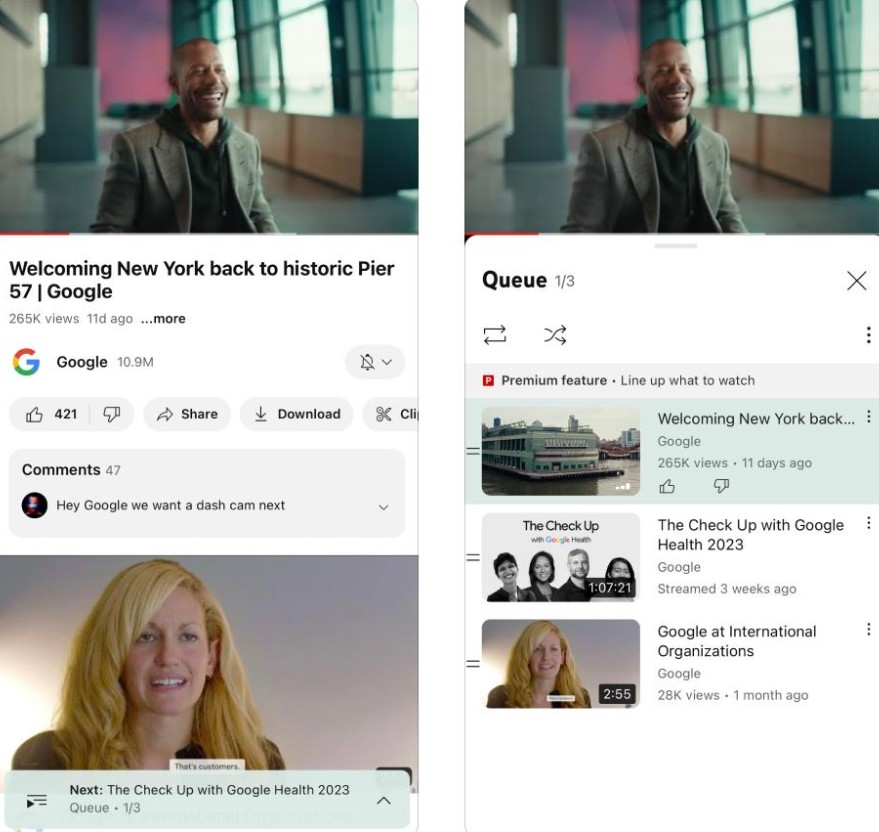
The queue feature for Premium members is supported on mobile devices and tablets. Options and operation may vary between platforms.
This tip is useful when watching a series of lessons, tutorial videos, or listening to a lot of content in quick succession. You can prepare a list beforehand to minimize the need to search while studying or working.
Tip 10: Adjust the sound quality when listening to music.
YouTube Premium members can enjoy high-quality audio on eligible music videos and audio content. According to YouTube's support information, audio can be streamed at speeds up to 256 kbps for suitable content.
How to check:
Step 1: Open the YouTube app and play a music video.
Step 2: Click the gear icon or open the player's settings.
Step 3: Find the Audio quality option, if available.
Step 4: Select a high quality level if offered.
Step 5: If you use YouTube Music, open the app, tap your profile picture, and go to Settings.
Step 6: Find the Audio Quality section and adjust the streaming or download quality to your needs.
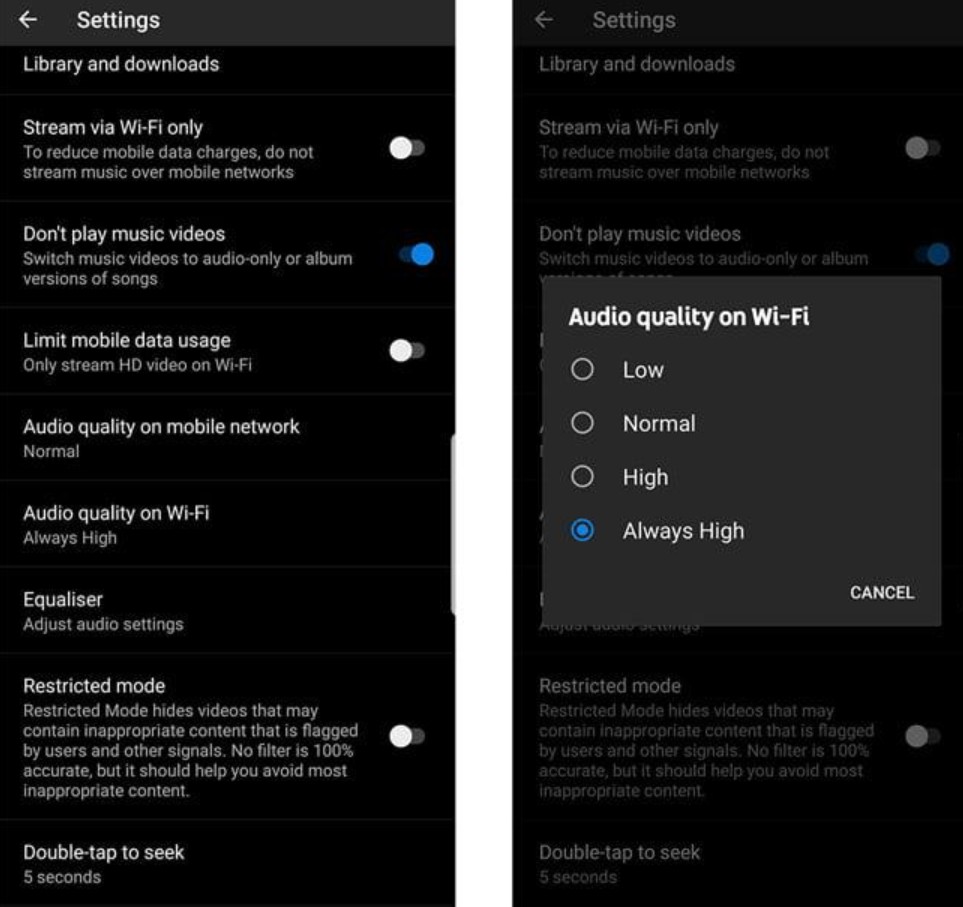
Menu names and actual options may vary by app, version, and device. Sound quality also depends on the original recording, playback device, and network connection. Choosing a higher level may consume more data when streaming.
Hopefully, these 10 tips will help you use YouTube Premium more effectively, save data, manage content conveniently, and build a video viewing experience that suits your personal needs.














VIP Products


Best Selling Products
Genuine Adobe Illustrator account
99 USD
Windows 10 & 11 Pro Key
36 USD
ChatGPT Plus Account (GPT-4)
16 USD
Plugin Retouch4me
69 USD
Adobe Photoshop Copyright - Full App
120 USD
Upgrade Duolingo Super
29 USD
Adobe Premiere Pro Account
99 USD
Autodesk All App Account Copyright
120 USD
MidJourney Account
29 USD
Upgrade genuine Capture One account
120 USD
Capcut Pro 1 Year
39 USD
Copyright Adobe Lightroom Account
59 USD
Genuine Cheap Canva Pro
39 USD
Freepik Premium Account
59 USD
Upgrade Genuine Office 365
49 USD