Best Selling Products

Plugin Retouch4me
69 USD

Autodesk All App Account Copyright
120 USD

Upgrade genuine Capture One account
120 USD

Adobe Photoshop Copyright - Full App
120 USD

MidJourney Account
29 USD

Upgrade Genuine Office 365
49 USD

ChatGPT Plus Account (GPT-4)
16 USD

Capcut Pro 1 Year
39 USD

Genuine Cheap Canva Pro
39 USD

Freepik Premium Account
59 USD

Windows 10 & 11 Pro Key
36 USD

Adobe Premiere Pro Account
99 USD

Genuine Adobe Illustrator account
99 USD

Upgrade Duolingo Super
29 USD

Copyright Adobe Lightroom Account
59 USD
Photoshop app on PC: Professional photo editing tool for all your needs.
Nội dung
- 1. What is the Photoshop app on a computer?
- 2. Why should you use Photoshop on a computer?
- 3. Key features of the Photoshop app on computers
- 3.1. Editing and improving image quality
- 3.2. Background Removal and Image Merging
- 3.3. Removing unwanted objects
- 3.4. Designing with Layers
- 4. What can Photoshop do on a computer?
- 5. A guide to using Photoshop on a computer for beginners.
- 6. Some Photoshop tools beginners should know.
- 7. Things to keep in mind when first learning Photoshop
- 8. Conclusion
If you frequently edit photos, design posters, create banners, or want to transform an ordinary photo into something more impressive, the Photoshop app on your computer is a tool well worth exploring. With its rich features, Photoshop allows users to deeply manipulate images, from basic operations like cropping, merging, and color correction to complex tasks like background removal, detail processing, and graphic design. Interestingly, Photoshop isn''t just for professional designers. Beginners can start with simple tools, gradually learning and improving their skills.
1. What is the Photoshop app on a computer?
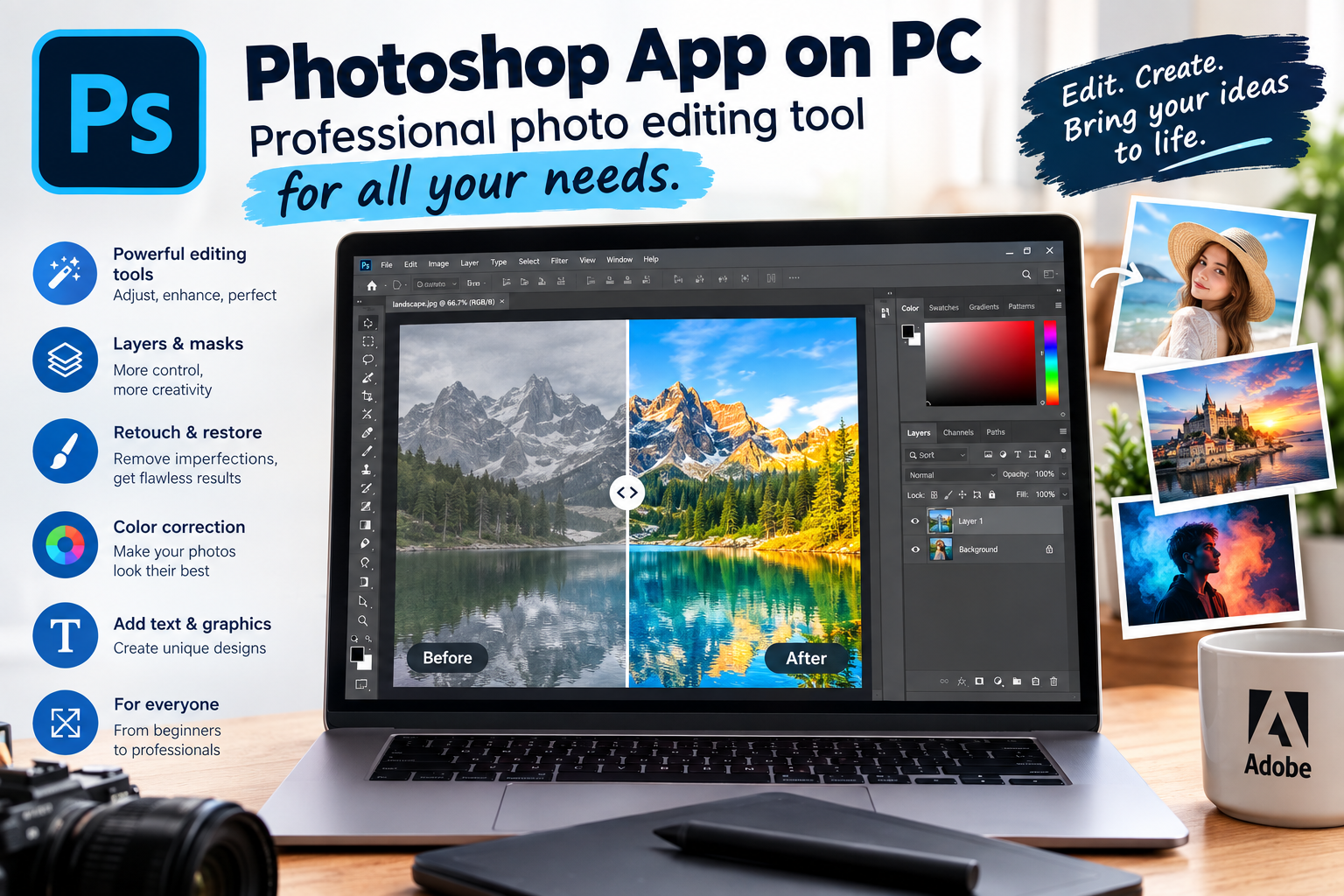
Photoshop is Adobe's renowned image editing software, widely used in photography, graphic design, media, and content creation. The desktop version offers a larger workspace, numerous advanced tools, and the ability to handle highly complex projects. Compared to quick photo editing on a phone, Photoshop on a computer allows users more precise control over details. You can open multiple files simultaneously, work with multiple layers, and combine a range of tools to create a finished product.
Some common tasks that can be performed in Photoshop include:
-
Adjust the brightness, darkness, contrast, and color of the image.
-
Crop, rotate, and resize images.
-
Remove unwanted details.
-
Separate the subject from the background.
-
Combine multiple images into a single design.
-
Create banners, posters, thumbnails, and promotional images.
-
Designing content for social media.
-
Retouch portrait and product photos.
-
Add text, shapes, effects, and graphic elements.
2. Why should you use Photoshop on a computer?
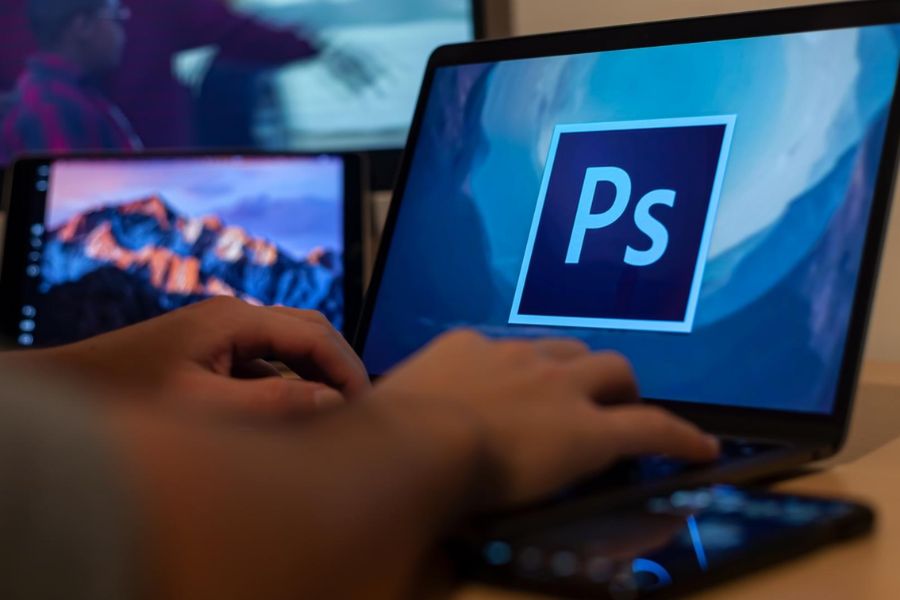
One of the most noticeable advantages of Photoshop on a computer is its spacious workspace. Instead of working on a small phone screen, you can use a large screen with a mouse and keyboard for more precise editing. This is especially useful when working with small image areas or creating highly detailed designs. Photoshop also excels at layer-by-layer editing. You can separate images, text, effects, or backgrounds into different layers. When you want to change an element, you only need to adjust the corresponding layer without having to redo the entire design.
In addition, the software offers many benefits such as:
-
Fine-tuning control: Allows for editing even the smallest areas of the image.
-
Working with layers: Easily arrange, hide, show, and edit individual elements.
-
Supports multiple formats: Compatible with a wide range of image and design file types.
-
Extensive tools: From basic photo editing to advanced design.
-
Scalability: It's possible to combine various features, filters, and workflows.
-
Suitable for a wide range of users: Beginners can learn from the basics, while designers can explore advanced features.
Upgrade to a licensed version of Photoshop.
3. Key features of the Photoshop app on computers
What makes Photoshop so appealing is its incredibly diverse set of tools. You can start with a few simple operations, then combine many features to create highly polished products.
3.1. Editing and improving image quality
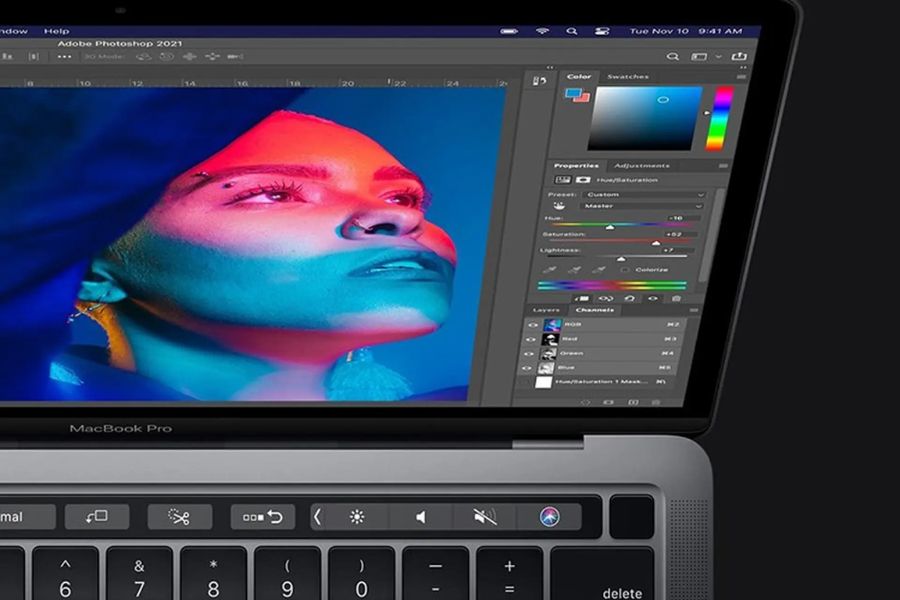
Photoshop offers many tools to help adjust the overall appearance of a photo. If the image is a little dark, underexposed, or the colors aren't vibrant enough, you can use the adjustment panels to change it as desired.
Users can also adjust color, contrast, saturation, and many other parameters. This allows even a photograph taken in less-than-ideal lighting conditions to be significantly improved.
3.2. Background Removal and Image Merging
Background removal is one of the most frequently used operations in design. Photoshop can help you select a subject, remove the background, and move the subject to a different scene.
After separating the images, you can combine them with the new background to create posters, advertisements, banners, or social media content.
3.3. Removing unwanted objects
Even a small detail in an image can sometimes detract from the overall aesthetic. Photoshop offers many tools to help process these unwanted elements, making the image look cleaner and more streamlined.
Depending on the situation, you can use spot repair, cloning, or other smart editing features to process the necessary areas of the image.
3.4. Designing with Layers
Layers are arguably one of the most important concepts when learning Photoshop. Each element in a design can be on its own layer, allowing users to easily edit it without affecting the rest.
For example, a banner can be divided into:
-
Layer background.
-
Product image layer.
-
Layer logo.
-
Title layer.
-
Content layer.
-
Effect layer.
-
Decorative layer.
This method makes the design file more organized and convenient for making multiple revisions.
4. What can Photoshop do on a computer?
Beyond just photo editing, Photoshop can become a creative space for many different tasks. With just one software program, you can process images, design content, and create numerous products for learning, work, or business.
Some notable applications include:
-
Banner design: Create advertising images for websites, stores, or social media.
-
Poster design: Arrange images, text, and effects into an eye-catching layout.
-
Create thumbnails: Make a striking representative image for your video.
-
Product image editing: Make product images brighter, clearer, and more professional.
-
Post design: Create visual content for Facebook, Instagram, or other platforms.
-
Personal photo editing: Color correction, detail removal, and composition adjustments.
-
Photo collage: Combining multiple images to create a new product.
-
Create mockups: Place your design in simulated settings to easily visualize the final product.
5. A guide to using Photoshop on a computer for beginners.
If you're new to Photoshop, you don't need to learn all the tools at once. Trying to memorize too many features right from the start can make the learning process difficult. Instead, begin with the most frequently used operations.
Step 1: Open the image you want to edit.
Launch Photoshop on your computer, then open the image you want to edit. You can drag the file directly into the workspace or use the file opening option in the software. Once the image appears, observe the overall layout before you begin editing.
Step 2: Familiarize yourself with the interface
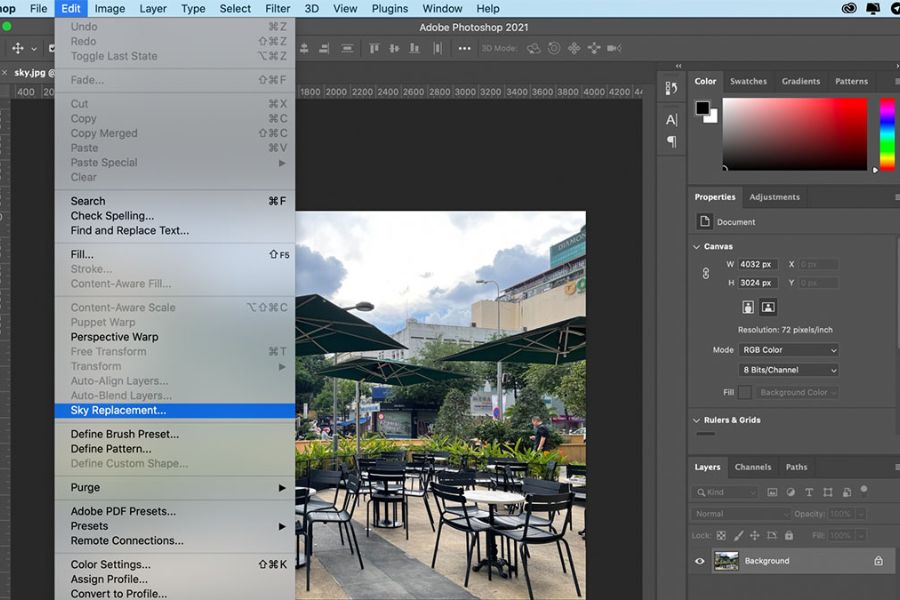
The Photoshop interface has many different areas. Beginners should focus on the important components first:
-
Toolbar: Contains tools for selecting, cropping, drawing, deleting, and editing.
-
Options bar: Displays the settings for the tool currently in use.
-
Canvas area: Where images or designs are displayed.
-
Layers panel: Manages the layers in a file.
-
Control panels: Support for color processing and effects.
With regular use, you will gradually remember the location and function of each area.
Step 3: Edit the image
After familiarizing yourself with the interface, try basic operations such as cropping, resizing, adjusting brightness, or color balance. Don't be afraid to experiment. Photoshop allows users to combine many tools, so practicing directly on simple images will help you learn faster.
Step 4: Save the finished product.
Once finished, save the file in a format suitable for your intended use. If further editing is needed later, keep the project file to preserve layers and design elements. If you only need the finished image for posting or sharing, you can export it to a suitable image format.
6. Some Photoshop tools beginners should know.
Photoshop has many tools, but not all of them need to be learned right away. Some of the tools below appear frequently during editing and are important foundations for getting acquainted with the software.
-
Move Tool: Moves objects within the design.
-
Crop Tool: Crop and adjust the image frame.
-
Brush Tool: Draw or color onto the image.
-
Eraser Tool: Deletes areas of an image.
-
Text Tool: Add text to the design.
-
Selection Tool: Select an area or object.
-
Eyedropper Tool: Extracts color directly from images.
-
Clone Stamp: Copies a region of an image to another area.
-
Healing Brush: Helps to process areas or points in an image that need editing.
-
Layer Mask: Controls the visible portion of a layer without directly deleting its content.
Upgrade to a licensed version of Photoshop.
7. Things to keep in mind when first learning Photoshop
Photoshop has a large interface and extensive set of tools, so feeling overwhelmed at first is common. Instead of trying to learn everything at once, break down the learning process into smaller skill groups. You can start with basic photo editing, then move on to layers, background removal, image merging, and finally advanced design techniques. When each skill is connected, working with Photoshop will become more natural.
Additionally, please note the following points:
-
Avoid directly editing the original image unless absolutely necessary.
-
It's a good idea to learn about layers and layer masks early on.
-
Avoid overusing effects that make the image look unnatural.
-
Observe the overall layout before adding too many details.
-
Practice regularly with small projects.
-
Save these useful steps to use in future designs.
8. Conclusion
If you want a tool with deep photo editing capabilities, diverse design options, and the ability to meet a wide range of creative needs, Photoshop on a computer is a worthwhile option to consider. The software's strength lies in its ability to control every element, from color, images, and text to effects and layout. The most important thing when starting out isn't memorizing a lot of tools, but understanding how to use them correctly. With consistent practice, starting with simple operations and gradually increasing the difficulty, you'll quickly become familiar with the Photoshop environment. The Photoshop app on a computer is not simply photo editing software. It's also a tool that helps transform ideas on paper into concrete images. From a simple photo, an unfinished product, or an initial design idea, you can gradually edit and create a finished product with your own unique touch.





















VIP Products








Best Selling Products
Plugin Retouch4me
69 USD
Autodesk All App Account Copyright
120 USD
Upgrade genuine Capture One account
120 USD
Adobe Photoshop Copyright - Full App
120 USD
MidJourney Account
29 USD
Upgrade Genuine Office 365
49 USD
ChatGPT Plus Account (GPT-4)
16 USD
Capcut Pro 1 Year
39 USD
Genuine Cheap Canva Pro
39 USD
Freepik Premium Account
59 USD
Windows 10 & 11 Pro Key
36 USD
Adobe Premiere Pro Account
99 USD
Genuine Adobe Illustrator account
99 USD
Upgrade Duolingo Super
29 USD
Copyright Adobe Lightroom Account
59 USD