Best Selling Products

Upgrade genuine Capture One account
120 USD

Freepik Premium Account
59 USD

Copyright Adobe Lightroom Account
59 USD

MidJourney Account
29 USD

Windows 10 & 11 Pro Key
36 USD

Genuine Cheap Canva Pro
39 USD

ChatGPT Plus Account (GPT-4)
16 USD

Genuine Adobe Illustrator account
99 USD

Upgrade Genuine Office 365
49 USD

Capcut Pro 1 Year
39 USD

Plugin Retouch4me
69 USD

Upgrade Duolingo Super
29 USD

Autodesk All App Account Copyright
120 USD

Adobe Premiere Pro Account
99 USD

Adobe Photoshop Copyright - Full App
120 USD
Reversing a video in CapCut is incredibly easy, creating unique effects in just a few steps.
Nội dung
- 1. What is the video rewind feature in CapCut?
- 2. How to reverse a video in CapCut: Simple and easy steps
- 3. How to fast-forward a video in CapCut: Simple and easy steps
- 4. Tips for creating beautiful and engaging reverse videos on CapCut
- 4.1. Choosing the right shot
- 4.2. Combining transition effects
- 4.3. Add suitable background music.
- 4.4. Combining reverse and slow motion
- 5. Some notes on using the rewind feature on CapCut
- 6. Conclusion
Want to transform ordinary videos into something interesting, unique, and more engaging? Instead of using familiar transition effects, try CapCut''s video reverse feature. With just a few simple steps, you can reverse the movements in your video, creating unexpected and creative moments. No professional editing software or complex skills are needed; CapCut makes it easy to create impressive videos right on your phone. In this article, let''s explore how to reverse videos in CapCut and some tips on combining effects to make your content even more captivating!
1. What is the video rewind feature in CapCut?
CapCut is a popular video editing app thanks to its intuitive interface and diverse tools. From cutting and splicing, adding music, inserting text, to adjusting speed, the app offers many features to help users transform simple video clips into creative content. Among them, the reverse video effect is quite interesting, especially suitable for those who frequently create TikTok, Reels, or other social media entertainment videos. Some interesting aspects of this feature include:
-
Create unique effects: Transform familiar movements into unexpected situations, making your videos stand out.
-
Enhancing the appeal of the content: Reverse shots often create curiosity, encouraging viewers to watch until the end.
-
Easy to use: No in-depth video editing knowledge is required; even beginners can use it.
-
Versatile application: Suitable for lifestyle videos, travel, beauty, fashion, food, and many other entertainment content.
2. How to reverse a video in CapCut: Simple and easy steps
To reverse a video, you don't need any external apps. CapCut has a built-in Reverse tool, allowing you to process it directly on the editing timeline. Below is a detailed step-by-step guide to help you easily do it right on your phone.
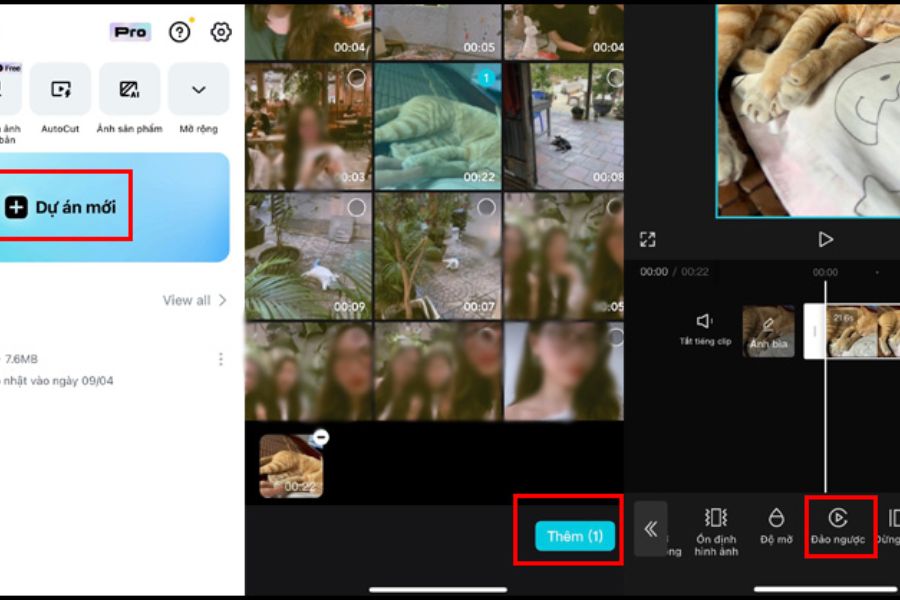
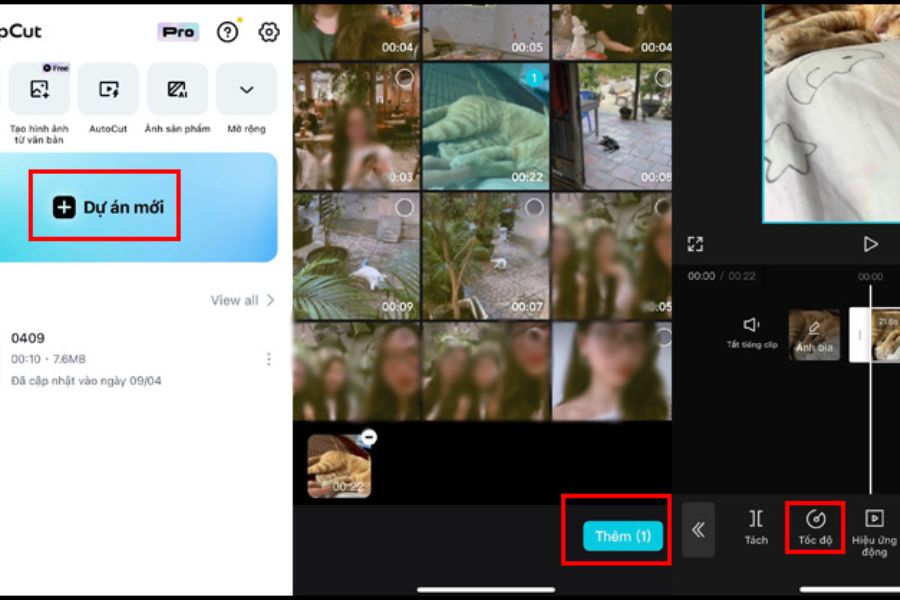
Step 1: Open CapCut and create a new project.
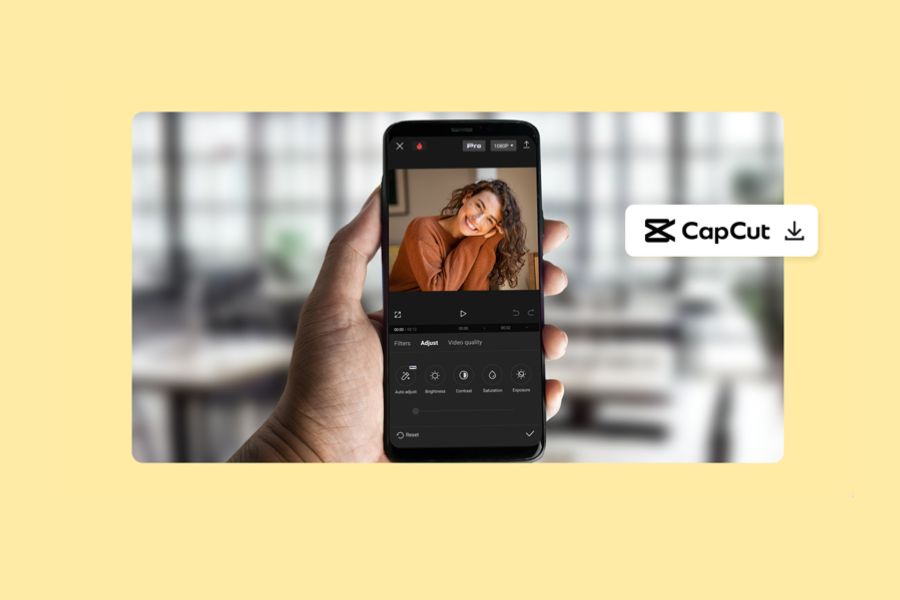
First, open the CapCut app on your phone. On the main interface, find and tap on the "New project" option to begin the editing process. If you haven't installed the app, you can download CapCut from the app store corresponding to your device.
Step 2: Select the video you want to rewind.
After tapping "New Project," your phone's photo and video library will appear. Find the video you want to apply the reverse effect to, select it, and then tap "Add" to add the video to the editing interface. At this step, prioritize videos with clear movement such as pouring water, tossing objects, walking, turning, or the movement of objects. Such footage usually creates a more visually appealing and effective reverse effect.
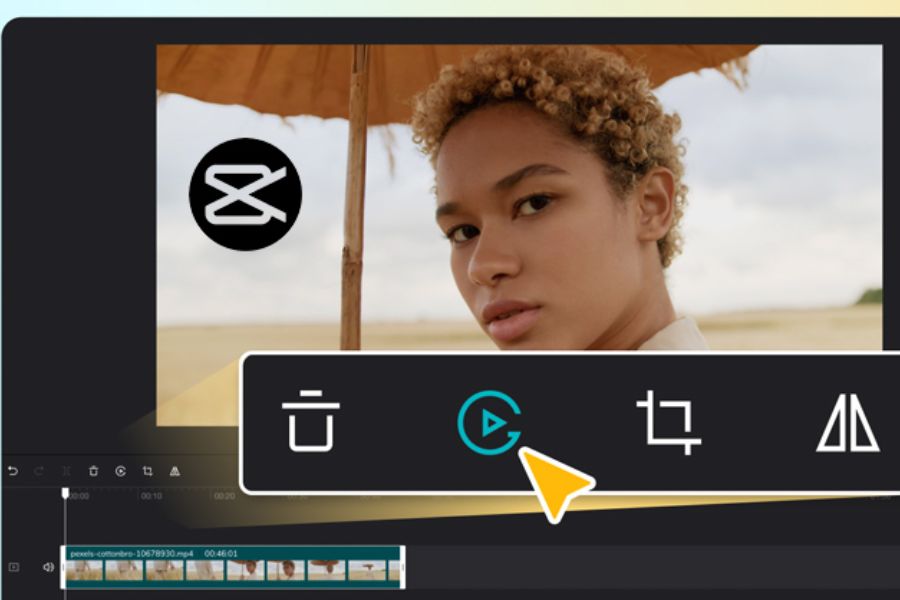
Step 3: Select the video reverse tool.
Once the video appears on your timeline, tap on the segment you want to edit. A toolbar will then display various options. Swipe down the toolbar to find the "Reverse" option and tap it.
Step 4: Wait for CapCut to process the video.
After selecting "Reverse," the application will automatically process and rearrange the frames in reverse order of the original. Completion time may vary depending on video length, resolution, and device performance. While waiting, keep the application running to ensure smooth processing. Once complete, press the play button to preview the result.
Step 5: Review and save the video
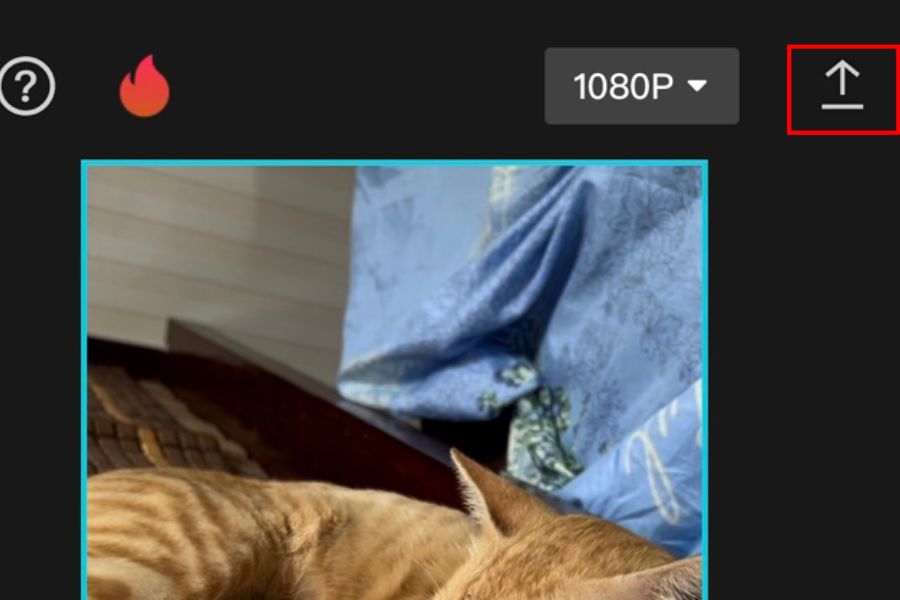
If the video already has the desired effect, you can continue adding background music, text, filters, or transition effects to make the content more lively. Once finished, tap the Export icon in the upper right corner of the screen, select the appropriate resolution and frame rate, and save the video to your device. With just a few steps, you'll have a unique reverse-motion video without needing complex editing software.
3. How to fast-forward a video in CapCut: Simple and easy steps
In addition to its reverse function, CapCut also allows you to adjust the video playback speed to create fast or slow motion as desired. This is a useful tool if you want to shorten long shots, create fast-motion effects, or highlight an important moment. To do this, follow these instructions:
Step 1: Create a new editing project.
Open CapCut on your phone, select New Project, and find the video you want to adjust the speed of in your library. Then, tap Add to add the clip to the timeline.
Step 2: Select the video segment whose speed you want to change.
In the editing interface, click directly on the video on the Timeline. When the toolbar appears, find and select the Speed option to begin adjusting.
Step 3: Select the speed adjustment mode.
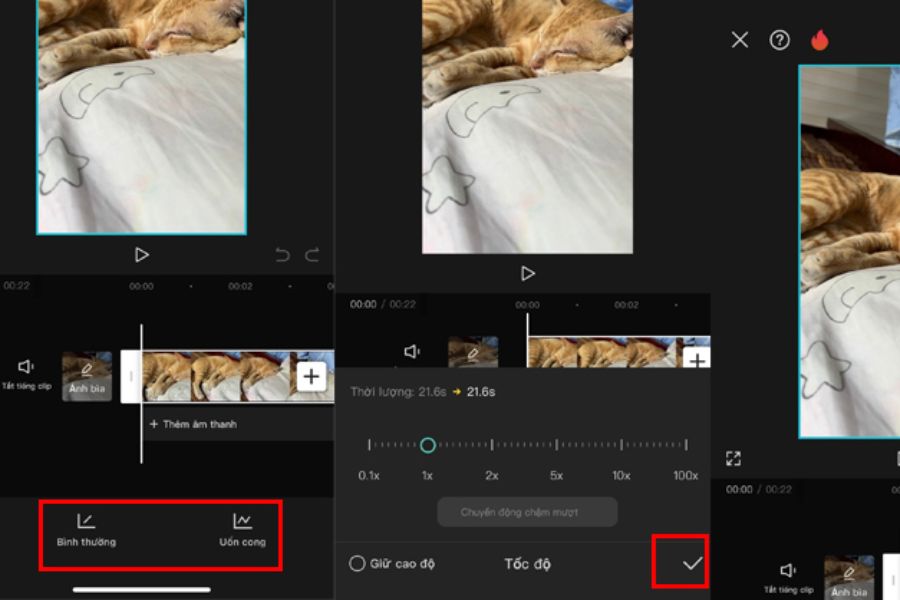
CapCut typically offers two common speed adjustment modes: Normal and Curve. Each mode is suitable for a specific editing purpose.
-
Normal: Increases or decreases the speed evenly across the entire video. This is a suitable option when you want to fast-forward or slow down a scene.
-
Bending: Allows for flexible speed changes at any given moment. You can combine fast and slow movements to create eye-catching rhythmic effects.
Step 4: Adjust the speed as desired.
After selecting the appropriate mode, you drag the slider to increase or decrease the playback speed. If you want the video to play faster, increase the speed. Conversely, decrease the speed to create a slow-motion effect. With the Curve mode, you can choose from pre-set speed patterns or adjust the curve yourself to control the rhythm of the movement according to your vision.
Step 5: Preview the edited results
Press the play button to check the video after changing the speed. Pay attention to the smoothness of the movement and the overall duration. If you feel a section is too fast or too slow, you can go back to the toolbar to adjust it accordingly.
Step 6: Export the video to your phone.
Once you're satisfied with the result, tap the checkmark to confirm the edits. Finally, select the Export icon in the upper right corner, set the video quality, and wait for CapCut to finish saving the file to your device.
4. Tips for creating beautiful and engaging reverse videos on CapCut
Reversing a video is a simple way to make a difference, but combining it with other editing tools will give you even more impressive footage. Instead of just reversing the entire video and publishing it, try some of the tips below to make your content more engaging and keep viewers hooked.
4.1. Choosing the right shot
Not every video clip will look good when reversed. Scenes with clear movement, minimal shaking, and not too much complex detail usually yield better results. You can try ideas like:
-
The scene depicts tossing an object into the air and then flipping it back so that the object returns to the hand.
-
The scene shows pouring water into a glass and then reversing the motion so the water flows back into the pitcher.
-
The scene involves walking and then reversing to create the illusion of the character moving backward.
-
Scenes of removing accessories or changing costumes are performed with a time-reversal motion.
-
The scene shows an object being dropped, then the effect causes the object to return to its original position.
4.2. Combining transition effects
If the video has many different segments, you can combine normal footage with reverse footage to create surprise. For example, start with a normal action, then switch to reverse footage to give viewers the feeling that time is turning back. You should choose transition effects sparingly, avoiding using too many effects at once which can make the video visually cluttered. Some transition styles to try include:
-
The scene fades into a transition between the two segments.
-
The flashing light effect creates a highlight before the video reverses.
-
The scene shifts abruptly in sync with the music to enhance the sense of excitement.
-
Combine zoom in or zoom out effects to highlight the subject.
4.3. Add suitable background music.
Sound is also a crucial element in determining the viewer's emotions. A piece of music with a suitable rhythm will make the reverse motion effect more interesting and natural. You can choose upbeat background music for entertainment videos, fast-paced music for dynamic content, or gentle sounds for artistic shots. Additionally, try timing the reverse motion to coincide with the music's rhythm to create a sense of synchronized movement.
4.4. Combining reverse and slow motion
A rather interesting trick is to combine both effects in the same video. You can have the opening segment play at normal speed, then switch to slow motion to highlight the action, and then reverse it at the end. This combination helps the video have a clear rhythm, avoiding the monotony of using only one effect throughout the entire content. However, you should adjust the duration of each segment appropriately so that viewers can easily follow along.
5. Some notes on using the rewind feature on CapCut
Although the process is quite simple, you should still pay attention to a few things during editing to ensure that the exported video is of good quality and free from unexpected errors.
-
Choose a high-quality video: Use a clear, well-lit video with minimal shaking to make the inversion effect look more natural.
-
Audio check: When reversing a video, the original audio may also be played back depending on the processing method. Therefore, review the audio and consider muting the original sound, then add appropriate background music.
-
Avoid overusing the effect: Using reverse playback at the right moments will create a better impact than applying it continuously throughout the entire video.
-
Ensure sufficient device capacity: Long videos or high-resolution videos may require additional processing time and storage space.
-
Review the video before exporting: Check the transitions, speed, and audio to avoid any unexpected errors.
6. Conclusion
CapCut's video reverse feature is a useful tool that helps you transform familiar footage into fresh and exciting content. With just a few simple steps, you can reverse motion, combine fast forward and slow motion, and add effects to create videos with your own unique style. Hopefully, with the above guide, you will easily master this feature and create more engaging content to share on TikTok, Facebook Reels, or other social media platforms.





















VIP Products








Best Selling Products
Upgrade genuine Capture One account
120 USD
Freepik Premium Account
59 USD
Copyright Adobe Lightroom Account
59 USD
MidJourney Account
29 USD
Windows 10 & 11 Pro Key
36 USD
Genuine Cheap Canva Pro
39 USD
ChatGPT Plus Account (GPT-4)
16 USD
Genuine Adobe Illustrator account
99 USD
Upgrade Genuine Office 365
49 USD
Capcut Pro 1 Year
39 USD
Plugin Retouch4me
69 USD
Upgrade Duolingo Super
29 USD
Autodesk All App Account Copyright
120 USD
Adobe Premiere Pro Account
99 USD
Adobe Photoshop Copyright - Full App
120 USD