Best Selling Products

Autodesk All App Account Copyright
120 USD

Upgrade Duolingo Super
29 USD

Upgrade Genuine Office 365
49 USD

Plugin Retouch4me
69 USD

Upgrade genuine Capture One account
120 USD

Genuine Cheap Canva Pro
39 USD

MidJourney Account
29 USD

ChatGPT Plus Account (GPT-4)
16 USD

Adobe Photoshop Copyright - Full App
120 USD

Capcut Pro 1 Year
39 USD

Copyright Adobe Lightroom Account
59 USD

Freepik Premium Account
59 USD

Windows 10 & 11 Pro Key
36 USD

Adobe Premiere Pro Account
99 USD

Genuine Adobe Illustrator account
99 USD
The secret to creating stunning custom-shaped artistic text in Canva.
Nội dung
- 1. What's special about Canva's custom-shaped text creation feature?
- 2. How to create custom-shaped artistic text in Canva
- Step 1: Open Canva and create a new design.
- Step 2: Access the Applications section in Canva.
- Step 3: Search for the TypeCraft application
- Step 4: Enter content and choose a font.
- Step 5: Choose a shape and customize the text effects.
- Step 6: Add text to the design and finalize.
- 3. When should curved and wavy fonts be used in design?
- 4. Secrets to creating beautiful and professional-looking artistic text in Canva
- 5. Common mistakes when creating custom-shaped text
- 6. Conclusion
In graphic design, text is not simply a means of conveying information, but also an element that creates personality and appeal for each publication. Instead of using familiar straight lines, you can completely transform text into many unique shapes such as curves, waves, circles, or soft lines. This presentation helps the title stand out and creates an interesting connection between the content and the image. With Canva, creating artistic text in custom shapes is no longer a complicated process. Through the TypeCraft application, users can easily change the text style, adjust the curvature, and choose fonts to their liking. Even without much design experience, you can still create unique text to use in posters, banners, invitations, or social media posts. Let''s explore how to do it and the secrets to designing beautiful artistic text below!
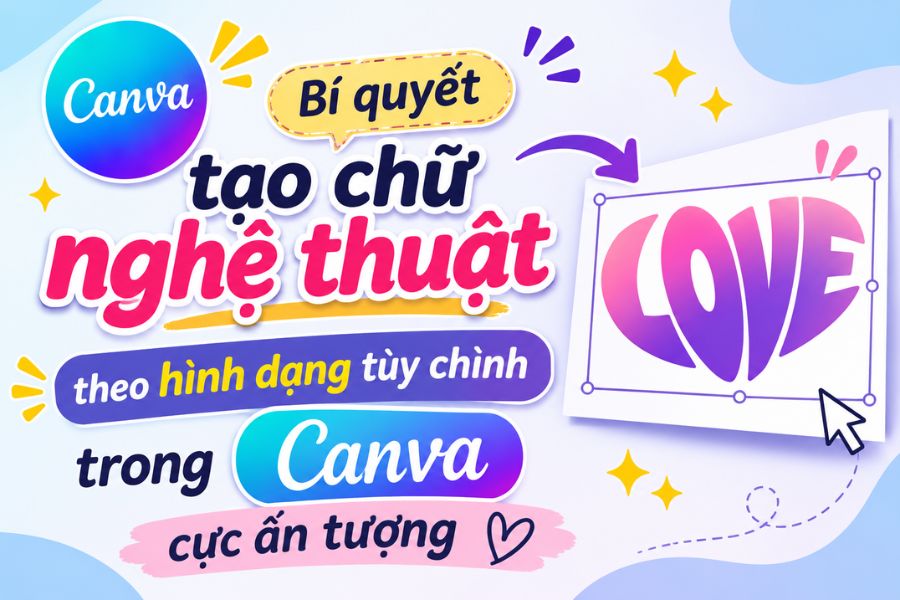
1. What's special about Canva's custom-shaped text creation feature?
In modern design, creative typography often helps content grab attention from the start. Instead of having text appear as monotonous horizontal lines, you can transform it into various shapes to suit the theme. Canva supports this need through its TypeCraft application, allowing users to customize the shape of text before incorporating it into the design.
The appeal of TypeCraft lies in its ability to transform text with various effects. You can choose from pre-set fonts, change the font, size, and adjust the shape to create your own layout. This allows even a short phrase to become a striking decorative element instead of simply providing information.
Some of the highlights of this feature include:
-
Diverse transformation styles: Supports creating curved text, wavy text, and various other shape effects.
-
Easily customizable: Users can change the font, size, and other styling parameters to suit their needs.
-
Enhance aesthetics: Makes the title and message more vibrant, adding a focal point to the overall design.
-
Versatile application: Suitable for posters, advertising banners, greeting cards, creative logos, and social media content.
In particular, you don't need to be proficient in professional graphic design software to create unique fonts. The operations are performed directly within Canva, saving time and making it more convenient to experiment with different styles.
2. How to create custom-shaped artistic text in Canva
To create text in any shape, you can use the TypeCraft application directly within Canva. The process is quite simple, from opening the design page, finding the application, to selecting effects and completing the text. Below is a detailed step-by-step guide.
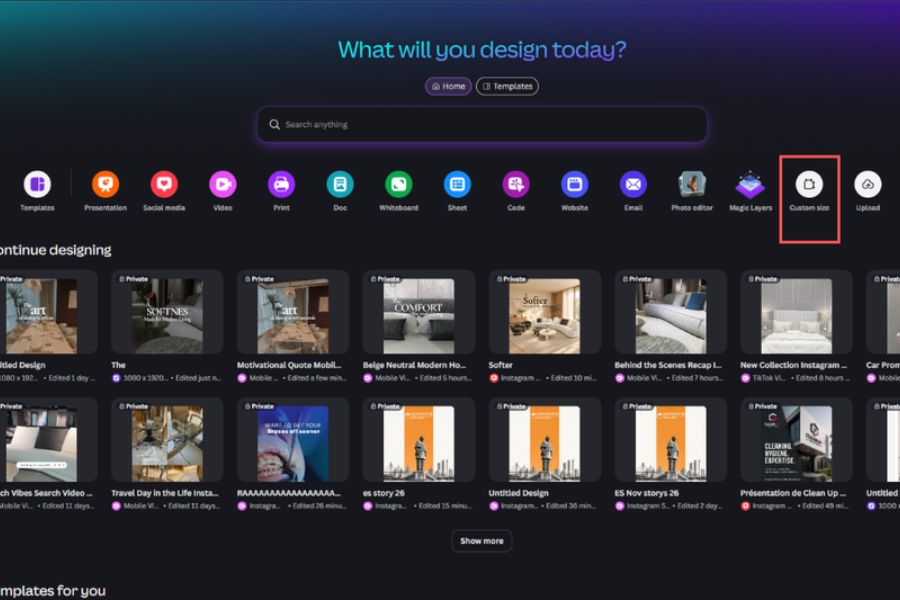
Step 1: Open Canva and create a new design.
First, access Canva on your computer's browser or open the application on your device. After logging in, on the homepage, choose a pre-made design template or click "Create a new design".
Depending on your intended use, you can choose a suitable size such as a poster, Facebook post, Instagram photo, or banner. If you want more control over the layout, choose a custom size to set the width and height as desired. Defining the size from the start will make it easier to align the text and image elements in subsequent steps.
Step 2: Access the Applications section in Canva.
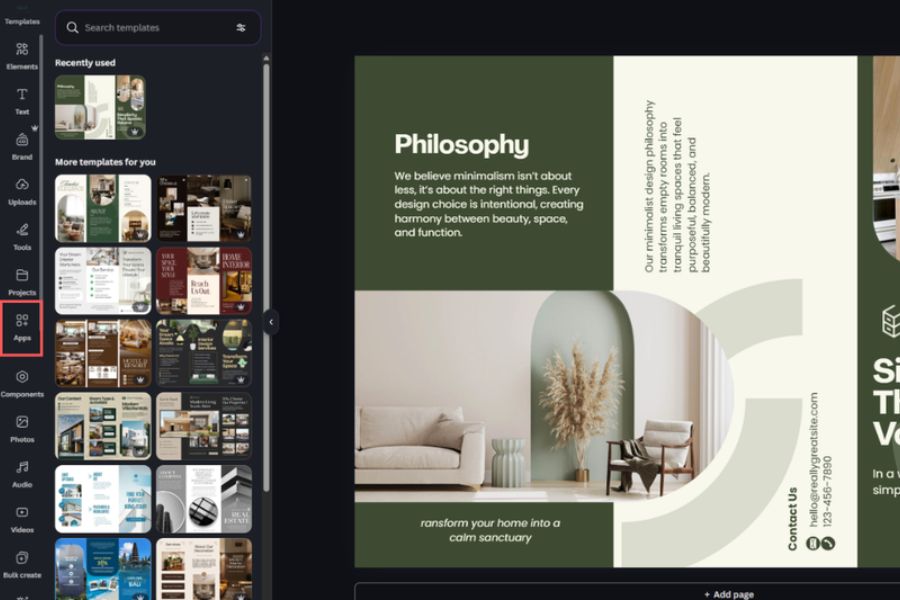
After opening the editing interface, observe the toolbar located on the left side of the screen. Next, click on the "Apps" section to access the toolset integrated into Canva.
This is a collection of applications that support content editing and creation. You can find tools for creating effects, processing images, and transforming text according to your design needs.
Step 3: Search for the TypeCraft application
On the Applications interface, type the keyword "TypeCraft" into the search bar. When a suitable result appears, select the application to open the working interface.
TypeCraft provides a content input area and options for adjusting text formatting. You should take some time to observe these functionalities before you begin to make the process smoother.
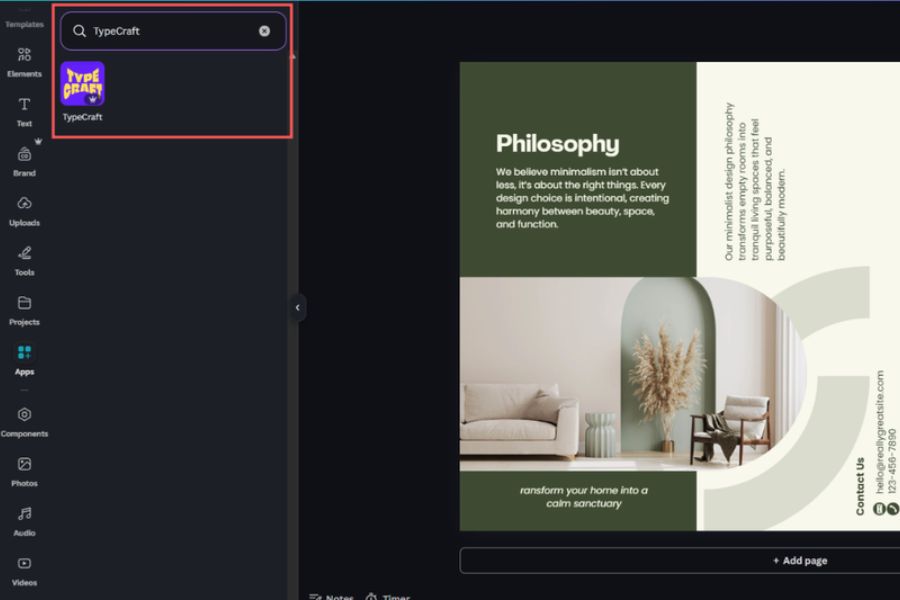
Step 4: Enter content and choose a font.
When the TypeCraft interface appears, enter the phrase you want to animate into the text box. The content can be a brand name, poster title, slogan, or a short message.
Next, you choose a font and size that suits your design style. If you want to create a striking effect, bold fonts are often the right choice. Meanwhile, thin fonts can give a light and delicate look.
A few things to keep in mind when choosing content:
-
Prioritize short phrases so that the visual effect is clearly evident.
-
Choose fonts that are easy to read, avoiding those with too much detail.
-
Consider the length of the text to avoid distortion or illegibility.
-
Use a font style that is appropriate for the message and the target audience.
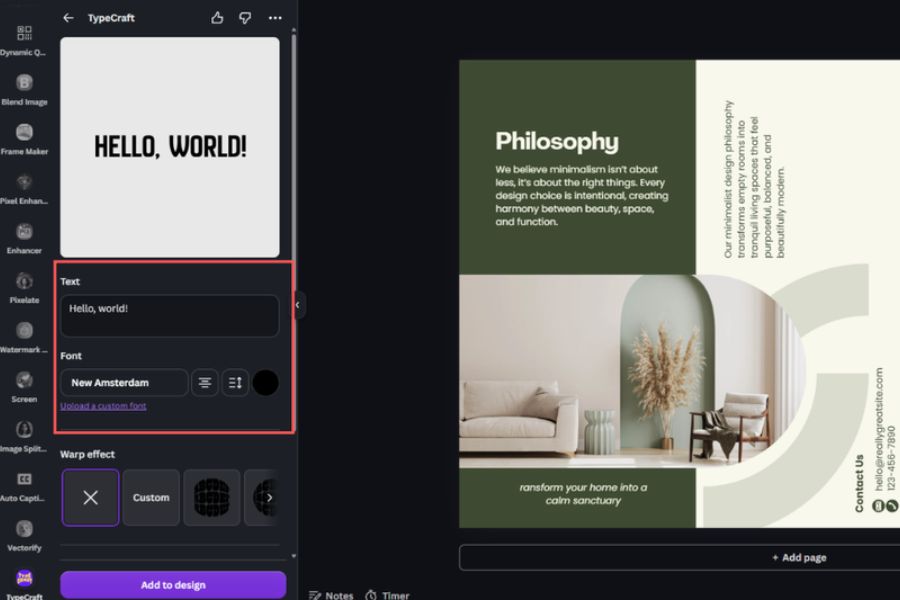
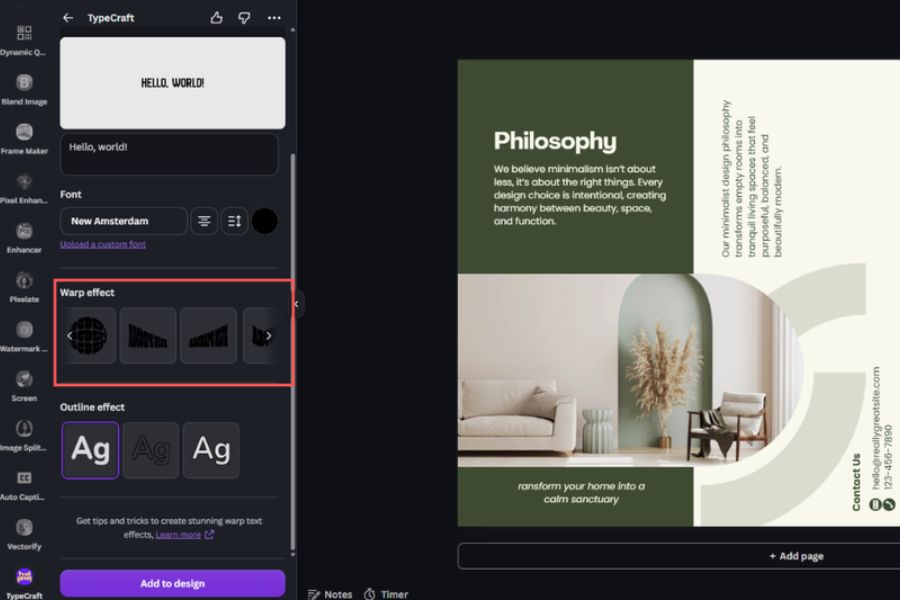
Step 5: Choose a shape and customize the text effects.
This is the most important step in creating unique artistic text. In the TypeCraft interface, find the Warp Effect section to explore the available text transformation styles. Depending on the version and interface of the application, the options may vary. Experiment with each style to find the effect that best suits your initial idea.
Here are some styling ideas you can consider:
-
Curved lettering: Suitable for arched titles, logos, or badge-style designs.
-
Rounded fonts: Help arrange text in a circular layout, creating a balanced and prominent feel.
-
Wavy lettering: Creates a soft, youthful look, suitable for creative posters.
-
Stretched text: Creates a distinctive visual effect, suitable for headlines that need emphasis.
-
Curved lettering: Helps make text more dynamic and creates a sense of movement in the design.
After selecting a style, you can further adjust the provided parameters to change the curvature, direction, and degree of distortion of the letters. Try a few different combinations before deciding on the final style.
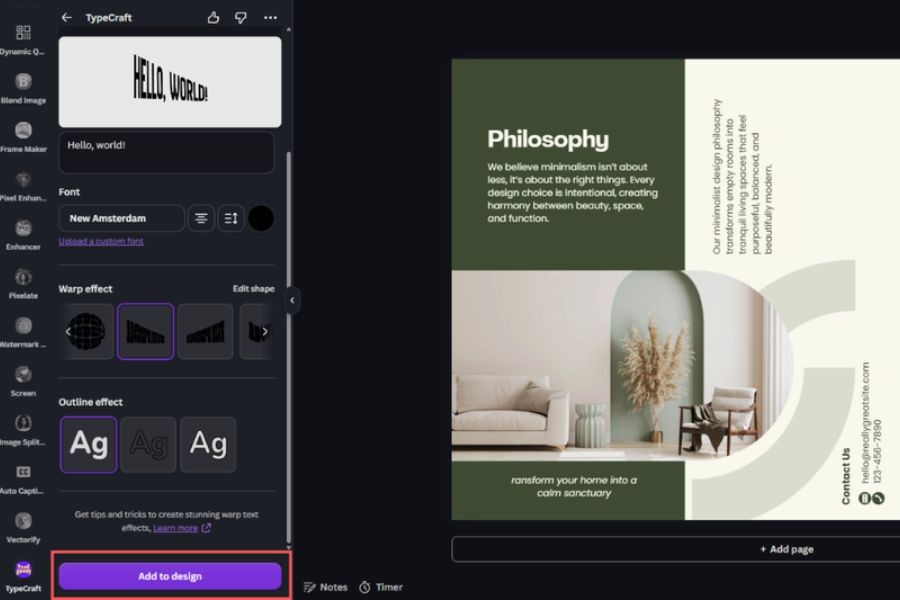
Step 6: Add text to the design and finalize.
Once you're satisfied with the result, click "Add to design" to add the artistic text to the Canva page you're editing. Now you can drag and drop the text to your desired position, resize it, and adjust its alignment to harmonize with the surrounding elements. Don't forget to check the color, spacing, and readability of the text to avoid making the layout look cluttered.
Some steps should be taken before completion:
-
Adjust the text placement to create balance between different areas in the design.
-
Change the colors to match the background and image.
-
Add more symbols or decorative motifs if needed.
-
Double-check the content to avoid spelling errors and obscured details.
Finally, tap Share, select Download, and choose a suitable format to save the design to your device.
3. When should curved and wavy fonts be used in design?
Typography can make a significant difference to a publication if used correctly. However, each typeface is suited to a specific style and purpose. Choosing the right typeface helps create a striking design while maintaining clarity of information.
Here are some situations where you should try applying this:
-
Poster design: Use curved or flowing fonts to highlight the title, helping viewers quickly notice the main content.
-
Creating advertising banners: Uniquely shaped text helps make promotional messages or program names more eye-catching.
-
Logo design: Letters arranged in circles or curves can create a unique brand identity.
-
Creating greeting cards: Soft, flowing fonts are perfect for birthday cards, wedding invitations, or other special occasions.
-
Social media post design: Creatively modified headlines help images become more appealing when they appear on the news feed.
Additionally, you can combine artistic typography with illustrations, product photos, or decorative elements to create a vibrant layout. The important thing is to clearly define which content needs to be emphasized, avoiding the use of too many different font styles in a single design.
4. Secrets to creating beautiful and professional-looking artistic text in Canva
Knowing how to use TypeCraft is the first step, but to create a truly impressive design, you need to pay attention to how you coordinate typography with color and overall layout. A few small adjustments can also help the text stand out and look more professional.
-
Choose a font that suits the theme: Each typeface conveys a different feeling. Bold fonts tend to create a strong, striking impression, while thin fonts are suitable for gentle, delicate designs. You should choose a font based on the message you want to convey rather than just chasing visual appeal.
-
Avoid overusing distortion effects: Curved or wavy fonts work best when used purposefully. If all content is affected, viewers may have difficulty identifying important information. Therefore, reserve special fonts for headlines or phrases that need emphasis.
-
Harmonious color scheme: Color has a significant impact on the readability and aesthetics of text. You can use colors that contrast with the background to highlight the title or choose harmonious color tones to create a calming feel.
-
Pay attention to spacing and layout: When incorporating typography into a design, ensure the text has enough space to showcase its shape. Avoid placing the text too close to images or decorative details, as this can make the layout feel cramped.
-
Check for display compatibility across multiple devices: If the design is being used on social media, you should test the images at both large and small sizes. Text that is too thin or heavily distorted may be difficult to read on phone screens.
5. Common mistakes when creating custom-shaped text
When using TypeCraft, beginners may encounter some problems that prevent them from achieving the desired results. Understanding common errors will help you save time on editing and complete your design faster.
-
Distorted or illegible text: This could be due to using overly strong effects or excessively long content. You should reduce the level of distortion and shorten the text.
-
Inappropriate font: Some typefaces can make characters difficult to read when bent. Try switching to a simpler font.
-
Text color blends into the background: You should change the color or adjust the contrast to make the content easier to read.
-
TypeCraft not found: Please check your search keywords, application accessibility, or try reloading the Canva theme.
-
The text is out of proportion with the layout: You can change the size, position, or adjust the surrounding elements to create harmony.
Additionally, if the application doesn't display certain options as instructed, check your Canva version and TypeCraft support on your account. The interface or functionality may change over time.
6. Conclusion
Creating custom-shaped artistic text in Canva is a simple way to refresh familiar designs and express your own creative style. With the help of the TypeCraft application, you can transform ordinary text into unique curved, rounded, wavy, or undulating fonts without too many complicated steps. Hopefully, with the above guide, you now know how to use the tool and choose the right effects for each design purpose. Try combining different fonts, colors, and layouts to create beautiful, professional publications that reflect your personal touch.





















VIP Products








Best Selling Products
Autodesk All App Account Copyright
120 USD
Upgrade Duolingo Super
29 USD
Upgrade Genuine Office 365
49 USD
Plugin Retouch4me
69 USD
Upgrade genuine Capture One account
120 USD
Genuine Cheap Canva Pro
39 USD
MidJourney Account
29 USD
ChatGPT Plus Account (GPT-4)
16 USD
Adobe Photoshop Copyright - Full App
120 USD
Capcut Pro 1 Year
39 USD
Copyright Adobe Lightroom Account
59 USD
Freepik Premium Account
59 USD
Windows 10 & 11 Pro Key
36 USD
Adobe Premiere Pro Account
99 USD
Genuine Adobe Illustrator account
99 USD