Best Selling Products

MidJourney Account
29 USD

Capcut Pro 1 Year
39 USD

Adobe Premiere Pro Account
99 USD

Upgrade genuine Capture One account
120 USD

Adobe Photoshop Copyright - Full App
120 USD

Freepik Premium Account
59 USD

Copyright Adobe Lightroom Account
59 USD

Genuine Cheap Canva Pro
39 USD

Windows 10 & 11 Pro Key
36 USD

ChatGPT Plus Account (GPT-4)
16 USD

Autodesk All App Account Copyright
120 USD

Upgrade Duolingo Super
29 USD

Upgrade Genuine Office 365
49 USD

Plugin Retouch4me
69 USD

Genuine Adobe Illustrator account
99 USD
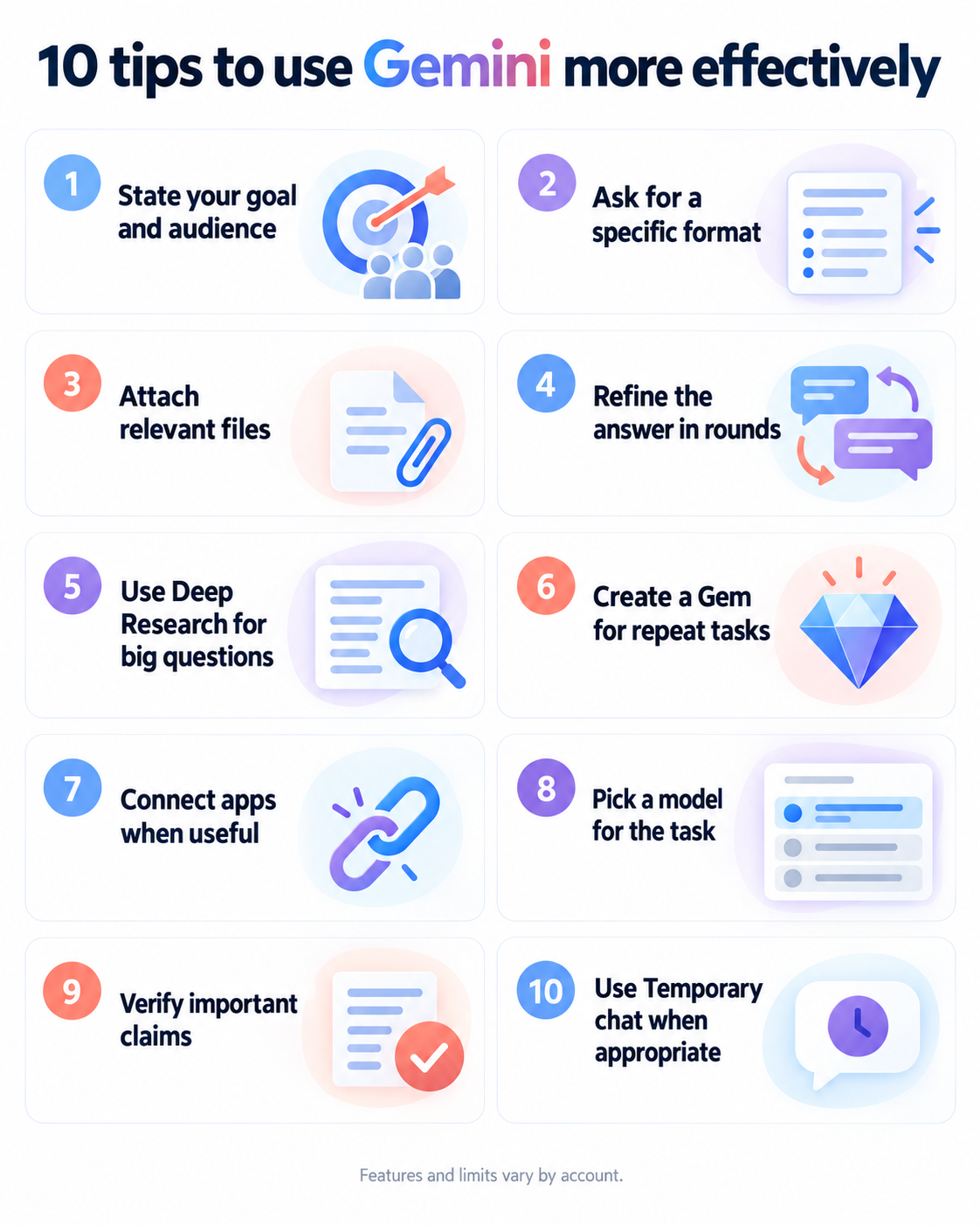
Use Gemini more effectively with these 10 tips users should know.
Nội dung
- 2. Save your own custom commands to shorten lengthy requests.
- 3. Create a separate Gem for each friend you frequently email.
- 4. Set a reminder on Gemini to receive outfit suggestions based on the weather each morning.
- 5. Set up automatic reminders to avoid sending messages from the wrong account.
- 6. Specify the type of source to make the answer more credible.
- 7. Use Temporary Conversation to keep sensitive content more private.
- 8. Transform photos into editable text.
- 9. Use Canvas to master the editing and programming process.
- 10. Connect the app to get answers that are relevant to your work and life.
- 11. Conclusion
Most people use Gemini in the simplest way: type a question, read the answer, and then exit. That''s not wrong, but it only touches a small fraction of the tool''s capabilities. The tips below will help you go further, from writing more effective requests and automating repetitive tasks to protecting privacy and controlling information quality.
1. Understand how role-playing language models help you write more incisive requests.
The big language model doesn't think like a human; instead, it predicts the most appropriate passage based on the context it receives. This means that how you frame the request will determine the tone, depth, and structure of the response. When you assign Gemini a specific role, it will choose vocabulary, examples, and reasoning that are closer to that role.
Compare these two ways of asking the question. A general request like "Explain compound interest" will yield an average explanation that anyone can read. However, if you write, "Imagine you are a personal finance advisor speaking to a final-year student, explaining compound interest with two real-life examples and a short comparison table," the result will be more in-depth and targeted.
A memorable formula consists of four parts: the Gemini's role, the target reader, the task to be performed, and the desired output format. You don't need to use all four parts every time, but the clearer it is, the less revisions you'll have to make. Remember that role-playing only shapes the style and perspective; the accuracy of the facts still needs to be verified by you.
2. Save your own custom commands to shorten lengthy requests.
If you frequently repeat the same requests, such as "reply briefly," "use Vietnamese," or "always provide examples," it's time to let Gemini remember them for you. In Settings, you'll find a section for custom instructions (often called Instructions for Gemini), where you can save rules that apply to every conversation.
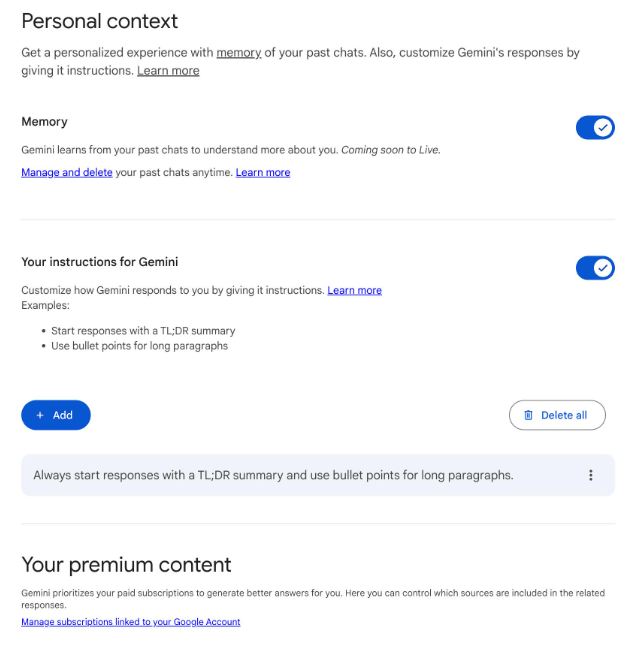
The strength of this feature is that you can create your own "shortcuts." For example, you can specify that when you type "quick summary," Gemini will return three main points, each no more than two sentences long. Or when you type "email template," it will automatically rewrite the content into a professional email, complete with a greeting and closing. This reduces complex tasks to a short phrase.
When writing instructions, use clear, specific language and avoid contradictions. A vague instruction like "be smarter" is almost ineffective, while "always ask me for clarification if the request lacks crucial information" will change Gemini's behavior immediately. You should review this list periodically to remove outdated rules.
3. Create a separate Gem for each friend you frequently email.
Gems are a feature that allows you to create specialized versions of Gemini, each with its own name, instructions, and even reference files. A very practical application is creating Gems specifically for composing emails for people you communicate with regularly, each with their own writing style.
Imagine you have a manager who prefers short, direct emails, and a long-time business partner who likes warm greetings before discussing work. You could create two separate Gems. With the first Gem, you specify: "Write emails with a maximum of five sentences, state the conclusion in the first sentence, and avoid any introductory remarks." With the second Gem, you guide the tone to be friendly and polite, and allow for longer content. You could also upload a few sample emails you've sent previously so the Gem can learn your familiar style.
Once set up, whenever you need to write a letter, simply open the Gem and paste the main idea. Gem will handle the tone, length, and structure, helping you maintain consistency without having to repeat the request each time.
4. Set a reminder on Gemini to receive outfit suggestions based on the weather each morning.
Scheduled Actions allows Gemini to automatically perform a task at a time you choose, without you having to open the app and enter a request. This is a shift from a chatbot waiting for commands to a proactive assistant. This feature may require a paid subscription or be region-restricted, so be sure to check your account's terms and conditions.
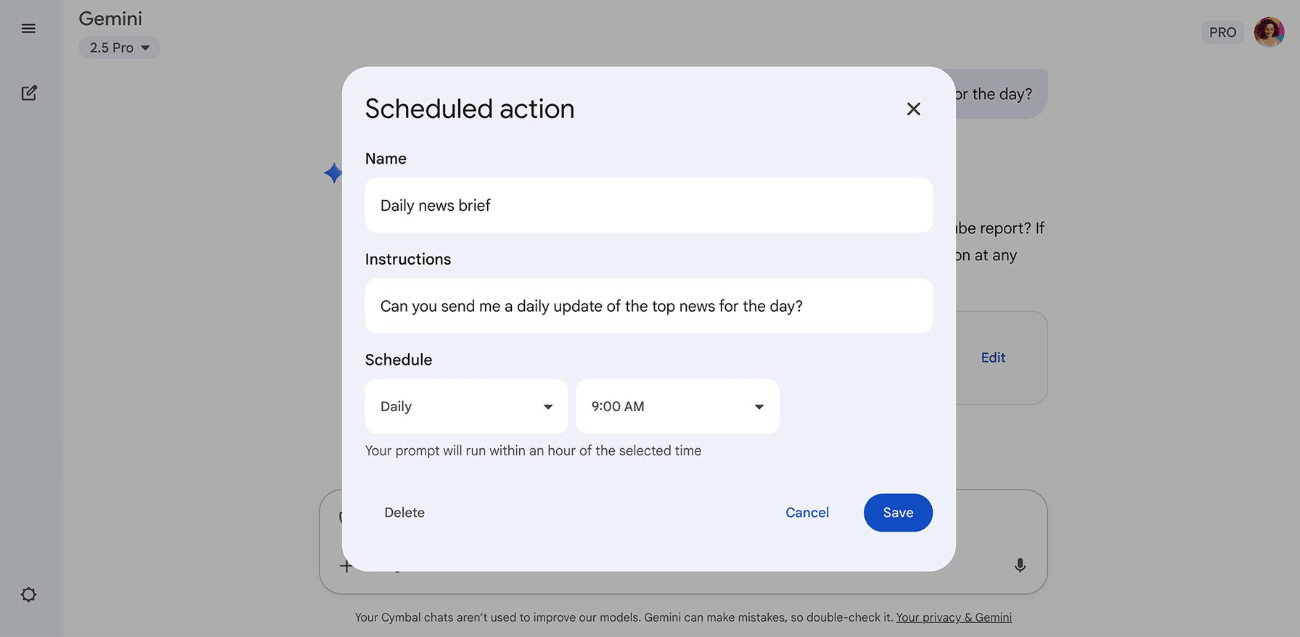
An easy-to-implement example is outfit suggestions every morning. You create a recurring task around 7 a.m. each day with the content: "Check today's weather forecast for my city and suggest a suitable outfit for a day at the office, noting if you need to bring an umbrella or jacket." Gemini will send the results on time, helping you make quick decisions before leaving home.
You can replicate this idea for many other things, such as summarizing industry news each morning, reminding you of your daily schedule, or suggesting a weekly menu on Sunday evenings. The advice is to specify the desired location, time, and format in the task content, as Gemini will run exactly as you've written.
5. Set up automatic reminders to avoid sending messages from the wrong account.
If you use both work and personal accounts, you've probably worried about sending an email or message to the wrong person. Gemini can't automatically tell you which account to use, but you can turn it into a gentle check.
The most effective approach is to combine instructions with Gems. In the work Gem, add the rule: "After each draft, always remind me to check that I'm sending from my work email address." In the personal Gem, set a similar reminder with a personal address. You can also ask Gemini to place this reminder at the beginning of the reply so it's always visible.
This is a small trick, but it's very valuable. A repeated reminder will gradually become a habit of checking, and it can help you avoid awkward situations, such as sending private content to the company mailbox or letting colleagues see your personal address.
6. Specify the type of source to make the answer more credible.
Gemini may respond very fluently, but fluency doesn't equate to accuracy. A simple way to improve the quality of information is to clearly state what type of source you want it to be based on. Without specifying, the results could be a mix of serious research papers, forum posts, and promotional sites.
Try adding a sentence like this to the end of the request: "Based only on information from government agencies, reputable health organizations, peer-reviewed scientific articles, or official developer documentation. Include links to each key point, and clearly state what is fact and what is opinion." This guidance is especially important for sensitive topics such as health, legal, or financial matters.
However, you should still open the links provided by Gemini to verify if the content truly matches what it says. You can also use Google Search's checkboxing feature to cross-reference each statement. Specifying sources helps narrow down the risk, but the final verification step is still yours.
7. Use Temporary Conversation to keep sensitive content more private.
By default, conversations with Gemini can be saved to your activity history, affecting how it personalizes responses later. For content you don't want saved, such as a private question, an idea you don't want to publish, or a personal issue, Temporary Chat is the suitable option.
According to Google's description, temporary conversations will not appear in the recent conversations list, are not used for personalization, and are not used for model training. The system retains them for a short period, up to approximately 72 hours, to operate the service and process feedback. You can enable this mode using the temporary conversation icon directly on the Gemini interface.
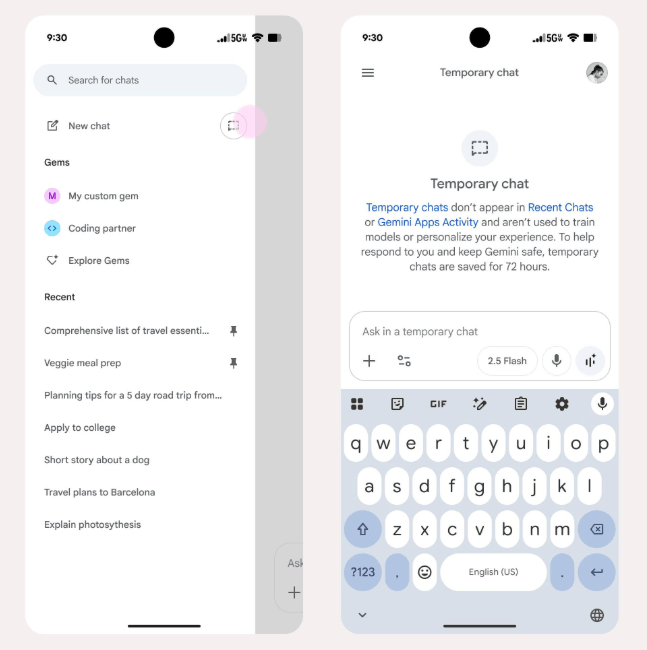
It's important to note that this feature helps minimize traces, but doesn't make the conversation absolutely secret. You should still avoid entering passwords, bank account numbers, or identification documents. Treating it like a disposable draft is the most sensible approach.
8. Transform photos into editable text.
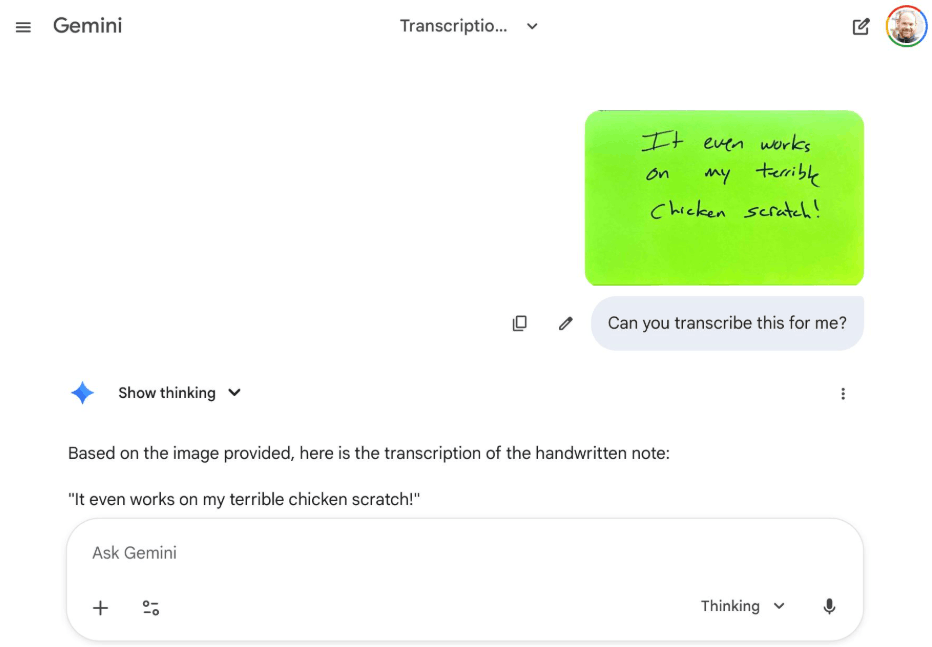
Gemini has pretty good image reading capabilities, so you can use it to transcribe text from photos of whiteboards, book pages, invoices, handwritten notes, or screenshots. Simply upload the image and ask it to convert it into text, saving you hours of manual typing.
For best results, take well-lit, straight-on photos without shadows. Then, provide specific instructions, for example: "Copy exactly all the text in the image, keeping the line breaks and headings. If there are any difficult-to-read sections, mark them as unclear instead of guessing." For invoices or tables, you can request that the results be exported as a table for easy insertion into a spreadsheet.
Even illegible handwriting can be misinterpreted, especially numbers, proper names, and technical symbols. Therefore, quickly compare it with the original image before using it, especially when the document involves important data or paperwork.
9. Use Canvas to master the editing and programming process.
When working with long texts or source code, the traditional chat window quickly becomes inconvenient, as each edit triggers a new reply. Canvas solves this problem by opening a separate workspace alongside the chat, where the content is displayed and edited directly.
With text, you can highlight a section and ask Gemini to rewrite it to be shorter, more formal, or more friendly, without affecting the rest. You can also type your own edits directly in the box, then ask Gemini to proofread or suggest improvements. Once finished, the content can be exported to Google Docs to continue working or share with others.
In programming, Canvas allows you to preview and test simple code snippets like web pages or small interfaces directly within the canvas, and then continuously adjust them through each feedback loop. This gives you control over the version you need, instead of relying on a single answer.
10. Connect the app to get answers that are relevant to your work and life.
The true power of an assistant lies in its understanding of your context. With Connected Apps, Gemini can access services like Gmail, Google Calendar, Drive, Docs, Keep, Tasks, YouTube, and Maps, if you allow it. You can turn each connection on or off in Settings, and you can call specific apps using the @ symbol directly in the input field.
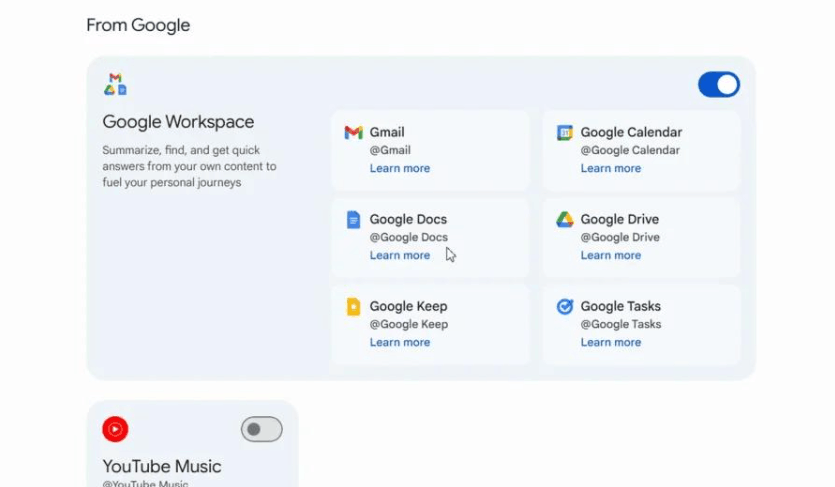
Once connected, requests that previously required multiple steps become very simple. You can ask Gemini to summarize a long email chain with a client, find a report file in Drive based on a vague description, check your calendar for available meeting time slots, or suggest a route based on locations saved in Maps. The answers are tailored to your real data, making them far more accurate and helpful than generic advice.
In return, you need to consider your privacy. Only enable connections that are truly necessary, periodically review the list of apps that have been granted permission, and avoid connecting accounts containing highly sensitive data unless absolutely necessary.
11. Conclusion
These ten tips share a common spirit: don't just ask and wait for answers, design how Gemini works for you. You can start with small steps like saving a personal guide or creating your first Gem, then gradually expand to automation and data connectivity. After just a few weeks, you'll notice this tool saves you a significant amount of time and effort each day.
If you wish, I can put this article into a Word or Markdown file for your convenience in uploading it.





















VIP Products








Best Selling Products
MidJourney Account
29 USD
Capcut Pro 1 Year
39 USD
Adobe Premiere Pro Account
99 USD
Upgrade genuine Capture One account
120 USD
Adobe Photoshop Copyright - Full App
120 USD
Freepik Premium Account
59 USD
Copyright Adobe Lightroom Account
59 USD
Genuine Cheap Canva Pro
39 USD
Windows 10 & 11 Pro Key
36 USD
ChatGPT Plus Account (GPT-4)
16 USD
Autodesk All App Account Copyright
120 USD
Upgrade Duolingo Super
29 USD
Upgrade Genuine Office 365
49 USD
Plugin Retouch4me
69 USD
Genuine Adobe Illustrator account
99 USD