Best Selling Products

Genuine Cheap Canva Pro
39 USD

Upgrade Duolingo Super
29 USD

Genuine Adobe Illustrator account
99 USD

Windows 10 & 11 Pro Key
36 USD

Plugin Retouch4me
69 USD

Copyright Adobe Lightroom Account
59 USD

Autodesk All App Account Copyright
120 USD

ChatGPT Plus Account (GPT-4)
16 USD

Capcut Pro 1 Year
39 USD

Freepik Premium Account
59 USD

Adobe Premiere Pro Account
99 USD

Adobe Photoshop Copyright - Full App
120 USD

MidJourney Account
29 USD

Upgrade genuine Capture One account
120 USD

Upgrade Genuine Office 365
49 USD
What Can CapCut AI Do? Exploring the “AI Child” Tool of CapCut
Nội dung
CapCut AI is becoming the center of attention among content creators thanks to its ability to edit videos intelligently in just a few minutes. From cutting and merging clips, adding effects, generating automatic subtitles, to suggesting content ideas, everything is handled smoothly through integrated artificial intelligence technology
1. What is Capcut AI?
Capcut AI is an intelligent upgraded version of the Capcut video editing application, developed with the goal of helping users create professional videos without spending a lot of time or needing complex skills. By applying artificial intelligence (AI), Capcut AI can automatically recognize frames, speech, sound, expressions, and context to optimize every detail in the video, resulting in smoother and more vibrant editing.
What makes Capcut AI special is its convenience and flexibility in every operation. Users can easily create videos with eye-catching effects, automatically cut and splice to the rhythm of the music, adjust lighting and color, and add subtitles with just a few taps. Whether you're a beginner or a professional content creator, Capcut AI provides a user-friendly, intelligent, and efficient experience.
This application is currently considered a powerful "assistant" for young people who love creativity, making vlogs, shooting short videos, or sharing moments on platforms like TikTok, Facebook, and Instagram. Capcut AI helps turn ideas into reality in the blink of an eye, thereby opening up opportunities for anyone to create beautiful, impressive video products with a strong personal touch.
2. Key features of Capcut AI
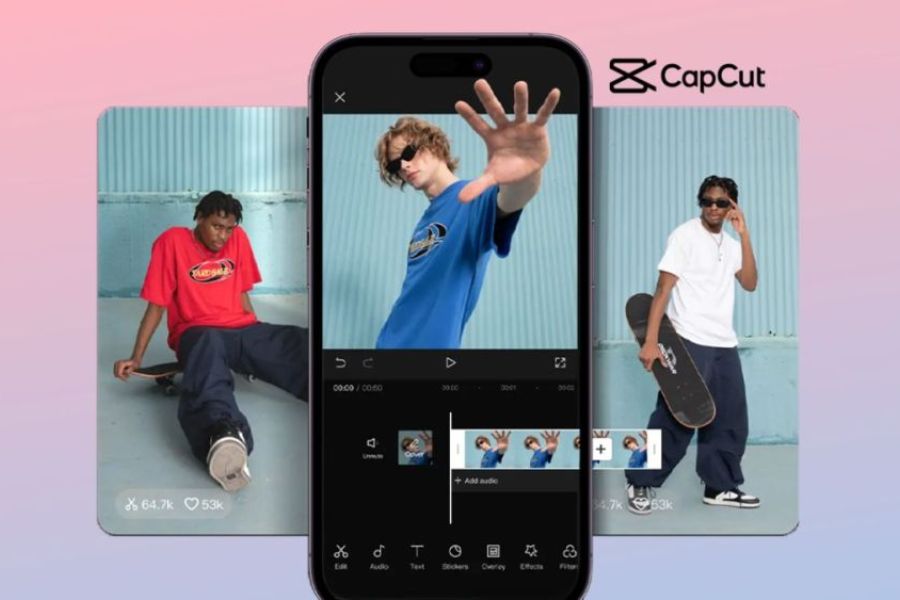
Capcut AI offers a range of intelligent features that help users create professional videos in a short amount of time while maintaining high creativity and aesthetic appeal. This is why Capcut AI has become the top choice for content creators, from beginners to professional video producers.
-
Transform photos into dynamic videos: With Capcut AI, you can easily turn still photos into a complete video in just minutes. Users simply select photos, add background music, text, and transition effects, and the application will automatically process them to create a seamless story. This feature is especially suitable for creating commemorative videos, wedding photo slideshows, or event summary clips, delivering emotion and lasting impressions to viewers.
-
Creating videos from text content (scripts): Another highlight of Capcut AI is its ability to create videos from scripts. Users simply input text content, choose a voiceover, display style, and suitable background music, and the system will automatically synthesize it into a complete video. This feature saves considerable time for creators, especially useful for those creating news content, product introductions, or knowledge-sharing videos.
-
A diverse and sophisticated effects library: Capcut AI offers hundreds of unique visual effects, making your videos more eye-catching and engaging. You can easily change the sky, add weather effects, lighting, or colors with just a simple operation. All are intelligently processed by AI, ensuring the effects blend naturally with the original content without feeling artificial.
-
Automatic background removal: One of the most popular features is the ability to quickly remove the background. Capcut AI can recognize and separate the subject from the background in just seconds, allowing you to comfortably shoot videos anywhere while still creating a professional-looking scene. This is a useful tool for creators of short content on TikTok, YouTube Shorts, or Reels.
-
Automatic video analysis and editing: Capcut AI can analyze the layout, audio, and lighting of a video to suggest optimal edits. The system will automatically suggest cutting, splicing, color correction, volume adjustment, or adding transition effects to make the video look as natural and engaging as possible. This saves users time on manual editing while still achieving professional results.
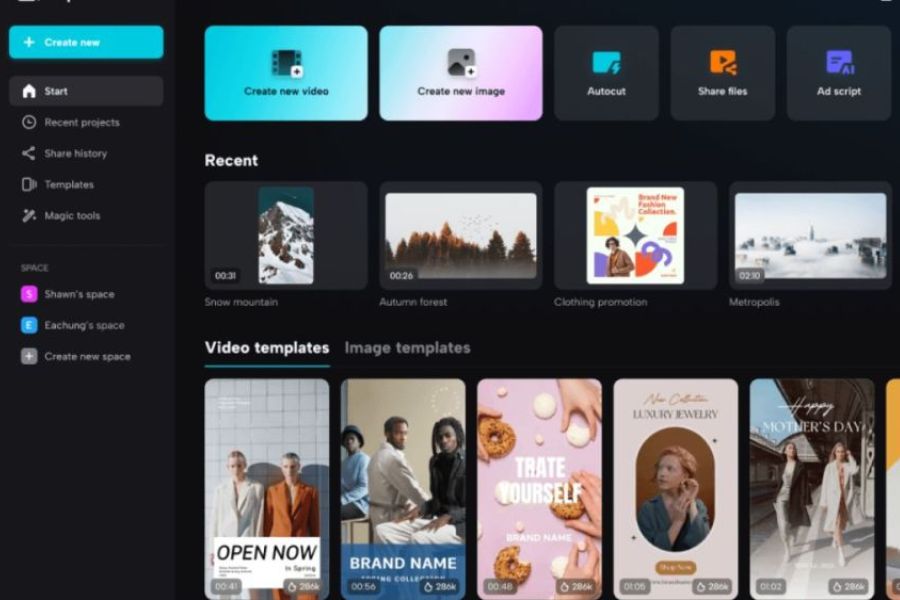
3. How to register and use Capcut AI
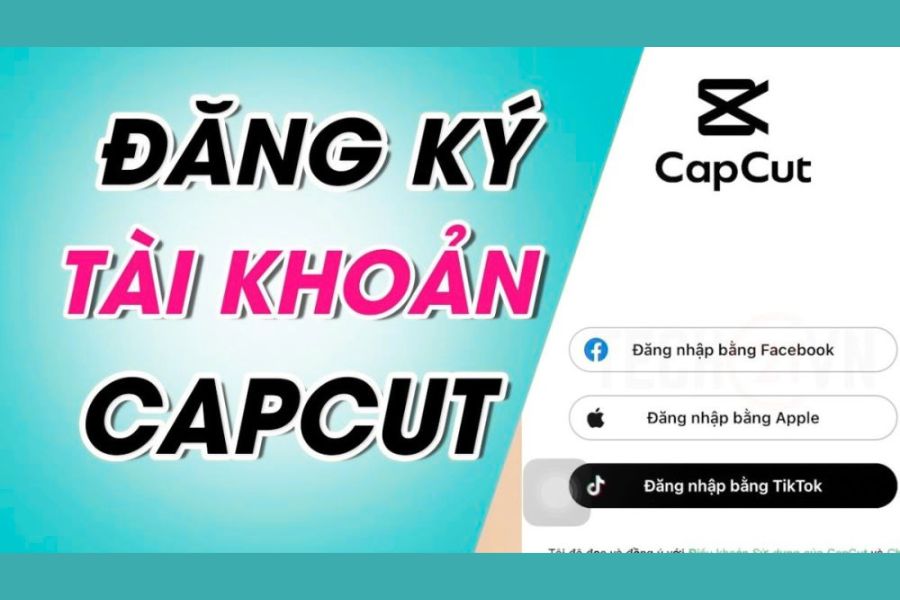
To experience the full features of Capcut AI, you don't need to create a separate account. Because Capcut AI is integrated directly into the Capcut app, users simply need to download the app and log in to their account to start creating immediately. The process is very simple and suitable for everyone, even first-time users.
-
Step 1: Download and install Capcut on your device: First, go to the App Store (for iOS) or Google Play (for Android), search for "Capcut," and download it. The app is lightweight, easy to install, and completely free. After installation, open the app to start using it.
-
Step 2: Log in to your Capcut account: You can log in using various methods such as your Google, TikTok, Facebook, or Apple ID account. Logging in helps synchronize data, save projects, and allows access to advanced AI features in Capcut.
-
Step 3: Explore Capcut's AI features: After logging in, you'll see AI tools appear in the editing interface, such as Create video from text , Convert photos to video , Remove background , or Automatic editing . Simply select the desired feature, and the application will handle the rest for you.
With three simple steps, you can use Capcut AI to create creative, professional, and inspiring videos. This is the fastest way to turn ideas into impressive products without spending a lot of time or having complex editing skills.
4. Detailed instructions for using CapCut AI
CapCut AI is a powerful tool that helps transform creative ideas into vibrant videos quickly and easily. If you're already familiar with basic CapCut, using the AI features will open up a new experience, making your videos more professional without requiring complex editing skills. Below is a detailed guide on how to create videos from images using CapCut AI.
Step 1: Create a new project and add images.
Open the CapCut app and select "New Project" to begin. Here, upload all the images you want to use in your video. Selecting enough images from the start will make the editing process smoother and more seamless.
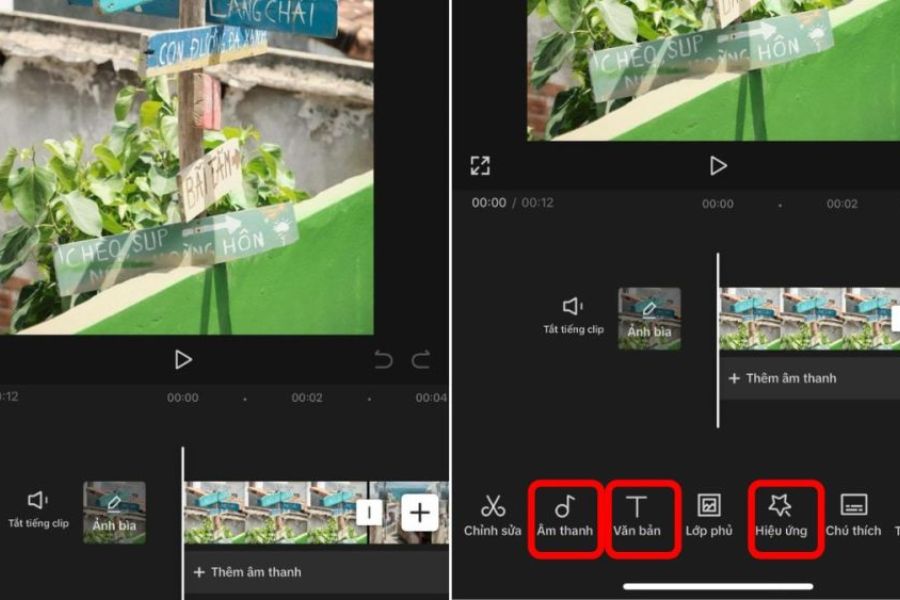
Step 2: Choose the appropriate sound.
After adding images, scroll down to the "Audio" section and choose a suitable background music from CapCut's library or upload your own music. Background music will create emotion and rhythm for the video, making it more lively.
Step 3: Add and customize text
Select the "Text" button and enter the content you want to appear in the video. You can customize the font, size, color, position, and text effects to create a unique highlight for each segment.
Step 4: Insert effects and transitions
Go to the "Effects" section to add transition effects between images. CapCut AI offers a wide range of options, from simple to complex, and allows you to adjust the speed and intensity of the effects to make the video harmonious and visually appealing.
Step 5: Edit the image directly.
Tap on each image to make detailed edits such as cropping, rotating, flipping, or adjusting brightness, contrast, and color. AI features will help optimize images, making videos look more cohesive and professional.
Step 6: Export and save the video
After completing the editing steps, click the upload button in the upper right corner of the screen to export the video. CapCut AI will process and create the final high-quality video file, ready to share on social media platforms.
5. Create videos from text with CapCut AI
CapCut AI offers a text-to-video feature, allowing users to quickly bring their ideas to life without spending a lot of time filming or setting up scenes. When writing scripts, try to use short, concise sentences to make the video lively and easy to follow. Below is a detailed guide on how to use this feature.
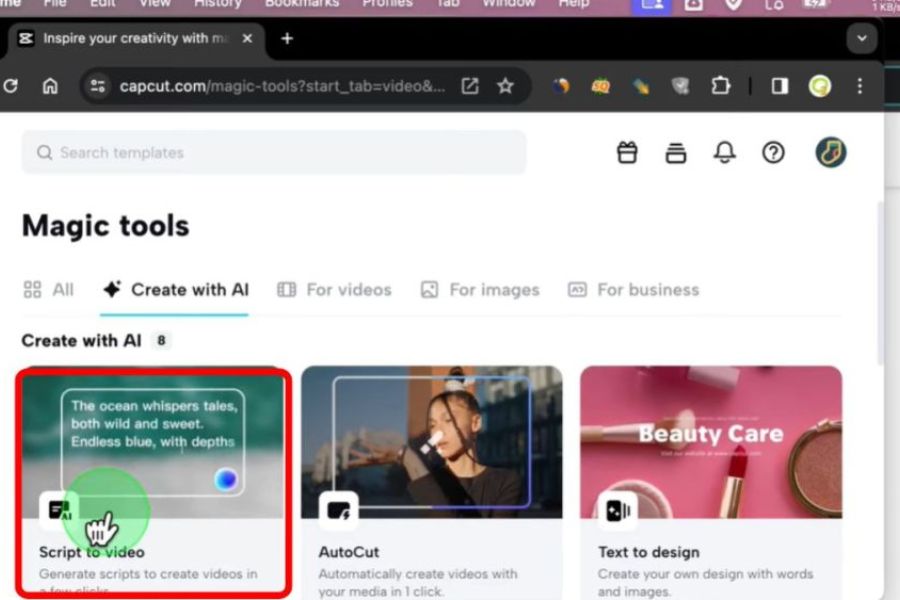
Step 1: Enable the "Script to Video" feature.
Open the CapCut app and select "Script to Video" to begin. This is a specialized feature that automatically converts text content into video.
Step 2: Import the script
Enter the content you want to turn into a video into the editor. You can break down paragraphs, notes, or summaries of key information to make it easier for the AI to process and arrange into a coherent video.
Step 3: Create a video automatically
After entering your script, click "Generate Video" in the bottom right corner of the screen. CapCut AI will analyze the content and begin creating a video based on the text you entered.
Step 4: Select the image creation mode.
You can choose "Smart Generation" to have the AI automatically create images that match the text content, or "Custom Generation" if you already have images you want to use. This feature helps make videos more dynamic and tailored to individual ideas.
Step 5: Adjust the aspect ratio
Choose an aspect ratio that is appropriate for the platform you intend to post the video on, such as TikTok, Instagram, YouTube, or Facebook. A standard aspect ratio will help your video display more beautifully and professionally.
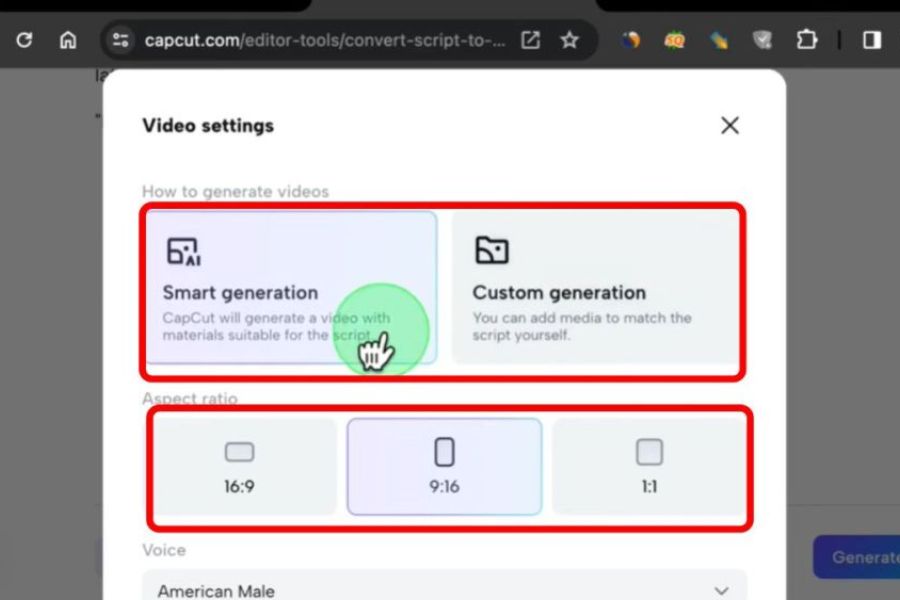
Step 6: Choose a voiceover
CapCut AI offers a variety of voiceover options to choose from. Select a voiceover that matches your video style to enhance the viewer experience and effectively convey your message.
Step 7: Create the complete video
After configuring your options, click “Create Video” to have the AI begin compiling the final video. This process is quick and precise, saving you significant time compared to shooting and editing videos manually.
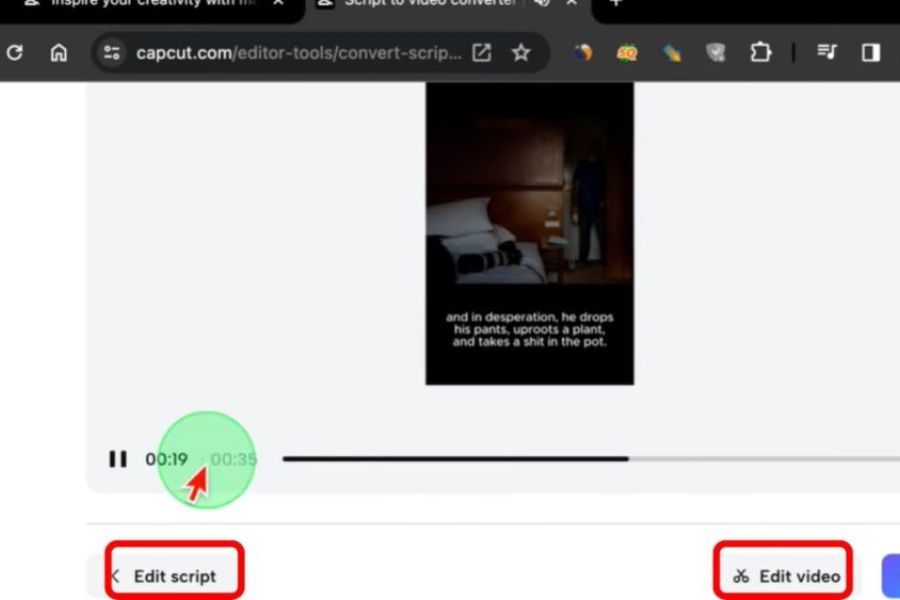
Step 8: Review and edit
After the video is created, you can review the finished product. If you're not satisfied, choose to recreate it or open the video in CapCut for detailed editing. The AI feature supports adjustments to color, effects, sound, and subtitles, helping to perfect the video.
6. Notes on using CapCut AI
CapCut AI offers a fast and convenient video creation experience, especially for young people who love creating content. However, to achieve high-quality and engaging video products, users should keep the following important points in mind:
-
Input quality determines video quality: The images, videos, or audio you use as material for CapCut AI should be high-resolution and clear. High-quality input files will help the AI process more effectively, resulting in smoother videos with sharp images and clear audio. Conversely, low-quality files will reduce the effectiveness of AI features, making the video look unprofessional.
-
Some features require a paid plan: CapCut AI offers many free tools to help you create videos quickly. However, some advanced effects, special sounds, or premium video creation modes still require a paid subscription. You should consider and try out the free features before deciding to upgrade to avoid unnecessary costs.
-
Always combine it with personal creativity: CapCut AI is a powerful assistant, but it's still just a supporting tool. Engaging and unique videos depend heavily on your ideas and how you execute them. Don't rely too much on AI features; combine your personal skills, image selection, color choices, background music, and effects to create videos with your own unique style.
7. Address for affordable Capcut AI upgrades
If you're looking for an affordable and reputable CapCut AI upgrade, SaDesign is the perfect choice. Here, you can easily get a licensed CapCut Pro account for just 159,000 VND, allowing you to fully experience premium features such as watermark-free video export, exclusive effects library, and unlimited licensed music. SaDesign offers the optimal solution for those who want to enhance their video creation capabilities without spending too much money.
SaDesign not only provides quick account creation but also boasts a dedicated support team, detailed installation instructions, and a lifetime warranty for all customers. Each account is thoroughly tested before delivery to ensure stable operation on all devices, from phones and tablets to personal computers. Furthermore, SaDesign offers a 100% money-back guarantee if customers are not satisfied, giving you complete peace of mind throughout the entire usage process. If you want to upgrade your CapCut AI to be professional, creative, and efficient, SaDesign is the reliable starting point for all content creators.
8. Conclusion
CapCut AI is becoming a popular tool in the content creation industry thanks to its ability to create videos quickly, vividly, and professionally. From converting photos to videos, creating videos from text, to adding effects, removing backgrounds, or automatic editing, everything is done easily thanks to artificial intelligence technology. Users can save time, improve product quality, and unleash their creativity in their own style. With detailed instructions from Sadesign, you should now understand how to register, use, and take advantage of CapCut AI's outstanding features. Try it out now to turn your ideas into vibrant, high-quality videos and expand your creative possibilities in the world of digital video.





















VIP Products








Best Selling Products
Genuine Cheap Canva Pro
39 USD
Upgrade Duolingo Super
29 USD
Genuine Adobe Illustrator account
99 USD
Windows 10 & 11 Pro Key
36 USD
Plugin Retouch4me
69 USD
Copyright Adobe Lightroom Account
59 USD
Autodesk All App Account Copyright
120 USD
ChatGPT Plus Account (GPT-4)
16 USD
Capcut Pro 1 Year
39 USD
Freepik Premium Account
59 USD
Adobe Premiere Pro Account
99 USD
Adobe Photoshop Copyright - Full App
120 USD
MidJourney Account
29 USD
Upgrade genuine Capture One account
120 USD
Upgrade Genuine Office 365
49 USD