Best Selling Products

Windows 10 & 11 Pro Key
36 USD

Adobe Premiere Pro Account
99 USD

Copyright Adobe Lightroom Account
59 USD

Upgrade Duolingo Super
29 USD

Autodesk All App Account Copyright
120 USD

Plugin Retouch4me
69 USD

Adobe Photoshop Copyright - Full App
120 USD

Genuine Adobe Illustrator account
99 USD

Freepik Premium Account
59 USD

Upgrade genuine Capture One account
120 USD

ChatGPT Plus Account (GPT-4)
16 USD

Upgrade Genuine Office 365
49 USD

Genuine Cheap Canva Pro
39 USD

Capcut Pro 1 Year
39 USD

MidJourney Account
29 USD
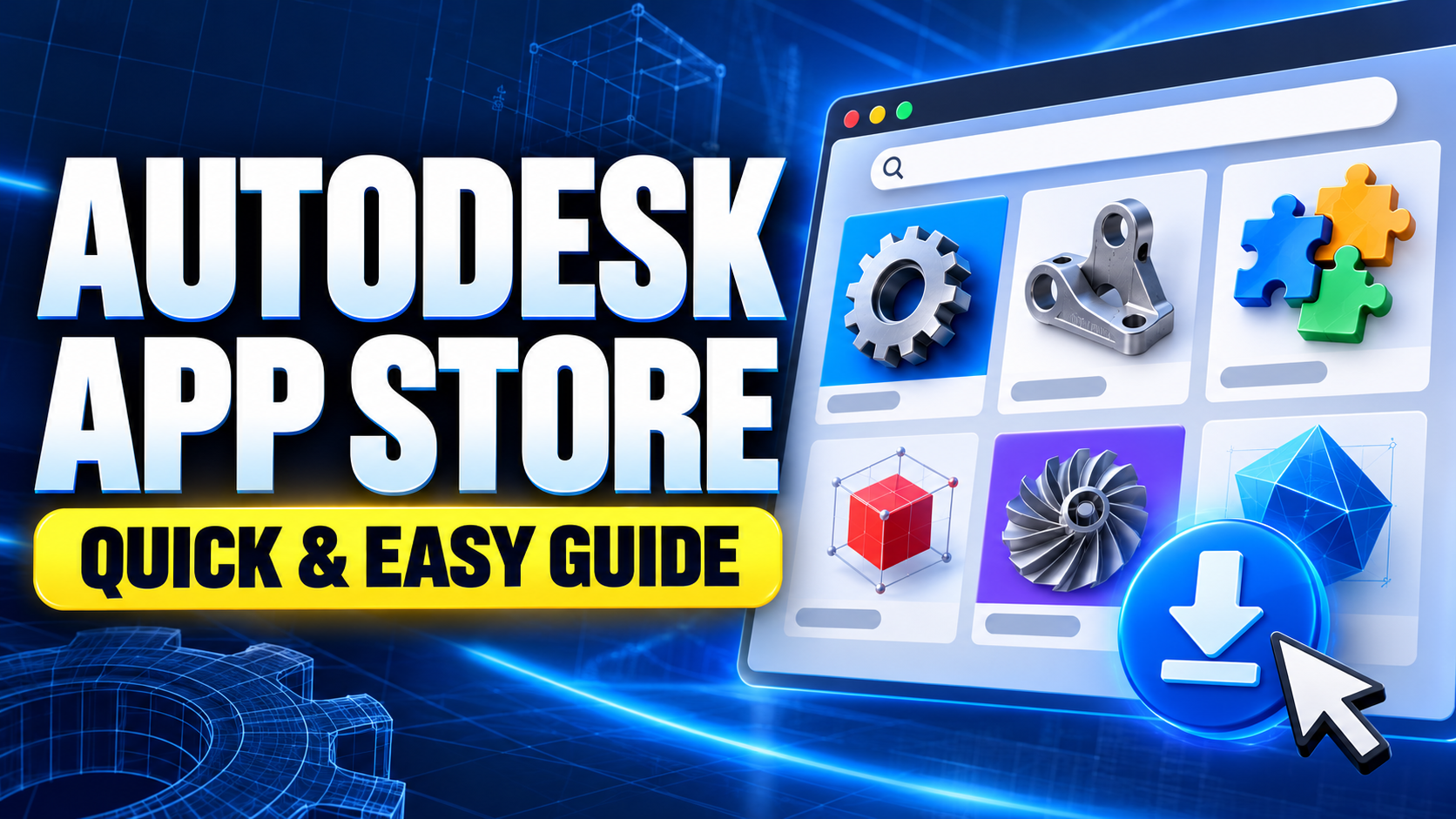
What is the Autodesk App Store? How to use the Autodesk app store quickly and easily.
Nội dung
- 1. What is the Autodesk App Store?
- 2. What is the role of the Autodesk App Store?
- 3. Popular software on the App Store: Autodesk
- 4. Advantages of using the Autodesk App Store
- 5. How to find Autodesk apps on the App Store
- 6. Quick guide to using the Autodesk App Store
- 7. Things to note when downloading Autodesk apps from the App Store
- 8. Conclusion
When working with design software, sometimes the available tools aren''t enough to handle a specific task. This is where the Autodesk App Store comes in handy. This app store brings together numerous plugins, extensions, and support tools for Autodesk products, allowing users to add functionality without completely changing their workflow.
1. What is the Autodesk App Store?
The Autodesk App Store can be simply understood as an application store for the Autodesk software ecosystem. Here, users can find many extensions, plugins, and add-ons developed to enhance the functionality of Autodesk software. Instead of searching for tools from many different sources, users can access a centralized store, select the software they are using, and then find the utility that suits their work.
-
Provides numerous plugins and extensions for Autodesk software.
-
Supports multiple products such as AutoCAD, Revit, Inventor, Fusion, and 3ds Max.
-
There are many tools available for 2D, 3D, BIM, mechanical, and construction design.
-
There are free, trial, and paid versions of the app.
-
Allows searching for applications by product.
-
You can check the version information and compatibility before installing.
-
We help users customize the software to suit their specific needs.
2. What is the role of the Autodesk App Store?
What makes the Autodesk App Store so popular is its ability to expand the functionality of existing software. A design software program might perform well for basic tasks, but for more advanced needs, users often require specialized tools. Plugins on the Autodesk app store address this by adding features tailored to specific industries and workflows.
-
Add missing features to the software.
-
It helps automate repetitive tasks.
-
Helps to shorten the time required to process drawings and models.
-
It helps users build more flexible workflows.
-
There are also more specialized tools for each field.
-
It helps personalize software to meet user needs.
-
Avoid having to switch between too many different software programs.
3. Popular software on the App Store: Autodesk
The Autodesk App Store isn't exclusive to AutoCAD; it also supports many other products within the Autodesk ecosystem. Each software program has its own set of utilities, tailored to specific work requirements. This allows users to find plugins based on the software they're using, rather than downloading unrelated tools.
-
AutoCAD: There are many plugins that support drawing design, object management, and operation automation.
-
Revit: Supports tasks related to BIM, modeling, and building data management.
-
Inventor: Suitable for mechanical design, 3D modeling, and product development.
-
Fusion: Provides additional tools for design and production.
-
Civil 3D: Supports the design of infrastructure, terrain, and engineering structures.
-
3ds Max: Offers many more tools for 3D modeling and graphics.
-
Maya: Supports the expansion of workflows in animation and 3D design.
4. Advantages of using the Autodesk App Store
Using the Autodesk App Store offers great convenience for those who frequently work with professional design software. Instead of having to install many separate programs, users can find an extension designed to work with their existing Autodesk software. This makes the workflow more seamless and allows for easy addition of tools as needs change.
-
Feature expansion: Specialized functions can be added to the software.
-
Easy to find: The app store is categorized by product and usage needs.
-
Save time: Several plugins help automate time-consuming tasks.
-
Variety of options: Users can choose between free or paid applications.
-
Flexibility: You can install only the tools you truly need instead of using an overly cumbersome software suite.
-
Suitable for many industries: From architecture, construction, and mechanical engineering to manufacturing and entertainment.
-
Easily scalable processes: As new needs arise in the work, users can find additional corresponding utilities.
5. How to find Autodesk apps on the App Store
Searching for Autodesk apps on the App Store is quite simple if you know exactly what software and tasks you need support for. Instead of typing a very general keyword, you should start with the name of the software you are using, then combine it with the function you are looking for. This way, the results will be more relevant to your needs and you won't waste time browsing through too many plugins.
-
Identify the Autodesk software you are using.
-
Identify the features you want to add.
-
Enter relevant keywords in the search box.
-
Filter results by product.
-
Check the supported software versions.
-
View the app's description.
-
Check your system requirements before installing.
After finding a suitable application, don't rush to install it. Take some time to read the description, check supported versions, operating systems, and related requirements. This is an important step to avoid plugin incompatibility issues with your Autodesk version.
6. Quick guide to using the Autodesk App Store
Step 1: Access the Autodesk App Store
First, open your computer's browser and access the Autodesk app store. The store's interface is designed to be relatively intuitive, making it easy for users to find the products or utilities they are interested in.
If this is your first time using it, you might want to take some time to familiarize yourself with the search bar and filters. Knowing beforehand whether you're using AutoCAD, Revit, Inventor, or another software will significantly speed up the search process.
Step 2: Select the Autodesk software you are using.
After opening the app store, identify the software you want to add extensions to. For example, if you're using AutoCAD, look for plugins designed specifically for AutoCAD instead of those intended for Revit or Inventor.
Choosing the right product from the start helps narrow down the results list and makes it easier to check. This also helps prevent accidentally downloading plugins that won't work with your current software.
Step 3: Search for a suitable plugin or application.
Next, enter the name of the function or task you want to perform into the search bar. For example, if you want to find a tool to help handle a specific task in AutoCAD, you can use keywords directly related to that function.
When the results appear, read the name and description of each application. Don't choose based solely on the name, as each plugin may be designed for a different version, operating system, or workflow.
Step 4: Check application information
This is a crucial step to take carefully before downloading. Check which software the application supports, which versions it supports, whether it has any special requirements, and how the developer provides installation instructions.
You should also check whether the application is free or requires payment. For paid plugins, thoroughly research the features and terms of use before deciding to purchase to avoid unnecessary costs.
Step 5: Download and install the application
After identifying the appropriate plugin, proceed to download the application following the displayed instructions. Some extensions can be installed directly, while others require downloading the installation file and performing a few additional steps.
During the installation process, close the Autodesk software if prompted. Once complete, you can reopen the software and check if the plugin has appeared in the correct location.
Step 6: Test and use the plugin
After successful installation, reopen Autodesk and look for the newly added icon, toolbar, or menu. The plugin's location may vary depending on the application and software version.
When using it for the first time, you should test the basic functions first to ensure the plugin works properly. If the tool has its own documentation, read it to learn how to use it effectively and avoid making mistakes during use.
7. Things to note when downloading Autodesk apps from the App Store
Although the Autodesk App Store makes finding plugins more convenient, users should still carefully check the information before installing. An incompatible plugin version may not work or cause problems during use. This compatibility check before installation is especially crucial for important projects.
-
Verify that you are using the correct Autodesk software name.
-
Check if the software version is supported by the plugin.
-
Check your operating system before downloading.
-
Read the description and installation requirements carefully.
-
Check if the app is free, has a trial, or is paid.
-
Avoid installing too many unnecessary plugins.
-
Back up your important data before trying a new tool.
-
If the plugin is causing problems, you should check the uninstallation instructions or contact the developer for support.
8. Conclusion
The Autodesk App Store is a useful application store for those who want to expand the capabilities of Autodesk software. From AutoCAD, Revit, Inventor to Fusion and many other products, users can find additional plugins, add-ons, and specialized tools to serve specific needs. Thanks to a relatively clear search and categorization system, finding the right application becomes simpler. If you are using Autodesk software for studying or working, you can start by identifying the function you are missing, searching for the corresponding plugin, and then carefully checking the version, operating system, and installation requirements. With just a few simple steps, the Autodesk App Store can help make familiar software more flexible and better support your daily design workflow.





















VIP Products








Best Selling Products
Windows 10 & 11 Pro Key
36 USD
Adobe Premiere Pro Account
99 USD
Copyright Adobe Lightroom Account
59 USD
Upgrade Duolingo Super
29 USD
Autodesk All App Account Copyright
120 USD
Plugin Retouch4me
69 USD
Adobe Photoshop Copyright - Full App
120 USD
Genuine Adobe Illustrator account
99 USD
Freepik Premium Account
59 USD
Upgrade genuine Capture One account
120 USD
ChatGPT Plus Account (GPT-4)
16 USD
Upgrade Genuine Office 365
49 USD
Genuine Cheap Canva Pro
39 USD
Capcut Pro 1 Year
39 USD
MidJourney Account
29 USD