Best Selling Products

Genuine Adobe Illustrator account
99 USD

Genuine Cheap Canva Pro
39 USD

Copyright Adobe Lightroom Account
59 USD

Upgrade Duolingo Super
29 USD

ChatGPT Plus Account (GPT-4)
16 USD

MidJourney Account
29 USD

Adobe Photoshop Copyright - Full App
120 USD

Upgrade genuine Capture One account
120 USD

Plugin Retouch4me
69 USD

Upgrade Genuine Office 365
49 USD

Freepik Premium Account
59 USD

Capcut Pro 1 Year
39 USD

Windows 10 & 11 Pro Key
36 USD

Adobe Premiere Pro Account
99 USD

Autodesk All App Account Copyright
120 USD
What Is the “The Selection Is Locked” Error? How to Fix It in 30 Seconds
Nội dung
- 1. What is the “The Selection Is Locked” error in Microsoft Word?
- 2. Causes of the “The Selection Is Locked” error
- 2.1 Microsoft Office is not activated
- 2.2 The Word file has Restrict Editing enabled
- 2.3 The Word file is protected with a password
- 2.4 The document is opened in Read Only mode
- 2.5 Error caused by Add-ins or Office software
- 3. Quick guide to fixing the “The Selection Is Locked” error
- 3.1 Check Microsoft Office activation status
- 3.2 Remove Restrict Editing
- 3.3 Disable Read Only mode in the Word file
- 3.4 Copy content to a new Word file
- 3.5 Check and disable conflicting Add-ins
- 3.6 Uninstall and reinstall Microsoft Word
- 3.7 Use Word Online version
- 4. How to avoid the “The Selection Is Locked” error in the future
- 5. Is the “The Selection Is Locked” error caused by a virus?
- 5.1 Is the “The Selection Is Locked” error caused by a virus?
- 5.2 Does the “The Selection Is Locked” error occur in Excel?
- 5.3 Does the “The Selection Is Locked” error affect Word file content?
- 6. Conclusion
When encountering the “The Selection Is Locked” error on Microsoft Word, many users feel confused because they cannot edit or input content as usual.

1. What is the “The Selection Is Locked” error in Microsoft Word?
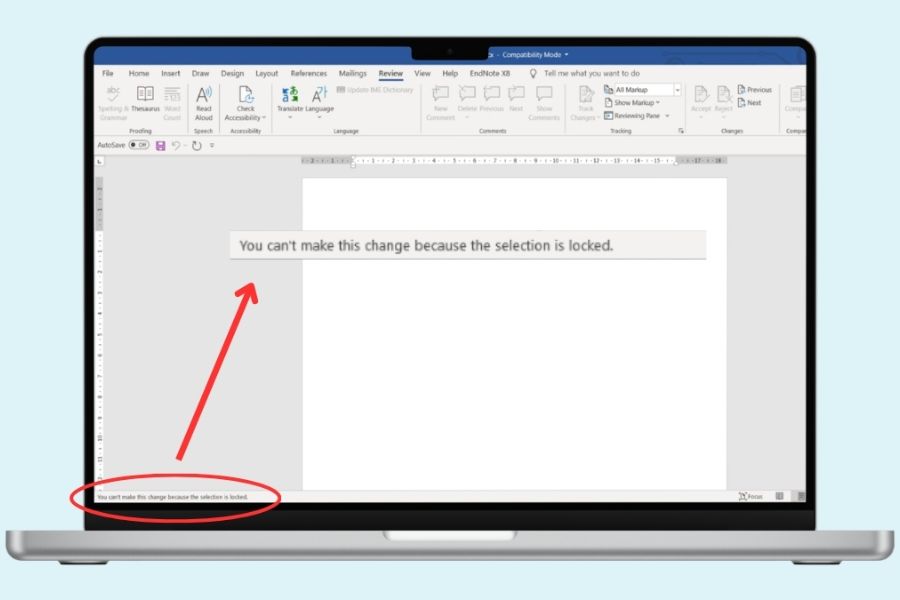
The “The Selection Is Locked” error in Microsoft Word occurs when a document has restricted editing permissions, preventing you from typing, deleting, or modifying content as usual. When this error appears, many tools on the Ribbon toolbar are disabled, and actions such as typing or formatting text no longer work, interrupting your workflow and causing confusion.
In reality, this is not a serious system error but a document protection mechanism or an issue related to software licensing. The status bar at the bottom of the screen often displays a message indicating which part of the content is locked. Once you understand the nature of the issue, you can easily identify the cause and choose the appropriate solution to quickly restore editing functionality.
2. Causes of the “The Selection Is Locked” error
2.1 Microsoft Office is not activated
One of the most common causes of the “The Selection Is Locked” error in Microsoft Office is that the software has not been activated or the trial period has expired. In this state, the system automatically switches to a restricted mode to prevent editing. You can still open and view the document, but all actions such as typing, editing, or formatting are disabled. This is Microsoft’s protection mechanism to ensure legitimate software usage, so if it is not activated, editing restrictions are almost inevitable.
2.2 The Word file has Restrict Editing enabled
The Restrict Editing feature in Microsoft Word is designed to protect document content from unwanted modifications. When enabled, users can only read, comment, or edit within allowed areas. If you attempt to modify restricted sections, the “The Selection Is Locked” message will appear. This is common in internal documents, contracts, or shared files where content control is essential to avoid errors.
2.3 The Word file is protected with a password
When a Word document is protected with a password, the system locks all or part of the editing permissions to ensure security. If you do not enter the correct password or open the file in view-only mode, all editing actions will be blocked, resulting in the “The Selection Is Locked” error. This is widely used by individuals and organizations to protect important data and prevent unauthorized changes. Therefore, you need the correct password or access rights to unlock the document.
2.4 The document is opened in Read Only mode
Read Only mode is usually activated when you open a file from email, download it from the internet, or access it from an untrusted source. In such cases, Microsoft Word automatically restricts editing permissions to protect your computer from security risks. Additionally, if the file properties in the operating system are set to Read Only, you will not be able to edit it. This is why the file opens normally but does not allow any modifications, leading users to mistakenly think it is a system error.
2.5 Error caused by Add-ins or Office software
Not all cases of the “The Selection Is Locked” error originate from document settings; sometimes, they are caused by software conflicts. Third-party Add-ins installed in Microsoft Word can interfere with editing functions, causing unexpected restrictions. Additionally, if the Office installation is corrupted, missing files, or encountering update issues, some important features may stop working. In such cases, checking Add-ins or repairing the Office installation can help resolve the problem completely.

3. Quick guide to fixing the “The Selection Is Locked” error
3.1 Check Microsoft Office activation status
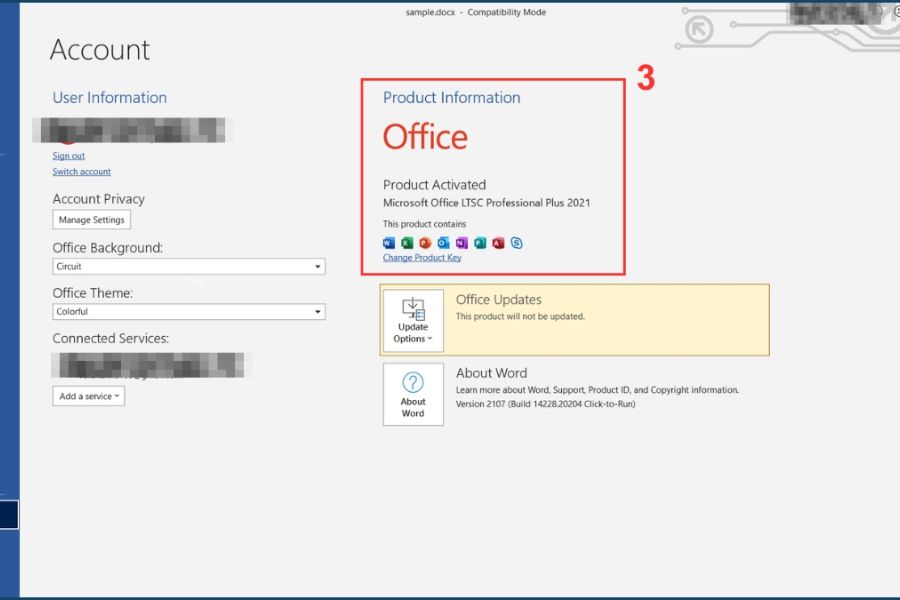
When encountering the “The Selection Is Locked” error, the first thing you should do is check the activation status of Microsoft Office. Simply open Word, go to the File tab, then select Account to view the Product Information section. If the software is not activated or the trial has expired, editing features will be locked. In this case, logging into a licensed account or entering an activation key will immediately restore full functionality.
3.2 Remove Restrict Editing
If the document has editing restrictions enabled, you can quickly disable it within Microsoft Word. Go to the Review tab, select Restrict Editing, then click Stop Protection. If the document is password-protected, you will need to enter the correct password. Once disabled, the entire document can be edited normally without limitations.
3.3 Disable Read Only mode in the Word file
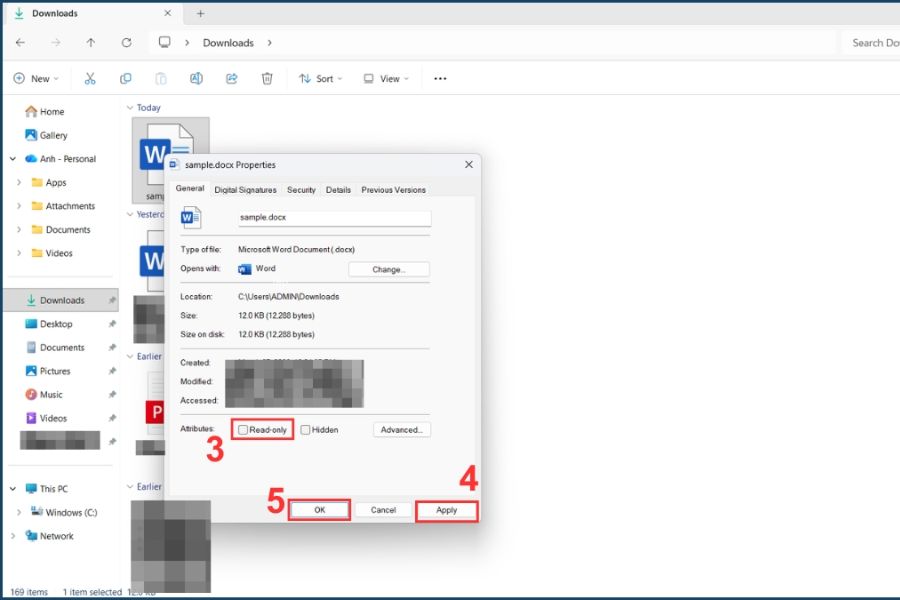
In many cases, the file is opened in Read Only mode, preventing editing. To fix this, close the file, locate it on your computer, right-click and select Properties. In the General tab, uncheck Read-only, then click Apply and OK. After reopening the file in Microsoft Word, editing permissions should be restored.
3.4 Copy content to a new Word file
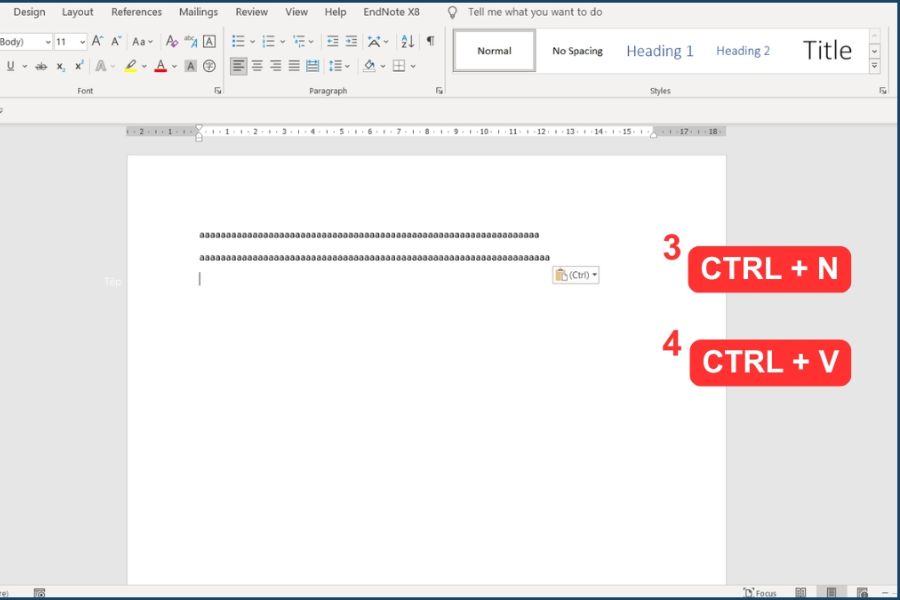
If you cannot unlock the file directly, you can bypass the issue by copying content to a new document. Open the locked file, press Ctrl + A to select all, then Ctrl + C to copy. Next, create a new file with Ctrl + N and paste using Ctrl + V. This allows you to continue editing without being affected by the original file’s restrictions, especially useful in urgent situations.
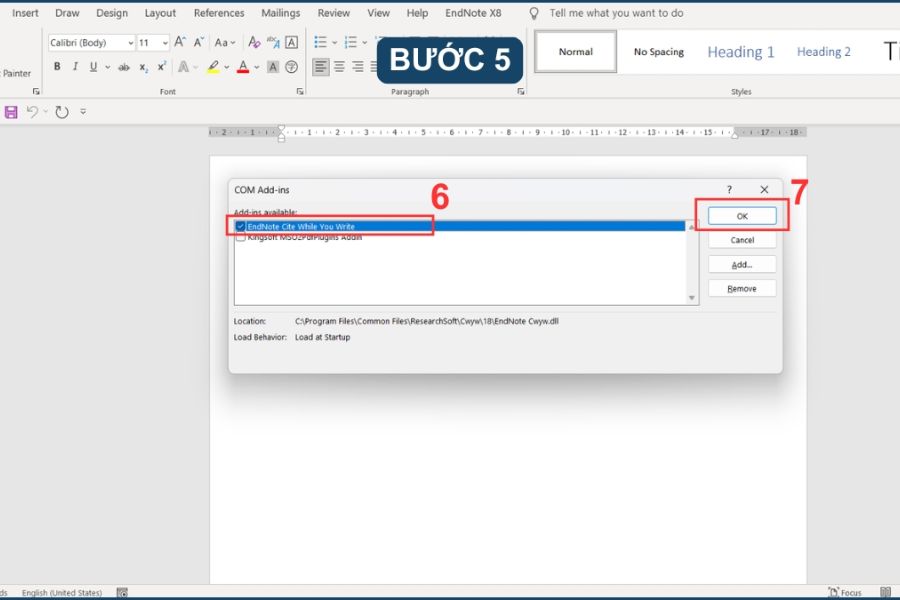
3.5 Check and disable conflicting Add-ins
Some Add-ins installed in Microsoft Word may cause conflicts and trigger editing restrictions. Go to File → Options → Add-ins to review active extensions. Click Go and uncheck suspicious Add-ins, then press OK. After disabling them, reopen the file to check if the issue has been resolved.
3.6 Uninstall and reinstall Microsoft Word
If none of the above solutions work, your Microsoft Office installation may be corrupted or missing system files. In this case, the most effective solution is to uninstall the software completely, download the latest version from the official website, and reinstall it. This process removes conflicts and restores full functionality.
3.7 Use Word Online version
If you need to edit urgently and do not have time to fix the issue, you can use Microsoft Word Online as a quick alternative. Simply upload the file to OneDrive and open it in a browser to edit normally. The online version often bypasses certain restrictions, allowing you to continue working without interruption.
4. How to avoid the “The Selection Is Locked” error in the future
To avoid encountering the “The Selection Is Locked” error again, you should develop good habits in document management and software usage. In reality, most issues do not come from the system but from how we use Microsoft Word, such as using unlicensed versions, opening files with incorrect permissions, or installing unnecessary Add-ins. Proper control of these factors will help ensure smoother and more professional workflows.
Use licensed Microsoft Office to ensure full functionality, avoid editing restrictions, and receive important security updates
Check editing permissions when opening files, especially from email or external sources, to avoid interruptions
Limit installing unknown Add-ins as they may cause conflicts or reduce performance
Use Google Docs flexibly when quick editing or collaboration is needed, or when Word encounters issues
Regularly back up data before setting passwords or enabling Restrict Editing to ensure recovery options

5. Is the “The Selection Is Locked” error caused by a virus?
5.1 Is the “The Selection Is Locked” error caused by a virus?
In most cases, the “The Selection Is Locked” error in Microsoft Word is not related to viruses but is caused by document protection mechanisms or software licensing status. It is a built-in feature that restricts editing to protect content. However, in rare cases, files infected with malware or downloaded from unsafe sources may become corrupted and show similar behavior. Therefore, if you suspect unusual issues, you should scan for viruses and verify the file source for safety.
5.2 Does the “The Selection Is Locked” error occur in Excel?
Not only Word, but the “The Selection Is Locked” error can also appear in Microsoft Excel, although less frequently. When it occurs, it is usually due to a protected worksheet or restricted data range that prevents editing. In many cases, Excel will display a message indicating that the file is locked or requires permission. This often happens in shared or secured files.
5.3 Does the “The Selection Is Locked” error affect Word file content?
The good news is that the “The Selection Is Locked” error does not delete or alter data in Microsoft Word. All information in the file remains intact; only editing permissions are restricted. This means you can still view, read, or copy content, but cannot edit it until the document is unlocked. Therefore, your data remains safe when encountering this issue.
6. Conclusion
When encountering the “The Selection Is Locked” error, the key is to identify the correct cause and apply the appropriate solution in Microsoft Word. Whether it is due to editing restrictions or licensing issues, you can resolve it easily if you understand the process. Applying the correct methods will help you unlock documents quickly and maintain stable work efficiency.





















VIP Products








Best Selling Products
Genuine Adobe Illustrator account
99 USD
Genuine Cheap Canva Pro
39 USD
Copyright Adobe Lightroom Account
59 USD
Upgrade Duolingo Super
29 USD
ChatGPT Plus Account (GPT-4)
16 USD
MidJourney Account
29 USD
Adobe Photoshop Copyright - Full App
120 USD
Upgrade genuine Capture One account
120 USD
Plugin Retouch4me
69 USD
Upgrade Genuine Office 365
49 USD
Freepik Premium Account
59 USD
Capcut Pro 1 Year
39 USD
Windows 10 & 11 Pro Key
36 USD
Adobe Premiere Pro Account
99 USD
Autodesk All App Account Copyright
120 USD