Best Selling Products

MidJourney Account
29 USD

Adobe Premiere Pro Account
99 USD

Plugin Retouch4me
69 USD

Upgrade Duolingo Super
29 USD

Autodesk All App Account Copyright
120 USD

Upgrade Genuine Office 365
49 USD

Copyright Adobe Lightroom Account
59 USD

Genuine Adobe Illustrator account
99 USD

Genuine Cheap Canva Pro
39 USD

ChatGPT Plus Account (GPT-4)
16 USD

Upgrade genuine Capture One account
120 USD

Adobe Photoshop Copyright - Full App
120 USD

Freepik Premium Account
59 USD

Windows 10 & 11 Pro Key
36 USD

Capcut Pro 1 Year
39 USD
Why Is Google Drive Full When You Barely Use It? These Are the Real Culprits!
Nội dung
Discover the hidden reasons why your Google storage fills up even when you don't save much. Learn how to identify the real space hogs and free up gigabytes of storage in just a few minutes.
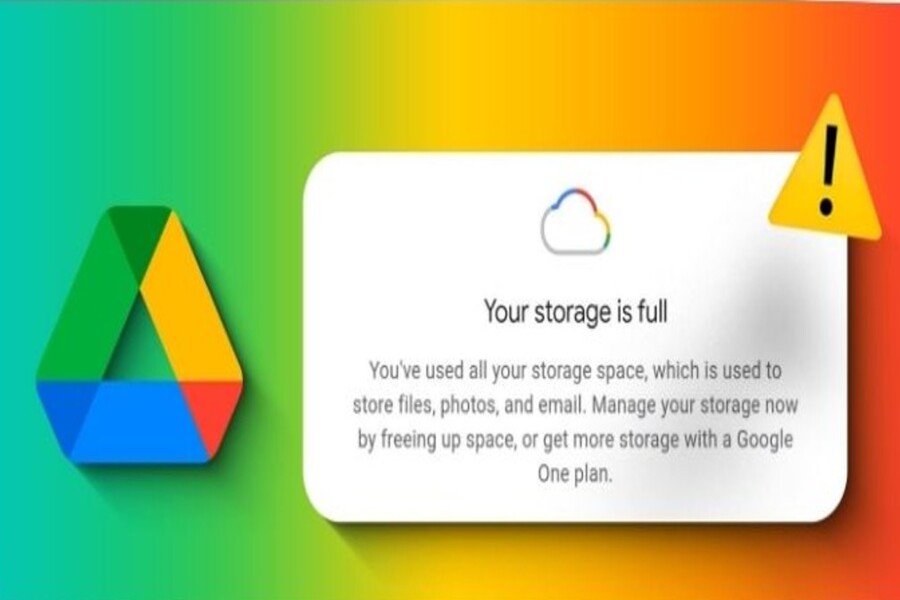
1. An Overview of Google Storage and “Digital Clutter”
Many people mistakenly believe that Google Drive has its own dedicated 15 GB of free storage. In reality, this storage space is shared across three core Google services: Gmail, Google Drive, and Google Photos.
This shared-storage system causes space to be consumed much faster than most users expect. You may not store many documents in Drive, but if Gmail contains thousands of emails with attachments or Google Photos stores high-quality videos, your storage can fill up within just a few months.
Over time, data accumulation comes not only from files you intentionally save but also from passive sources. This is what we call “digital clutter” — data that no longer serves any purpose but continues to exist. Examples include promotional emails, downloaded files you forgot to delete, test photos, failed videos, or duplicate copies.
.jpg)
The important thing to understand is that digital clutter does not create immediate problems. Instead, it builds up gradually over time. Just a few megabytes per day can eventually become several gigabytes after a few years. This is why many users only realize there is a problem when they receive a “storage almost full” warning.
Additionally, Google also counts data that has been deleted but not permanently removed, as well as files shared with you that you have added to your Drive. These factors make storage space disappear much faster and are often difficult to notice.
2. Gmail: The Forgotten Culprit
One of the biggest reasons Google storage fills up so quickly comes from an unexpected source: Gmail. Most users think of Gmail solely as a communication tool and forget that every email is also a data file that consumes storage space.
Your inbox contains not only important messages but also countless advertisements, social media notifications, service registration emails, and automated newsletters. These messages arrive daily and can quickly accumulate into thousands of emails over time.
.jpg)
In particular, the Spam and Promotions folders are often the most neglected areas. Although Google automatically removes spam after a certain period, these emails still occupy storage during that time. For long-standing accounts, the number of messages in these folders can reach tens of thousands.
It's not just the number of emails that matters; the size of each email is equally important. Emails containing attachments such as PDFs, images, videos, or compressed files can range from a few megabytes to tens of megabytes each. When added together, the total storage consumption can be substantial.
Many users also have the habit of receiving files through email but never deleting the messages after downloading the attachments. Others keep multiple copies of the same document. These practices waste storage unnecessarily.
One effective way to clean up Gmail is by using advanced search features. For example, you can search for emails with large attachments using the query larger:10M or filter messages by sender. This allows you to quickly identify the emails consuming the most storage space.
3. Large Files Taking Up Space
In many cases, just a few videos, phone backups, or large design files can consume hundreds of megabytes or even several gigabytes of storage. This is equivalent to thousands of text documents or small images combined. As a result, identifying and managing large files often delivers the fastest storage savings.
Google Drive helps users by providing a Storage section where all files are sorted by size from largest to smallest. This feature is extremely useful for quickly identifying which files occupy the most space.
Another common issue is duplicate files. During daily work, users often upload multiple versions of the same document or create copies for editing purposes. These duplicates are easily forgotten and continue occupying storage unnecessarily.
.jpg)
In addition, files shared with you but saved to your Drive also count against your storage quota. If left unmanaged, they can become another significant source of storage consumption.
One crucial detail that many users overlook is the Trash folder. When you delete a file, it remains in the Trash for a period of time and continues to occupy storage. Only when the file is permanently deleted is the storage space truly reclaimed.
Therefore, after every cleanup session, you should check and empty the Trash to ensure that the storage is actually freed.
4. Google Photos: A Massive Storage Archive That’s Easy to Forget
Thousands of photos and videos may be stored over the years, many of which no longer provide any value, such as test shots, blurry images, screenshots, or short spontaneous video recordings. Individually, these files may seem insignificant, but collectively they can consume several gigabytes of storage without you noticing.
Videos are particularly demanding when it comes to storage. Even a short high-resolution video recorded on a smartphone can take up hundreds of megabytes. If you frequently record in 4K, storage usage can increase dramatically.
Another issue is duplicate photos. During shooting, editing, or uploading from multiple devices, you may unintentionally save several versions of the same image. These duplicates can be difficult to spot without careful review, yet they consume a considerable amount of storage.
.jpg)
To clean up effectively, start by deleting large videos, followed by unnecessary images such as screenshots, failed shots, blurry photos, and duplicates. Google Photos also offers suggestions that help you quickly identify content worth removing, including blurry images or similar photos.
Another important factor is storage quality settings. If you are using Original Quality, storage space will be consumed much faster compared to Storage Saver mode. Switching storage modes can significantly reduce future storage consumption.
For iPhone users, special attention should be paid to synchronization settings. When synchronization between Google Photos and your device is enabled, deleting photos from Google Photos may also remove them from your phone. Therefore, before cleaning up, carefully review your settings or back up important data.
5. Effective Strategies for Freeing Up and Managing Storage
One of the most effective approaches is to categorize data according to usage frequency. Important files that are rarely accessed can be moved to local storage such as your computer's hard drive or an external drive. This allows you to keep your data without consuming Google Drive storage.
You can also take advantage of other cloud storage services or distribute your data across multiple platforms to reduce pressure on your primary account. However, this should be done systematically to avoid losing track of important files.
.jpg)
Google provides a storage management tool at one.google.com/storage, where you can monitor storage usage in detail. The tool not only displays usage across each service but also recommends large files, old emails, and inactive data that can be removed quickly.
Develop a habit of checking your storage regularly. Spending just a few minutes every two to three months reviewing your data can prevent storage issues before they become a problem.
Avoid storing unnecessary files, delete data immediately after it is no longer needed, and minimize creating excessive duplicates. These simple habits will help you maintain control over your storage much more effectively.
Google’s free 15 GB storage allocation is actually quite generous, but without proper management, it can quickly become filled with unnecessary data. Instead of rushing to upgrade your storage plan, you can reclaim valuable space through simple yet effective cleanup methods. Understanding how your data is stored and proactively managing it will help you save money and use Google Drive more efficiently.





















VIP Products








Best Selling Products
MidJourney Account
29 USD
Adobe Premiere Pro Account
99 USD
Plugin Retouch4me
69 USD
Upgrade Duolingo Super
29 USD
Autodesk All App Account Copyright
120 USD
Upgrade Genuine Office 365
49 USD
Copyright Adobe Lightroom Account
59 USD
Genuine Adobe Illustrator account
99 USD
Genuine Cheap Canva Pro
39 USD
ChatGPT Plus Account (GPT-4)
16 USD
Upgrade genuine Capture One account
120 USD
Adobe Photoshop Copyright - Full App
120 USD
Freepik Premium Account
59 USD
Windows 10 & 11 Pro Key
36 USD
Capcut Pro 1 Year
39 USD